
Appearance
Exercise 2: Configure a Service Deployment
In this exercise you will configure a Service deployment that will expose the Coral Cloud Agent to your customers directly. There are quite a few pieces that need to come together to expose an agent, and this is brought together using Omni-Channel in Service Cloud.
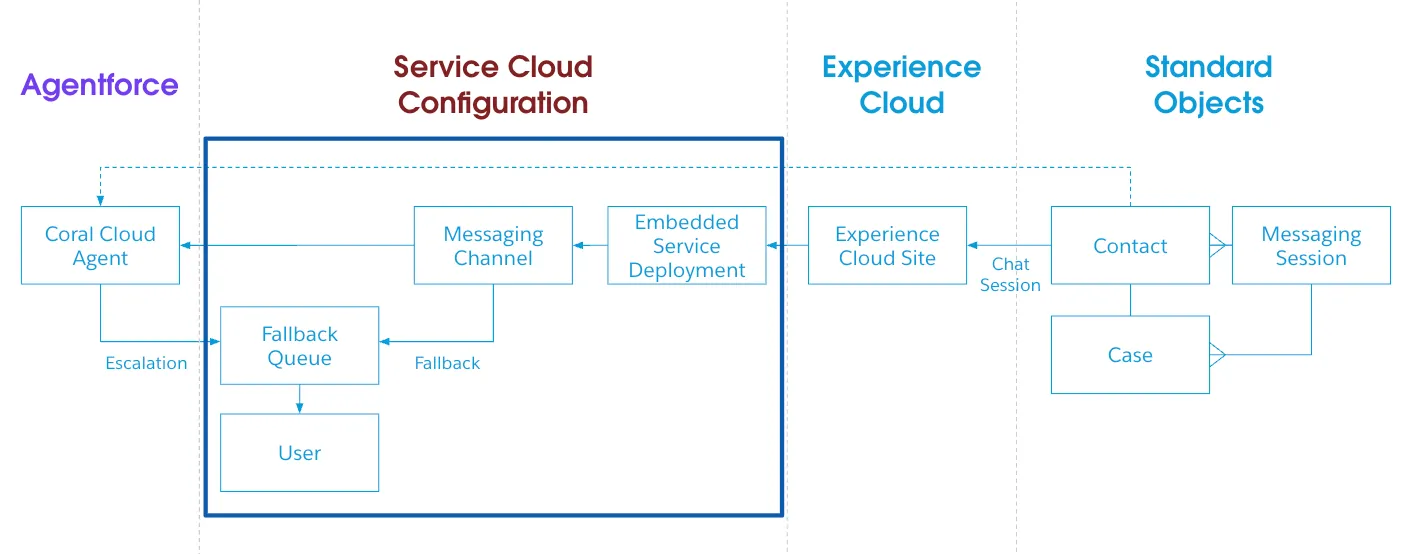
Step 1: Enable messaging and configure Omni-Channel
Messaging enables you to create channels to handle messages received from your customers. In this example, we will use messaging to enable customers to engage with the Coral Cloud Agent.
Enable messaging
In the Setup Quick Find, search for and select Messaging Settings.
Set Messaging to On.
Create a routing configuration
In the Setup Quick Find, search for and select Routing Configurations.
Click on New.
Set field values as follows:
Field Value Routing Configuration Name Agent Routing ConfigurationDeveloper Name Agent_Routing_ConfigurationOverflow Assignee Leave Blank Routing Priority 1Routing Model Most AvailablePush Time-out(seconds) Leave Blank Capacity Type Keep default: InheritedUnits of Capacity 2Percentage of Capacity Leave Blank Click on Save.
Create a queue
In the Setup Quick Find, search for and select Queues.
Click on New.
Set field values as follows:
Field Value Label Messaging QueueQueue Name Messaging_Queue Queue Email Leave Blank Send Email to Members Keep default: FalseRouting Configuration Agent_Routing_ConfigurationSelected Objects Messaging SessionSelected Members Admin UserClick on Save.
Create presence status
In the Setup Quick Find, search for and select Presence Statuses.
Click on New.
Set field values as follows:
Field Value Label AvailableDeveloper Name AvailableStatus Options Keep default: OnlineSelected Channels MessagingClick on Save.
Create a presence status permission set
In the Setup Quick Find, search for and select Permission Sets.
Click on New.
Set field values as follows:
Field Value Label Coral Cloud Service AgentAPI Name Coral_Cloud_Service_AgentDescription This permission set grants access to messaging and the Available Messaging Status.License Keep default: NoneClick on Save.
Under Apps, click on Service Presence Statuses Access.
Click on Edit.
Add Available to Enabled Service Presence Statuses.
Click on Save.
Click on Manage Assignments.
Click on Add Assignments.
Check the box next to Admin User.
Click on Save.
Click on Done.
Create a presence configuration
In the Setup Quick Find, search for and select Presence Configuration.
Click on New.
Set field values as follows:
Field Value Presence Configuration Name Messaging Presence ConfigurationDeveloper Name Messaging_Presence_ConfigurationCapacity 20Every other value should be left to the defaults.
Click on Save.
Publish the Coral Cloud site (get the domain)
You’ll use your Experience Cloud site domain when you create the messaging channel.
Search for Digital Experiences in the Setup Quick Find and select All Sites.
Click Builder next to the
Coral Cloudsite.If a popup appears, click OK.
Click Publish in the upper right corner.
Click Publish in the confirmation window.
Click Got It.
Click the Experience Builder menu.
Select View to open the published site.
Copy the URL of the published Coral Cloud site.
Create a messaging channel
In the Setup Quick Find, search for and select Messaging Settings.
Click on New Channel.
Click on Start.
Select Enhanced Chat.
Set field values as follows:
Field Value Channel Name Coral Cloud AgentDeveloper Name Coral_Cloud_AgentDeployment Type WebDomain Paste the URL you copied, then remove https://and the path. Example:https://mydomain.my.site.com/s/→mydomain.my.site.comClick on Next.
Set field values as follows:
Field Value Routing Type Agentforce Service AgentAgentforce Service Agent Coral Cloud AgentFallback Queue Messaging QueueClick on Save.
Accept the Terms and Conditions.
Click Save.
Step 2: Create an embedded service deployment
Create an Embedded Service deployment that can be used to distribute your agent.
In the Setup Quick Find, search for and select Embedded Service Deployments.
Click on New Deployment.
Select Messaging for In-App and Web.
Click on Next.
Select Web.
Configure the deployment as follows:
Field Value Embedded Service Deployment Name Agent Web DeploymentAPI Name Agent_Web_DeploymentDomain Use the same domain you used for the messaging channel Messaging Channel Coral Cloud AgentClick on Save.
Once the save has been completed, Click on Publish.
Summary
You have just created a custom service agent that can be used to interact with your customers. Next, we will use the service deployment capabilities in Service Cloud to deploy the Agent to a customer-facing Experience Cloud site.