Use a Coding Agent to Build & Deploy the Palonia Resort Demo to Your Salesforce Org
This Page
All Documentation
This demo walks you through the end-to-end steps to build a Salesforce org and create an Agentforce agent using only an AI-assistant.
This example uses skills from the Salesforce Skills Library. It was tested using Claude Opus 4.8 with a 1M token budget.
Note
Scenario in this Example
This guide walks you through building the Palonia Resort experience booking demo in an SF DX project on your local machine. Instead of using CLI commands, you’ll build the agent using prompts in an AI-assistant platform (such as Claude, Codex, Agentforce Vibes, Cursor, GitHub Copilot, or any AI coding assistant with file-editing capabilities). Then, you’ll use prompts to deploy the project to your Salesforce org. You’ll use your AI assistant to create:
custom objects,
sample data,
a permission set,
a check-in flow,
a Lightning Web Component,
a prompt template,
an Agentforce agent,
Then deploy all of it to a Salesforce org. No prior AI-assisted development experience required!
The prompts in this example are intentionally high-level. You’re describing what you want to build, not writing code. Your AI assistant handles the implementation details: file structure, metadata format, field syntax, and Salesforce best practices. If it asks a clarifying question, just answer in plain English and it will continue.
What You'll Learn
How to describe an idea to an AI coding assistant and let it build Salesforce metadata.
How to use the terminal to scaffold a local SFDX project, and connect the local project to your org.
How to build in Salesforce using your AI assistant.
What each prompt creates: objects, fields, sample data, flow, prompt template, Agentforce agent, and the interactive resort map Lightning Web Component.
Setup
Step 1: Set Up a Salesforce Developer Edition Org
To sign up, click here. If you’d prefer to use a different Salesforce org, verify that it offers comparable functionality: Einstein is enabled, Agentforce is enabled, and it’s OK for you to add cases. Note that your user permissions and other org settings can affect your ability to complete all the steps in this example.
Don’t run this demo on a production org. This demo uses skills from the Salesforce Skills Library and makes changes directly to your org.
Note
If you’re following along with the instructions and your org runs into unexpected issues, try refreshing your browser window. You can also try going back and repeating previous instructions. Or, you can ask your AI Coding agent to help.
Note
Log into the Salesforce Developer Edition org.
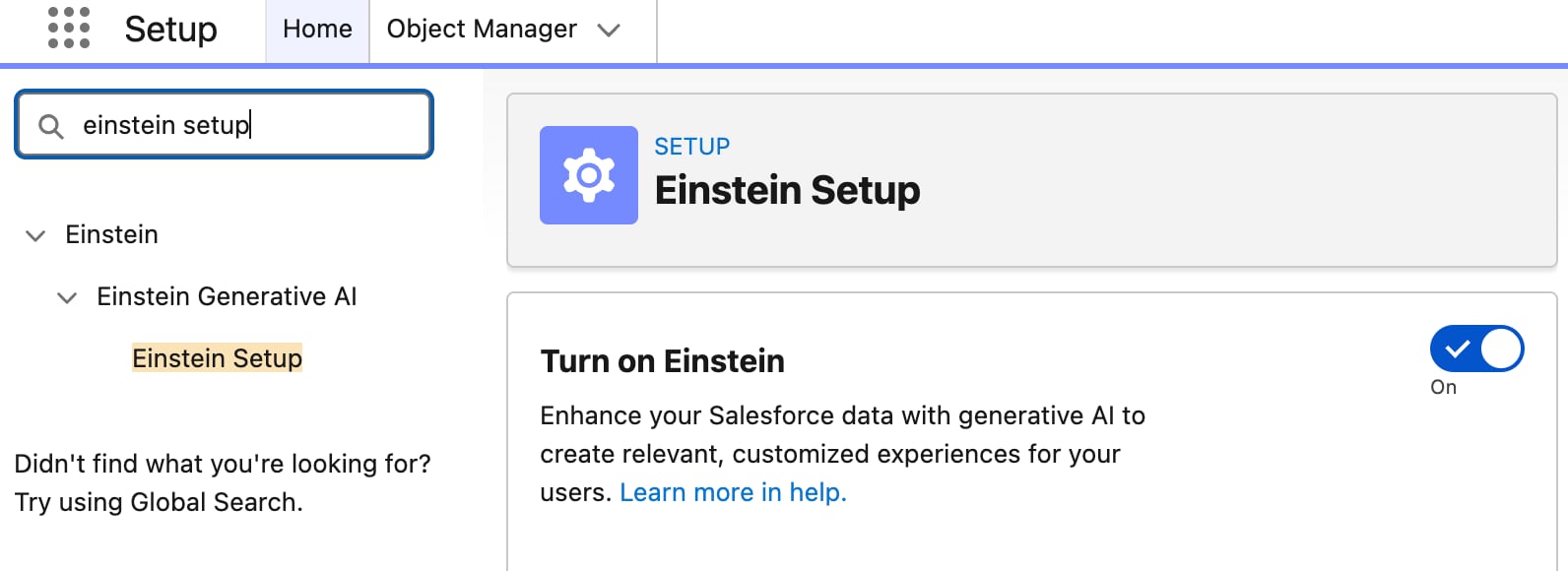
From Setup, in the Quick Find box, enter einstein setup, and then select Einstein Setup and Turn on Einstein.
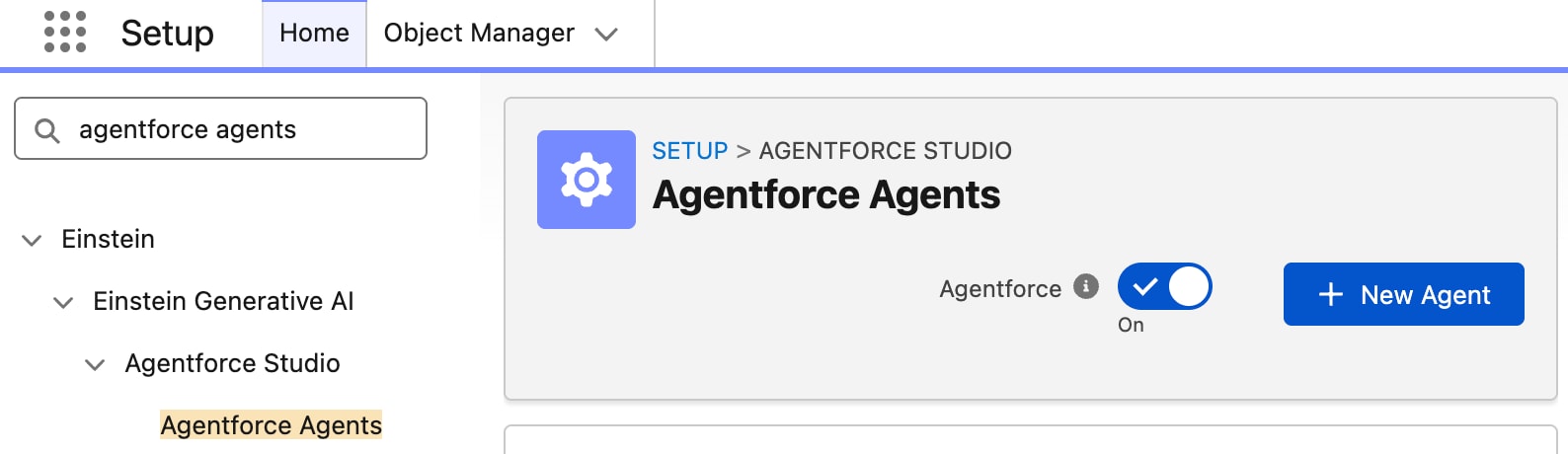
Search for Agentforce Agents and open it.
Turn on Agentforce.
Step 2: Install and Authorize Salesforce CLI
If you already have Salesforce CLI installed, skip ahead to Step 3.
Note
Install Salesforce CLI. Run the sf version command to confirm that Salesforce CLI installed. If you already have it installed, run sf update to confirm you have the latest version.
Authorize your org by using the below terminal command. Replace your-org-alias with a short, repeatable name like “my-agentforce-org”.
1sf org login web --alias your-org-alias
When the login window appears, log in to your org and click Allow.
Ensure that you have the required permissions to publish and preview an agent in your org.
In your terminal, run sf org list. If you see your org alias in the list, you’re successfully authenticated.
Step 3: Add Agent Skills and Context to your Coding Agent
If you haven’t already, make sure you have added the Salesforce agent skills for building applications to your coding agent so that they follow best practices for building on Salesforce. You can either tell your coding agent to add the skills from the Github repo linked here, or run the terminal commands yourself.
In your terminal, run this command:
1npx skills add forcedotcom/sf-skills
To give your coding agent extra context, download the Agent Script documentation and add it to your coding agent’s root project directory.
Start Building
Before we start: A note on working with your AI Assistant
Throughout this guide, you’ll use large language models (LLMs) to build your Salesforce org. Since LLMs are probabilistic, outputs can vary from run to run. If you encounter an error or unexpected result, simply describe what happened to the LLM in plain language and your AI assistant will help you diagnose and fix the issue. This conversational approach to problem-solving lets you iterate quickly and reach a working solution.
Step 1: Create a Salesforce DX project
What this step does: Creates a new SFDX project folder named palonia-resort and sets your target org so the Salesforce CLI knows where to deploy.
Run these commands one at a time directly in your terminal, not in the AI assistant.
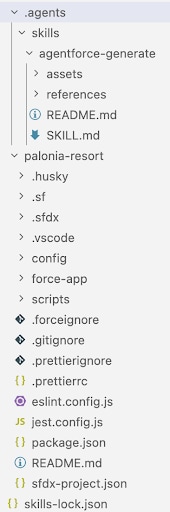
Then open the palonia-resort folder in your AI coding tool. Your directory structure looks something like this:
Step 2: Coding Agent Project Instructions
What this step does: instructs your AI coding assistant to use the Salesforce development skills you loaded earlier to follow best practices for building Salesforce metadata.
This step may be unnecessary if you already had the Agentforce skills loaded and have a robust .md file built out to guide your coding agent on Salesforce Development.
Note
If you haven’t already, install and sign in to your preferred AI coding platform. Open its Agent or Chat mode, where you’ll paste each step’s prompt. The AI will read your project files, create new metadata files, and run terminal commands on your behalf.
Prompt: copy and paste into your AI coding assistant:
1I'm building a resort experience booking app for Palonia Resort, a luxury beach resort. I am going to give you a series of commands to build all the components required. You have access to dozens of agent skills to guide you on Salesforce development best practices for all architectural decisions. Before building anything I need you to check for Salesforce and Agentforce development skills and invoke them whenever there is a relevant one. Additionally, specifically for building Agent Scripts make sure you reference any patterns, examples, and best practices in the AgentScriptDocs folders. Save this as a standing instruction for this project to ensure you follow this approach for the rest of this project.
You can also instruct your coding agent to add these instructions to your main .md file, so that it will follow the same approach on all of your projects. Wait until your coding agent says that it’s finished.
Step 3: Custom Objects and Fields
What this prompt does: Creates five custom objects for Palonia Resort.
Guest__c is the guest record with three interest picklist fields used for experience matching.
Experience__c is the activity catalog and includes Map_X__c and Map_Y__c coordinates (0–100 scale) that the resort map LWC uses to position pins.
Experience_Session__c is a scheduled time slot for an experience.
Experience_Booking__c links a guest to a session.
Reservation__c tracks the hotel stay and triggers the check-in flow. None of the objects link to standard Contact or Account.
Prompt: copy and paste into your AI coding assistant:
1First, create these five custom Salesforce objects with their fields, and create custom tabs for each. Use Salesforce DX source format under force-app/main/default/objects/. None of these objects should have lookups to standard Contact or Account. After creating the objects, deploy them to the palonia-resort org.231) Guest__c — Guest record4- Full_Name__c (Text, 255)5- Email__c (Email)6- Preferred_Name__c (Text, 255)7- Membership_Level__c (Picklist: Bronze, Silver, Gold, Platinum)8- Interest_1__c (Picklist: Snorkeling, Whale Watching, Surfing, Paddleboarding, Sunset Sail, Eco Tour, Spa & Wellness, Dining, Family Activities, Fitness)9- Interest_2__c (same picklist as Interest_1__c)10- Interest_3__c (same picklist as Interest_1__c)11122) Experience__c — A resort activity guests can book13- Type__c (Picklist: same values as Interest_1__c above)14- Description__c (Long Text Area)15- Location__c (Text, 255)16- Capacity__c (Number, whole number)17- Price__c (Currency)18- Duration_Hours__c (Number, 2 decimal places)19- Activity_Level__c (Picklist: Low, Medium, High)20- Map_X__c (Number, 2 decimal places — X position on resort map, scale 0-100)21- Map_Y__c (Number, 2 decimal places — Y position on resort map, scale 0-100, where 100 is the ocean)22233) Experience_Session__c — A scheduled slot of an experience24- Experience__c (Lookup to Experience__c)25- Date__c (Date)26- Start_Time__c (Time)27- Is_Canceled__c (Checkbox, default false)28294) Experience_Booking__c — A guest's booking for a session30- Guest__c (Master-Detail to Guest__c)31- Experience_Session__c (Master-Detail to Experience_Session__c)32- Number_of_Guests__c (Number, whole number)33- Is_Canceled__c (Checkbox, default false)34355) Reservation__c — Hotel stay record36- Guest__c (Lookup to Guest__c)37- Check_In_Date__c (Date)38- Check_Out_Date__c (Date)39- Room_Number__c (Text, 10)40- Status__c (Picklist: Booked, Checked In, Checked Out, Cancelled)41- Welcome_Email_Draft__c (Long Text Area — stores the AI-generated welcome email)
Verify your changes:
Open your Salesforce org in your browser.
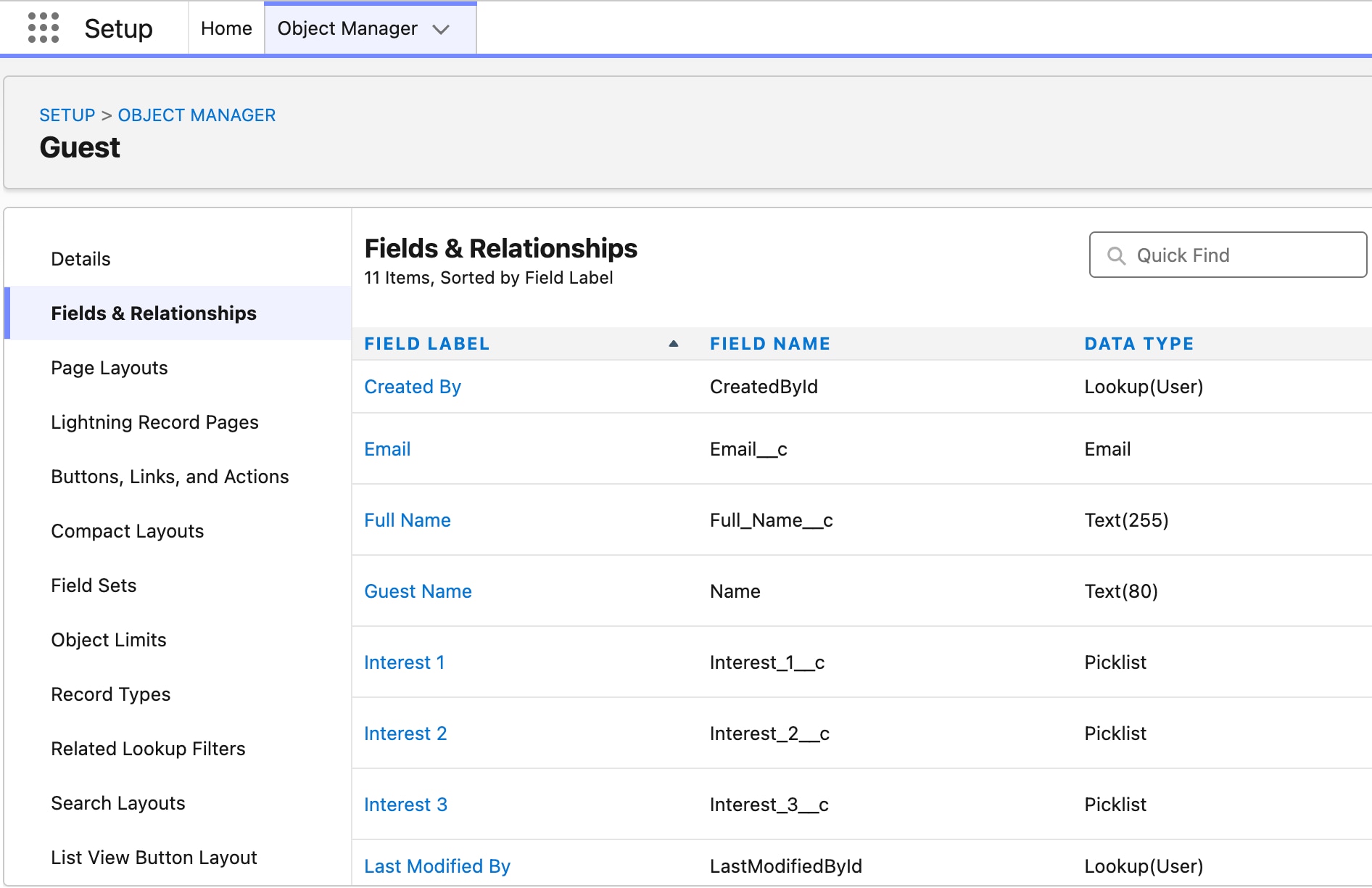
From Setup, select Object manager.
Search the object list for each of the new objects and confirm that they have the correct fields.
If you’re curious how your coding agent created these objects, you can ask it. In one of the testing instances, the coding agent didn’t use any skills - rather, it used prior knowledge of Salesforce DX source-format files and then deploying the XML to the target org
Tip
Step 4: Permission Set
What this prompt does: Creates the Palonia_Resort_Admin permission set with full CRUD, View All, and Modify All on all five custom objects, plus field-level access on every custom field.
Prompt: copy and paste into your AI coding assistant:
1Create a permission set called Palonia_Resort_Admin that gives full access (Create, Read, Edit, Delete, View All, Modify All) to all five custom objects: Guest__c, Experience__c, Experience_Session__c, Experience_Booking__c, and Reservation__c. Include read and edit field-level security on all custom fields. Grant visible access to all custom object tabs. Output as force-app/main/default/permissionsets/Palonia_Resort_Admin.permissionset-meta.xml.
Step 5: Sample Data
What this prompt does: Generates sample data for Palonia Resort. This includes five guests with varied beach interests, eight resort experiences with realistic map coordinates placing each one in the right part of the resort (ocean activities out in the water, spa at the top of the map, beach activities along the shore), sessions across the next 30 days, reservations with two guests already checked in, and a handful of bookings. This gives the flow and the resort map LWC real records to work with.
We’ll create permissions before uploading the data. If the coding agent asks whether to upload the data, reply “not yet”.
Note
Prompt: copy and paste into your AI coding assistant:
1Create realistic sample data for the Palonia Resort Salesforce app and output it as JSON tree import files under a data/ directory with a sample-data-plan.json. Load objects in dependency order: Guest__c and Experience__c first, then Experience_Session__c and Reservation__c, then Experience_Booking__c last.23Guests (5 Guest__c records with varied interests from the Interest picklist):4- Isabella Reyes (Bella) — Gold — Snorkeling, Surfing, Fitness5- James Nakamura (Jamie) — Platinum — Whale Watching, Sunset Sail, Dining6- Sofia Mensah — Silver — Paddleboarding, Eco Tour, Spa & Wellness7- Luca Ferreira — Bronze — Surfing, Fitness, Family Activities8- Amara Osei — Gold — Spa & Wellness, Dining, Snorkeling910Experiences (8 Experience__c records covering beach, ocean, and spa activities): Coral Reef Snorkeling Tour, Whale Watching Voyage, Beginner Surf Lesson, Sunrise Paddleboard Tour, Sunset Sail, Coastal Eco Walk, Ocean Breeze Spa Retreat, Beach Yoga at Sunrise. Set Map_X__c and Map_Y__c so each experience is placed logically on a resort map where Y=100 is the ocean, Y=80 is the beach, Y=60 is the coastal path, and Y=0-20 is the hotel/spa area inland. Ocean activities should be Y > 88, beach activities Y 75-88, and spa/fitness Y < 25.1112Sessions: 2 sessions per experience spread across the next 30 days.1314Reservations: one per guest. Isabella and James should have Status = "Checked In"; the other three should be "Booked".1516Bookings: a few Experience_Booking__c records linking checked-in guests to sessions.
Remember, if your coding agent tries to upload the data now, it’ll encounter permission errors. We’ll deploy all our data in step 7.
Step 6: Check-In Experience Recommendation Flow
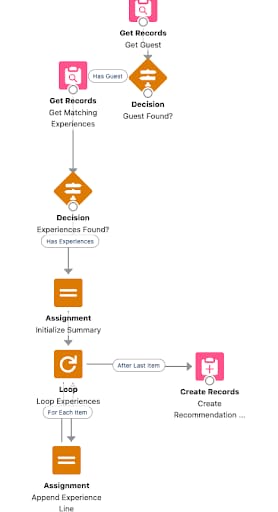
What this prompt does: Builds a record-triggered Flow on Reservation__c. When a reservation’s Status changes to “Checked In”, the flow looks up the guest’s three interest fields, finds matching Experience__c records, and creates a Task for the concierge with a summary of recommended experiences (name, price, duration, and location). If no matches are found, the flow ends without creating a Task. In Step 10 you will extend this flow to also generate a welcome email using a Prompt Template.
Prompt: copy and paste into your AI coding assistant:
1Build a record-triggered Salesforce Flow that fires whenever a Reservation__c Status changes to "Checked In". The flow should look up the related Guest__c record, find Experience__c records where Type__c matches any of the guest's three interest fields, and create a Task assigned to the current user with a friendly summary of the recommended experiences (name, price, duration, location). If no matching experiences are found, skip the Task. Name the flow Guest_Checkin_Experience_Recommendations and save it as an active Flow.
Verify your changes:
Open your Salesforce org in your browser.
From Setup, in the Quick Find box, enter flow, and then select Flows.
Find Guest_Checkin_Experience_Recommendations and confirm it’s active.
If you want to see the flow, click Open Flow.
Step 7: Deploy to Org
What this step does: Deploys all metadata to your Salesforce org, assigns the permission set to your user, and imports sample data. You can paste the prompt below into your AI assistant or run the commands yourself in the terminal.
Prompt: copy and paste into your AI coding assistant:
1Deploy the Palonia Resort project to my Salesforce org. Validate first, then deploy all metadata, assign the Palonia_Resort_Admin permission set to the current user, import the sample data from data/sample-data-plan.json, and open the org when done. Show me any errors if a step fails.
Verify your changes:
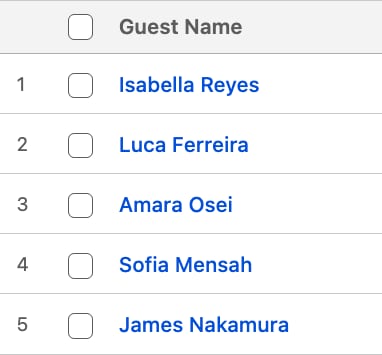
In Salesforce, open Guests, and ensure you can see the list guests:
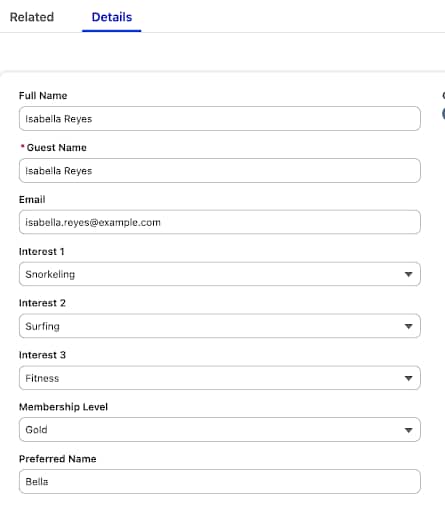
Click on a few guest’s names, and ensure you can see all the guest’s fields.
If you can’t see these fields, you need to add the custom fields to the Guest default page layout. Enter the following prompt (or a similar one) in your coding agent. Then, refresh the guest’s page in your browser.
Tip
1The default page layout for my custom objects doesn't contain all the fields. For each of these objects, add the custom fields to their default page layout, and save the layout: Experience__c, Experience_Session__c, Experience_Booking__c, Reservation__c, Guest__c
Step 8: Resort Map Lightning Web Component
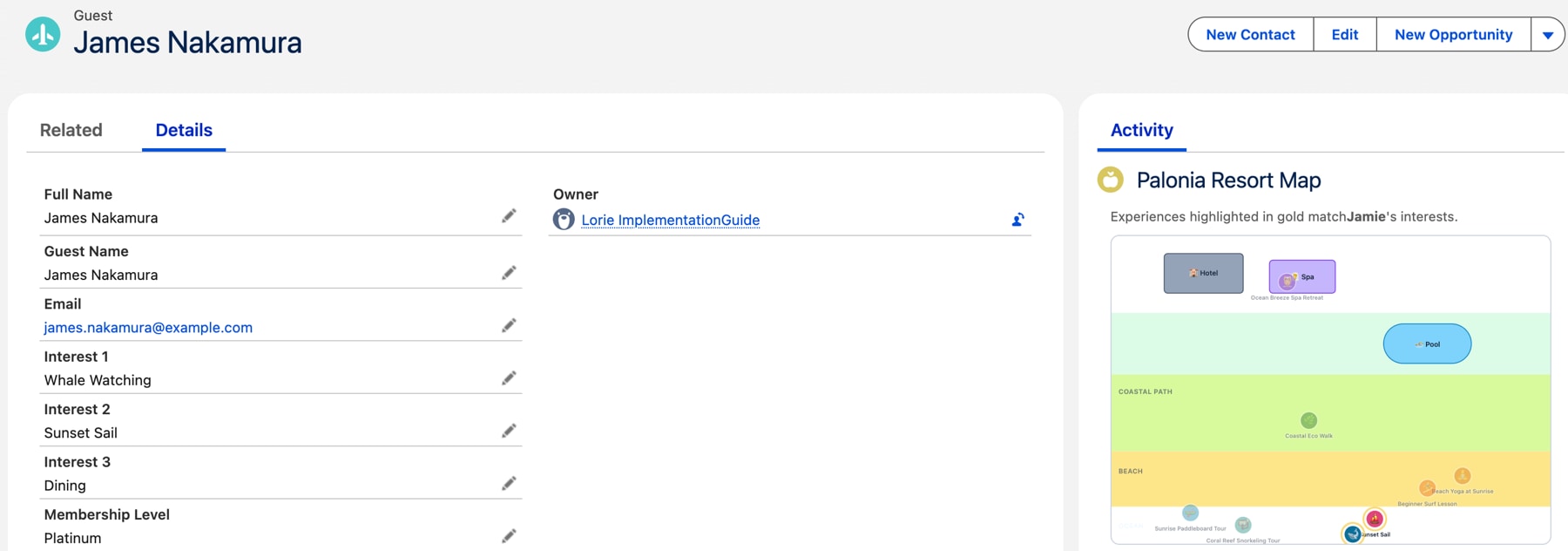
What this prompt does: Builds the paloniaResortMap LWC — an SVG-based interactive map of Palonia Resort that renders on a Guest__c record page. Each Experience__c record appears as a colored pin at its Map_X__c / Map_Y__c position on the map. Experiences that match the viewed guest’s interests are highlighted; others appear dimmed. Clicking a pin shows a detail card with price, duration, activity level, and location. An Apex controller handles all data access with WITH SECURITY_ENFORCED.
Prompt: copy and paste into your AI coding assistant:
1Build a Lightning Web Component called paloniaResortMap with an Apex controller called PaloniaResortMapController. The component should live on the Guest__c record page and show an interactive SVG map of Palonia Resort. The map should visually represent a beach resort — with the ocean at the bottom, a sandy beach above it, a coastal path, a pool area, and the hotel and spa at the top. Render each Experience__c record as a clickable pin placed at its Map_X__c / Map_Y__c coordinates (0-100 scale mapping to the SVG canvas). Use a different color and emoji icon per experience type (e.g. snorkeling gets a snorkel emoji near the ocean, spa gets a wellness emoji near the spa building). Experiences whose Type__c matches any of the viewed guest's three interest fields should be highlighted (e.g. a gold ring around the pin). Non-matching experiences should appear dimmed. Clicking any pin should open a small detail panel showing the experience name, type, price, duration, activity level, and location. Use SLDS styling, keep it clean and readable. The Apex controller should query Experience__c and Guest__c using WITH SECURITY_ENFORCED. Configure the LWC meta.xml to expose it on Guest__c record pages in Lightning App Builder.
Verify your changes:
Open a Guest__c record, then click the Setup gear and select Edit Page.
In Components, search for paloniaResortMap and drag it onto the page.
Save and Activate the page, then return to the regular Guest view.
Confirm the resort map renders with colored pins. With interests set on a guest record, verify matching experiences show highlighted pins and others are dimmed.
Step 9: Add Context .md File to Instruct Claude how to Build Prompt Templates
What this prompt does: By downloading documentation or specific instructions, we can quickly give your agent the context it needs to build these correctly instead of troubleshooting through architecture and deployment errors. This is a pattern you can follow to give your coding agent instructions in addition to loading skills.
Download this file and drag it into your conversation with your agent. Then, send the below prompt to get your agent to update your .md file with this context as well.
Prompt: copy and paste into your AI coding assistant :
This prompt is specific to Claude. Feel free to update the prompt for your coding agent.
Note
1Create a .md file called Prompt Template Best Practices with the attached content. Add a reference to my CLAUDE.md file pointing to this file and directing you to reference it anytime you need to build a prompt template.
Step 10: Welcome Email Prompt Template
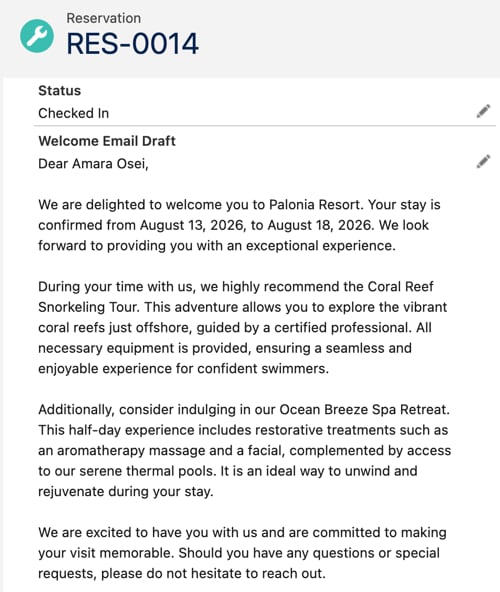
What this prompt does: Creates a Flex Prompt Template in Salesforce Einstein Prompt Builder that drafts a personalized welcome email for a guest checking in to Palonia Resort. The template pulls in the guest’s name and stay dates from their Reservation__c record, and the names and descriptions of experiences that match their interests. The generated email uses warm, enthusiastic language and is capped at 500 words. After creating the template, this step also updates the Guest_Checkin_Experience_Recommendations flow to invoke the template at the end of the flow and save the result to the Welcome_Email_Draft__c field on the Reservation__c record.
Prompt: copy and paste into your AI coding assistant:
1Do two things:231) Create a Flex Prompt Template for Salesforce Einstein Prompt Builder called "Palonia_Welcome_Email". The template should generate a personalized welcome email for a guest checking in to Palonia Resort. It should:4- Address the guest by their preferred name5- Confirm their check-in and check-out dates6- Include a short, enthusiastic description of each experience that matches their interests, drawn from the Experience__c Description__c field7- Use warm, excited language that reflects a luxury beach resort brand8- Keep the response under 500 words910Accept these as template inputs: guest name, check-in date, check-out date, and a list of relevant experiences (name + description).11122) Update the existing Guest_Checkin_Experience_Recommendations flow to invoke this prompt template as the final step, after the concierge Task is created (make sure to use the generatePromptResponse Action Type). Pass in the guest and reservation details along with the matching experiences. Store the generated email text in the Welcome_Email_Draft__c field on the Reservation__c record.1314Use Salesforce DX source format for both the prompt template metadata and the updated flow.
Verify your changes:
Prompt Template:
Open your Salesforce org in your browser.
From Setup, in the Quick Find box, enter prompt builder, and then select Prompt Builder.
Search for Palonia_Welcome_Email and confirm the template exists.
Reservation flow:
Open a Reservation__c record and change Status to Checked In.
Check if a Task is created with experience recommendations.
Check if Welcome_Email_Draft__c is populated with a generated email.
Step 11: Guest Concierge Agentforce Agent
What this step does: Creates an Agentforce Service Agent called “Guest Concierge Agent,” a conversational agent that Palonia Resort guests can chat with to discover available experiences during their stay. The agent uses two autolaunched Flows, structured similarly to the check-in flow from Step 6, to find available sessions matching the guest’s interests and to create bookings. Using flows keeps the logic visible in Flow Builder and easy to inspect or modify. The agent is available to guests with either “Booked” or “Checked In” reservation status. It also exposes the Palonia_Welcome_Email prompt template from Step 10 so guests can request a personalized welcome summary.
Prompt: copy and paste into your AI coding assistant:
1Build an Agentforce Service Agent called "Guest Concierge Agent" for Palonia Resort. This is a conversational service agent guests interact with to discover and book resort experiences during their stay.23Before writing any metadata, invoke the generating-flow skill for each flow and the developing-agentforce skill for the agent.451) An autolaunched Flow called Get_Guest_By_Email. Accept Email (String) as input. Output GuestId, GuestName, CheckInDate, CheckOutDate, and ErrorMessage (all String). Query Guest__c by Email__c to get Id and Preferred_Name__c. If found, query Reservation__c where Guest__c = GuestRecord.Id AND Status__c IN ('Checked In', 'Booked'), sorted by Check_In_Date__c descending -- omit the limit element entirely to avoid a platform minimum error. Assign dates using TEXT() on the Date fields. Return error messages in ErrorMessage if the guest or reservation is not found.672) An autolaunched Flow called Get_Guest_Available_Experiences. Accept GuestId, CheckInDate, CheckOutDate (String). Return AvailableExperiencesSummary (String). Look up the guest's three interest fields, query Experience__c where Type__c matches any interest (filterLogic OR), collect the matching Ids into a String collection via a loop, then query Experience_Session__c filtered by that collection, Is_Canceled__c = false, and Date__c within the date range using DATEVALUE() on the string inputs. For each session, do a separate recordLookup on Experience__c to get name and detail fields -- cross-object field traversal works in filters but not in queriedFields. Build the output as a formatted String; do not include Start_Time__c as Time fields cannot be coerced to String in Flow. Flow action outputs must be scalar types -- do not attempt to return an SObject collection.893) An autolaunched Flow called Create_Experience_Booking. Accept GuestId and ExperienceSessionId (String). Query the session for its date and parent Experience Id, query the Experience for its name, create Experience_Booking__c with Number_of_Guests__c = 1. Return a confirmation String including experience name and session date.10114) The Agentforce Service Agent in Salesforce DX source format as a .agent file. Query the org for the Einstein Agent User and set it as default_agent_user. Declare four mutable string variables initialised to "": guest_id, guest_name, check_in_date, check_out_date. Structure the agent with a start_agent router and an experience_concierge subagent, plus standard escalation, off_topic, and ambiguous_question guardrails.1213In experience_concierge, define identify_guest with no available when guard -- this is the bootstrap action that populates the mutable variables. Use four set directives after the with clause using the syntax set @variables.x = @outputs.FieldName (no action name prefix on the output reference). Gate get_available_experiences, create_booking, and generate_welcome_email with available when conditions that check the mutable variables -- all conditions must be on a single line; line breaks before and/or will cause a parser error. Actions: flow://Get_Guest_By_Email, flow://Get_Guest_Available_Experiences, flow://Create_Experience_Booking, generatePromptResponse://Palonia_Welcome_Email.14155) Deploy all new metadata to the org. The platform auto-generates an empty permission set for the agent user -- populate it manually. Object-level CRUD alone does not grant access to custom fields; add explicit fieldPermissions entries for every __c field the flows read or write. Do not add fieldPermissions entries for Master-Detail relationship fields -- the platform will reject the deploy. Deploy flows before the permission set and the agent bundle.
Verify your changes:
Open your Salesforce org in your browser.
From the App Launcher, in the Quick Find box, enter agentforce studio, and then select Agentforce Studio.
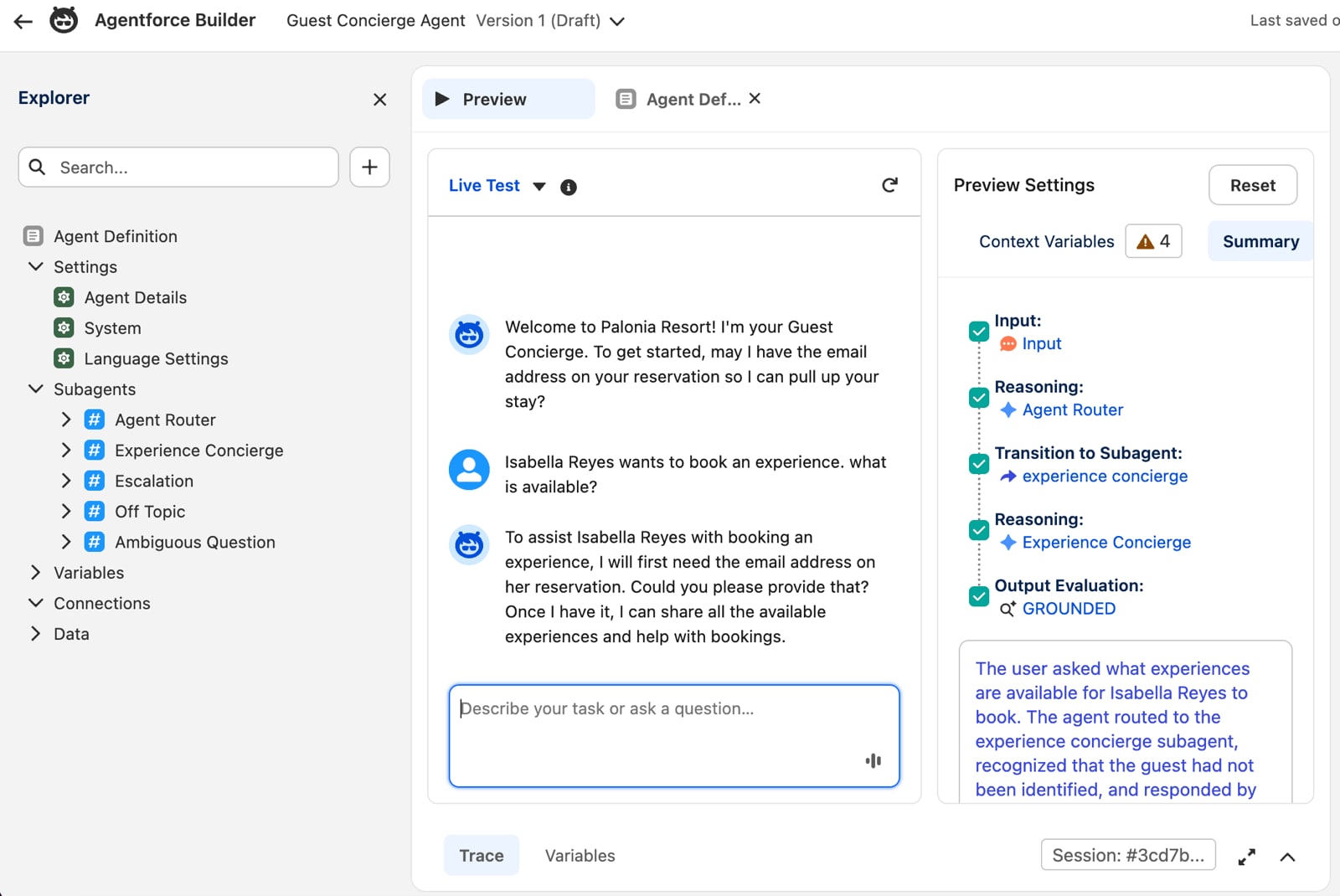
Open “Guest Concierge Agent” and start a conversation with it in the Preview panel.
Ask the agent about available experiences for a guest by name. Verify it returns sessions matching the guest’s interests and correct stay dates.
For example, using these prompts, your agent should provide similar replies:
Prompt
Reply
Isabella Reyes wants to book an experience. what is available?
To assist Isabella Reyes with booking an experience, I first need to confirm her reservation details. Could you please provide the email address on her reservation?
These experiences match Isabelle’s interests of snorkeling, surfing, and fitness:
• Beach Yoga at Sunrise on July 18 — South Beach Lawn · $30 · 1 hour Start your day grounded with a gentle vinyasa flow on the sand as the sun rises over the water. Mats provided. • Coral Reef Snorkeling Tour on July 20 — North Reef Dock · $85 · 2.5 hours Explore the vibrant coral reefs just offshore with a certified guide. Fins, mask, and snorkel provided. Suitable for confident swimmers. • Beginner Surf Lesson on July 21 — South Beach Break · $65 · 1.5 hours Catch your first wave with our patient, ISA-certified instructors. Soft-top boards and rash guards provided. No experience needed.
These experiences match Jame’s interest of Whale Watching, Sunset Sail, and Dining. The agent also addressed the client by their preferred name, “Jamie”
Jamie has two wonderful experiences available during their stay at Palonia Resort: • Whale Watching Voyage on July 22 — Head out to open water aboard our catamaran to spot humpback and pilot whales. Onboard naturalist and light refreshments included. ($120, 3 hours, departs from Main Marina) • Sunset Sail on July 23 — Unwind aboard a classic sailing yacht as the sun dips below the horizon. Sparkling wine and canapés served onboard. ($95, 2 hours, departs from Main Marina)
Conclusion
Now that you’ve learned how to describe an idea to an AI coding assistant, you’re ready to build something of your own. You already know the pattern: objects, permissions, data, a flow, a Lightning Web Component, a prompt template, and an Agentforce agent. Pick a process you care about, tell your coding assistant what you want, and go make it!
Troubleshooting
If you see an error, copy the full error text and paste it into your AI assistant: “I’m seeing this error — help me fix it: [paste error]”. Screenshots work too.
Step 1 fails — sf not found: Install Salesforce CLI and ensure sf is on your PATH. Run: sf --version
Step 7 fails — target org not set: Run sf org list to find your alias, then sf config set target-org <alias>. Re-run the deploy.
Permission set or object not found after deploy: Re-run sf project deploy start, then re-run the permission set assignment.
Data import fails — sample-data-plan.json not found: Ensure Step 4 ran and the data/folder was created. Ask your AI assistant to re-run Step 4.
AI assistant created files in the wrong folder: Open the palonia-resort folder directly in your AI tool (not a parent folder) and re-run the step.
LWC does not appear in Lightning App Builder: Confirm meta.xml targets include lightning__RecordPage with object: Guest__c. Redeploy and refresh App Builder.
Flow is not creating a Task on check-in: Confirm the flow is Active. Verify the Status value on the Reservation is exactly “Checked In” — spelling and capitalization must match the picklist value.
Welcome_Email_Draft__c is empty after check-in: Confirm the Prompt Template is activated in Prompt Builder and that the flow update from Step 07 was deployed. Check the flow debug logs for any invocation errors.
Guest Concierge Agent not appearing in Agent Builder after deploy: Confirm the .agent file is under force-app/main/default/agents/ and the deploy completed without errors. Re-run sf project deploy start and check for metadata validation failures.
Agent returns no experiences: Confirm the guest record has Interest_1__c, Interest_2__c, or Interest_3__c populated, and that Experience_Session__c records exist with dates within the guest’s reservation window. Verify the guest’s Reservation__c Status__c is “Booked” or “Checked In”. Check the Get_Guest_Available_Experiences flow in Flow Builder and use Debug to trace the session query results. Verify sample data was imported successfully in Step 02.


 j
j