Create an external client app to enable OAuth authentication and API access for Data 360 Document AI, and facilitate the integration with Salesforce.
Learn more about External Client Apps and Connected Apps.
1. Create a New External Client App
Go to Setup.
In the Quick Find search bar, find and select External Client App Manager.
Click New External Client App, and add the required information and add the required information in the New External Client App Manager as described in the following instructions.
Basic Information
Under Basic Information, enter a descriptive App Name.
Enter your Contact Email address.
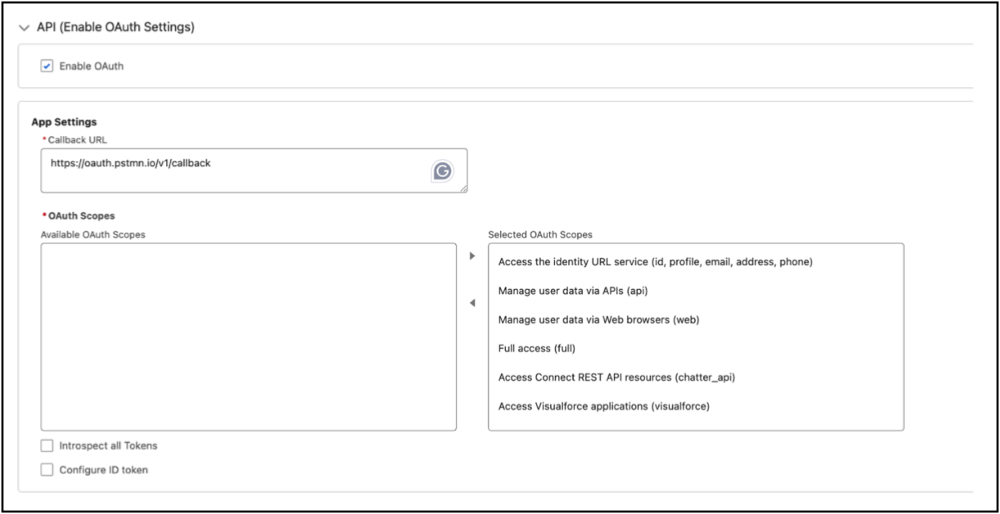
API (Enable OAuth Settings)
Under API (Enable OAuth Settings), select Enable OAuth.
In the Callback URL field, enter the following callback URL: https://oauth.pstmn.io/v1/callback.
Under Available OAuth Scopes, select all available scopes and move them to Selected OAuth Scopes.
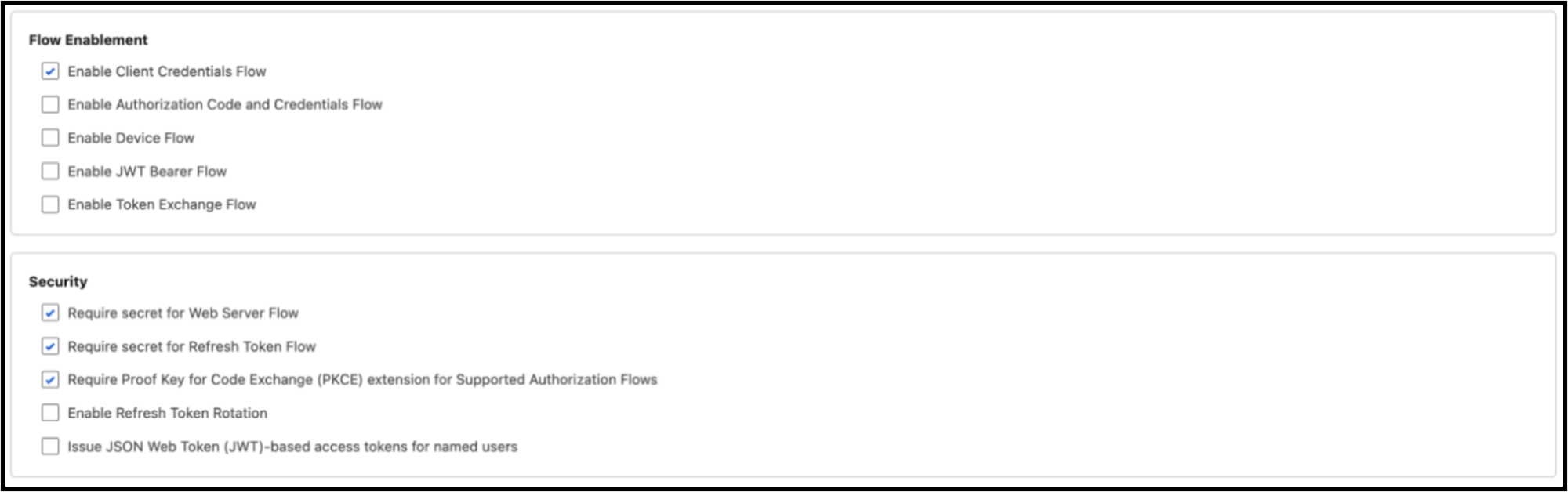
Enable Flows and Set Security
Under Flow Enablement, select Enable client credentials flow. When the confirmation appears, click OK.
Under Security, ensure these default settings are selected:
Require secret for Web Server Flow.
Require secret for Refresh Token Flow.
Require Proof Key for Code Exchange (PKCE) extension for Supported Authorization Flows.
To create the external client app, click Create.
2. Configure OAuth and Admin Policies for Your App
Your new app opens, or you can access it by going to Setup and then selecting External Client App Manager in the Quick Find search bar. Under the Policies tab, click Edit and apply the following configurations.
OAuth Policies
Under OAuth Policies, from the Permitted Users dropdown, select Admin approved users are pre-authorized, and click OK when the confirmation popup appears.
App Policies
The App Policies section opens. Under Select Profiles, add System Administrator to the Selected Profiles list.
Admin Policies
Scroll down to OAuth Flows and External Client App Enhancements, and select Enable Client Credentials Flow.
In the Run As (Username) field, enter the System Administrator’s email address, as explained below.
Click Save to apply all changes.
How to Enter the Admin Email Address:
Open Setup in a new tab.
In the Quick Find search bar, find and select Users.
Identify the admin user and copy their email address.
Paste this email in the Run As field on the previous Manage External Client Apps tab.
3. Retrieve the Consumer Key and Secret for Your App
Open your newly created app (under External Client App Manager on the Quick Find menu).
Under OAuth Settings, click on the Consumer Key and Secret button.
You may be prompted to provide a verification code via your registered email. Check your email for the code and enter it when prompted.
Save the Consumer Key and Consumer Secret securely for later steps in the implementation.


 j
j