A Flow Builder element represents an action that a flow can execute. Create an element to retrieve the Contact ID from the user’s email address, allowing the agent to surface relevant information.
1. Create the Element
On the flow you created in Step 2 - Create Flow to Retrieve File ID , click the + button, search and select the Get Records element.
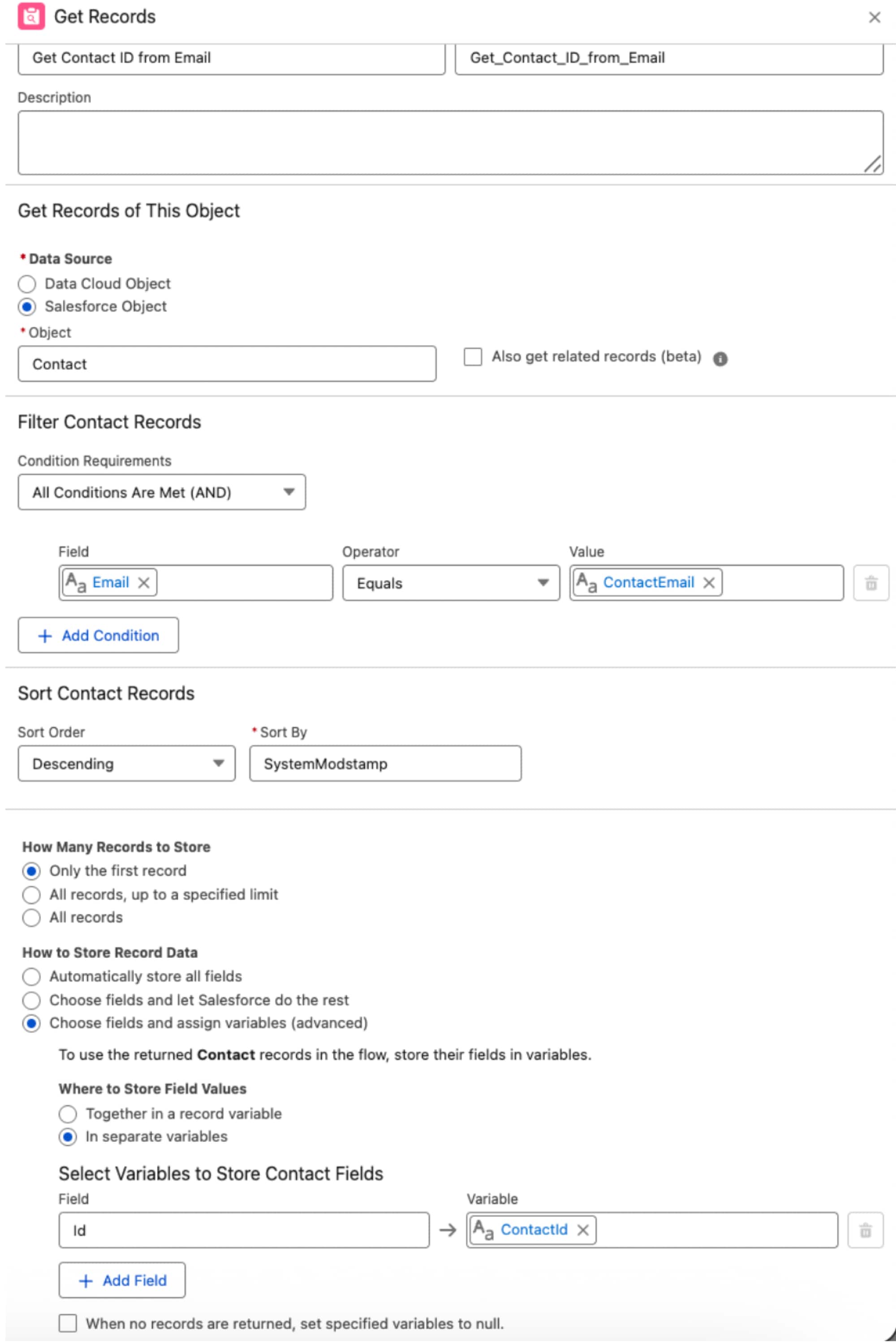
Configure the Get Records element:
Under Filter Contact Records , enter the condition values:
Field : EmailOperator : EqualsValue : +New Resource:
Resource Type : VariableAPI Name : contact_emailData Type : TextUnder Availability Outside the Flow , check the Available for input and Available for output checkboxes.
Click Done .
Under Sort Contact Records :
Sort Order : DescendingSort By : SystemModstamp
Under How to Store Record Data :
Select Choose fields and assign variables (advanced) .
Under Where to Store Field Values , select In separate variables .
Under Select Variables to Store Contact Fields :
Field : IDVariable : New Resource
Resource Type : VariableAPI Name : contact_IDData Type : TextUnder Availability Outside the Flow , check the Available for input and Available for output checkboxes.
Click Done .
2. Save Flow Configuration
Click Save on the top right and enter values in the flow saving modal fields.
The flow saving modal opens. For Flow Label enter Document ID from Email.
Click Show Advanced to open advanced settings.
Under How to Run the Flow , select System Context Without Sharing–Access All Data .
Click Save .
3. Add a Fault Path
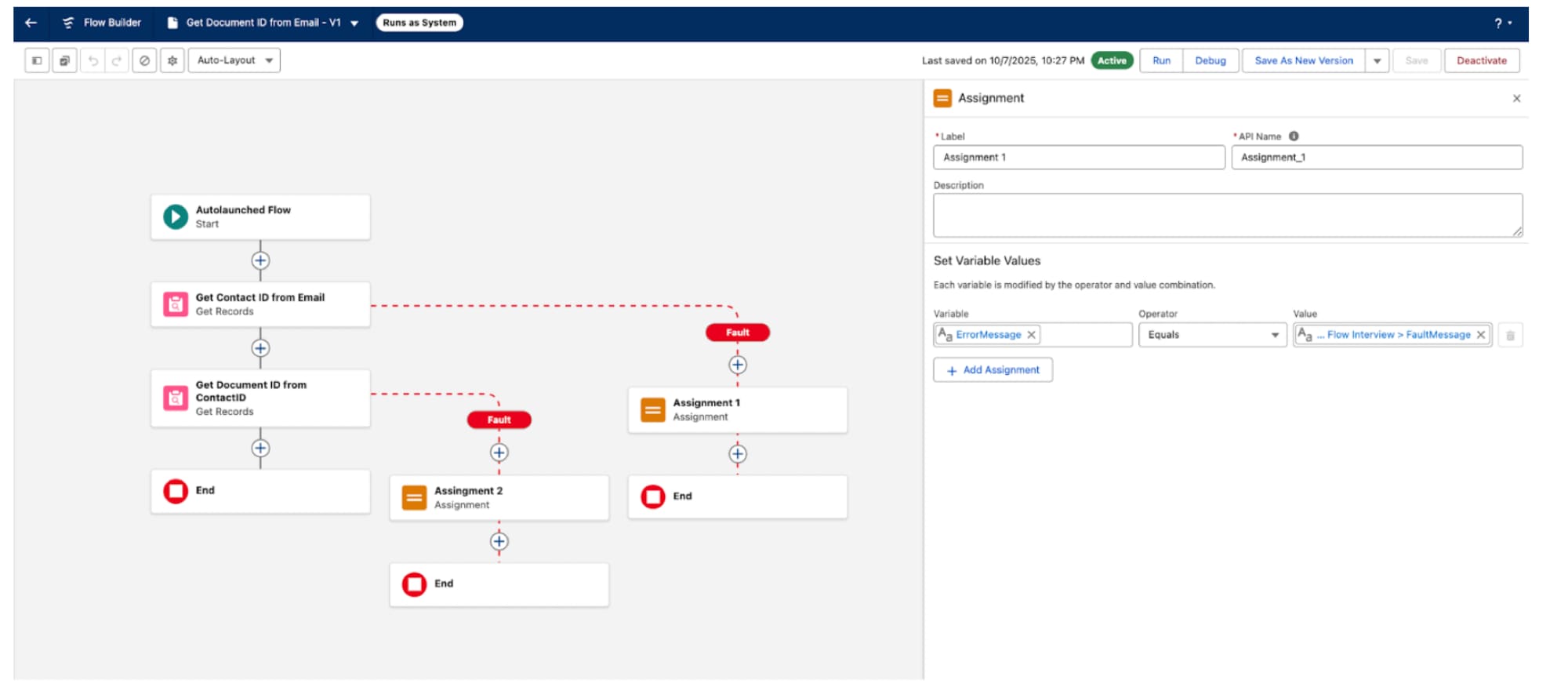
On the Get Contact ID from Email tile, click the 3-dot menu and select Add Fault Path .
After the Fault path, click the + to add an Assignment element.
Enter as Label : error_message (Text).
Under Set Variable Values :
Variable : Select New Resource and enter the details.
Resource Type : VariableAPI Name : error_messageData Type : TextClick Done .
Operator : Select Equals.Value : Select Global Variables > Running Flow Interview > FaultMessage ($Flow.FaultMessage).
Next Step


 j
j