To add Chat to your Android app, create a configuration object that points to your org and then create a Chat UI client.
Before You Begin
The legacy chat product is scheduled for retirement on February 14, 2026, and is in maintenance mode until then. During this phase, you can continue to use chat, but we no longer recommend that you implement new chat channels. To avoid service interruptions to your customers, migrate to Messaging for In-App and Web before that date. Messaging offers many of the chat features that you love plus asynchronous conversations that can be picked back up at any time. Learn about chat retirement in Help.
To set up Chat with the default UI, create a configuration object that points to your org and then start a chat session. If you prefer to build your own user interface, see Build Your Own UI with the Chat Core API.
Specify your Chat org settings.
In Java:
1public static final String ORG_ID = "YOUR_ORG_ID";2public static final String DEPLOYMENT_ID = "YOUR_DEPLOYMENT_ID";3public static final String BUTTON_ID = "YOUR_BUTTON_ID";4public static final String LIVE_AGENT_POD = "YOUR_LAC_ORG_URL";5 // e.g. "d.la.salesforce.com"
You can use the ChatConfiguration.Builder class to configure other behaviors, such as how to handle the pre-chat view (see Show Pre-Chat Fields to User) and how to specify the name of the visitor speaking with the agent (use the visitorName method).
1// Create a UI configuration instance from a core config object2// and start session!3ChatUI.configure(ChatUIConfiguration.create(chatConfiguration))4 .createClient(getApplicationContext())5 .onResult(new Async.ResultHandler<ChatUIClient>(){6 @Override public void handleResult(Async<?>operation,7 ChatUIClient chatUIClient){8 chatUIClient.startChatSession(MainActivity.this);9}10});
In Kotlin:
1// Create a UI configuration instance from a core config object2// and start session!3ChatUI.configure(ChatUIConfiguration.create(chatConfiguration))4 .createClient(applicationContext)5 .onResult{ _,6 chatUIClient -> chatUIClient.startChatSession(this@MainActivity)7}
Don’t create more than 1 instance of ChatUIClient. The system returns an Async error if there is already an active instance. The SDK only supports 1 session at a time per device. Wait until the chat session ends before attempting to start a new session.
Note
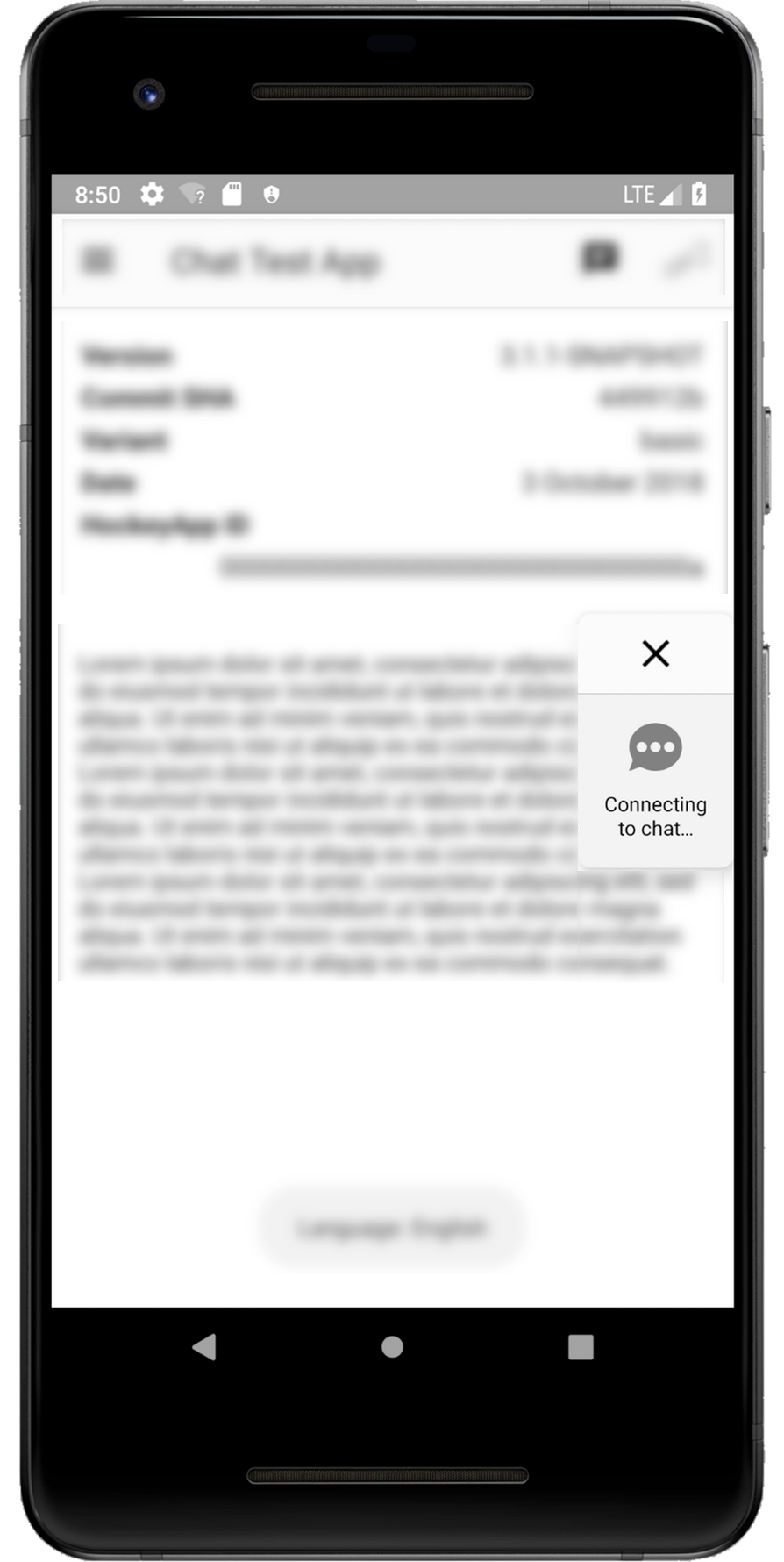
When calling startChatSession, pass the context for the Activity that you want to show the chat UI on top of. The chat session starts minimized and the user can tap the thumbnail to go full screen. If you want the session to start in full-screen mode, call defaultToMinimized(false) on the builder. When the minimized view is visible, it displays the number of unread messages. This value represents the total number of bot, agent, and system messages that are unread.
By default, the user’s queue position is shown while the user waits for an agent. You can change this information from a position number to an estimated wait time using the queueStyle build method and specifying QueueStyle.EstimatedWaitTime. When using the estimated wait time, you can set the minimum (minimumWaitTime) and maximum (maximumWaitTime) wait time values. If the wait time exceeds the maximum value, a generic message appears, which you can customize (using the customizable chat strings). To understand the algorithm used for the estimated wait time, see the estimated wait time documentation in the Chat REST API Developer Guide. To hide queue information entirely, use a queue style of None.
Sample alternate configuration in Java:
1ChatUIConfiguration uiConfig = new ChatUIConfiguration.Builder()2 .chatConfiguration(chatConfiguration)3 .queueStyle(QueueStyle.EstimatedWaitTime)// Use estimated wait time4 .defaultToMinimized(false)// Start in full-screen mode5 .build();
Sample alternate configuration in Kotlin:
1val uiConfig = ChatUIConfiguration.Builder()2 .chatConfiguration(chatConfiguration)3 .queueStyle(QueueStyle.EstimatedWaitTime)// Use estimated wait time4 .defaultToMinimized(false)// Start in full-screen mode5 .build()
(Optional) Customize the interface.
You can customize the colors, strings, and other aspects of the interface. You can also localize the strings into other languages.
(Optional) Add listeners for state changes or events.
You can add listeners for state changes and events during a chat session and respond accordingly. For instance, when the client ends a session, you can display a dialog to the user. See Listen for State Changes and Events.
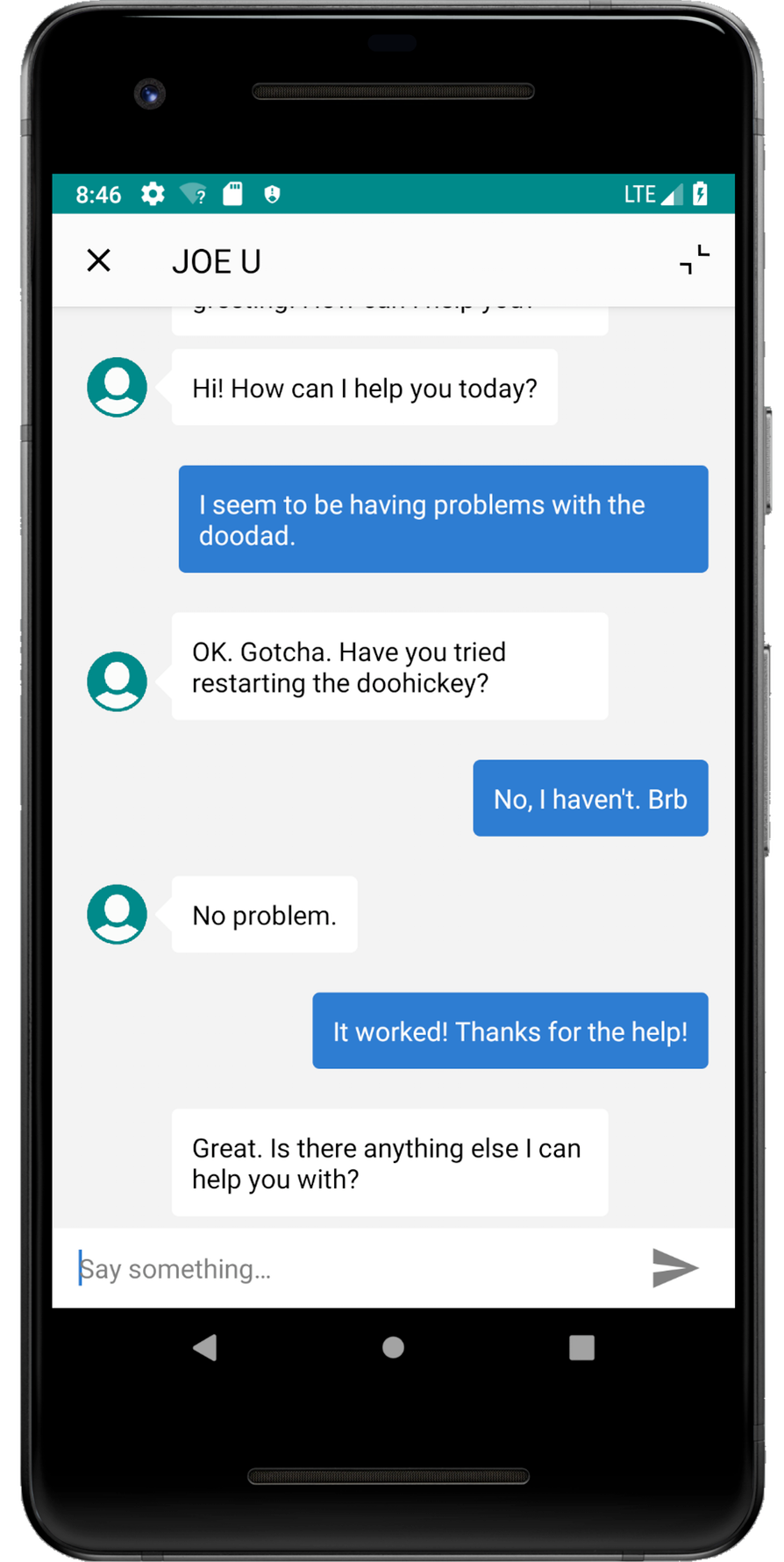
The user can tap the session to make it full screen and begin a conversation with an agent.
When the app is in the background, the SDK ensures that the session remains open. A timeout should only occur when there is a connection issue, the agent closes the session, or the app is removed from memory.


 j
j