Transfer File to Agent
Give users the ability to transfer files during a chat so they can share information about their issues.
The legacy chat product is scheduled for retirement on February 14, 2026, and is in maintenance mode until then. During this phase, you can continue to use chat, but we no longer recommend that you implement new chat channels. To avoid service interruptions to your customers, migrate to Messaging for In-App and Web before that date. Messaging offers many of the chat features that you love plus asynchronous conversations that can be picked back up at any time. Learn about chat retirement in Help.
The agent can request that the user transfer a file by clicking the Attach File button from the Service Cloud Console.
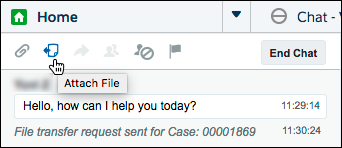
See Transfer Files During a Chat in Salesforce Help for details about setting up this functionality in the Service Cloud Console.
With the default UI, the user sees a FILE TRANSFER REQUESTED message in the app and can then send a file using the camera button.
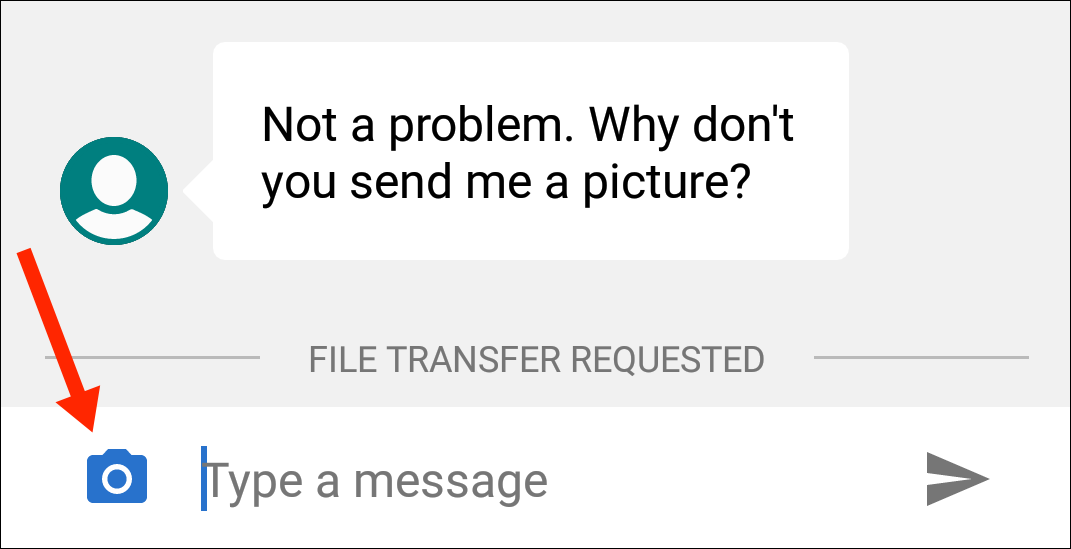
If you’re using the default UI, no coding is necessary in your app to get this behavior.
However, if you’re using the Core API, you must present your own file transfer UI based on file transfer events. Create a FileTransferRequestListener and pass it to the ChatClient using the addFileTransferRequestListener method. This listener gives you access to two events.
- onFileTransferRequest
The SDK calls this method when an agent requests a file transfer. You're given a FileTransferAssistant object, which lets you upload a file with the uploadFile method.
- onFileTransferStatusChanged
The SDK calls this method when the status of a file transfer has changed. You're given a FileTransferStatus enumerated type that describes the status of the file transfer.
You can use the following code sample as a starting point for your listener implementation.
In Java:
1class MyFileTransferRequestListener implements FileTransferRequestListener {
2
3  private byte[] uploadFile = new byte[]; // TO DO: File to upload
4  private String fileType = "image/png";  // TO DO: File type
5
6  @Override
7  public void onFileTransferRequest (FileTransferAssistant fileTransferAssistant) {
8
9    // TO DO: Prompt user and read the file from storage
10
11    fileTransferAssistant.uploadFile(uploadFile, fileType);
12  }
13
14  @Override
15  public void onFileTransferStatusChanged (FileTransferStatus status) {
16
17    switch (status) {
18      case Completed:
19        // TO DO: File transfer completed
20        break;
21      case Canceled:
22        // TO DO: File transfer canceled
23        break;
24      case Failed:
25        // TO DO: File transfer failed
26        break;
27      case LocalError:
28        // TO DO: Local error with transfer
29        break;
30      case Requested:
31        // TO DO: File transfer requested
32        // NOTE: You'll also get a call to
33        // onFileTransferRequest during this state,
34        // where you can handle the request and
35        // then upload a file...
36        break;
37    }
38  }
39}
In Kotlin:
1class MyFileTransferRequestListener : FileTransferRequestListener {
2
3  var uploadFile = ByteArray(32768)   // TO DO: File to upload
4  var fileType: String = "image/png"  // TO DO: File type
5
6  override fun onFileTransferRequest(fileTransferAssistant: FileTransferAssistant?) {
7
8    // TO DO: Prompt user and read the file from storage
9
10    fileTransferAssistant?.uploadFile(uploadFile, fileType)
11  }
12
13  override fun onFileTransferStatusChanged(status: FileTransferStatus?) {
14
15    when (status) {
16      FileTransferStatus.Completed -> {
17        // TO DO: File transfer completed
18      }
19      FileTransferStatus.Canceled -> {
20        // TO DO: File transfer canceled
21      }
22      FileTransferStatus.Failed -> {
23        // TO DO: File transfer failed
24      }
25      FileTransferStatus.LocalError -> {
26        // TO DO: Local error with transfer
27      }
28      FileTransferStatus.Requested -> {
29        // TO DO: File transfer requested
30        // NOTE: You'll also get a call to
31        // onFileTransferRequest during this state,
32        // where you can handle the request and
33        // then upload a file...
34      }
35    }
36  }
37}


 j
j