


Salesforce Voice with Telephony Providers Implementation Guide
 j
jImprove Contact Lens Transcription Accuracy with a Custom Vocabulary
Add one or more custom vocabularies to transcribe domain specific
terminology correctly. Use it to fix the capitalization and spelling of domain-specific lingo
and to mask text. To mask text, enter the term in the custom vocabulary file and display the
term as ***.
| Ease of Implementation | Medium |
| Estimated Time to Implement | 30 minutes |
In this example, we show you how to add a custom vocabulary with Contact Lens.
Prerequisites
To run through this example, create your custom vocabulary file first. To learn how to create a file, review the text and links on the screen when asked to upload the file.
Step 1: Open Amazon Connect
To quickly access Amazon Connect, click Telephony Provider Settings
in the Amazon contact center page.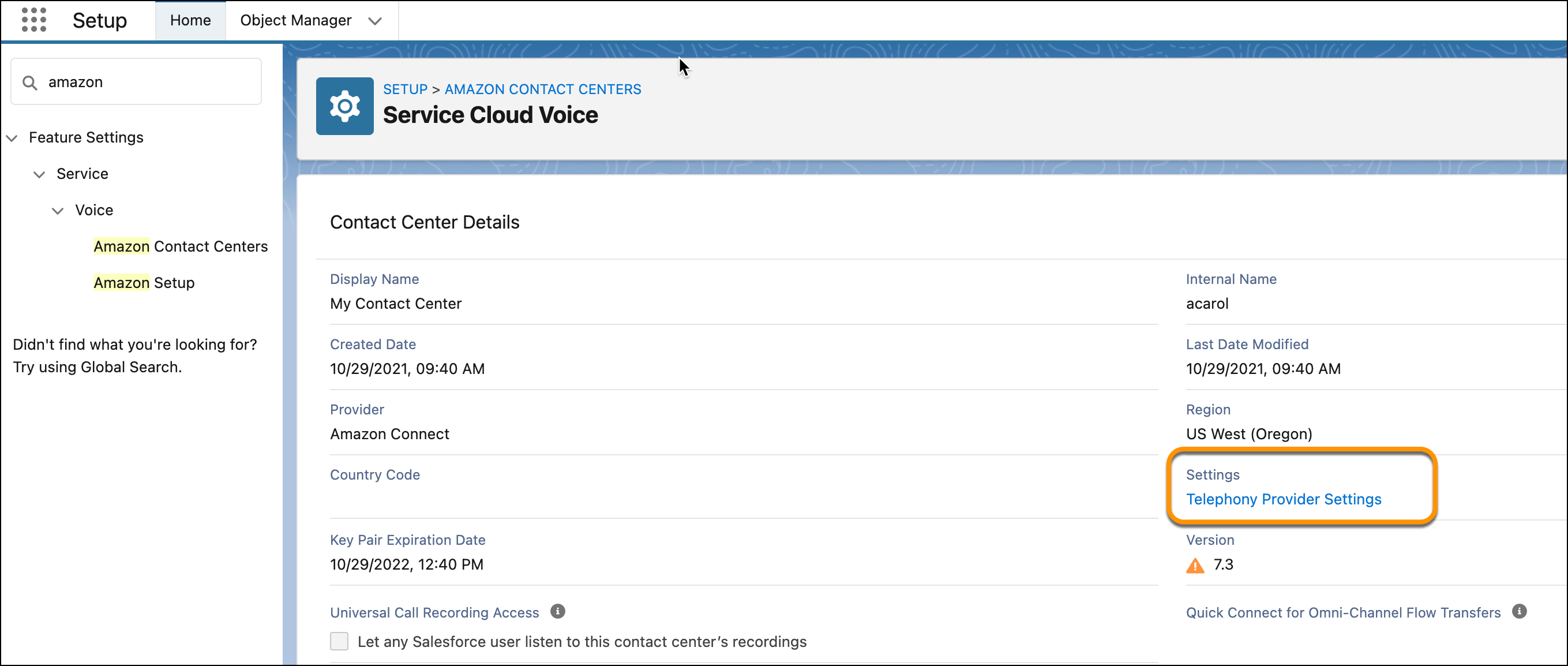
Step 2: Add a Custom Vocabulary
- In Amazon Connect, click .
- In the Contact Lens Custom Vocabulary screen, click Add custom vocabulary.
- Enter the name and language of the custom vocabulary.
- Select Choose a file, and select the custom vocabulary file.
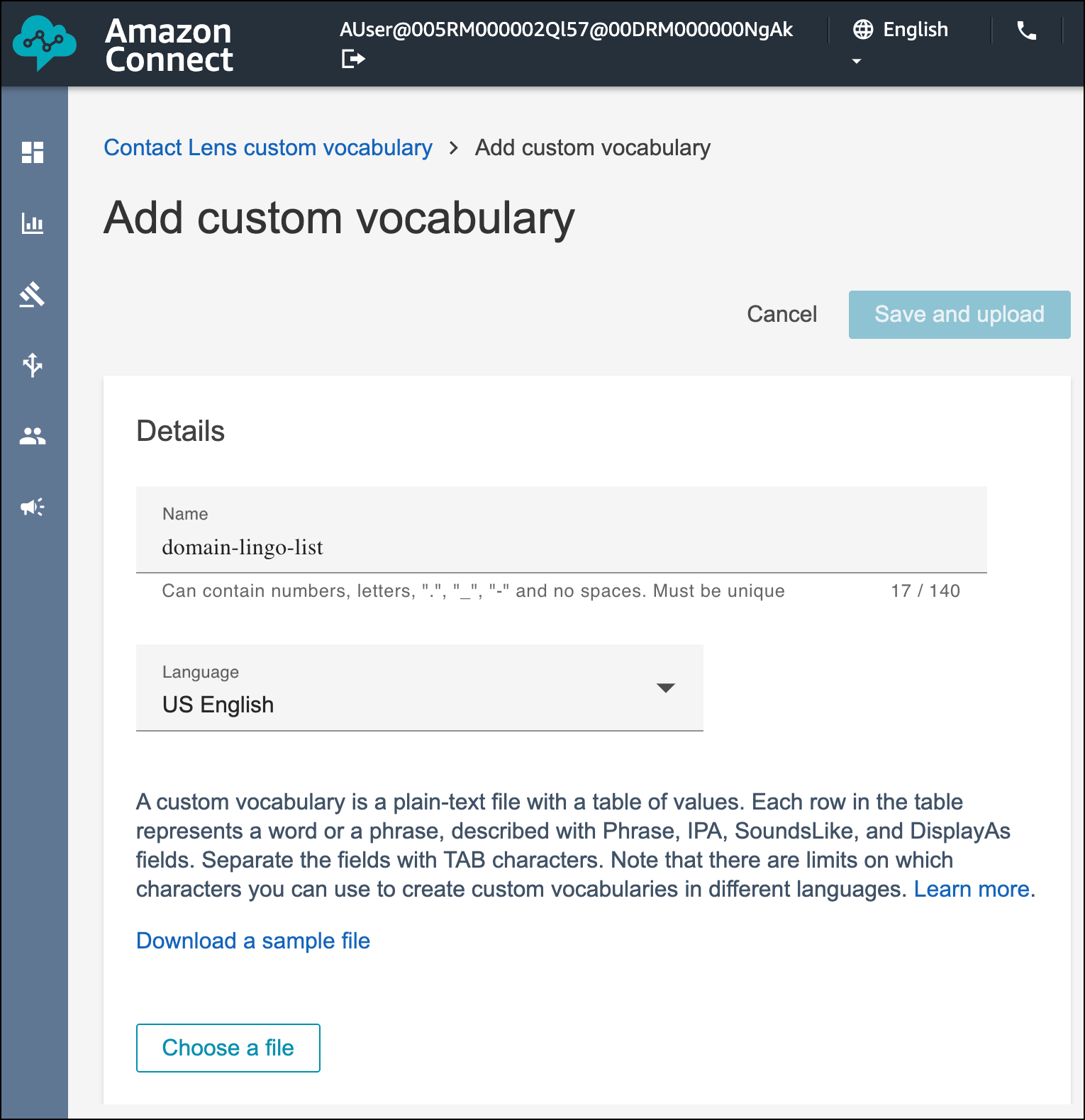
- Click Save and upload.
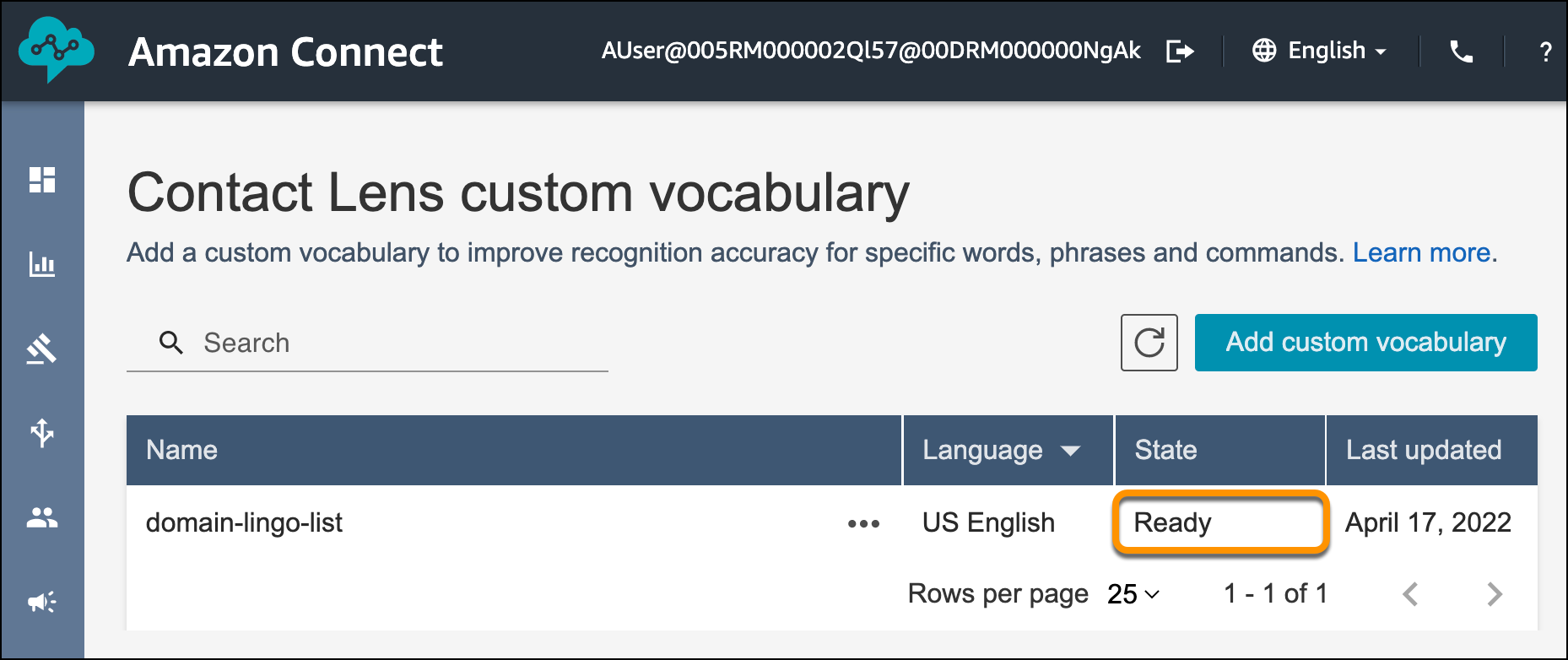
- Refresh the Amazon Connect page until the state shows Ready.
- Click … to the right of the custom vocabulary, and select
Set as default.
Test This Example
To test this example, perform an inbound call and review the transcript that appears. The transcript should reflect your custom vocabulary.