


 j
jAnnouncements
Configuration and Discovery
Checkout Session Authentication
Technical Audit
Implementation Considerations
Transaction Management
Enabling Google as a Platform
Order Post-Processing Events
B2C Commerce Release Notes
Ask the Community
Use this topic for UCP extensibility architecture and custom hook implementations. If you’re still deciding whether you need custom work, start with the Technical Audit.
UCP follows the standard SCAPI extensibility with Hooks pattern, including hook script execution.
Core concept: A UCP Checkout Session is a headless “view” on a standard Commerce Cloud Basket. Standard Basket and Order hooks (calculate, calculateTax, calculateShipping, validateBasket, createOrderNo) run automatically. UCP isn’t a second checkout to build—it’s an API in front of the basket you already have. Because it’s headless, storefront UI/controllers are bypassed, and hooks registered on other SCAPI resources (Shopper Baskets, Shopper Orders, and similar) don’t run. Remap that logic onto the UCP checkout-session hooks below. The Technical Audit has the inventory checklist.
Enable Salesforce Commerce API Hook Execution
This Business Manager feature toggle is required for end-to-end UCP checkout. Checkout-session operations depend on default hook execution (calculate, calculateTax, calculateShipping, validateBasket, createOrderNo, and related payment hooks). If the toggle is off, those hooks don’t run and a shopper can’t complete a checkout session—custom third-party payment hooks don’t run either. Enable it before you test or go live.
Note
These diagrams show how hooks are invoked during each Checkout Session operation. Each diagram shows the sequence of platform operations and hook invocation points:
Opens a new UCP checkout session, creates the underlying basket.
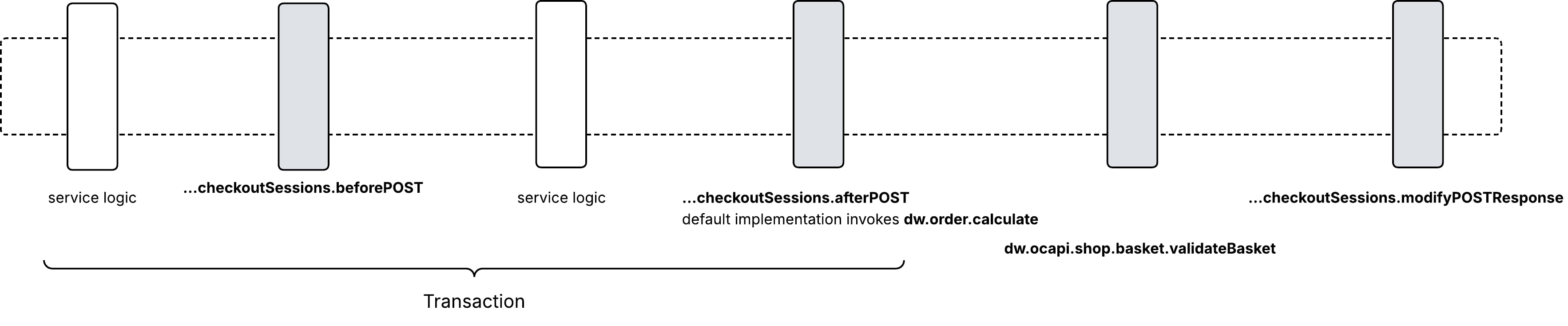
Updates/replaces products, buyer information, fulfillment, etc. on the underlying basket.
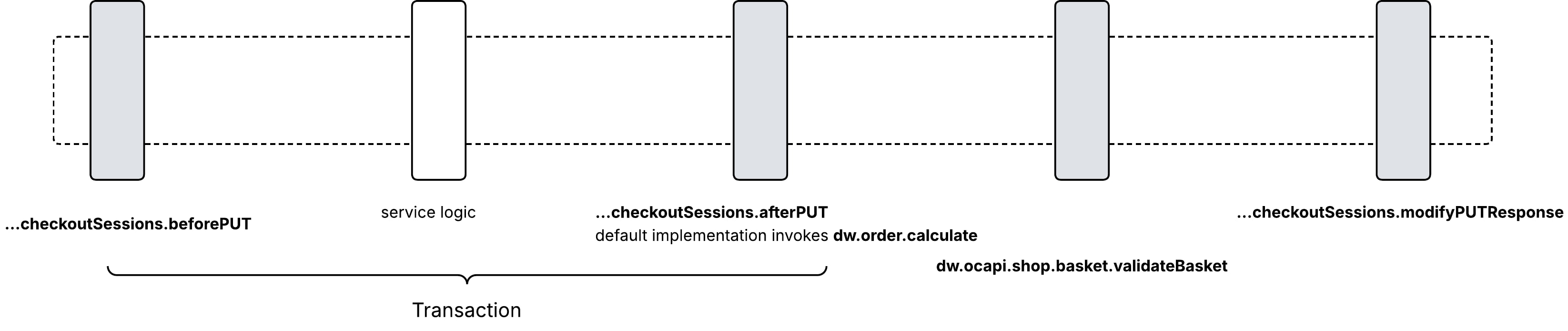
Returns the current basket state as a checkout session.
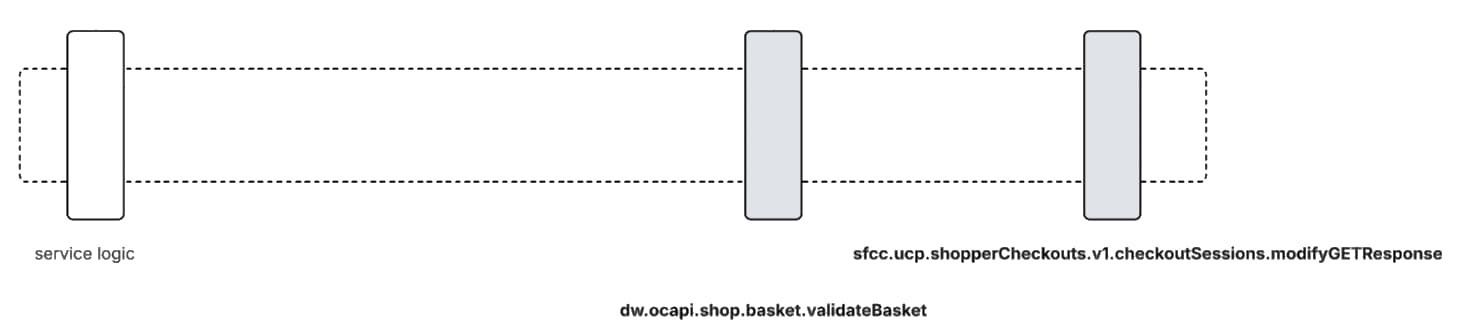
Cancel the checkout session, delete the basket (terminal).
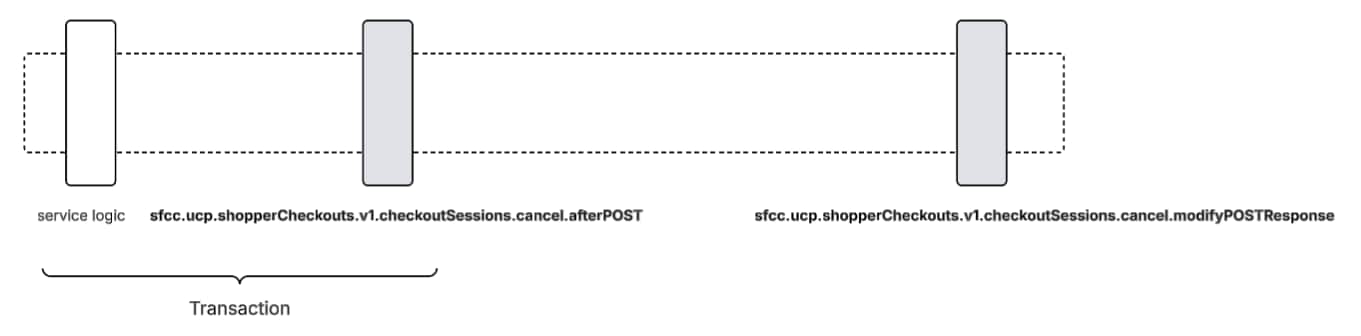
Updates the billing address on the basket, creates the order, takes payment, and facilitates order placement. This operation is only available once the checkout session has the ready_for_complete status.
Complete uses more than one database transaction. Read Transaction Management before you put callouts or Transaction.wrap() in complete-flow hooks.
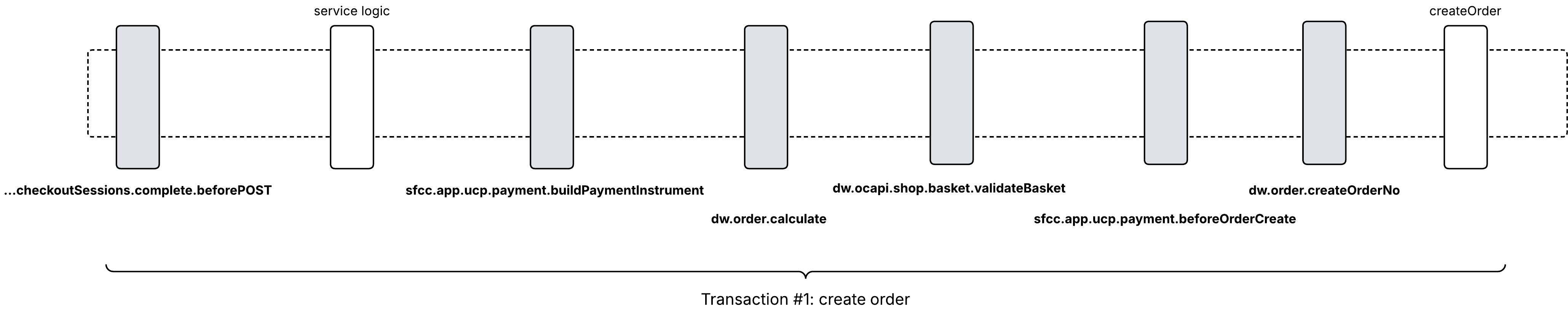
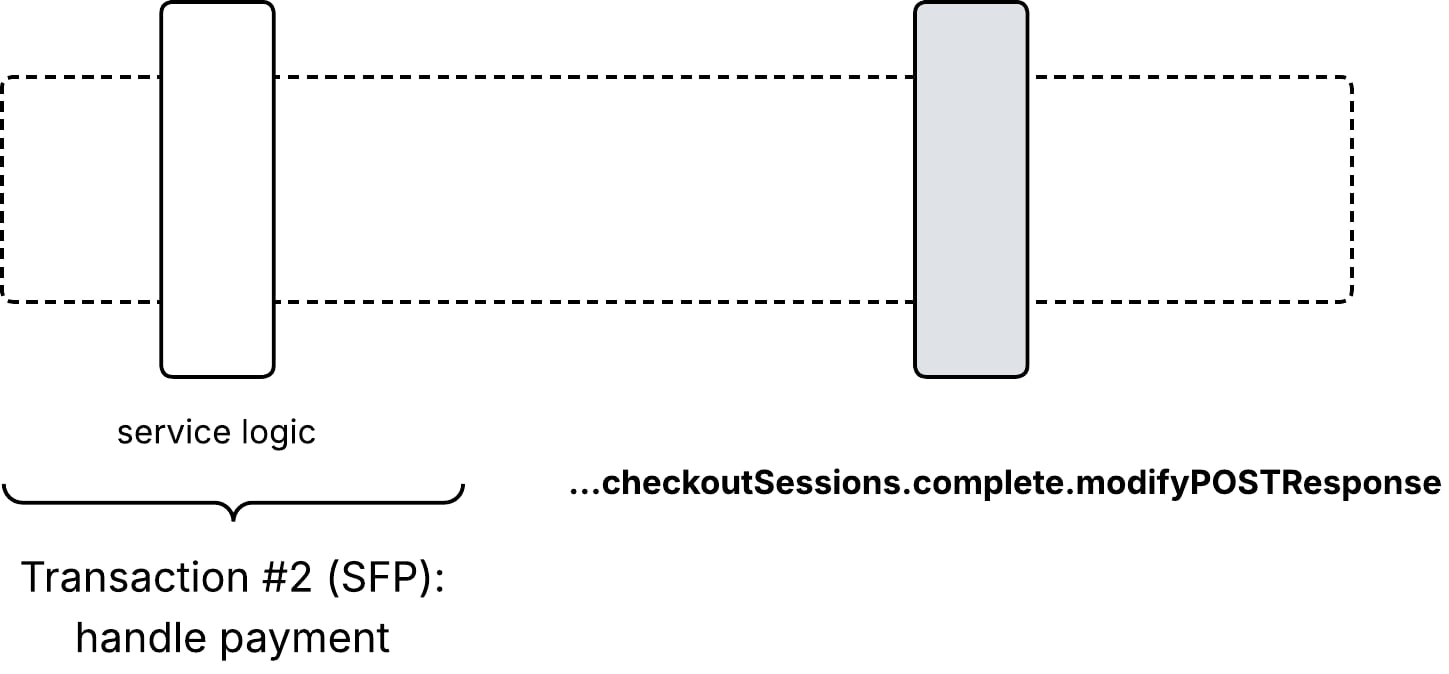
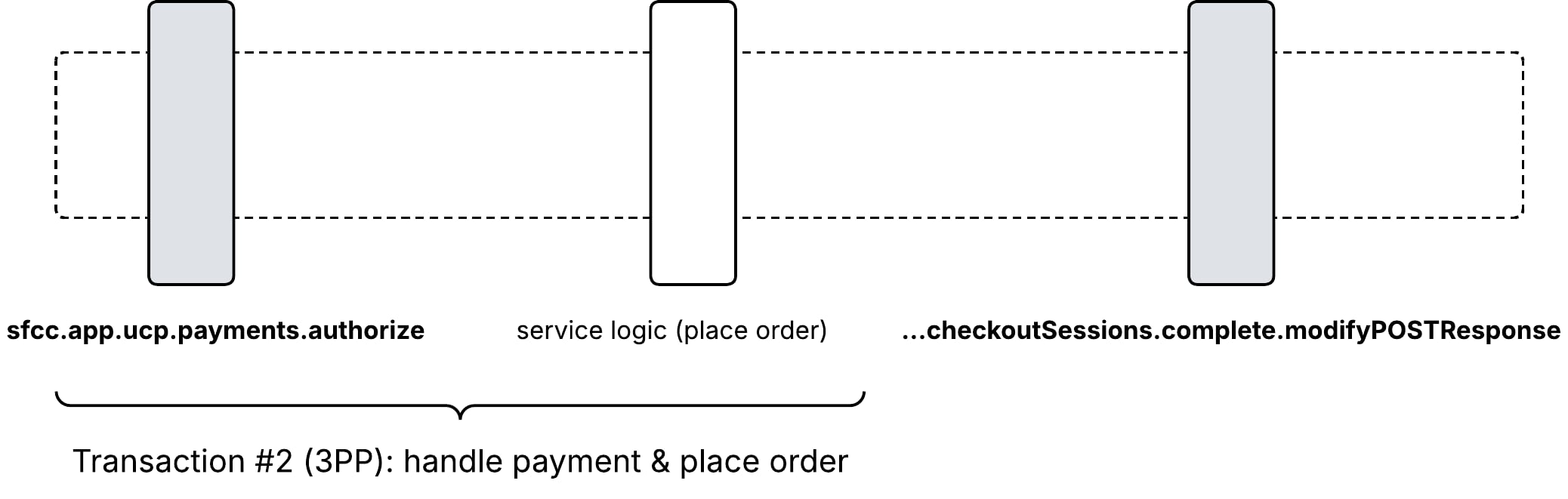
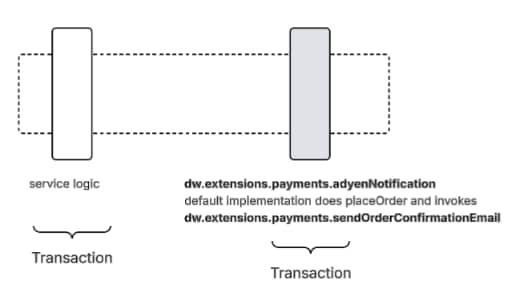
Salesforce Payments places the order on the gateway webhook, not in /complete. This diagram is the Adyen AUTHORISATION step. Stripe Salesforce Payments is also webhook-placed (payment_intent.succeeded). See If You Use Salesforce Payments.
This is the hook catalog for UCP. Every Checkout Session hook returns a dw.system.Status.
Transactional is whether the hook runs inside a platform-managed database transaction:
ERROR rolls back that transaction.ORMTransactionException.Complete uses more than one transaction, so Yes doesn’t mean the whole /complete request rolls back. Which transaction a complete-flow hook runs in—and what an ERROR actually undoes—is in Transaction Management.
For the UCP Checkout schema structure, see the Checkout reference. B2C Commerce 26.9 also serves protocol version 2026-01-23; see Protocol Versions.
These run automatically on checkout-session mutations. They are not UCP-specific extension points.
| Hook | Arguments | Transactional | Typical Use |
|---|---|---|---|
dw.order.calculate | Script Basket | Yes | Pricing and basket totals |
dw.order.calculateTax | Script Basket | Yes | Tax calculation |
dw.order.calculateShipping | Script Basket | Yes | Shipping calculation |
dw.ocapi.shop.basket.validateBasket | SCAPI Basket, onComplete: Boolean (true if called on /complete) | Yes | Add or remove flashes that drive checkout status |
dw.order.createOrderNo | — | Yes | Custom order number; runs during complete |
Extension point prefix: sfcc.ucp.shopperCheckouts.v1.checkoutSessions
| Operation | Hook | Transactional | Typical Use |
|---|---|---|---|
| Create | beforePOST(basket, request) | Yes | Observe or adjust the basket before it is fully populated |
| Create | afterPOST(basket) | Yes | Adjust the basket; the platform runs calculation here |
| Create | modifyPOSTResponse(response) | No | Shape the response document only |
| Get | modifyGETResponse(response) | No | Shape the response document only |
| Update | beforePUT(basket, request) | Yes | Observe or adjust the basket before the replace |
| Update | afterPUT(basket) | Yes | Adjust the basket; the platform runs calculation here |
| Update | modifyPUTResponse(response) | No | Shape the response document only |
basket is a Script Basket. request and response are the UCP Checkout document.
Extension point prefix: sfcc.ucp.shopperCheckouts.v1.checkoutSessions.cancel
| Hook | Transactional | Typical Use |
|---|---|---|
afterPOST(checkoutSessionId) | Yes | React to the cancellation; the session is being deleted |
modifyPOSTResponse(response) | No | Shape the response document only |
Extension point prefix: sfcc.ucp.shopperCheckouts.v1.checkoutSessions.complete
| Hook | Transactional | Typical Use |
|---|---|---|
beforePOST(basket, request) | Yes | Final validation or basket adjustment before order creation |
afterPOST(order) | Yes | Post-placement work on the Order (for example DIY confirmation email). Doesn’t roll back the order. |
modifyPOSTResponse(response) | No | Shape the response document only |
complete.afterPOST receives a Script Order. See Post-Placement Actions.
Extension point prefix: sfcc.app.ucp.payment
beforeOrderCreate runs on every complete, including Salesforce Payments. buildPaymentInstrumentRequest and authorize apply to the third-party payment provider path. See Third-Party Payment Providers. Salesforce Payments–only hooks are under If You Use Salesforce Payments.
| Hook | Transactional | Typical Use |
|---|---|---|
beforeOrderCreate(basket) | Yes | Last chance to adjust the basket after payment instruments are built and before createOrder |
buildPaymentInstrumentRequest(basket, selectedInstrument, requestWO) | Yes | Translate the selected instrument into a payment instrument request (DIY) |
authorize(order, paymentInstrument) | Yes | Authorize payment with a third-party payment service provider (DIY) |
| Hook | Transactional | Typical Use |
|---|---|---|
sfcc.ucp.shopperBusinessProfiles.v1.businessProfile.modifyGETResponse(response) | No | Replace payment_handlers on the well-known profile (DIY). Don’t change ucp.version. |
sfcc.ucp.orderWebhook.v1.modifyEventPayload(payload) | No | Mutate the signed lifecycle payload immediately before delivery to the platform |
If modifyEventPayload fails or returns a non-OK status, the webhook is retried. See Order Post-Processing Events for how post-processing events become those signed snapshots.
Considerations for Business Profile modifyGETResponse Hook
The Business Profile modifyGETResponse hook isn’t guaranteed to run on every request. B2C Commerce caches the fully resolved, post-hook Business Profile by site and UCP version, and serves that cached copy until the TTL expires. The hook runs once when the cache entry is built, not once per incoming request.
Write modifyGETResponse as a pure function. Don’t depend on per-request data such as headers or the calling agent. If the hook fails or returns a non-OK status, the result isn’t cached, and a later request rebuilds the Business Profile and runs the hook again.
The default TTL for Business Profile cache entries is 10 minutes. This value is only modifiable by Salesforce Support.
Note
By default, Checkout Session APIs perform basic validations for:
On checkout session complete, these additional validations run:
Add, edit, or remove validation errors in dw.ocapi.shop.basket.validateBasket.
Use UCP standard error codes for the type field so error handling stays consistent across platforms.
Note
1exports.validateBasket = function (basketResponse, duringSubmit) {
2    // Add a validation error
3    basketResponse.addFlash({
4        type: "eligibility_invalid",
5        message: Resource.msg('error.age.verification', 'checkout', null),
6        path: "$"
7    });
8
9    // Remove a validation error
10    var toRemove = [];
11    for each (f in basketResponse.flashes) {
12        if (f.type === "InvalidBillingAddress") {
13            toRemove.push(f);
14        }
15    }
16    for (var i = 0; i < toRemove.length; i++) {
17        basketResponse.removeFlash(toRemove[i]);
18    }
19}Salesforce automatically maps Flashes to UCP Messages:
| Flash Property | UCP Message Property |
|---|---|
flash.type | message.code |
flash.path | message.path |
flash.message | message.content |
These properties are always set automatically:
message.type is always ERRORmessage.severity is always RECOVERABLEmessage.contentType is always PLAINIf a Basket has one or more Flashes, Checkout.status is INCOMPLETE. Otherwise, the status is READY_FOR_COMPLETE.
To override the standard behavior of mapping Basket and Flashes to Checkout, use any of these hooks:
sfcc.ucp.shopperCheckouts.v1.checkoutSessions.modifyPOSTResponsesfcc.ucp.shopperCheckouts.v1.checkoutSessions.modifyGETResponsesfcc.ucp.shopperCheckouts.v1.checkoutSessions.modifyPUTResponsesfcc.ucp.shopperCheckouts.v1.checkoutSessions.cancel.modifyPOSTResponsesfcc.ucp.shopperCheckouts.v1.checkoutSessions.complete.modifyPOSTResponseAdd custom address verification by using a third-party service (Loqate) in dw.ocapi.shop.basket.validateBasket.
1// Hook: dw.ocapi.shop.basket.validateBasket
2exports.validateBasket = function (basketResponse, duringSubmit) {
3  // Validate shipping address with Loqate
4  var address = basketResponse.shipments[0].shippingAddress;
5  if (address) {
6    var addressForm = {
7      Address1: address.address1,
8      Address2: address.address2,
9      Country: address.countryCode,
10      State: address.stateCode,
11      City: address.city,
12      PostalCode: address.postalCode,
13    };
14    var response = loqate.validateLoqateAddress(addressForm);
15    if (response && response.response) {
16      basketResponse.addFlash({
17        type: "address_undeliverable",
18        message: "Item(s) in your cart can't be shipped to the selected address",
19        path: "$.shipments[0].shippingAddress",
20      });
21    }
22  }
23};Use the modifyResponse hooks to filter out store pickup fulfillment methods when the platform doesn’t support store pickup.
Example: Don’t show store pickup fulfillment methods
1// sfcc.ucp.shopperCheckouts.v1.checkoutSessions.modifyPOSTResponse
2exports.modifyPOSTResponse = function( checkoutSession )
3{
4    var pickupMethodIds = {};
5    for each( m in ShippingMgr.getAllShippingMethods() ) {
6        if ( m.custom.ucpStorePickupEnabled === true )
7        {
8            pickupMethodIds[m.ID] = true;
9        }
10    }
11
12    for each( method in checkoutSession.fulfillment.methods ) {
13        for each( group in method.groups ) {
14            var filtered = [];
15            for each( option in group.options ) {
16                if ( !pickupMethodIds[option.id] )
17                {
18                    filtered.push( option );
19                }
20            }
21            group.options = filtered;
22        }
23    }
24}A UCP checkout is paid with a single payment instrument. How you process that payment depends on your provider, and the two paths require different work:
The Payment Provider setting selects which path applies. See Payment Provider Setup.
The platform assembles the Google Pay / Salesforce Payments handler from Business Manager and authorizes payment for you. You don’t register the DIY payment hooks. See Payment Provider Setup.
Authorization starts in Transaction 2, but placement is asynchronous for both Salesforce Payments gateways: the order stays in CREATED until the webhook arrives. Don’t treat a successful /complete response as a placed order.
AUTHORISATION webhook.payment_intent.succeeded.Optional hooks on this path:
dw.extensions.payments.adyenNotification — Adyen Salesforce Payments only; runs when the Adyen notification is processed.dw.extensions.payments.stripePaymentEvent — Stripe Salesforce Payments only; runs when the Stripe payment event is processed.dw.extensions.payments.sendOrderConfirmationEmail — Salesforce Payments (Adyen or Stripe); runs after the webhook places the order.These hooks don’t fire for third-party (DIY) payment.
Sharing an Adyen merchant account
If you use the same Adyen merchant account for both your storefront’s own third-party Adyen integration and Salesforce Payments, you must filter webhook notifications so your storefront integration ignores UCP/SFP orders it didn’t create. See Adyen Webhook Filtering for Shared Merchant Accounts.
Note
Why: The Adyen merchant account would have a webhook for both the third-party and SFP configurations. Adyen delivers payment notifications to all webhook endpoints on that account. The Salesforce Payments handler already ignores non-SFP orders; your storefront Adyen integration might not, and can try to process UCP/SFP notifications it didn’t create.
The code snippets here are for a third-party integration using the Adyen-managed adyen-salesforce-commerce-cloud cartridge. Your own implementation may vary, but the same principles apply.
Note
Where you build the Adyen payment request, add a metadata field. Adyen echoes this field back in webhook notifications.
File location: cartridges/int_adyen_SFRA/cartridge/adyen/utils/adyenHelper.js (example path for Adyen cartridge)
1createAdyenRequestObject(orderNo, orderToken, paymentInstrument, customerEmail) {
2    // ...
3    stateData.applicationInfo = adyenHelperObj.getApplicationInfo();
4    stateData.additionalData = {};
5
6    // Tag payments created by this cartridge so webhook notifications
7    // can be identified. Adyen echoes this metadata back in webhook
8    // additionalData as "metadata.<key>".
9    stateData.metadata = {
10        paymentSource: 'adyen-sfcc-cartridge'
11    };
12
13    return stateData;
14}Where you receive webhook events in your third-party flow, check for the metadata tag before taking any action. If absent, return [accepted] without doing any processing.
1function notify(req, res, next) {
2  // ...
3  var source = req.form["additionalData.metadata.paymentSource"];
4  if (source !== "adyen-sfcc-cartridge") {
5    // This payment wasn't created from this cartridge
6    // Return [accepted] and do no processing
7    res.render("/notify");
8    return next();
9  }
10
11  // This payment had our metadata => was created by this cartridge
12  // Continue with typical webhook processing flow
13  Transaction.begin();
14  // ...
15}
Using a metadata field as shown here is the simplest path forward, but alternative checks exist to determine if an order was initiated from third-party or SFP, such as checking the payment method of an order. Confirm this for your third-party implementation.
Register the hooks below to advertise payment handlers and authorize with your own PSP. Set Payment Provider to Third Party Provider (DIY) so the platform doesn’t assemble the Salesforce Payments handler. See Payment Provider Setup.
Register these three hooks. Signatures are in Extension Hooks Reference.
sfcc.ucp.shopperBusinessProfiles.v1.businessProfile.modifyGETResponse — advertise payment handlers on the well-known profilesfcc.app.ucp.payment.buildPaymentInstrumentRequest — translate the selected instrument (including its handler_id) into a payment instrument requestsfcc.app.ucp.payment.authorize — authorize with your PSP. Fires only for a third-party instrument; Salesforce Payments bypasses this hook.Register sfcc.ucp.shopperBusinessProfiles.v1.businessProfile.modifyGETResponse to replace the payment handlers on the well-known profile. See Configuration and Discovery. The hook argument exposes ucp and signingKeys. Assign handlers on ucp.paymentHandlers. Don’t change ucp.version or signingKeys.
Copy the handler namespace (the map key, for example com.google.pay) and the handler id from the payment handler’s author — usually the PSP or the platform. That id is what comes back on /complete as handler_id. The rest of the handler object (config and related fields) is also defined by that author. Consult the handler’s official documentation.
1// sfcc.ucp.shopperBusinessProfiles.v1.businessProfile.modifyGETResponse
2var Status = require("dw/system/Status");
3
4exports.modifyGETResponse = function (businessProfile) {
5  businessProfile.ucp.paymentHandlers = {
6    "com.google.pay": [
7      {
8        id: "...", // exact id from the handler author; do not invent one
9        config: {
10          /* see the handler author's spec */
11        },
12      },
13    ],
14  };
15  return new Status(Status.OK);
16};
The checkout mapper reads payment handlers from the business profile, so the handlers you assign here appear in the checkout session response without a separate hook.
Register sfcc.app.ucp.payment.authorize to authorize the payment instrument with your PSP. The hook receives the Order and the OrderPaymentInstrument, and returns a Status: return Status.OK when authorization succeeds, or Status.ERROR to fail the order. Read any PSP tokens or handler data from the payment instrument’s custom attributes (set earlier by your buildPaymentInstrumentRequest hook).
If you already have PSP authorization logic elsewhere, bridge to it from this hook rather than duplicating it:
app.payment.processor.<METHOD>.Authorize script.Authorize start-node.dw.order.payment.authorize script delegate to it directly — the signature is the same (Order, OrderPaymentInstrument).No storefront browser in UCP
UCP checkout runs headless and server-side. There is no merchant-controlled browser, so any PSP logic that assumes client-side setup happened first (for example, a payment intent created in the shopper’s browser) must be adapted to complete the full PSP interaction server-side inside the authorize hook.
Note
Order placement is synchronous — it happens inside the /complete request. The platform places the order when both of these are true:
sfcc.app.ucp.payment.authorize hook returns Status.OK.At the start of /complete, the platform creates the order in CREATED status and runs your authorize hook. Leave the payment transaction in its created state: when the hook returns Status.OK, the platform promotes the transaction to authorized and places the order for you. (You can set the transaction to authorized yourself if you prefer, but it isn’t required.)
If authorize returns Status.ERROR or throws, the platform fails the order, reopens the basket, and returns an error so the shopper can retry.
Don’t set the payment transaction to captured
Placement requires the order’s authorized amount to cover its total, and a captured transaction doesn’t count toward that amount. So if your authorize hook captures the payment, the order is never placed — it stays in CREATED and is later failed by the AutoFailOrders job. Authorize during /complete; capture later (for example, at fulfillment).
Note
A browser-based checkout finishes an order in the storefront controller — sending the confirmation email, exporting to an OMS, and so on. UCP checkout is headless, so that controller never runs. How you replace that work depends on the payment path:
dw.extensions.payments.sendOrderConfirmationEmail, which runs after the gateway webhook places the order. Don’t send the email from complete.afterPOST — the order is still CREATED. See If You Use Salesforce Payments.complete.afterPOST receives the Order after /complete has placed it. Send the confirmation email there. Send only if the order is already placed (not CREATED). Don’t return ERROR if the email send fails; log it, leave confirmationStatus unconfirmed, and let a job retry. A hook failure doesn’t un-place the order, but it can still fail the /complete response. See Transaction Management.Recommendation: whether or not you send the email in complete.afterPOST, run a scheduled job as a backstop for the email and for OMS export. Use the order’s status attributes as an idempotent work queue — confirmationStatus for the email and exportStatus for OMS export. Guard each action by its own flag and commit each in its own transaction, so a failure in one action neither undoes the other nor re-fires it on the next run.
1// Custom job step: run post-placement actions for newly placed orders.
2var OrderMgr = require("dw/order/OrderMgr");
3var Order = require("dw/order/Order");
4var Transaction = require("dw/system/Transaction");
5
6exports.processPlacedOrders = function () {
7  OrderMgr.processOrders(
8    function (order) {
9      if (order.confirmationStatus === Order.CONFIRMATION_STATUS_NOTCONFIRMED) {
10        // Send the email server-side (for example, dw.net.Mail or a helper),
11        // then mark the order confirmed so later runs skip it.
12        Transaction.wrap(function () {
13          order.setConfirmationStatus(Order.CONFIRMATION_STATUS_CONFIRMED);
14        });
15      }
16      if (order.exportStatus === Order.EXPORT_STATUS_NOTEXPORTED) {
17        // Export the order to your OMS, then mark it exported.
18        Transaction.wrap(function () {
19          order.setExportStatus(Order.EXPORT_STATUS_EXPORTED);
20        });
21      }
22    },
23    "status = {0} AND (confirmationStatus = {1} OR exportStatus = {2})",
24    Order.ORDER_STATUS_OPEN,
25    Order.CONFIRMATION_STATUS_NOTCONFIRMED,
26    Order.EXPORT_STATUS_NOTEXPORTED,
27  );
28};
Splitting into separate jobs
Run the confirmation email and OMS export as two separate jobs instead if you prefer. If they run concurrently, be aware that B2C Commerce guards each order at the object level, not the field level: when both jobs touch the same order at the same moment, one transaction fails with a stale-data error even though they write different fields. Because the status flags make each update idempotent, the loser simply retries on its next run — or stagger the two schedules so they don’t overlap. A single job doing all post-placement work avoids the contention entirely.
Note
j