Create a storefront and its dependent API and Managed Runtime (MRT) resources in Business Manager with the local CLI option to generate and store your code locally.
-
In Business Manager, click App Launcher  and then select Administration > Sites > Storefronts > New Storefront.
-
Select the template that’s suitable for your storefront’s merchandise. The built-in templates provide the layout, theme, and style that are customized for the products to sell, and product attributes specific to an industry. To check the layout of a template on a demo site, click View Demo. To select a template to build your storefront with, click Use Template.
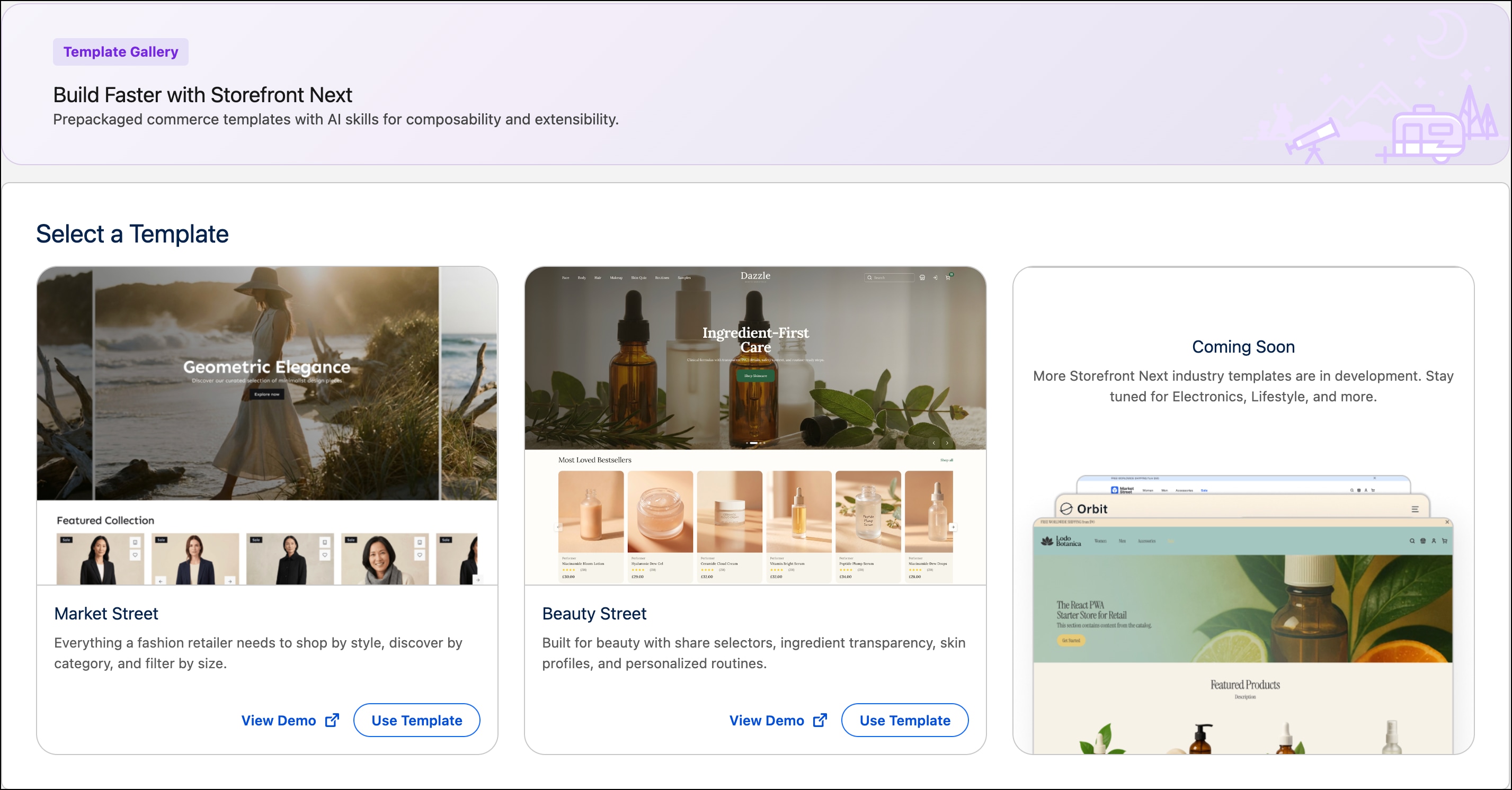
a. Select the Market Street template for personal and household goods, including clothing, shoes, electronics, and so on. See the Market Street demo site.
b. Select the Beauty Street template for beauty and cosmetic products. See the Beauty Street demo site.
-
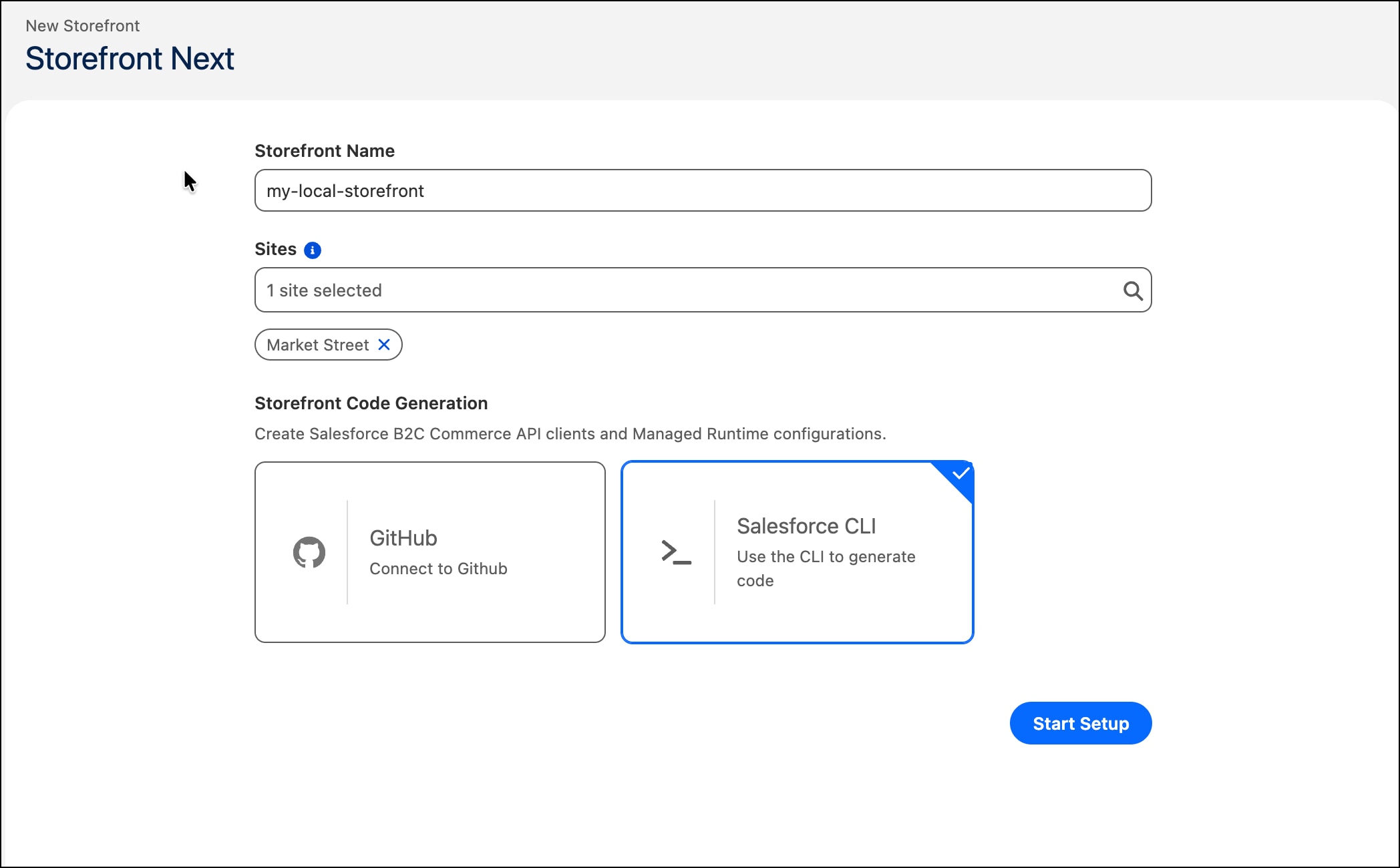
Enter the storefront name. For example, my-local-storefront.
-
Select a site. You can select one or more sites for your storefront. For this task, select one site.
You can assign a site to one storefront only. You can’t reuse it for another storefront.
-
Select Salesforce CLI to generate the storefront code manually.
-
Click Start Setup.
-
After setup completes, in Source Code, click Download .env from the completion page to download the env.txt environment file. It contains your storefront’s configuration, Business Manager settings, and your Account Manager and Shopper Login and API Access Service (SLAS) credentials.
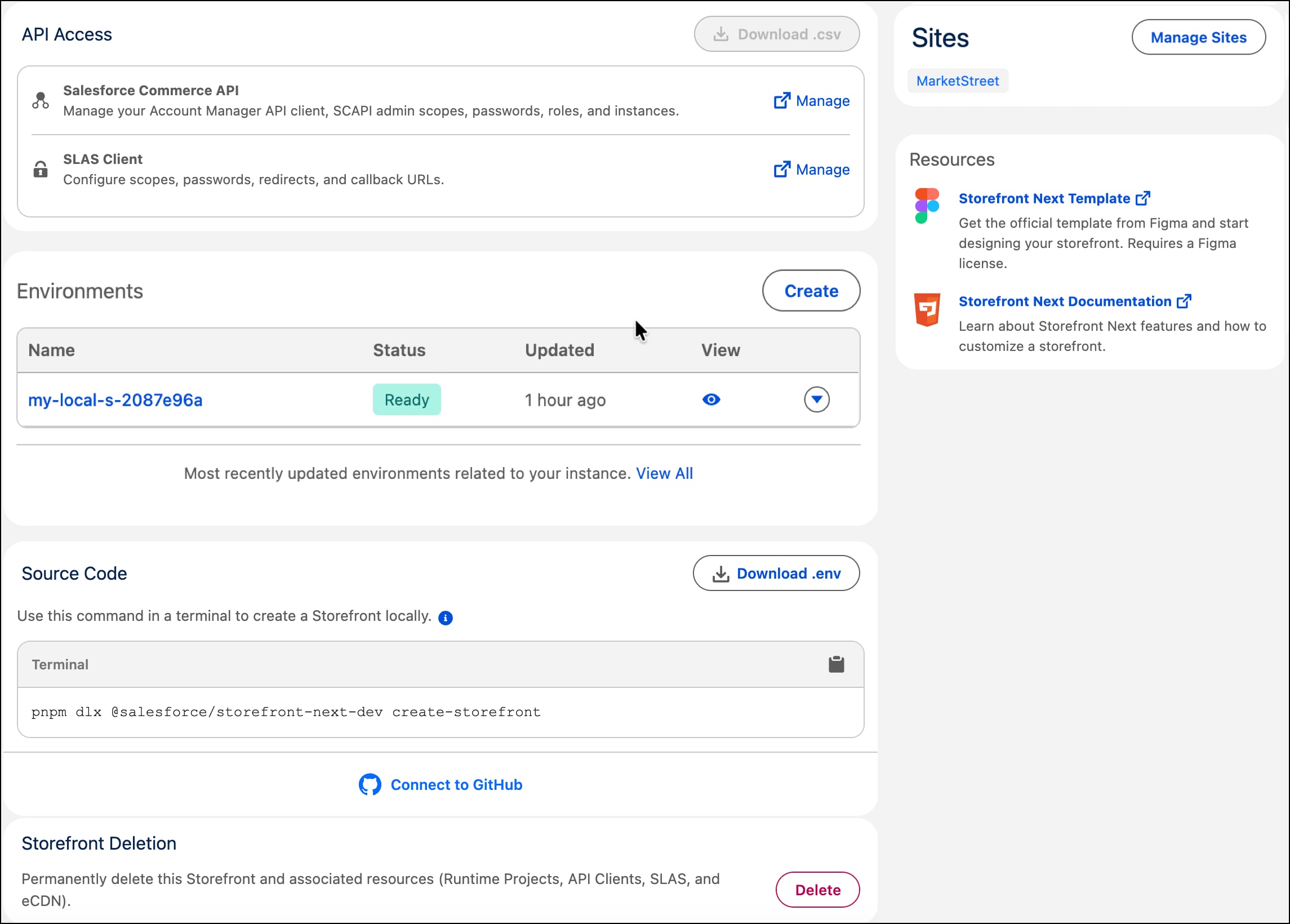
For your security, the client secrets are available for download only once and are deleted on subsequent downloads. You use the Account Manager and SLAS client credentials to run the storefront locally. When you run the storefront on MRT, MRT uses the autocreated environment variables.
-
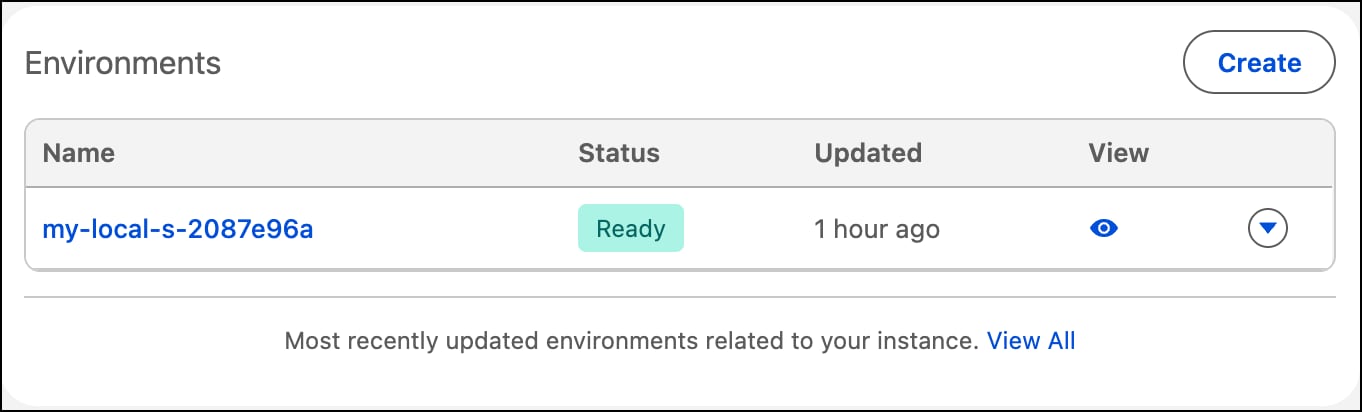
To view the storefront on MRT, click the view icon next to the environment.
-
To view details about the autocreated environment, in the Environments section, click the environment name. The new environment links to deployments, environment variables on MRT, and shows the eCDN routing rules for the default domain.
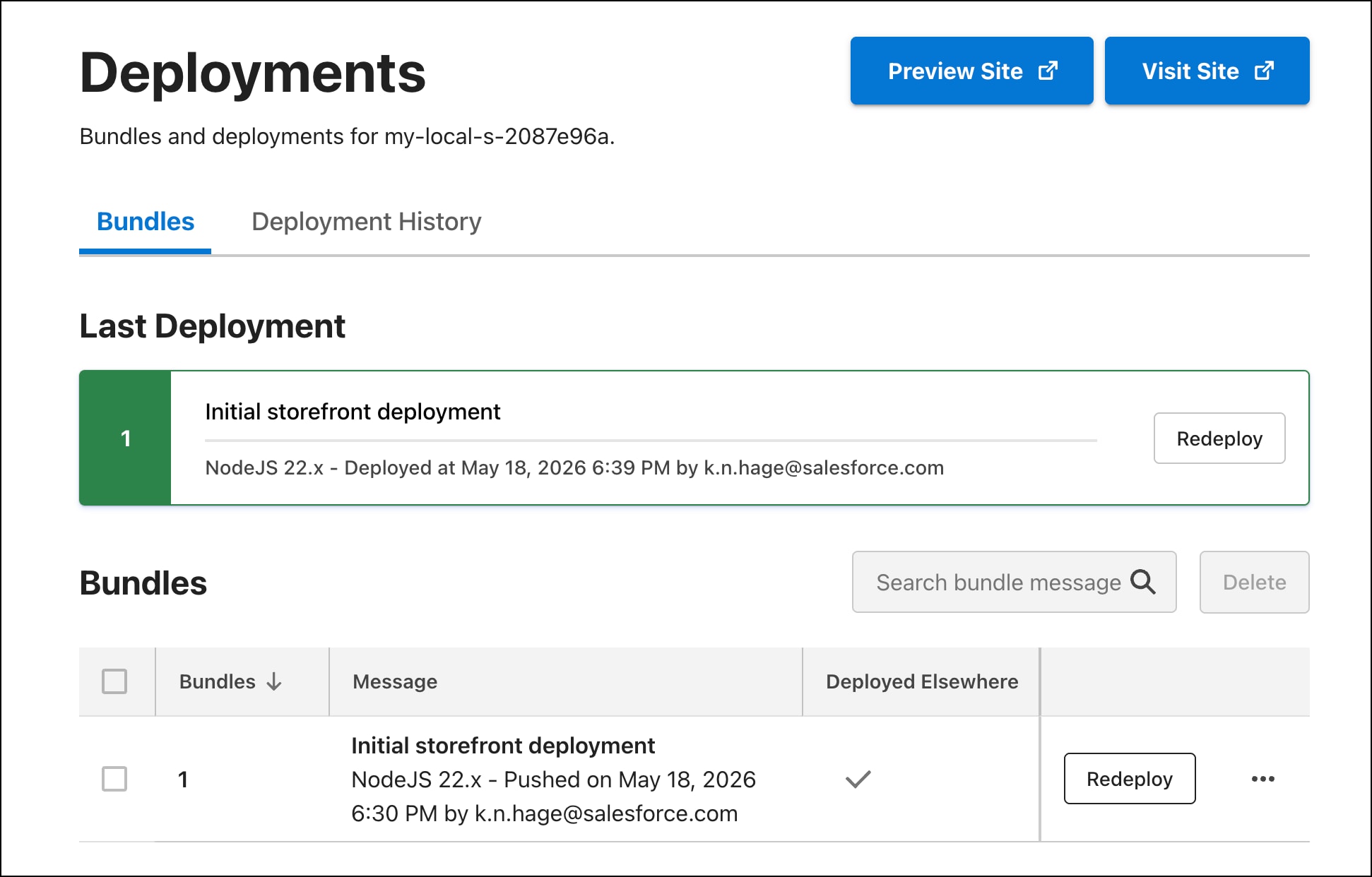
Setup created an MRT project and sent an initial deployment of the storefront. The deployed bundle is a generated storefront that mirrors the storefront you generate with the CLI.
-
To view the deployment on MRT, from the storefront page in Business Manager, click Manage in the Deployments section. Verify that the setup process created an MRT project and environment and sent an initial deployment of the storefront app. To view the deployment on MRT, click Managed Runtime Environment.
-
To generate the storefront code, type this command in a terminal window.
1pnpm dlx @salesforce/storefront-next-dev create-storefront
a. Provide the same storefront name you used earlier. For example, my-local-storefront.
The storefront corresponds to a project in MRT. The autogenerated project ID, which is based on the storefront name, identifies your project in MRT. You set the project ID in a later step from the downloaded environment file.
b. Select the same Storefront Next UI template you chose earlier.
c. For the extensions, press Enter to accept the selected extensions.
d. Accept the defaults for the client IDs and the B2C Commerce instance values.
You overwrite the configuration with your own storefront environment file in the next steps.
-
Open the project folder in an IDE, and then open the environment file: {project-folder}/.env.
-
Replace the contents of {project-folder}/.env with the contents of the downloaded env.txt file, which contains values specific to the new storefront and the B2C Commerce instance.
The MRT project has a name and an ID, which are different. The env.txt file contains the MRT project ID.
-
Make sure that your site’s search indexes are up-to-date. For more information, see Generate Search Indexes in Salesforce Help.
-
In a terminal window, go to the storefront folder.
-
Install Storefront Next project dependencies that are specified in package.json.
-
Build the storefront.
-
Run the development server.
-
Open the development server URL shown in the output to view the storefront in the browser. For example, the URL with the default port is http://localhost:5173.


 j
j