Enable Activation Codes With the SPI
Point of Sale supports retrieving activation codes using an SPI. For merchants selling products through digital codes (for example, product downloads), this SPI allows Point of Sale to request the code from the merchant’s server. The code can then be printed on the customer’s receipt.
- Modern POS App Build: 10.4.1 or greater
- Platform Support: iPad & iPhone
- Offline Support: No
For details on this SPI, see Activation Code SPI in the Point of Sale reference documentation.
For a comprehensive list of Point of Sale APIs and SPIs, see Point of Sale API, SPI, and Webhook Overview.
-
In CMS, go to Products | Product Class.
-
Configure a new class for activation codes. For more information, see Set Up Non-Merchandise SKUs in Salesforce Help.
-
Turn on the Requires Activation Code via External Source setting.

-
In CMS, go to Integrations | Custom Connectors..
-
Click Create.
-
For Connector Type, select SPI.
-
For Endpoint Name, select GENERATE_ACTIVATION_CODE.
-
For API Endpoint, provide the external endpoint to retrieve activation codes.
-
For Integration Type, select HTTP_POST.
-
Specify any required JSON headers. See Point of Sale API, SPI, and Webhook Overview for examples.
-
Configure the rest of the fields as needed.
-
Save your changes.
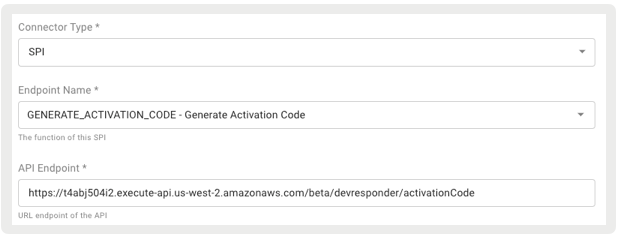
During checkout, if any product in the cart belongs to a Product Class with Requires Activation Code via External Source enabled, the app makes a single call to the Activation Code SPI. The request includes the orderId, storeId, transactionId, and productList. The productList includes productId and orderItemId.
The response provides an activation code for each product quantity, with multiple quantities of the same item returned as an array. Each activation code has a maximum length of 32 characters. The response also includes a context code, serving as a reference to the activation code, with a maximum length of 32 characters.
Print and Email tags can be used to print the activation code on a receipt.
| Email Receipt Tag | Print Receipt Tag |
|---|---|
| {activationCode} | :ps_p_actviation_code |
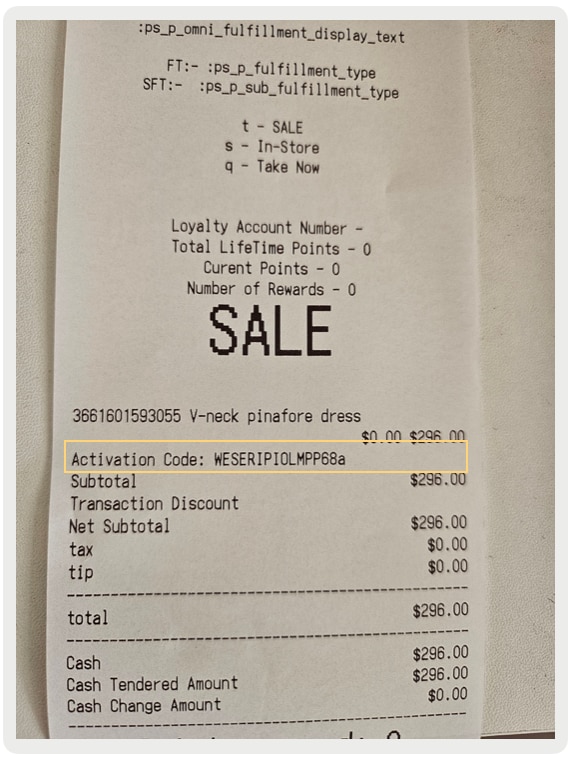
The activation code is only printed on receipts and isn’t displayed on the POS app. However, the Order History does display the product’s context code, which is a reference to the activation code.
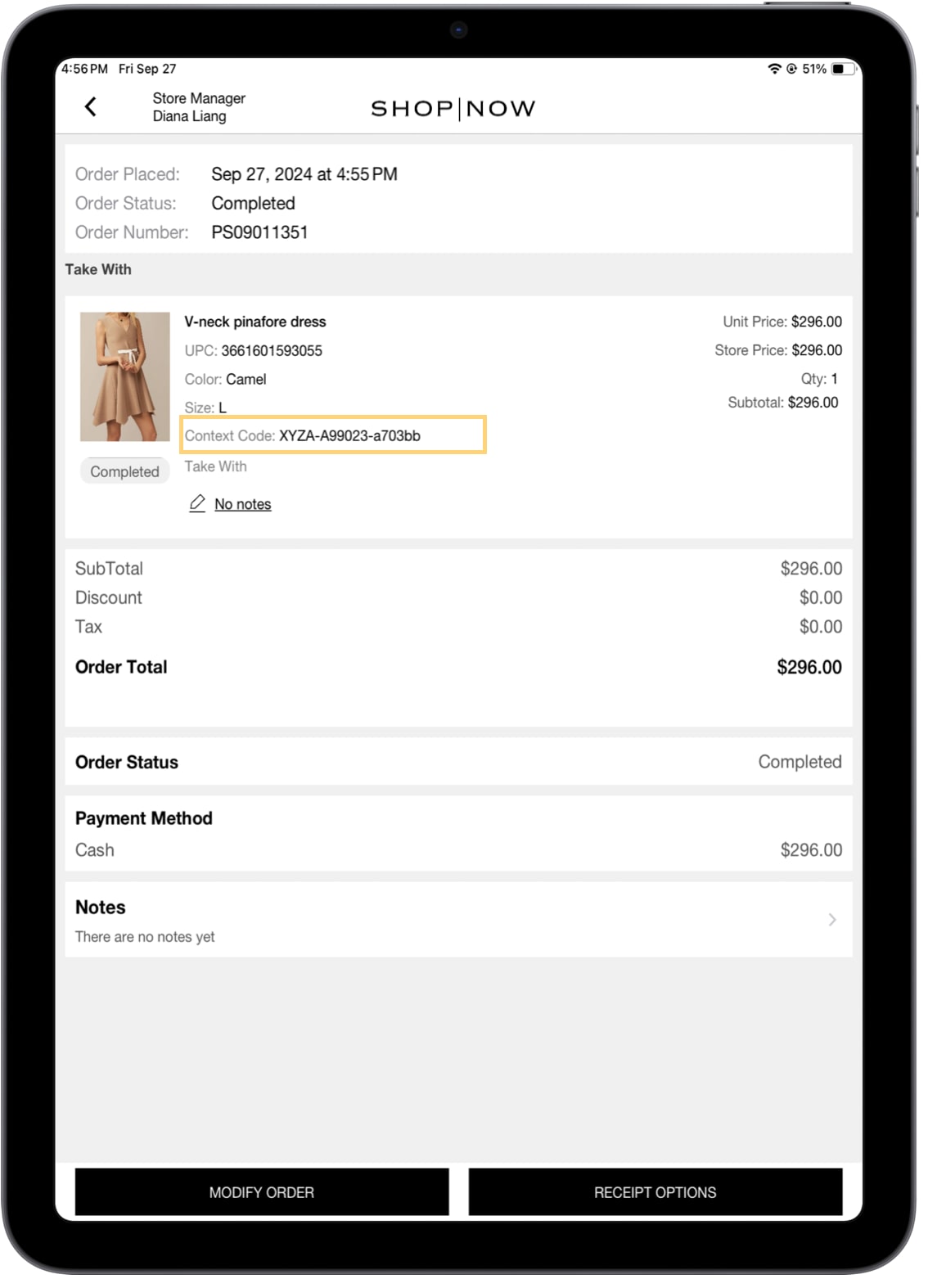
Offline orders don’t display activation codes on the receipt, as the app can’t access the SPI while offline. As a result, no codes appear on the printed receipt. Once the offline order is synced successfully, and the subsequent SPI call is also successful, the order is marked as successful. The order history then reflects the context codes, and reprinting the receipt includes the activation codes.
- Activation codes aren’t eligible for returns.
- Order edits aren’t supported. If an order is edited and a product with an activation code is added, it doesn’t trigger the SPI to retrieve the activation code.
- POS app doesn’t restrict the fulfillment type of a product with an activation code.
- Activation codes aren’t displayed in the POS UI.
- Offline support isn’t available for the sale of items requiring digital codes.
- This feature isn’t supported for all other fulfillment types (for example, Ship to Home).