With the Point of Sale Visual Search SPI, the POS app sends an image captured by a store associate to an external image-recognition provider and receives a ranked list of matching product IDs. Results are resolved against the local product catalog and displayed in the POS app. Optionally, the provider can return filters, sort options, and pagination to enable server-side refinement of results.
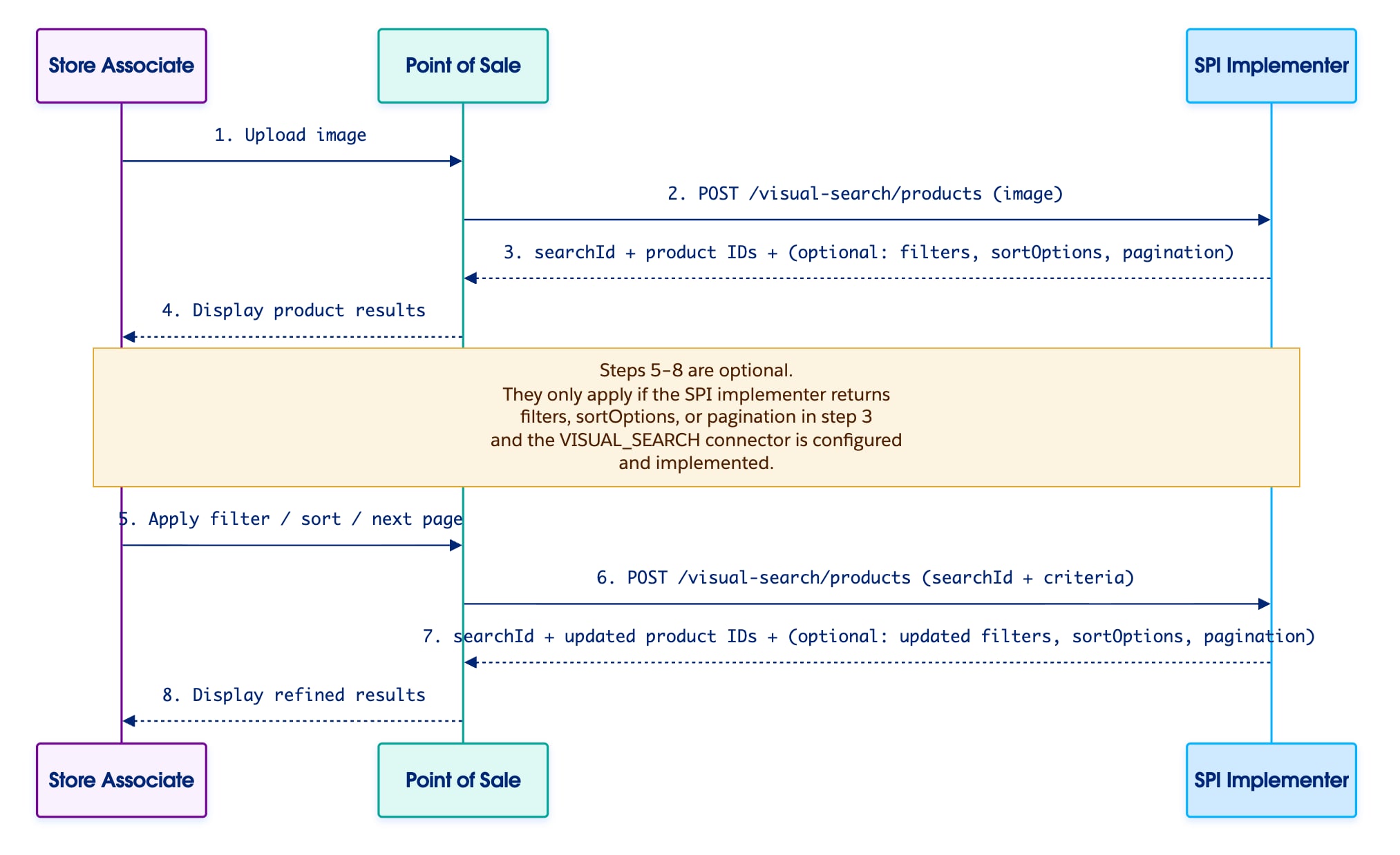
This diagram shows how the store associate, Point of Sale, and the SPI implementer interact during a visual search session.
Required Flow (Steps 1–4)
The store associate captures an image in the POS app.
Point of Sale sends the image to the SPI provider via the VISUAL_SEARCH_UPLOAD connector.
The provider performs image recognition and returns a searchId along with a ranked list of matching product IDs. Optionally, the response can include filters, sortOptions, and pagination. See POS Experience Based on SPI Response.
Point of Sale resolves the product IDs against the local product catalog and displays results to the store associate.
Optional Flow (Steps 5–8)
If the SPI response from step 3 includes filters, sortOptions, or pagination, and the VISUAL_SEARCH connector is configured, Point of Sale renders the corresponding UI controls (filter panel, sort dropdown, page navigation).
The store associate applies a filter, changes sort order, or navigates to the next page.
Point of Sale sends a request to the SPI provider via the VISUAL_SEARCH connector, passing the searchId and the selected criteria.
The provider applies the criteria to the stored result set and returns an updated list of product IDs (with optionally updated filters, sort, and pagination reflecting the new state).
Point of Sale displays the refined results.
The second SPI call is entirely optional. If your provider doesn’t support server-side filtering, sorting, or pagination, omit filters, sortOptions, and pagination from the upload response. The POS doesn’t render these controls, and the VISUAL_SEARCH connector doesn’t need to be configured.
Note
Configure Visual Search SPI
Configure one or both SPI connectors in CMS depending on whether your provider supports server-side refinement.
Configure VISUAL_SEARCH_UPLOAD Connector
In CMS, go to Integrations | Custom Connectors.
Click Create.
For Connector Type, select SPI.
For Endpoint Name, select VISUAL_SEARCH_UPLOAD.
For API Endpoint, specify the external endpoint for image upload and recognition.
Configure this connector only if your SPI provider supports server-side filtering, sorting, or pagination.
In CMS, go to Integrations | Custom Connectors.
Click Create.
For Connector Type, select SPI.
For Endpoint Name, select VISUAL_SEARCH.
For API Endpoint, specify the external endpoint for search refinement.
For Integration Type, select HTTP_POST.
Specify any required JSON headers. For example, {"Content-Type":"application/json"}.
Configure the remaining fields as needed.
Save your changes.
Enable Custom API Headers (Optional)
Enable the populateNewCustomAPIHeaders toggle to inject contextual headers into every SPI request. For details, see Headers Sent by Point of Sale.
POS Experience Based on SPI Response
The POS experience varies depending on the content of the SPI response.
Minimal Response (VISUAL_SEARCH_UPLOAD Only)
With a minimal response, the store associate sees a flat list of visually similar products. No pagination, filters, or sorting controls appear. This is the simplest implementation: image in, products out.
Full Response (VISUAL_SEARCH_UPLOAD and VISUAL_SEARCH)
With a full response, the store associate sees product results with page navigation, a filter panel, and a sort dropdown. Selecting a filter, changing sort, or navigating pages triggers a call to the VISUAL_SEARCH connector.
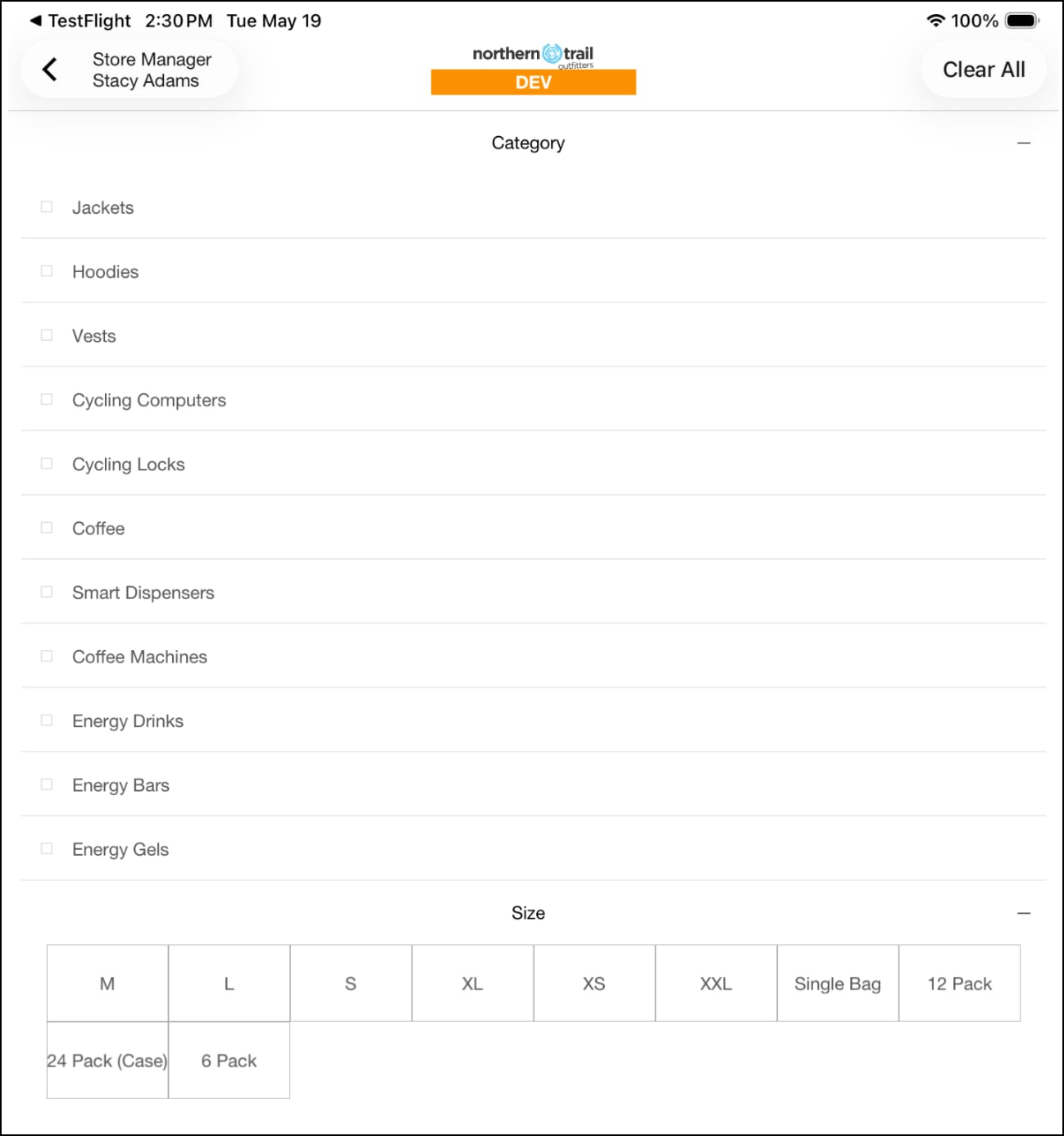
Each entry in filters[] becomes a section in the filter panel. The displayName value is the section title. Each entry in values[] renders as a selectable option. The order of values in the array determines the display order.
Sort Dropdown
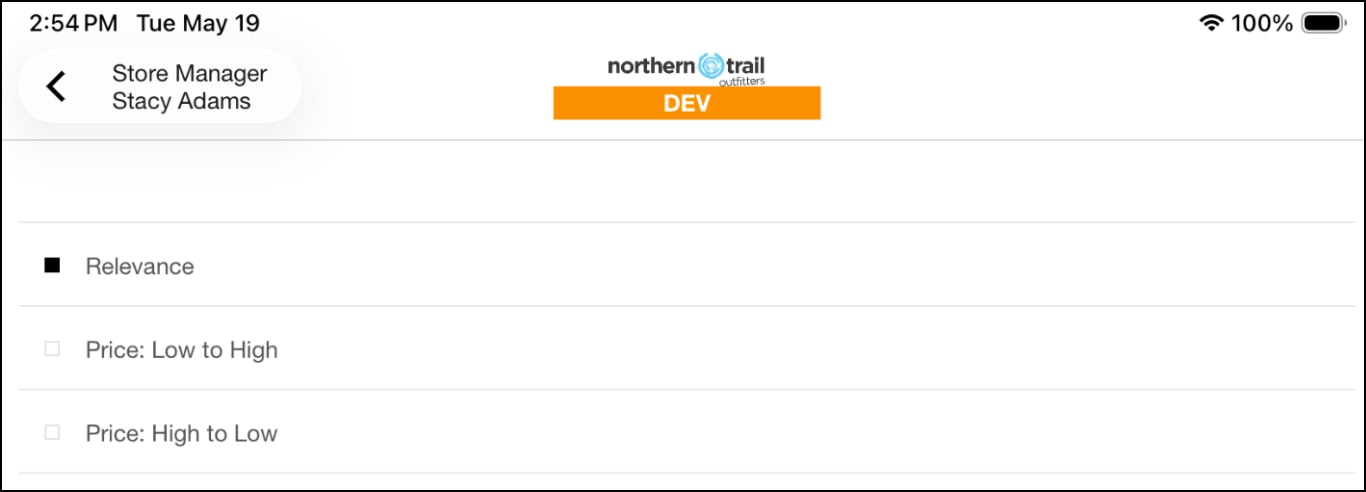
The sortOptions.options[] array renders as a dropdown list. Each option’s label is the row text. The key is the value sent back to the SPI when selected. The option whose key matches sortOptions.current is pre-selected.


 j
j