eCDN Custom Certificates

Upload a self-managed certificate with the CDN Zones API when no custom SSL certificate is installed on the development, staging, or production POD, or when the POD certificate doesn’t cover the hostname. Create the zone first. See Storefront Zone Creation.

A zone can contain one or more hostnames. After you create the zone, certify each hostname. For an eCDN managed certificate, see eCDN Automatic Certificates. For the Business Manager upload, see Add a Self-Managed SSL Certificate for B2C Commerce.

For a certificate that covers multiple hostnames, and for a wildcard certificate, upload the same certificate once for each hostname.

Important

Format a Self-Managed Certificate 

Format the certificate and key as PEM, with newlines represented by the \n character.

Mac or Linux. Use a shell command like:

1cat cert.crt | perl -pe 's/\r?\n/\\n/g'

Windows PowerShell. Use a command like:

1(Get-Content -path C:\path\to\cert-file.crt -Raw ) -replace ('\r?\n','\n')

This command handles either Windows (CR LF) or Unix (LF) line endings.

Windows GUI. Windows Notepad can’t replace line endings. Use a third-party editor such as Notepad++.

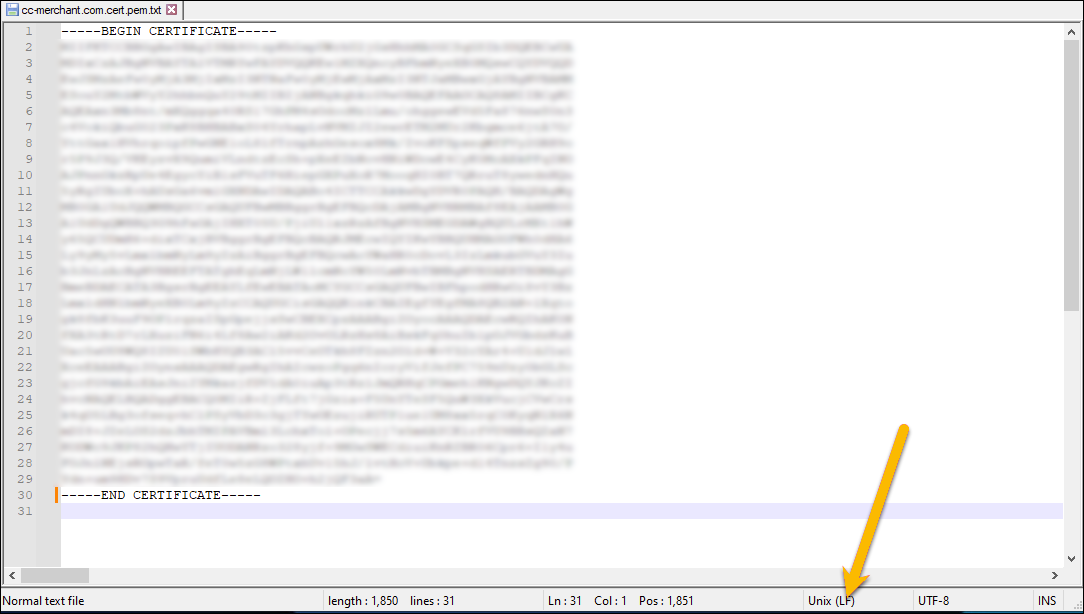
  1. Open each certificate and key file in Notepad++, and note the line ending.

    Notepad++ status bar showing Unix (LF) line endings for a certificate file

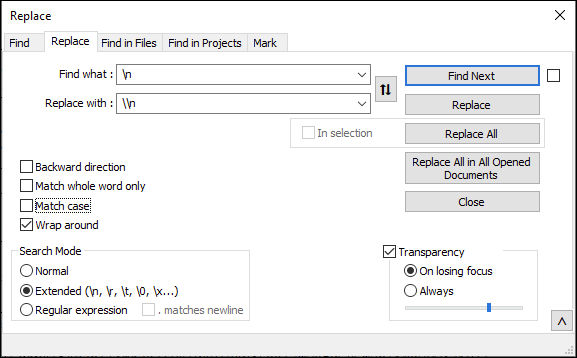
  2. Select Search > Replace.

  3. In Find what, enter the character for the line ending:

    • Enter \n if the file has Unix (LF) line endings.
    • Enter \r\n if the file has Windows (CR LF) line endings.
  4. In Replace with, enter \\n.

  5. In Search Mode, select Extended (\n, \r, \t, \0, \x…).

  6. Click Replace All. If you have multiple certificate or key files open, click Replace All in All Opened Documents.

    Notepad++ Replace dialog with Extended search mode selected and newline characters in Find what and Replace with

Upload a Custom Certificate 

For each hostname, upload the certificate with addCertificateForZone. Pass the hostname, the certificate, and the private key. Set certificateType to custom.

1curl "https://$CODE.api.commercecloud.salesforce.com/cdn/zones/v1/organizations/$ORG/zones/$ZONE/certificates" \
2  --request 'POST' \
3  --header "Authorization: Bearer $TOKEN" \
4  --header 'Content-Type: application/json' \
5  --data '{
6    "hostname": "www.mystore.com",
7    "certificateType": "custom",
8    "certificate": "-----BEGIN CERTIFICATE-----\\n...\\n-----END CERTIFICATE-----\\n",
9    "privateKey": "-----BEGIN PRIVATE KEY-----\\n...\\n-----END PRIVATE KEY-----\\n"
10  }'

Repeat the upload for each hostname. You can send the same certificate and key each time.

Renew a Custom Certificate 

Renew a self-managed certificate on a development, staging, or production zone when the certificate expires or when the hostnames on it change. Managed certificates are renewed automatically. See Add a Managed SSL Certificate for B2C Commerce and eCDN Automatic Certificates.

You can renew in Business Manager or with the API. For the Business Manager path, see Update a Self-Managed SSL Certificate.

  1. Obtain a new certificate from your certificate authority.
  2. Retrieve the zone ID with getZonesInfo: GET /zones/info. Use this call for development, staging, and production. Don’t limit it to staging.
  3. Retrieve the certificate ID with getCertificates: GET /zones/{zoneId}/certificates.
  4. Update that certificate once for each custom hostname with updateCertificate: PATCH /zones/{zoneId}/certificates/{certificateId}.