Deploy Your Storefront from Business Manager (Beta)
In Business Manager, upload bundles, deploy them to your Managed Runtime environments, and track deployment progress.
Developer Workspace is a pilot or beta service that is subject to the Beta Services Terms at Agreements - Salesforce.com or a written Unified Pilot Agreement if executed by Customer, and applicable terms in the Product Terms Directory. Use of this pilot or beta service is at the Customer’s sole discretion.
Important
Prerequisites
A B2C Commerce account with the “Storefront Deployments” permission for the target storefront.
In Business Manager, go to Administration > Storefronts > Your Storefront.
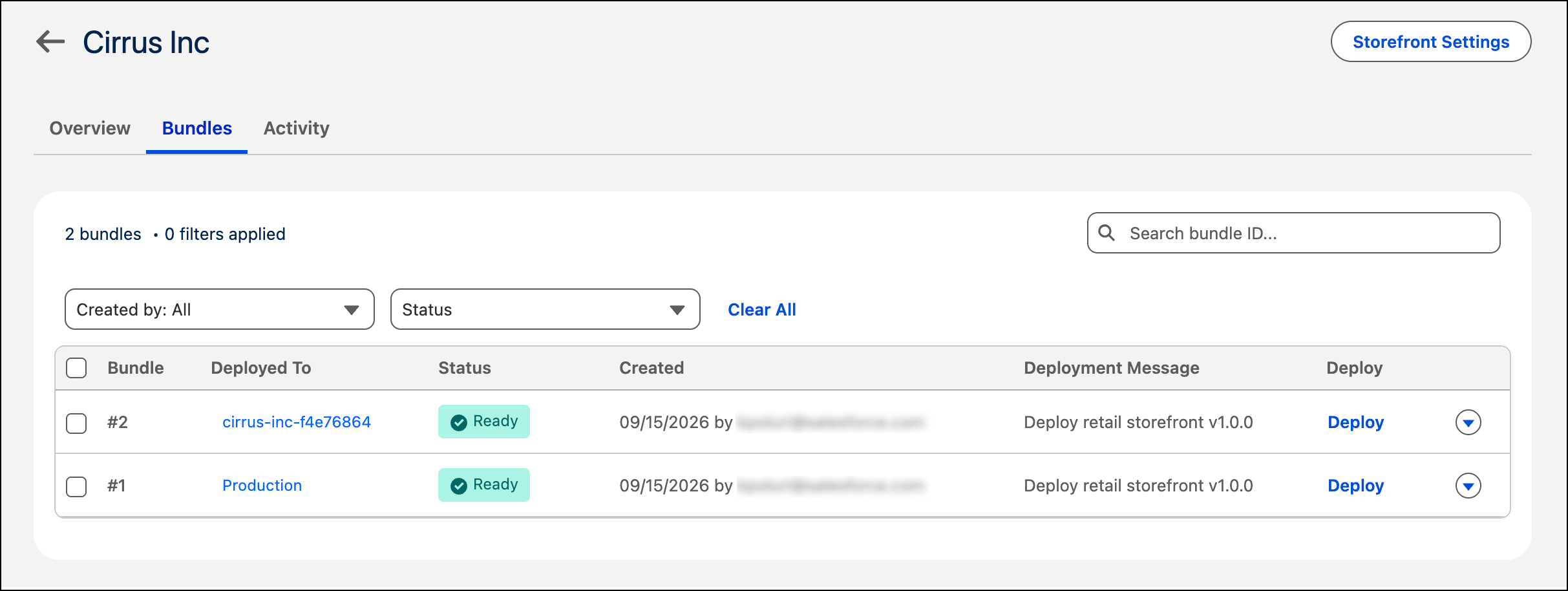
Click Bundles.
The Bundles page lists the bundles, including the bundle name, creation date, and the environment where the bundle is deployed.
From the Bundles page:
Deploy a bundle.
Delete a bundle.
Deleting a bundle that’s deployed doesn’t affect the running environment. The environment continues to serve the deployed bundle until a new deployment replaces it.
Note
Download a bundle. Click the dropdown menu next to the bundle, and then select Download.
Copy a bundle ID. Click the dropdown menu next to the bundle, and then select Copy Bundle ID.
Filter the deployments list by status. Click the status picklist, and then select a status, such as Failed.
When you deploy a bundle, the page shows deployment progress in real time. The page keeps updating until the deployment completes or fails.
Deployments run in the background. Leave the page, and then return to the environment page to check the status.
Note
View Deployment History
To view deployment history for the storefront, click Activity. The Deployments page lists past and current deployments, including the deployed bundle, the user who started it, and the outcome. Filter deployment activity by date range, deployment status, or user.
Deployment Notifications
Set up deployment email notifications in Runtime Admin. See Deployment Notifications in the Composable Storefront Guide.


 j
j