


 j
jConfigure Marketing Cloud Engagement
Runtime Toggles
Event Tracking
Handle URLs
Data Protection and Privacy
Changelog
Before you integrate the Salesforce Engagement SDK with your app, complete these steps to set up and configure Marketing Cloud Engagement.
Before you begin, provision your app with Apple and Firebase. This step ensures that users of your apps receive push messages. For more information, see Prerequisites.
To set up your app, test messages, and review analytics in MobilePush, make sure that your user account has the necessary permissions.
In Marketing Cloud Engagement setup, go to Administration > Users.
Select a user.
Click Manage Roles > Edit Permissions.
In the MobilePush section of the permissions tree, select all checkboxes under General, Message, and Reporting.
These permissions are required to set up your app, send messages, and review analytics.
In the Contact Builder section of the permissions tree, add the access and view all contacts permission.
These permissions are required to test and verify registration information that is sent from the SDK and to review the MobilePush data model before sending attributes from the SDK.
In the Journey Builder section of the permissions tree, select all checkboxes under General and Automation.
These permissions are required to test and verify messages in Journey Builder.
In the CloudPages section of the permissions tree, select all checkboxes under General.
These permissions are required to create, test, and verify inbox messages.
Ask your marketing admin to create an app in MobilePush, or create it yourself.
In Mobile Studio, on the MobilePush tab, select Administration.
If you don’t see this option, you don’t have permission to administer MobilePush. Contact a Marketing Admin for assistance.
Note
Click Create New App and complete the workflow.
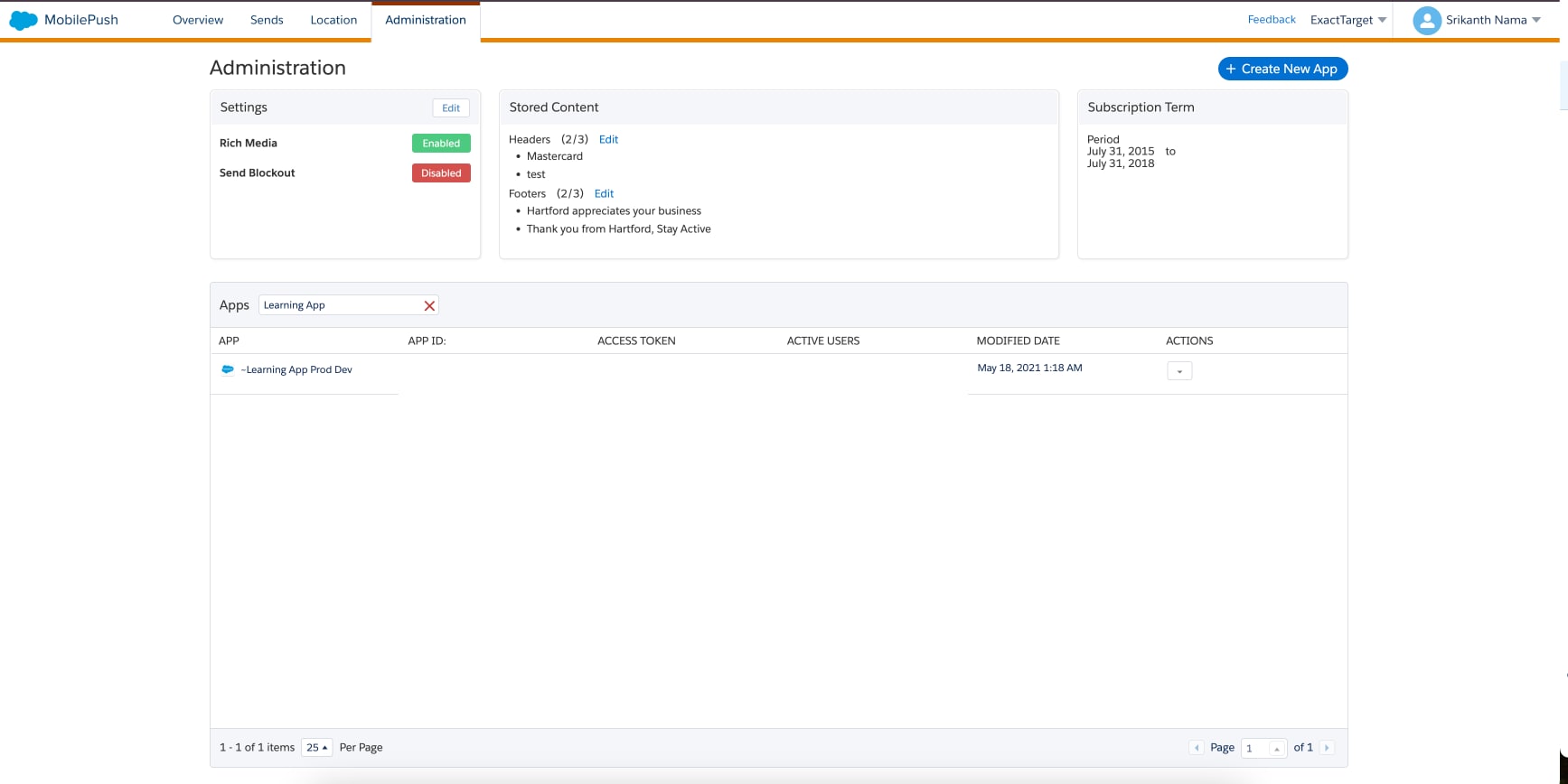
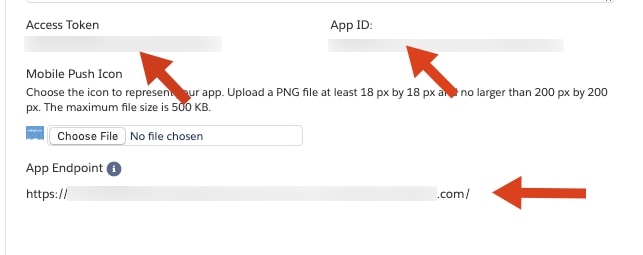
Ask your marketing admin to locate the following required SDK configuration data on your app’s administration page in MobilePush, or locate the information yourself.
To connect your app to Marketing Cloud Engagement, add the configuration data from MobilePush to the SDK config file for your app.
App ID
Access token
App endpoint
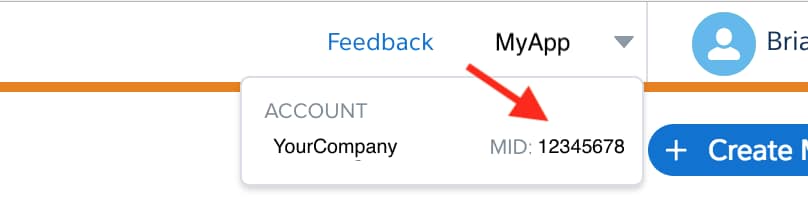
MID
j