# Add Trace Flags and Log Levels
To generate debug logs in Web Console, you must add user-specific trace flags and log levels in the traceLogs.json file.
-
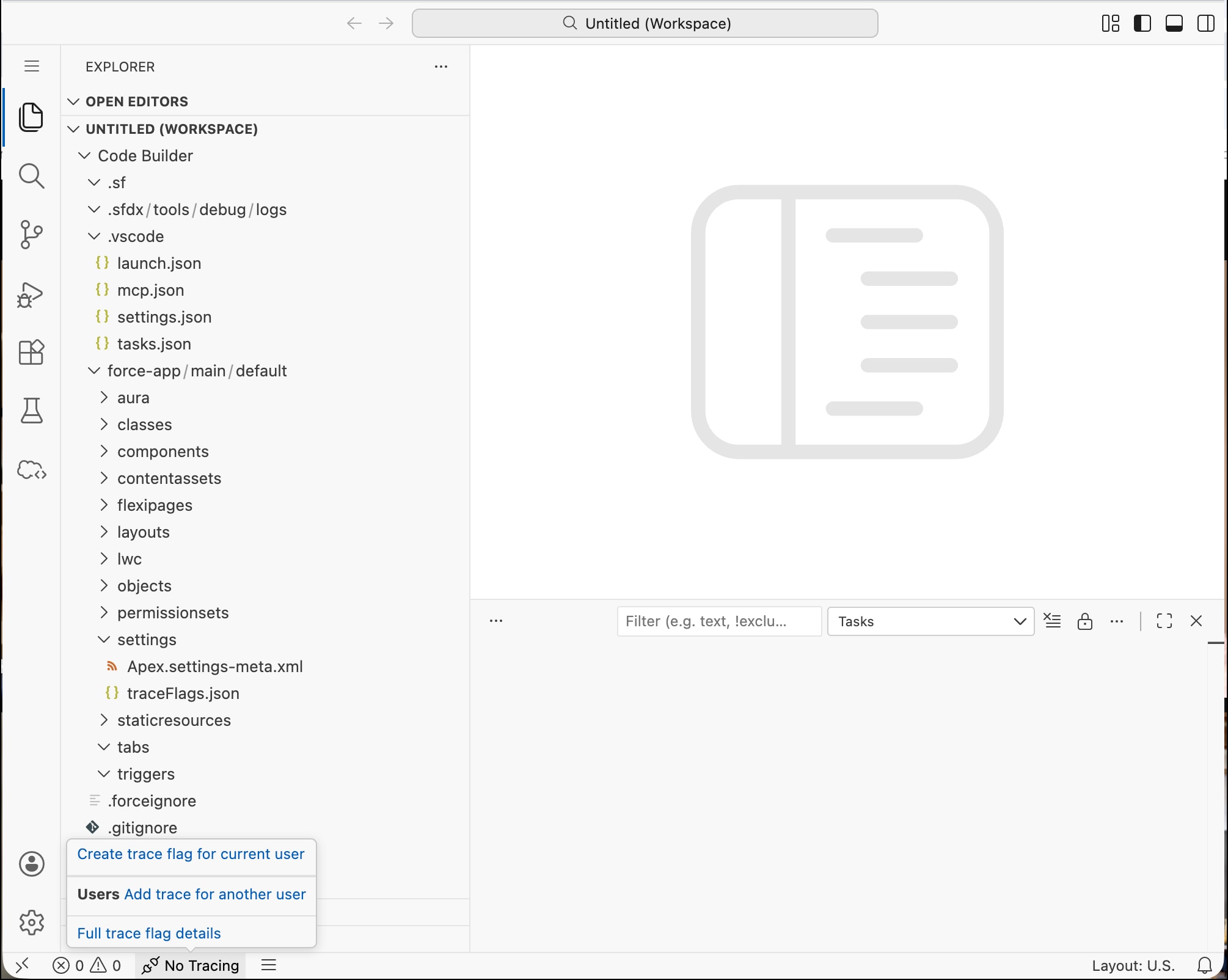
Hover over the No Tracing label on the task bar and select Create trace flags for the current user to add a trace flag for your user.
-
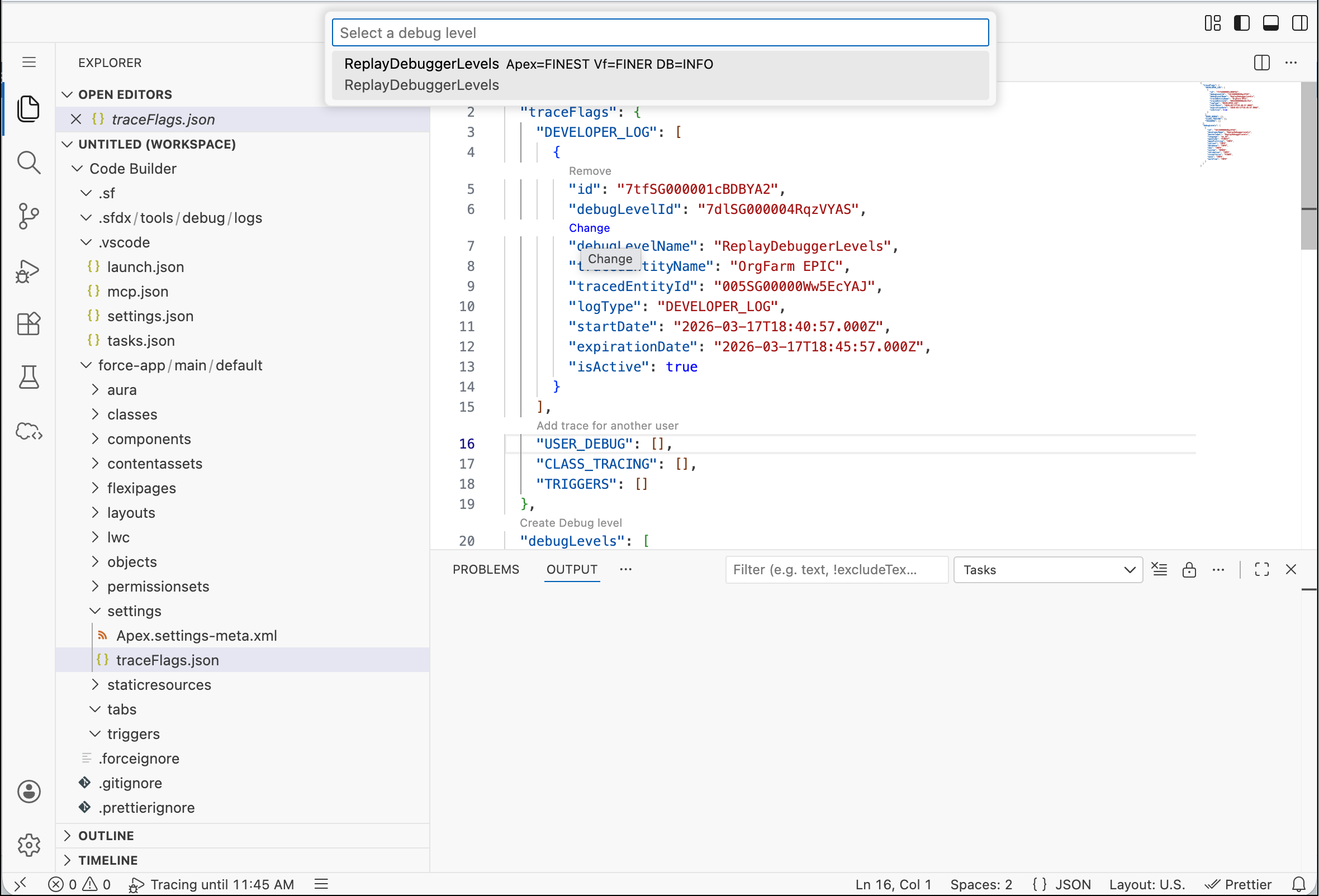
The traceLogs.json file opens with an added trace flag block for the current user. To change the log level for the current user, click the Change text before the debugLevelName property.
-
To add trace flags for another user, click the Add trace for another user text before the USER_DEBUG property and specify a username to add.
-
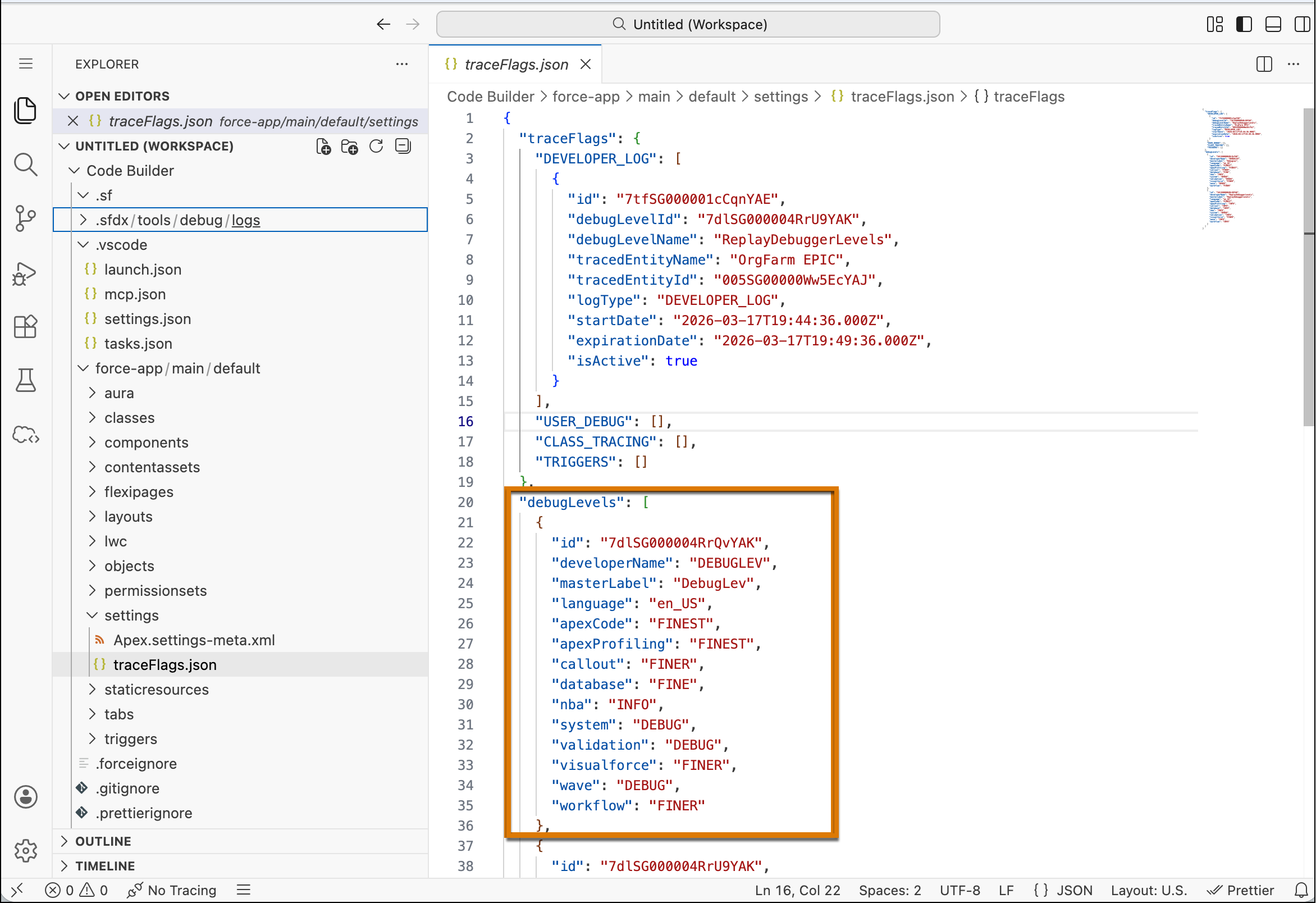
Add log levels.
For more information about log levels, refer to Debug Log Levels
- Click the Create Debug level text.
- Type a label and press Enter.
- To accept the default log levels, select Yes. To customize log levels, select No and select an option for different log types.
-
To remove a block, click the Remove text before the block.
Notice that the No Tracing label on the taskbar changes to Tracing until END-TIME.

After the tracing starts, whenever you perform a task on the connected org, a log is generated with trace details. Here’s an example.
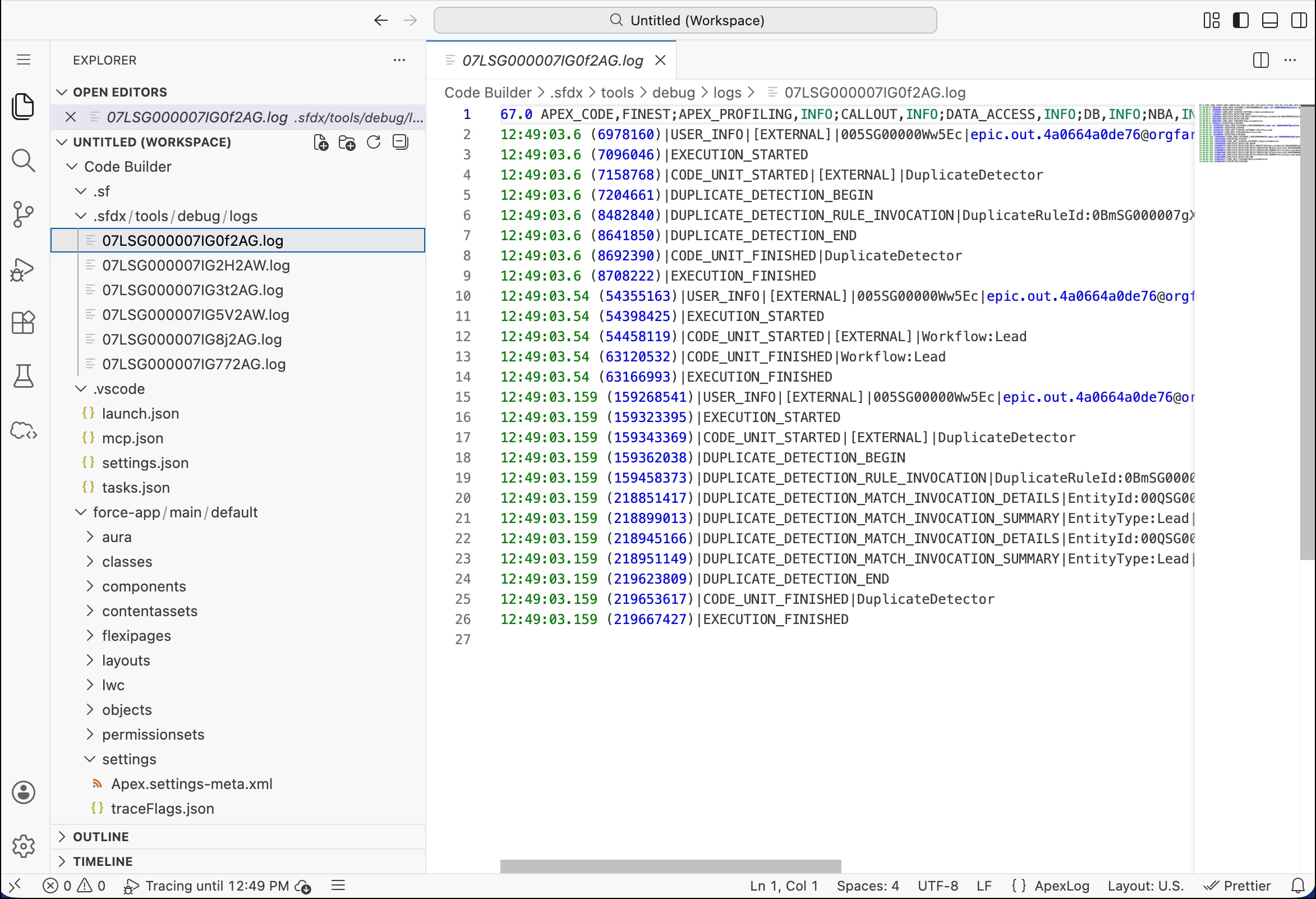
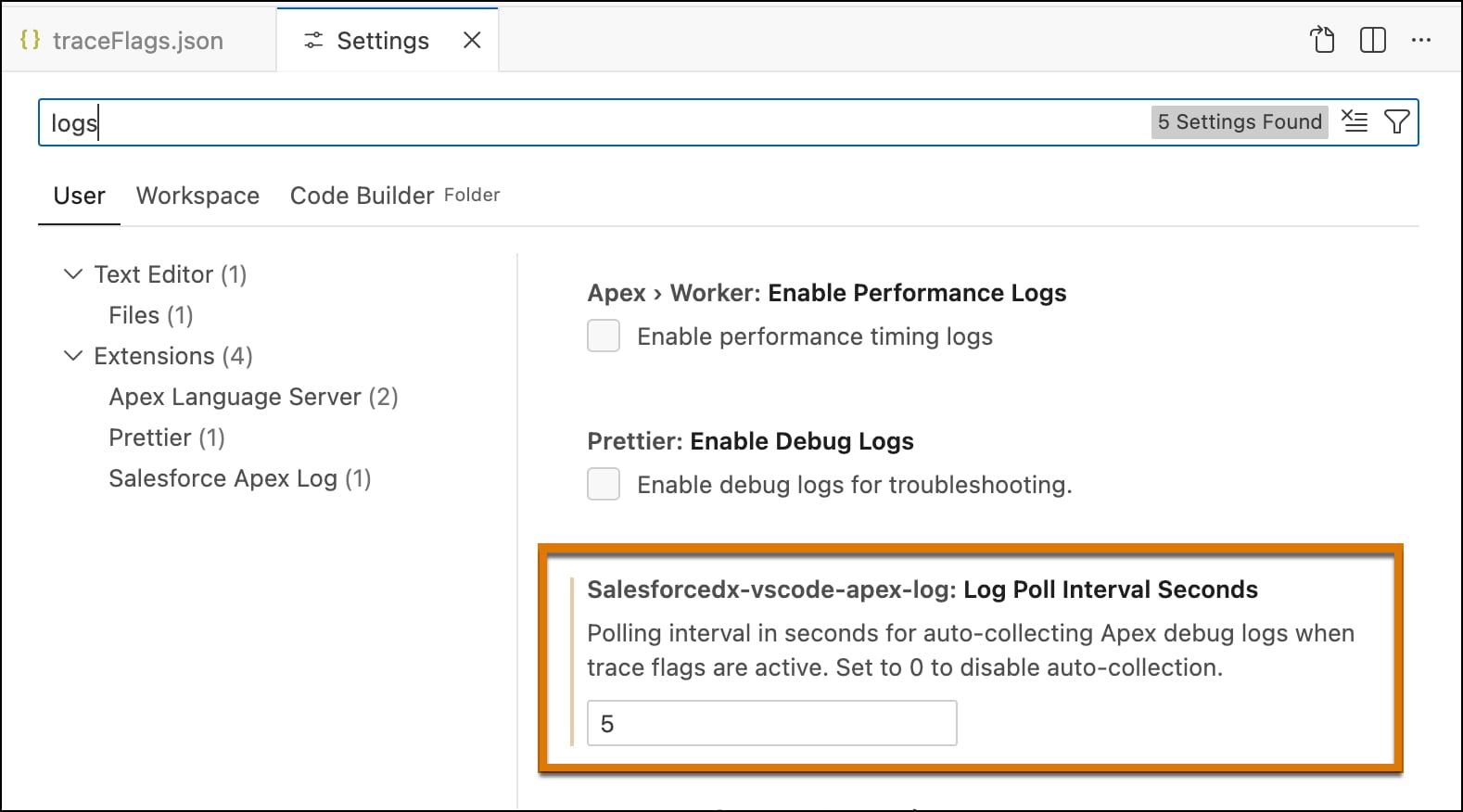
Logs are pulled by default after every 30 seconds. You can change the log-pull interval in Settings.


 j
j