


 j
jAnnouncements
Customization Best Practices and Upgrades
Add a Page and a Component
Add a Component That Fetches Data
MCP and Agent Skills
Extend Storefront Next with Features
CLI Reference
B2C Commerce Release Notes
Ask the Community
Extend a Storefront Next page to fetch data on the server and pass it to a React component. This guide builds on Add a Page and a Component by adding a server-side loader that retrieves products from B2C Commerce and renders them in a new component.
Create a FeaturedProducts component that renders a grid of products.
a. In {project-folder}/src/components, create a folder named featured-products.
b. In the new featured-products folder, create index.tsx with this code.
1import { type ReactElement } from 'react';
2
3export interface Product {
4    productId: string;
5    productName: string;
6    priceMax?: number;
7    image?: { link: string; alt: string };
8}
9
10export interface FeaturedProductsProps {
11    products: Product[];
12    title?: string;
13}
14
15export default function FeaturedProducts({ products, title = 'Featured Products' }: FeaturedProductsProps): ReactElement {
16    return (
17        <section className="container mx-auto px-4 py-8">
18            <h2 className="text-2xl font-bold mb-6">{title}</h2>
19            <ul className="grid grid-cols-2 gap-4 sm:grid-cols-3 lg:grid-cols-4">
20                {products.map((product) => (
21                    <li key={product.productId} className="border rounded-lg p-4">
22                        {product.image && (
23                            <img
24                                src={product.image.link}
25                                alt={product.image.alt}
26                                className="w-full aspect-square object-cover rounded mb-2"
27                            />
28                        )}
29                        <p className="font-medium text-sm">{product.productName}</p>
30                        {product.priceMax && (
31                            <p className="text-muted-foreground text-sm">${product.priceMax.toFixed(2)}</p>
32                        )}
33                    </li>
34                ))}
35            </ul>
36        </section>
37    );
38}
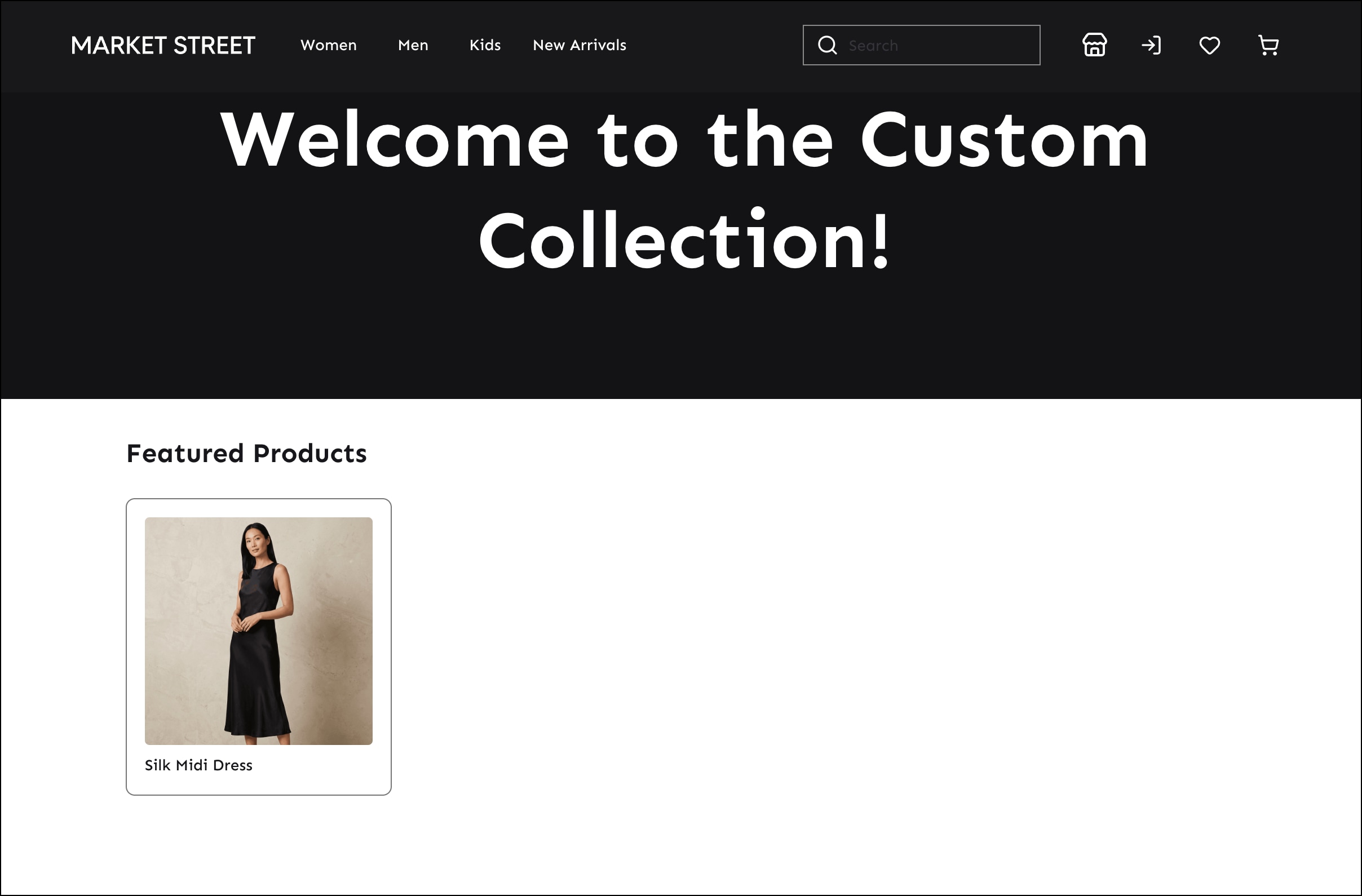
FeaturedProducts accepts a products array and an optional title. It renders a responsive grid of product cards, each showing the product image, name, and price.
Add a loader to the custom page route to fetch products from B2C Commerce. Open {project-folder}/src/routes/_app.custom-page.tsx and replace its contents with this code.
1import { type ReactElement } from 'react';
2import { type LoaderFunctionArgs } from 'react-router';
3import { createPage, type RouteComponentProps } from '@/components/create-page';
4import CustomBanner from '@/components/custom-banner';
5import FeaturedProducts, { type Product } from '@/components/featured-products';
6import { createApiClients } from '@/lib/api-clients.server';
7
8export async function loader({ context }: LoaderFunctionArgs) {
9    const clients = createApiClients(context);
10    const { data } = await clients.shopperSearch.productSearch({
11        params: {
12            query: {
13                q: 'dress',
14                limit: 4,
15                allImages: true,
16            },
17        },
18    });
19    const products: Product[] = (data.hits ?? []).map((hit) => ({
20        productId: hit.productId,
21        productName: hit.productName ?? '',
22        priceMax: hit.priceMax,
23        image: hit.image
24            ? { link: hit.image.link, alt: hit.image.alt ?? hit.productName ?? '' }
25            : undefined,
26    }));
27    return { products };
28}
29
30export type CustomPageData = Awaited<ReturnType<typeof loader>>;
31
32function CustomPageView({ loaderData }: RouteComponentProps<CustomPageData>): ReactElement {
33    return (
34        <div className="pb-16">
35            <CustomBanner title="Welcome to the Custom Collection!" />
36            <FeaturedProducts products={loaderData.products} />
37        </div>
38    );
39}
40
41export default createPage<CustomPageData>({
42    component: CustomPageView,
43});
The loader function runs on the server before the page renders. createApiClients(context) returns all Shopper API clients configured for the current site. The createApiClients function is a template wrapper around the framework’s createCommerceApiClients function. createApiClients reads site configuration, credentials, and locale from context and sets up authentication automatically so you don’t need to pass those values manually. The loader calls the Shopper Search API to retrieve four products matching the query dress and destructures data from the response. The results are mapped to the Product type and returned as loaderData. CustomPageView receives loaderData as a prop and passes the products to FeaturedProducts. CustomPageData is derived directly from the loader’s return type, so the component stays in sync with the data shape automatically.
In a terminal window, go to the storefront folder.
1cd {project-folder}Build the storefront and run the development server.
1pnpm run build
2pnpm run dev
Navigate to http://localhost:5173/custom-page. The page now shows the banner followed by a grid of products fetched from B2C Commerce.
j