


 j
jConfigure Marketing Cloud Engagement
Runtime Toggles
Event Tracking
Ionic and Capacitor Support
Handle URLs
Data Protection and Privacy
Changelog
Use the Cordova Plugin to integrate the Engagement SDK into Ionic and Capacitor applications. For detailed installation and setup instructions, see Marketing Cloud Cordova Plugin.
To integrate Capacitor or Ionic apps with the SDK, configure the Cordova plugin by modifying your application’s configuration file.
For Ionic apps, modify the capacitor.config.ts file and add preferences under cordova, as shown in this example.
1const config: CapacitorConfig = {
2  appId: "io.ionic.starter", // The ID of your app
3  appName: "ionicapp", // The name of your app
4  webDir: "build",
5  bundledWebRuntime: false,
6  cordova: {
7    preferences: {
8      // Marketing Cloud Engagement configuration
9      "com.salesforce.marketingcloud.app_id": "{Engagement application id}",
10      "com.salesforce.marketingcloud.access_token": "{Engagement access token}",
11      "com.salesforce.marketingcloud.tenant_specific_endpoint":
12        "{URL retrieved from Engagement administration page}",
13      "com.salesforce.marketingcloud.analytics": "{true|false}",
14      "salesforce.marketingcloud.delay_registration_until_contact_key_is_set": "{true|false}",
15      "com.salesforce.marketingcloud.notification_small_icon": "ic_launcher_foreground",
16    },
17  },
18};For Capacitor apps, modify the capacitor.config.json file and add preferences under cordova, as shown in this example.
1{
2  "appId": "com.example.app", // The ID of your app
3  "appName": "testSFMC", // The name of your app
4  "bundledWebRuntime": false,
5  "webDir": "dist",
6  "plugins": {
7    "SplashScreen": {
8      "launchShowDuration": 0
9    }
10  },
11  "cordova": {
12    "preferences": {
13      // Marketing Cloud Engagement configuration
14      "com.salesforce.marketingcloud.app_id": "{App ID}",
15      "com.salesforce.marketingcloud.access_token": "{Access token}",
16      "com.salesforce.marketingcloud.tenant_specific_endpoint": "{Tenant-specific endpoint URL}",
17      "com.salesforce.marketingcloud.analytics": "{true|false}",
18      "salesforce.marketingcloud.delay_registration_until_contact_key_is_set": "{true|false}",
19      "com.salesforce.marketingcloud.notification_small_icon": "ic_launcher_foreground"
20    }
21  }
22}
Complete these steps each time you add the platform to your Capacitor app.
Important
Copy the google-services.json file into the YOUR_APP/android/app/ directory.
Enable push notifications in the Capabilities settings for your target in Xcode by clicking + Capability and then selecting Push Notifications.
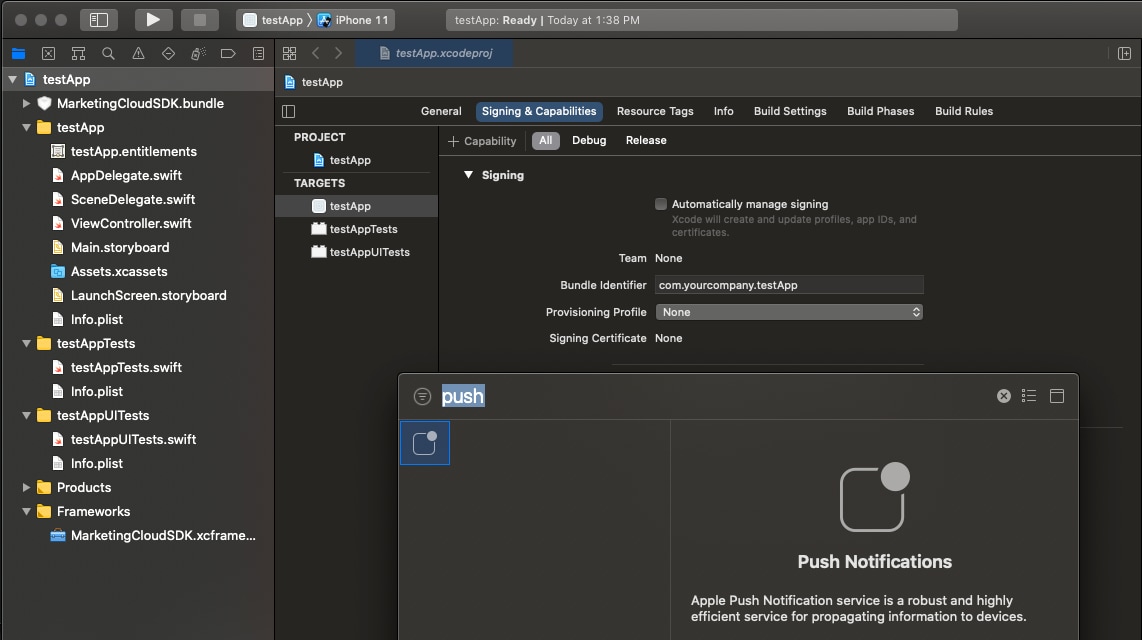
Enable iOS push notifications by adding this code to AppDelegate.
1// SDK imports
2// The SFMCSDK module is included in the dependency packages for the SDK. Don't install it
3// separately or list it in your podfile.
4import SFMCSDK
5import MarketingCloudSDK
The SFMCSDK module is included in the dependency packages for the SDK. Don’t install it separately or list it in your podfile.
Note
Also add this code to the end of the AppDelegate.swift file.
1//SFMCSDK PushNotification
2extension AppDelegate {
3    // REQUIRED IMPLEMENTATION
4    func application(
5        _ application: UIApplication,
6        didRegisterForRemoteNotificationsWithDeviceToken deviceToken: Data
7    ) {
8        SFMCSdk.mp.setDeviceToken(deviceToken)
9    }
10
11    // REQUIRED IMPLEMENTATION
12    func application(
13        _ application: UIApplication,
14        didFailToRegisterForRemoteNotificationsWithError error: Error
15    ) {
16        print(error)
17    }
18
19    // REQUIRED IMPLEMENTATION
20    /** This delegate method offers an opportunity for applications with the
21        "remote-notification" background mode to fetch appropriate new data in response to an
22        incoming remote notification. You should call the fetchCompletionHandler as soon as
23        you’re finished performing that operation, so the system can accurately estimate its
24        power and data cost.
25        This method is invoked even if the application was launched or resumed because of the
26        remote notification. The respective delegate methods will be invoked first. Note that
27        this behavior is in contrast to application:didReceiveRemoteNotification:, which is not
28        called in those cases, and which will not be invoked if this method is implemented. **/
29    func application(
30        _ application: UIApplication,
31        didReceiveRemoteNotification userInfo: [AnyHashable: Any],
32        fetchCompletionHandler completionHandler: @escaping (UIBackgroundFetchResult) -> Void
33    ) {
34        SFMCSdk.mp.setNotificationUserInfo(userInfo)
35        completionHandler(.newData)
36    }
37}If you use TypeScript with your app, declare the plugin before you call the APIs, as shown in this example.
1//Declare the plugin (for typescript)
2declare let MCCordovaPlugin: any;
3declare let SFMCEvent: any;
4
5//Call plugin APIs
6MCCordovaPlugin.enableLogging();
7MCCordovaPlugin.enablePush();
8//Other APIs...