


 j
jConfigure Marketing Cloud Engagement
Runtime Toggles
Event Tracking
Troubleshoot Initialization and Registration
Troubleshoot Push Implementation
Troubleshoot Issues in iOS Service Extensions
Handle URLs
Data Protection and Privacy
Changelog
Diagnose issues with Salesforce Engagement SDK initialization and contact or device registration in Marketing Cloud Engagement, including missing devices, duplicate device IDs, and attributes that don’t appear. Before you troubleshoot these scenarios, review the basic troubleshooting information for Android and iOS apps to rule out any fundamental implementation issues.
Contacts and devices appear in Marketing Cloud Engagement only if your app successfully initializes the SDK. First, ensure the SDK is initialized correctly.
It can take up to five minutes to process and display new device registrations. If your devices or contacts don’t show up after successful SDK initialization, wait at least five minutes and check for the contact key again by doing the following.
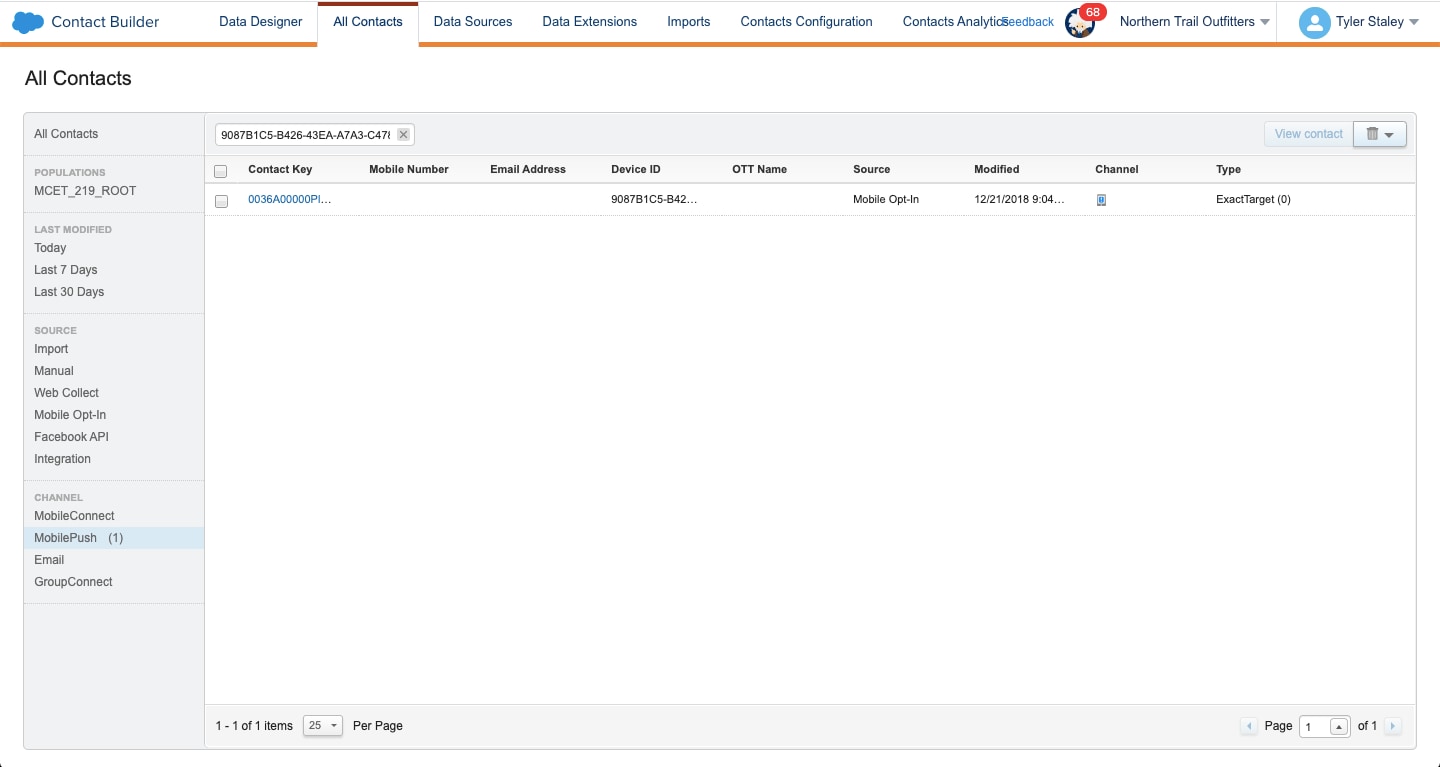
You can’t look up a contact if you didn’t set a contact key. When you don’t set a contact key, Marketing Cloud Engagement generates and assigns a corresponding contact key to the contact as a random GUID. To identify the GUID and determine if the device was registered, follow these steps.
Talk to your marketer about revising your contact key strategy.
A device ID is analogous to an instance of an app installation. When a contact installs your app, the SDK creates a corresponding device ID for a contact in these scenarios:
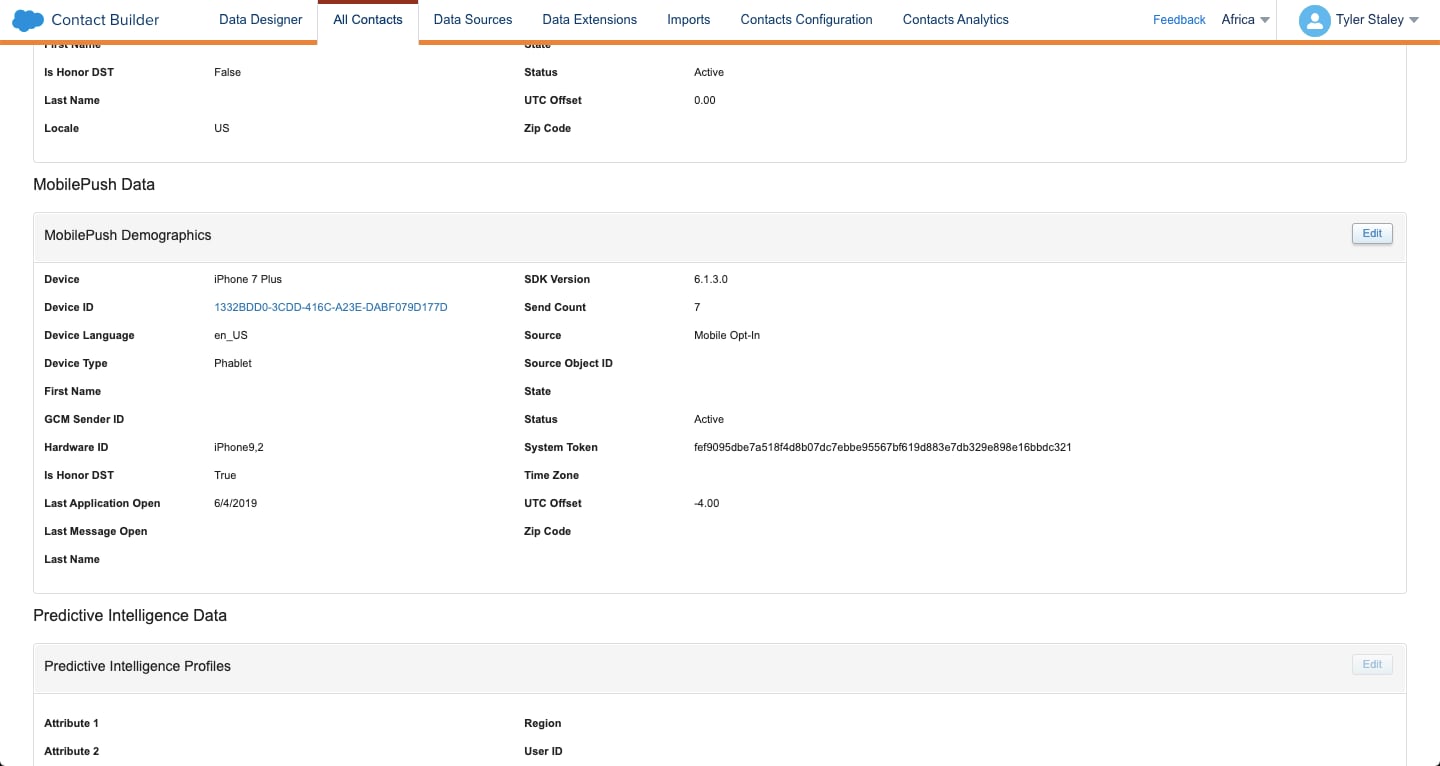
You can’t delete additional device IDs. There’s also no age-decay criteria to automatically delete less-active devices. However, you can review the device IDs associated with a contact by doing the following.
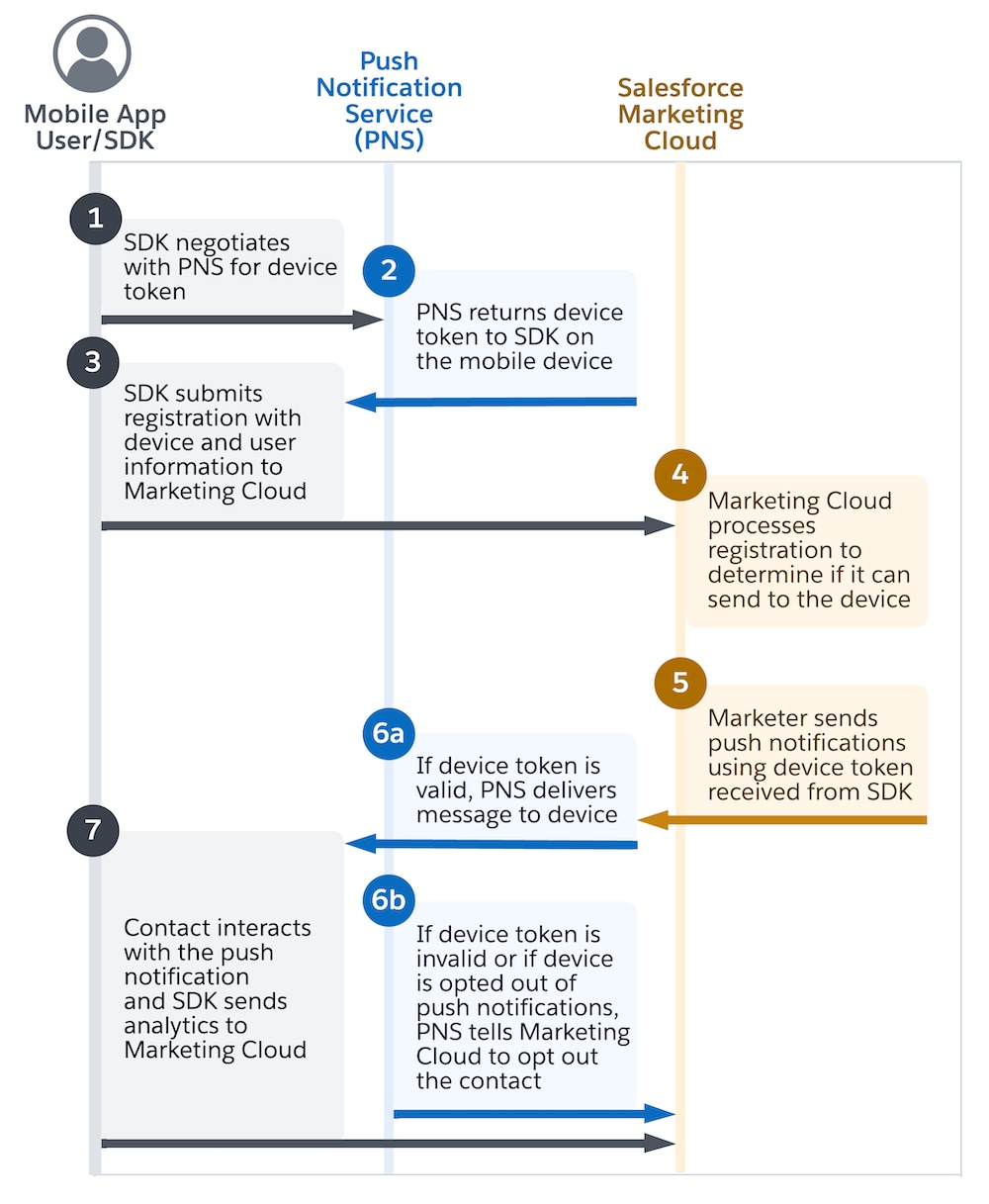
Engagement determines whether a device is eligible to receive push notifications in these ways.
User Engagement: When a user launches the app, the app can send registration data to your Marketing Cloud Engagement account, even if the device is opted out of receiving push notifications. This scenario is represented in step 3 of this diagram. Older devices can remain inactive for months or even years, and therefore unable to communicate with Marketing Cloud Engagement. In this scenario, older device IDs can remain opted in and persist in your account.
Push Notification Service (PNS): The PNS notifies Marketing Cloud Engagement that the device can’t receive notifications. After it receives this notification, Marketing Cloud Engagement waits to receive confirmation of a device’s eligibility to receive push notifications. After receiving this confirmation, Marketing Cloud Engagement waits until it’s explicitly instructed by the PNS that a device has opted out, or until there are three consecutive delivery failures from the PNS, and then opts the device out from future push notifications. This scenario is illustrated in step 6b of the operational diagram for the SDK.
For information about resolving common causes of contact dissociation, see Contact Dissociation. You can also delete dissociated contacts from your account.
If your app doesn’t set the contact key in the device registration, Marketing Cloud Engagement automatically generates and assigns a random GUID to represent that contact. See Set the Contact Key.
There are several reasons why attributes don’t appear in Marketing Cloud. To troubleshoot this issue, first make sure that the SDK is fully initialized before it makes registration calls or method updates. If a device attempts to make one of these updates, the requests fail. Add logging to your Android or iOS, and then review the logs for errors.
Attributes can also be cleared using the SDK’s clear method. If you use the clear method, the registration call updates to reflect the cleared state. This update means that the SDK doesn’t send any attributes to Marketing Cloud. Make sure that your code doesn’t clear any attributes that were previously set. You can also use the getSdkState() convenience method to view the output from the SDK’s current state.
Finally, make sure that the attributes that you send to Marketing Cloud exist in Contact Builder. In Contact Builder, go to Data Designer > MobilePush Data. Select and review the attributes that are associated with the Demographics table. Make sure that the attributes you send to the SDK exactly match the attributes in Contact Builder.
j