
Appearance
Exercise 1: Create the App Shell and Mock Data
In this exercise, you'll create a Salesforce Multi-Framework React app and build the first visible version of the Partner Command Center. You'll start with an app shell, add mock partner data, calculate summary metrics, and add simple status labels.
Step 1: Create the React App Project
Open Agentforce Vibes from Setup.
Open the Agentforce Vibes Sidebar.
Close any open chat windows.
Click New Project.
Select React App.
Click Create a Project.
Select Internal User App.
Update the project name to
partner-command-center.Click Create Project.
Wait for Vibes to create the project. It automatically opens in a new workspace.
Step 2: Build the App Shell
Once the new project is loaded, open the Agentforce Vibes Sidebar.
Agree to the extension terms, then click Enable Agentforce.
Use this prompt to create the first visible version:
txtCreate a Salesforce Multi-Framework React app with the project name partner-command-center. Use Partner Command Center as the user-facing app title. For the first version, build only the app shell with a header, page title, and empty main content area. Use clean Salesforce-inspired styling.Review the files Vibes creates or updates.
If Vibes asks to run setup, install, or build commands, approve them.
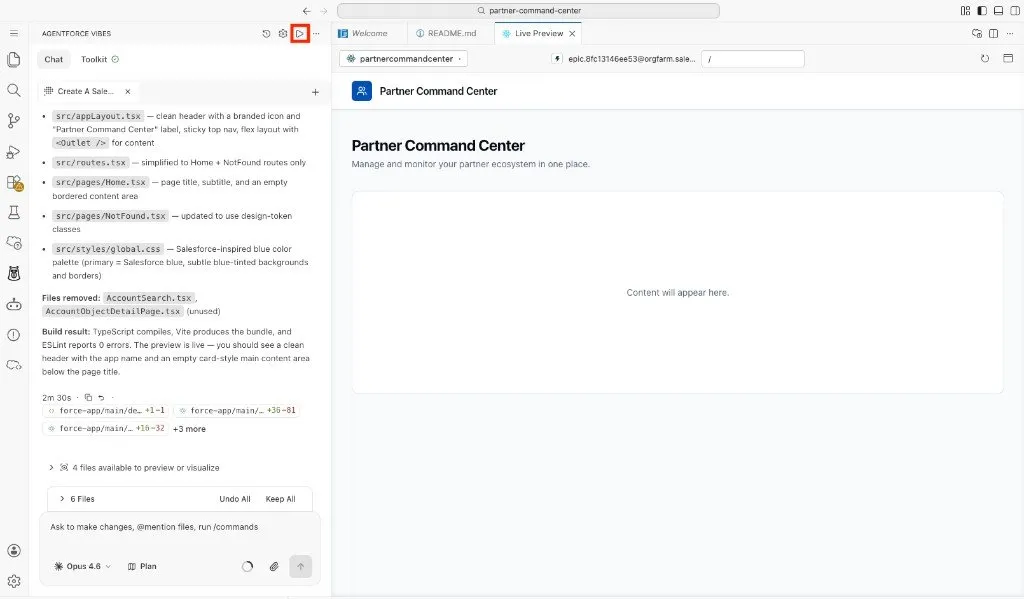
Preview the app when Vibes finishes the first build.
If Live Preview does not open automatically, click the Preview button at the top of the Agentforce Vibes extension.
Step 3: Add Mock Partner Data
Use this prompt to add realistic mock data:
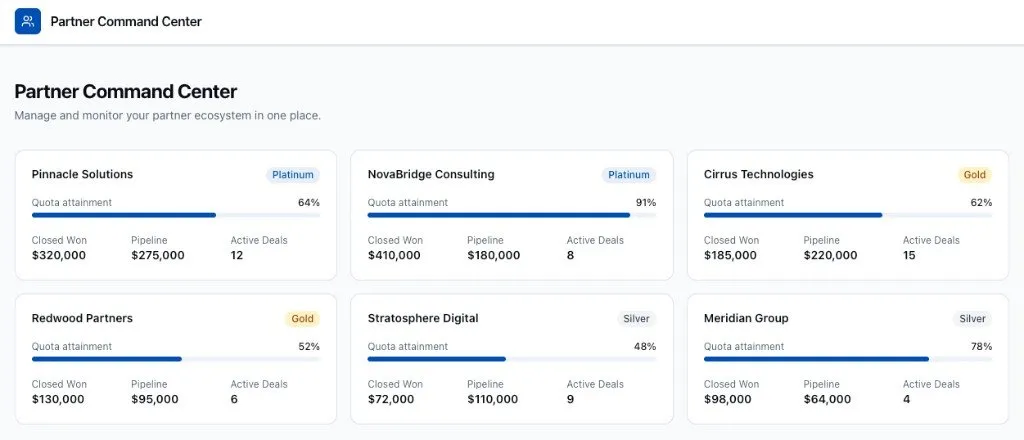
txtAdd mock partner performance data to the Partner Command Center app. Each partner should include: - name - tier - quarterlyQuota - closedWon - openPipeline - activeDeals Render the partners in a simple list or card grid.Preview the app and confirm that partner cards or rows appear.
If the data renders but the layout feels crowded, ask Vibes to keep the layout simple before moving on.
Step 4: Add Summary Cards
Use this prompt to add calculated summary metrics:
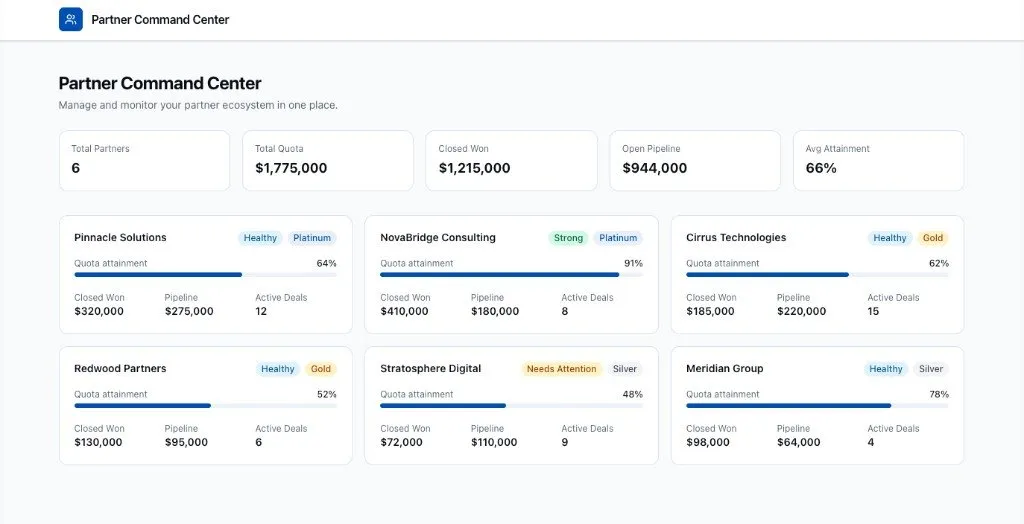
txtAdd summary cards at the top of the Partner Command Center. Calculate from the mock partner data: - Total Partners - Total Quota - Closed Won - Open Pipeline - Average AttainmentPreview the app and compare the summary cards with the partner list.
Ask Vibes to fix any metric that looks incorrect before continuing.
Step 5: Add Status Labels
Use this prompt to make the partner cards easier to scan:
txtAdd visual status labels to each partner card. Use: - Strong if attainment is 80% or higher - Healthy if attainment is 50% to 79% - Needs Attention if attainment is 25% to 49% - At Risk if attainment is below 25%Preview the app and confirm that each partner has a status label.
If a status label does not match the partner's attainment, paste the example into Vibes and ask it to correct the calculation.
Summary
- You created a Salesforce Multi-Framework React app.
- You built the Partner Command Center app shell.
- You added mock partner performance data.
- You calculated summary metrics from the mock data.
- You added status labels so partner health is easy to scan.
In the next exercise, you'll make the app interactive with filters, search, sorting, and a detail panel.