
Appearance
Exercise 2: Add Interactivity
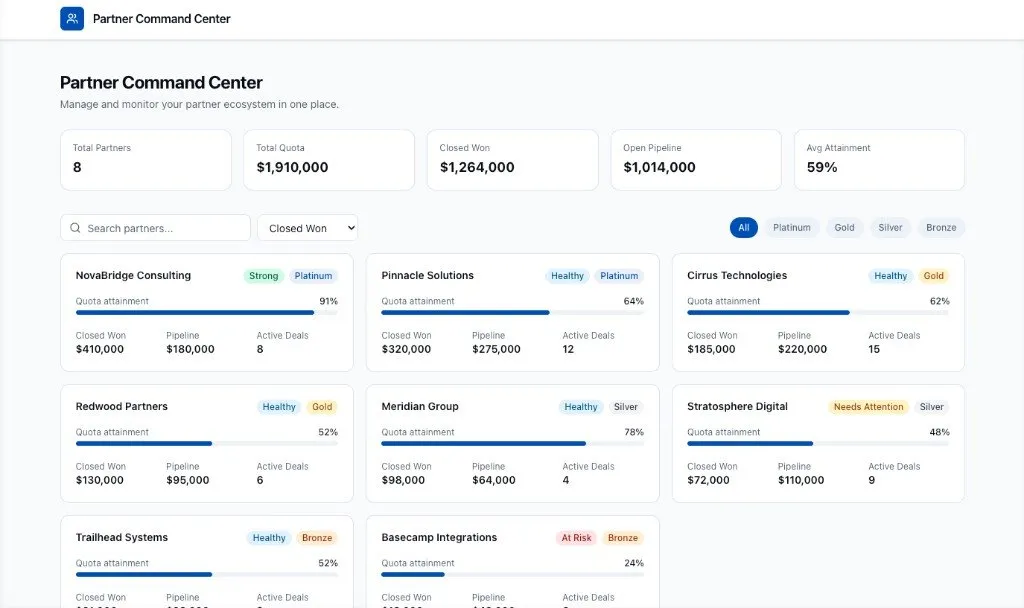
In this exercise, you'll use React to make the Partner Command Center interactive. You'll add tier filters, search, sorting, pagination, and a partner detail panel. Each change should keep the existing summary cards in sync with the partners currently visible on the page.
Step 1: Add Tier Filters
Use this prompt to add filters:
txtAdd tier filters to Partner Command Center. Users should be able to filter partners by: - All - Bronze - Silver - Gold - Platinum The summary cards should update based on the filtered partners.Preview the app and test each tier filter.
Confirm that the partner list and summary cards update together.
Step 2: Add Search
Use this prompt to add partner search:
txtAdd search to Partner Command Center. Users should be able to search partners by name. Search should work together with the tier filter. The summary cards should update based on the visible partners.Preview the app and search for a partner name.
Test search with at least one tier filter selected.
If search and filters do not work together, ask Vibes to fix the combined filter logic.
Step 3: Add Sorting
Use this prompt to add sorting:
txtAdd sorting to Partner Command Center. Users should be able to sort partners by: - Closed Won - Open Pipeline - Attainment Sort should work together with search and tier filtering.Preview the app and test each sort option.
Confirm that sorting respects the current search term and tier filter.
Step 4: Add Pagination
Use this prompt to add pagination:
txtAdd pagination to Partner Command Center. Show 6 partners per page. Users should be able to move to the next page and previous page. Pagination should work together with tier filtering, search, and sorting. The summary cards should continue to calculate from all visible filtered results, not just the current page.Preview the app and confirm that only 6 partners appear per page.
Test pagination with a tier filter, search term, and sort option selected.
Confirm that the summary cards still reflect the full filtered result set.
Step 5: Add a Partner Detail Panel
Use this prompt to add a detail panel:
txtAdd a partner detail panel. When a user selects a partner, show a detail panel with: - Partner name - Tier - Quarterly quota - Closed won - Open pipeline - Attainment - Active deals Keep the list visible while the detail panel is open.Preview the app and select a partner.
Confirm that the partner list stays visible while the detail panel opens.
Select a different partner and confirm that the detail panel updates.
Summary
- You added tier filtering.
- You added partner search.
- You added sorting.
- You added pagination.
- You added a detail panel.
- You kept summary metrics synced with the visible partner data.
In the next exercise, you'll replace mock data with Salesforce data and add workflow recommendations.