
Appearance
Exercise 3: Create a Custom MCP Server
In this exercise, you'll create your own Custom MCP Server to expose sales tools to end users. You'll work in Salesforce Setup to compose your server with custom Flows, custom Apex actions, and tools from the standard MCP servers. You'll then test your server and its tools in the Headless 360 Playground.
Step 1: Create the Custom MCP Server
From Setup, in the Quick Find box, enter
MCP Servers, then select MCP Servers.Click the Salesforce Servers tab.
Click Create Salesforce MCP Server.
Fill in the following fields:
Field Value Label Custom Sales ToolsName CustomSalesTools(auto-filled)Description A custom MCP server with sales tools.Click Create.
Step 2: Add Custom Tools
Click Add Server Assets and select Add Tools from the dropdown.
Click Create Account Sync Meeting Task and click Add Tool.
In the type dropdown next to Apex actions, select Flows.
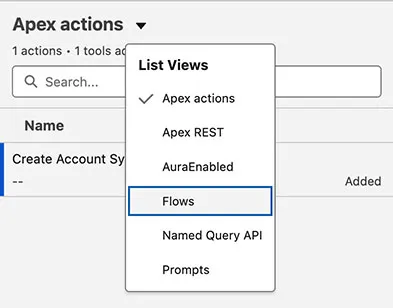
Click Account Health Check Calculator and click Add Tool.
Click Save.
At this point, the page header indicates that you have 2 tools in the Custom Sales Tools MCP server.
Step 3: Add Standard Tools
Click Add Server Assets and select Add from Server from the dropdown.
Click sobject-reads.
Locate the Query Records (SOQL) row and click Add Tool.
Locate the Search Across Objects (SOSL) row and click Add Tool.
Click Done.
You now have 4 tools in the Custom Sales Tools MCP server.
Step 4: Activate and Copy the Server URL
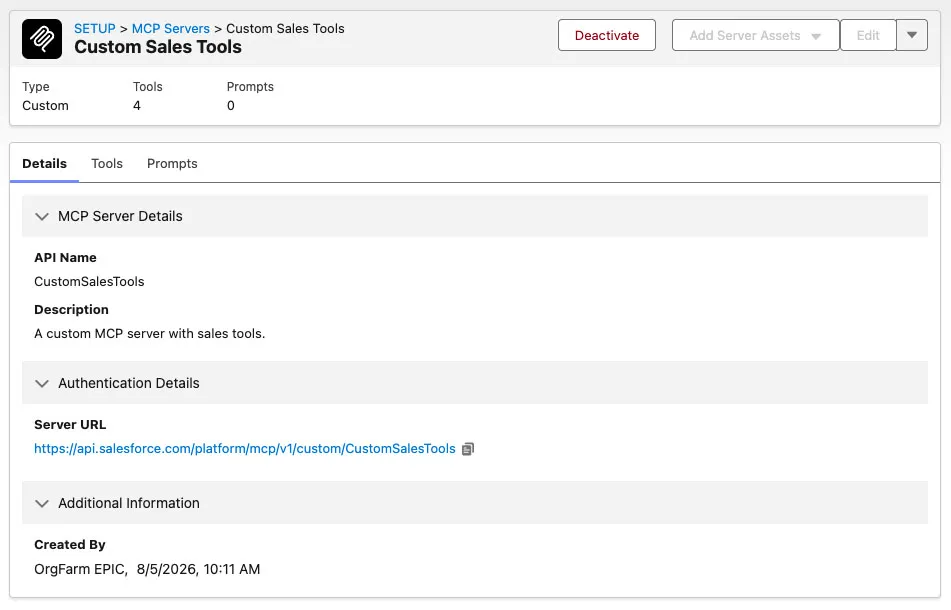
Click Activate to make the server available to MCP clients.
TIP
Note the Server URL, you'll need it in the next step to connect the agent to your server.
Step 5: Add the Custom Server to the Playground
Open the Headless 360 Playground and navigate to the Servers tab.
Paste the Server URL you copied earlier in the URL field. It should be:
https://api.salesforce.com/platform/mcp/v1/custom/CustomSalesToolsClick Add.
Click Test to verify the server is reachable and inspect the four tools it exposes.
Step 6: Test the custom server
Navigate to the Chat tab.
Add all of the tools from your CustomSalesTools custom MCP server to the chat context.
Run the following prompt:
txtFind the Account named Arroyo Medical Group and check the account health.Notice that agent called the
soqlQueryplatformstandard tool to identify the account then theAccount_Health_Check_Calculatorcustom flow tool to run the health report.Review the health report for the account.
Run the following prompt:
txtCreate a sync meeting for the account.Notice that the agent called the
CreateAccountSyncMeetingTaskcustom Apex action tool to create a task.In your Salesforce Org, search for the Arroyo Medical Group account.
Click Open Activities.
Click Prepare for Arroyo Medical Group meeting with Alex Garcia and review the task details. This is the task that you just created with the last prompt.
Summary
In this exercise, you created a Custom MCP Server to expose sales tools to your users. You saw how to call business logic from the Headless 360 Playground with a combination of Apex actions, Flows, and standard MCP tools.
You now have three MCP servers working together: live data access, metadata context, and custom business logic through a single natural language interface powered by Salesforce Hosted MCP servers.