
Appearance
Exercise 2: Vibe Code an Account Pipeline Health Widget
In this exercise, you'll use Agentforce Vibes to build a small Lightning Web Component for an Account record page. You'll first ask Vibes to add a calculated Account field, then ask it to build a compact visual health card that reads that field from the current Account record.
Scenario
Sellers and partner managers need a quick way to judge whether an Account is worth attention. The score uses simple Account data like Type, Annual Revenue, Employees, and Rating. The Lightning Web Component turns that score into a visual health badge.
This is a clean two-step build: first metadata, then UI. It gives you a visible payoff without needing Apex.
Vibe Coding Mindset
Good vibe coding is a loop:
- Frame the outcome. Tell the agent what business result you want.
- Build a thin slice. Start with something small enough to deploy and preview.
- Watch the agent use context. Notice how it uses metadata, files, MCP servers, and skills while it works.
- Test from evidence. Use deployment output and Component Preview to decide what to ask next.
- Iterate. Make one focused improvement at a time.
The prompts in this exercise are intentionally specific. You are still vibe coding: after each build, deploy the change, preview the component, and use what you see to decide the next prompt.
Step 1: Create the Formula Field
Open the Agentforce Vibes Sidebar.
Use this prompt to create the Account formula field:
txtCreate a Number formula field on Account called Pipeline Health Score with API name Pipeline_Health_Score__c. The formula should calculate a 0-100 score: - Partner accounts start at 70 - Customer accounts start at 60 - Prospect accounts start at 45 - All other accounts start at 50 - Add 15 if AnnualRevenue is greater than 25000000 - Add 10 if NumberOfEmployees is greater than 500 - Add 10 if Rating is Hot - Subtract 20 if Rating is Cold - Cap the score between 0 and 100 Use Salesforce formula syntax similar to MIN(100, MAX(0, ...)). Add field-level read access for this field to the Partner Management permission set: force-app/main/default/permissionsets/Partner_Management.permissionset-meta.xml Create or update the needed Salesforce metadata files in this project.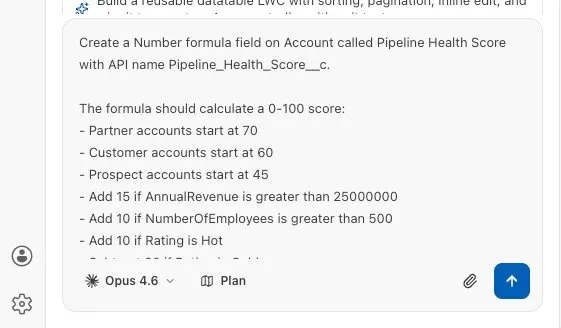
As Vibes works, notice how it combines the LLM, MCP tools, and Salesforce skills to understand your project and org metadata.
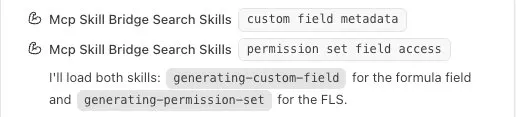
Ask Vibes to deploy the formula field before you build the component.
Vibes may offer to deploy automatically. If it does, approve the deployment command. If it does not, use this prompt:
txtDeploy the Account Pipeline Health Score field and Partner Management permission set changes to my target org.After deployment completes, you should see a deployment confirmation.
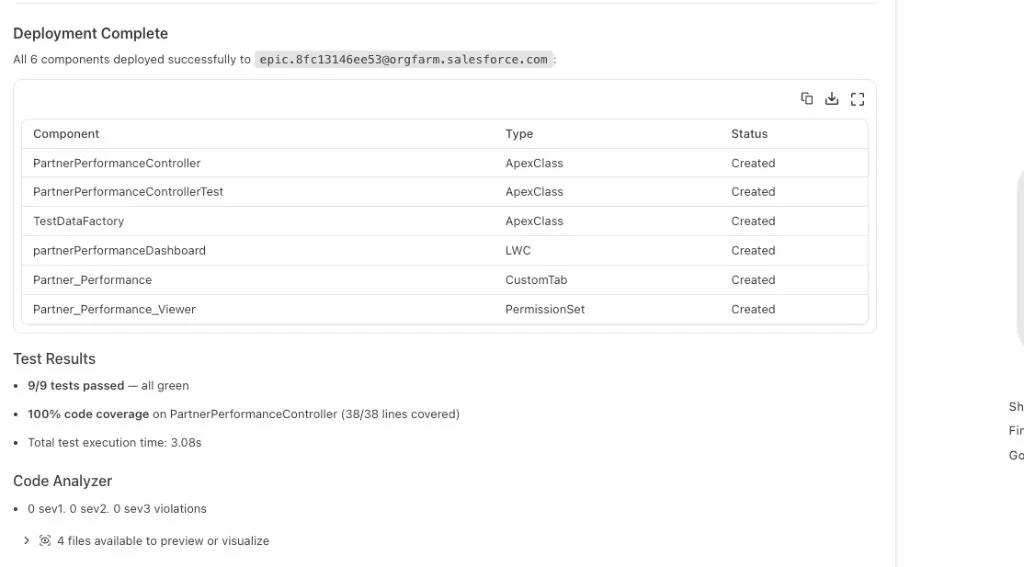
Step 2: Build the Account Record Page LWC
Use this prompt to build the Lightning Web Component:
txtCreate a Lightning Web Component for the Account record page called accountPipelineHealth. It should use Lightning Data Service to read the current Account record and display: - Account Name - Type - Rating - Pipeline_Health_Score__c Render the score as a compact Sales Cloud health card: - 80-100: Strong - 60-79: Healthy - 40-59: Needs Attention - Below 40: At Risk Use SLDS styling. Show the score as a progress bar or large badge. Include a short helper message based on the score. If Pipeline_Health_Score__c is blank, show "No pipeline health score available." Make the component available on Account record pages.Ask Vibes to deploy the LWC before you preview it.
Vibes may deploy automatically after it creates the component. If it does not, use this prompt:
txtDeploy the accountPipelineHealth Lightning Web Component to my target org.After deployment completes, you should see a deployment confirmation.
Step 3: Preview the LWC
Expand the Component Preview list above the chat input.
Select Preview next to the
accountPipelineHealth.htmlfile.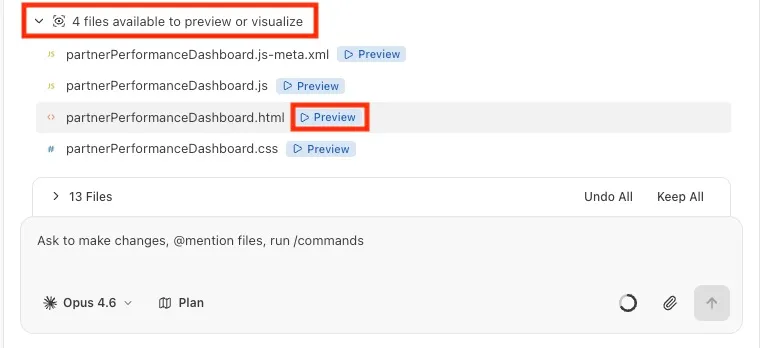
If prompted, press Enter to approve the component preview.
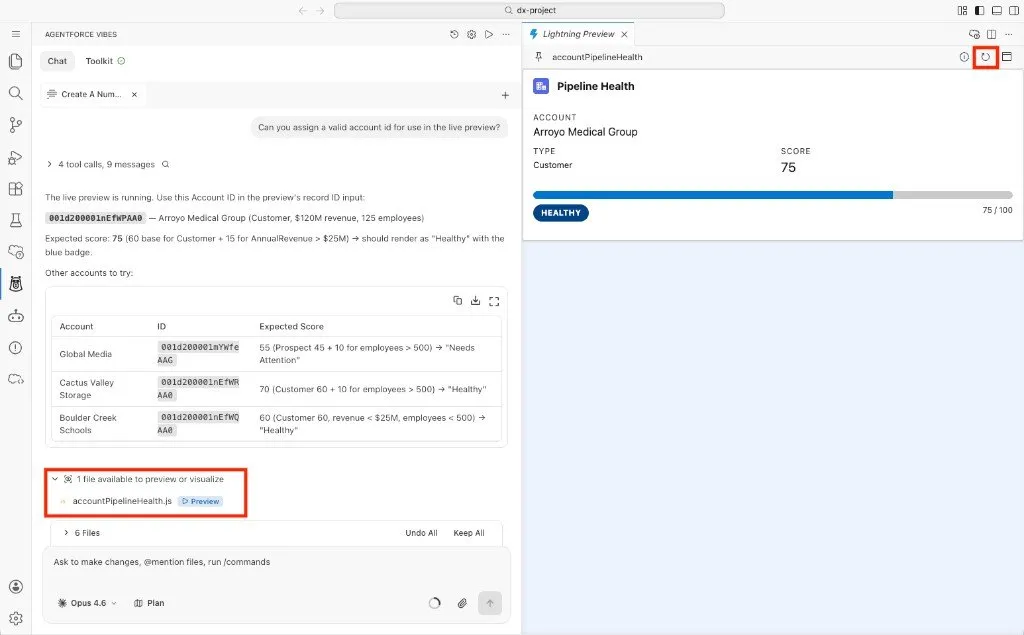
If the component does not load or the preview does not show Account data, ask Vibes to make the component preview-friendly.
Component Preview does not automatically provide the same
recordIdcontext as an Account record page. For preview testing, the component needs a fallback Account Id. Do not let Vibes hard-code or invent one, that risks pointing at a record that doesn't exist in your org. Instead, have it query your org for a real Account and keep that fallback scoped to preview testing so the component still works on real Account record pages:txtCan you update the LWC JavaScript so the component can use a valid Account Id when running in Component Preview? When Salesforce provides a real recordId (on an Account record page), use it. When no recordId is available (in Component Preview), query my org for an existing Account with an Apex method that runs a SOQL query such as `SELECT Id FROM Account LIMIT 1`, and use that Id as the fallback. Do not hard-code or invent an Account Id, always retrieve a real one from the org.Deploy the preview fix if Vibes changes the component.
txtDeploy the latest accountPipelineHealth component changes to my target org.Run Component Preview again and review the health card.
The preview should show a compact Account health card with a score, status label, and helper message.
Step 4: Iterate from the Preview
Review the widget and ask yourself:
- Does the score display clearly?
- Does the health label match the score range?
- Does the empty state explain what is missing?
- Does the styling feel like a compact Sales Cloud card?
Ask Vibes for one small improvement based on what you saw.
txtReview the current accountPipelineHealth component and recommend one small improvement that would make the health card clearer for sellers. Keep the improvement small enough to build, deploy, and preview quickly. Explain the change before editing files.If you like the recommendation, ask Vibes to build it.
txtBuild that improvement for accountPipelineHealth. Keep the change focused and update only the files needed.Deploy the update.
txtDeploy the latest accountPipelineHealth changes to my target org.Run Component Preview again and confirm the improvement.
You do not need to open the component in the Salesforce org for this exercise. The goal is to practice the build, deploy, preview, and iterate loop inside Agentforce Vibes.
Summary
- You created an Account formula field that calculates a Pipeline Health Score.
- You updated the Partner Management permission set with read access to the new field.
- You built an Account record page Lightning Web Component with Lightning Data Service.
- You deployed after each build and used Component Preview to test the UI.
You now have a working pattern for building a focused Lightning component with Agentforce Vibes: create the metadata, build the UI, deploy, preview, and iterate.