Link storefronts that were created outside Business Manager, such as Composable Storefront (PWA Kit) and Storefront Next storefronts created with the Managed Runtime API or CLI. Linking makes those storefronts available in Page Designer and Storefront Preview. It also protects access while they’re in development and syncs their site preferences to the Managed Runtime (MRT) data store. The storefront link makes the MRT environment and storefront data available so that Page Designer and Storefront Preview can identify which environment to associate with the storefront and site.
Business Administrator role in Account Manager or a role for the Business Manager Module and Organization context with read-write access to storefronts. See Create a Role in B2C Commerce in Salesforce Help.
Steps
To link a storefront to B2C Commerce:
In Business Manager, click the App Launcher , and then select Administration > Sites > Storefronts. Click Add Existing Storefront, and then select Link a Storefront from Managed Runtime.
Managed Runtime (MRT) projects that aren’t already linked to an instance appear.
Select one or more projects to link.
Optionally, edit the storefront name and the associated sites.


 , and then select Administration > Sites > Storefronts. Click Add Existing Storefront, and then select Link a Storefront from Managed Runtime.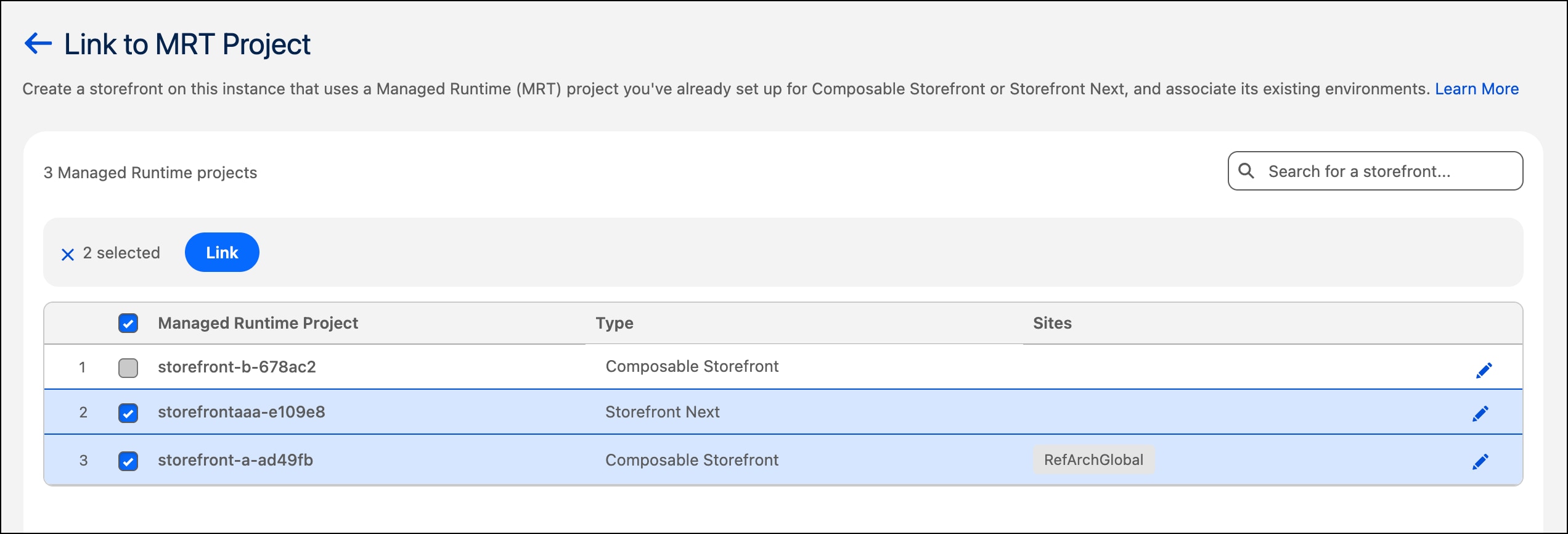
 j
j