To display Salesforce data in a table, use the lightning-datatable component. The component supports inline editing, which enables users to update a field value without navigating to the record.
This documentation uses the term lightning-datatable component and datatable interchangeably.
This example uses SOQL in an Apex method to load contacts on an account record.
1public with sharing class ContactController{23 @AuraEnabled(cacheable=true)4 public static List<Contact>getContactList(String accId){5 return[6 SELECT AccountId, Id, FirstName, LastName, Title, Phone, Email7 FROM Contact8 WHERE AccountId = :accId9 WITH USER_MODE10];11}12}
The @AuraEnabled(cacheable=true) annotation exposes the method to Lightning components and caches the list of contacts on the client. The accId parameter filters the contacts for the given account record.
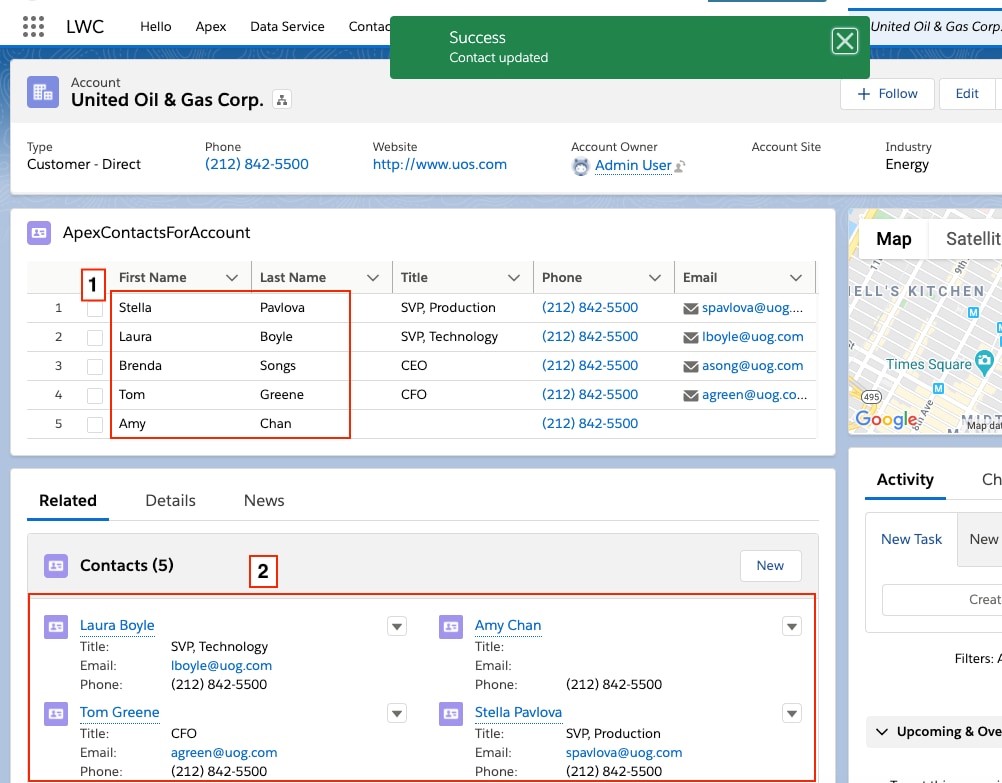
If the Apex method returns data, the HTML template displays the lightning-datatable component with editable first name and last name fields (1). When you edit a field, the Save button appears, and you can click it to update the contact record. Updating a contact record successfully also updates the record data in the related lists (2), and other components on the page that are managed by Lightning Data Service.
Implement Inline Editing
This example is based on the datatableInlineEditWithUiApi component in the lwc-recipes repo. This version differs slightly to enable the datatable to be used on a record page.
Tip
To enable inline editing, configure the lightning-datatable component as shown in this apexContactsForAccount template.
The required key-field attribute associates each row with a contact record. The data attribute holds the data retrieved through the wire service from either an Apex method or a wire adapter. The columns attribute assigns a record field to each column and customizes the behavior of the columns. When a user edits a cell, the updated value is stored in draft-values.
Clicking the Save button triggers the save event. Use the onsave event handler to persist changes in the datatable. In the example, the onsave event handler calls updateRecord(recordInput, clientOptions) to save record changes.
A row of data corresponds to a single record and each column displays the value of one of that record’s fields. To enable inline editing, specify which fields are editable by setting editable: true in the column definition. In this example, the First Name and Last Name fields are editable. Since the Name field on contacts is a compound field, you must use the First Name and Last Name fields separately.
1// apexContactsForAccount.js23import{LightningElement, wire, api}from "lwc";4import getContactList from "@salesforce/apex/ContactController.getContactList";5import{refreshApex}from "@salesforce/apex";6import{updateRecord}from "lightning/uiRecordApi";78import{ShowToastEvent}from "lightning/platformShowToastEvent";9import FIRSTNAME_FIELD from "@salesforce/schema/Contact.FirstName";10import LASTNAME_FIELD from "@salesforce/schema/Contact.LastName";11import TITLE_FIELD from "@salesforce/schema/Contact.Title";12import PHONE_FIELD from "@salesforce/schema/Contact.Phone";13import EMAIL_FIELD from "@salesforce/schema/Contact.Email";14import ID_FIELD from "@salesforce/schema/Contact.Id";1516const COLS = [17{18 label: "First Name",19 fieldName: FIRSTNAME_FIELD.fieldApiName,20 editable: true21},22{23 label: "Last Name",24 fieldName: LASTNAME_FIELD.fieldApiName,25 editable: true26},27{label: "Title", fieldName: TITLE_FIELD.fieldApiName, editable: true},28{29 label: "Phone",30 fieldName: PHONE_FIELD.fieldApiName,31 type: "phone",32 editable: true33},34{35 label: "Email",36 fieldName: EMAIL_FIELD.fieldApiName,37 type: "email",38 editable: true39}40];41export default class DatatableInlineEditWithUiApi extends LightningElement{42 @api recordId;43 columns = COLS;44 draftValues = [];4546 @wire(getContactList, {accId: "$recordId"})47 contacts;4849 async handleSave(event){50 // Convert datatable draft values into record objects51 const records = event.detail.draftValues.slice().map((draftValue)=>{52 const fields = Object.assign({}, draftValue);53 return{fields};54});5556 // Clear all datatable draft values57 this.draftValues = [];5859 try{60 // Update all records in parallel thanks to the UI API61 const recordUpdatePromises = records.map((record)=> updateRecord(record));62 await Promise.all(recordUpdatePromises);6364 // Report success with a toast65 this.dispatchEvent(66 new ShowToastEvent({67 title: "Success",68 message: "Contacts updated",69 variant: "success"70})71);7273 // Display fresh data in the datatable74 await refreshApex(this.contacts);75}catch(error){76 this.dispatchEvent(77 new ShowToastEvent({78 title: "Error updating or reloading contacts",79 message: error.body.message,80 variant: "error"81})82);83}84}85}
@wire(getContactList) provisions data to contacts.data and the record Id to accId.
When you edit fields, event.detail.draftValues stores the edited field values and the record Id as an array of objects.
When you press the Tab key or click outside the cell after making changes, the datatable footer appears with the Cancel and Save buttons. To hide the datatable footer, clear the draftValues property. The onsave event handler clears draftValues after copying the values into a record object.
updateRecord() expects a single record only. Pass in a recordInput object for each record whose fields you’re updating. In this example, the record parameter contains an object with the updated fields for multiple records. To update multiple records simultaneously, pass the parameter to updateRecord() for processing.
After a successful save, the onsave event handler dispatches the ShowToastEvent event to display a success toast message.
After a record is updated, refreshApex(this.contacts) refreshes the list of contacts from the Apex method so that the datatable always presents the latest data.
For bulk record updates in a single transaction, we recommend using Apex. See the Enabling Inline Editing Using Apex section.
Note
Enable Inline Editing Using Apex
For bulk record updates, pass your record changes to an Apex controller that calls an update Data Manipulation Language (DML) operation. In this example, the edited field values are passed to the updateContacts Apex controller. Since the records are updated by Apex, you must notify Lightning Data Service (LDS) using the notifyRecordUpdateAvailable(recordIds) function so that the Lightning Data Service cache and wires are refreshed.
This example is based on the datatableInlineEditWithApex component in the github.com/trailheadapps/lwc-recipes repo. This version differs slightly by using Apex without LDS.
Note
In the apexContactsForAccount.js file you created in the previous example, import the Apex controller and the notifyRecordUpdateAvailable function.
1import updateContacts from "@salesforce/apex/ContactController.updateContacts";2import{notifyRecordUpdateAvailable}from "lightning/uiRecordApi";
Update the handleSave() function to handle the edited values. To ensure that notifyRecordUpdateAvailable() is called after the record is updated via Apex, use the async/await pattern or a Promise chain. This example uses async/await.
1async handleSave(event){2 const updatedFields = event.detail.draftValues;34 // Prepare the record IDs for notifyRecordUpdateAvailable()5 const notifyChangeIds = updatedFields.map(row =>{return{"recordId": row.Id}});67 try{8 // Pass edited fields to the updateContacts Apex controller9 const result = await updateContacts({data: updatedFields});10 console.log(JSON.stringify("Apex update result: "+ result));11 this.dispatchEvent(12 new ShowToastEvent({13 title: 'Success',14 message: 'Contact updated',15 variant: 'success'16})17);1819 // Refresh LDS cache and wires20 notifyRecordUpdateAvailable(notifyChangeIds);2122 // Display fresh data in the datatable23 await refreshApex(this.contacts);24 // Clear all draft values in the datatable25 this.draftValues = [];26}27}catch(error){28 this.dispatchEvent(29 new ShowToastEvent({30 title: 'Error updating or refreshing records',31 message: error.body.message,32 variant: 'error'33})34);35};36}
The updateContacts Apex controller deserializes the JSON string containing the updated fields into a Contact object. It updates the changed records using the update DML operation.
1@AuraEnabled2public static string updateContacts(Object data){3 List<Contact>contactsForUpdate = (List<Contact>)JSON.deserialize(4 JSON.serialize(data),5 List<Contact>.class6);7 try{8 update contactsForUpdate;9 return 'Success: contacts updated successfully';10}11 catch(Exception e){12 return 'The following exception has occurred: ' + e.getMessage();13}14}


 j
j