After you install and configure the Flutter plugin for the Salesforce Engagement SDK, configure the plugin to enable push support for the iOS platform.
For new Flutter integrations, use the Flutter Unified Plugin Setup, which works with both Marketing Cloud Engagement and Marketing Cloud Next.
This topic is intended for customers who use the Flutter plugin for Marketing Cloud Engagement.
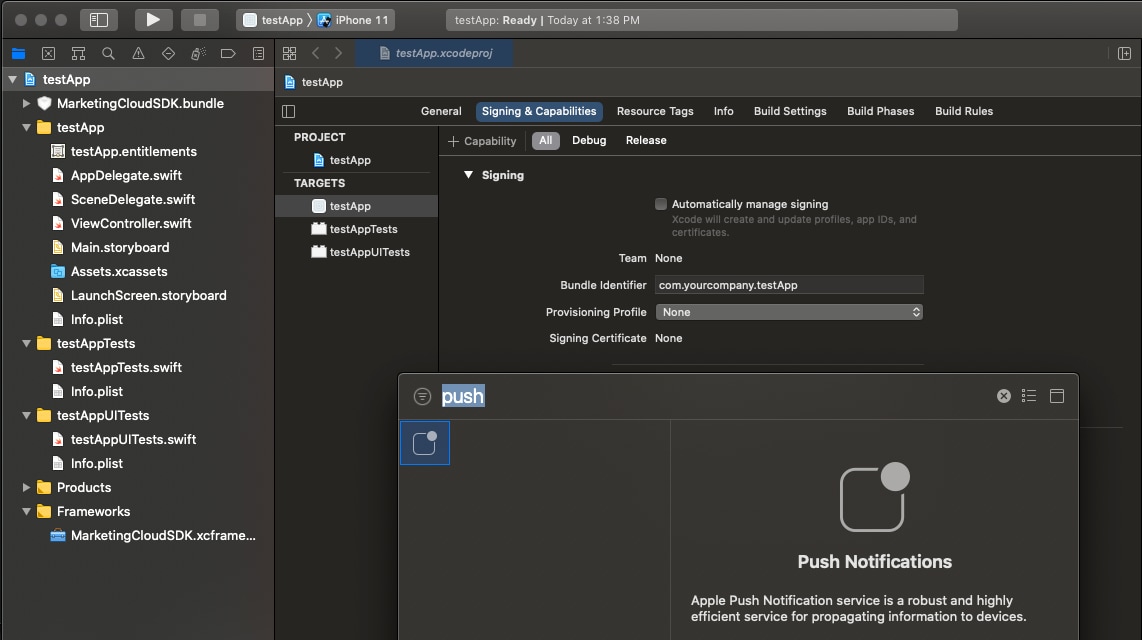
Enable push notifications in the Capabilities settings for your target in Xcode.
Update the AppDelegate
Navigate to the YOUR_APP/ios directory and open Runner.xcworkspace.
To configure the SDK and enable push, update AppDelegate.
View Swift code example
1//AppDelegate.swift23 import UIKit4 import Flutter5 // The SFMCSDK module is included in the dependency packages for the SDK. Don't install it6 // separately or list it in your podfile.7 import SFMCSDK8 import MarketingCloudSDK910 func setupMobilePush(){11 // Make sure to dispatch this to the main thread, as UNUserNotificationCenter will12 // present UI.13 DispatchQueue.main.async{14 // Set the UNUserNotificationCenterDelegate to a class adhering to thie protocol.15 // In this exmple, the AppDelegate class adheres to the protocol (see below)16 // and handles Notification Center delegate methods from iOS.17 UNUserNotificationCenter.current().delegate = self1819 // Request authorization from the user for push notification alerts.20 UNUserNotificationCenter.current().requestAuthorization(21 options: [.alert, .sound, .badge],22 completionHandler: {(_ granted: Bool, _ error: Error?) ->Void in23 if error == nil{24 if granted == true{25 // Your application may want to do something specific if the user has granted26 // authorization for the notification types specified; it would be done here.27}28}29})3031 // Your application should register for remote notifications each time your application32 // launches to make sure that the push token for silent push is updated, if necessary.3334 // Registering in this manner doesn't mean that a user sees a notification. It only35 // means that the application receives a unique push token from iOS.36 UIApplication.shared.registerForRemoteNotifications()37}38}3940 @UIApplicationMain41 @objc class AppDelegate: FlutterAppDelegate {4243 // The appID, accessToken, and appEndpoint are required values for configuring the SDK. Obtain44 // these values from your app.45 let appID = YOUR_APP_ID46 let accessToken = YOUR_ACCESS_TOKEN47 let appEndpointURL = YOUR_APP_ENDPOINT48 let mid = YOUR_ACCOUNT_MID49 // Define the features your app uses.50 let analytics = true515253 override func application(54 _ application: UIApplication,55 didFinishLaunchingWithOptions launchOptions: [UIApplication.LaunchOptionsKey: Any]?56) ->Bool{57 GeneratedPluginRegistrant.register(with: self)5859 // Required: tell the MarketingCloudSDK about the notification. The SDK collects60 // analytics and processes the notification on behalf of your application.61 SFMCSdk.requestPushSdk{ mp in62 mp.setNotificationResponse(response)63}6465 // rest of the didFinishLaunchingWithOptions method...66 return super.application(application, didFinishLaunchingWithOptions: launchOptions)67}6869 completionHandler(.alert)70}
View Objective-C code example
1//AppDelegate.h23 #import <Flutter/Flutter.h>4 #import <UIKit/UIKit.h>5 #import <UserNotifications/UserNotifications.h>6 // The SFMCSDK module is included in the dependency packages for the SDK. Don't install it7 // separately or list it in your podfile.8 #import <SFMCSDK/SFMCSDK.h>9 //Other imports...1011 @interface AppDelegate : FlutterAppDelegate<UNUserNotificationCenterDelegate>1213 @end1415 //AppDelegate.m1617 #import "AppDelegate.h"18 #import "GeneratedPluginRegistrant.h"19 #import <MarketingCloudSDK/MarketingCloudSDK.h>20 //Other imports...2122 @implementation AppDelegate2324 - (BOOL)application:(UIApplication *)application25 didFinishLaunchingWithOptions:(NSDictionary *)launchOptions {2627 //Flutter setup28 [GeneratedPluginRegistrant registerWithRegistry:self];29 // Override point for customization after application launch.3031 // Use the Push Config Builder to configure the Mobile Push Module. This gives you the32 // maximum flexibility in SDK configuration. The builder lets you configure the module33 // parameters at runtime.34 PushConfigBuilder *pushConfigBuilder =35 [[PushConfigBuilder alloc] initWithAppId:@"{MC_APP_ID}"];36 [pushConfigBuilder setAccessToken:@"{MC_ACCESS_TOKEN}"];37 [pushConfigBuilder setMarketingCloudServerUrl:38 [NSURL URLWithString:@"{MC_APP_SERVER_URL}"]];39 [pushConfigBuilder setMid:@"MC_MID"];40 [pushConfigBuilder setAnalyticsEnabled:YES];414243 // Once you’ve created the mobile push configuration, intialize the SDK.44 [SFMCSdk initializeSdk:[[[SFMCSdkConfigBuilder new]45 setPushWithConfig:[pushConfigBuilder build]46 onCompletion:^(SFMCSdkOperationResult result) {47 if (result == SFMCSdkOperationResultSuccess) {48 // module is fully configured and ready for use49 [self pushSetup];50 } else {51 NSLog(@"SFMC sdk configuration failed.");52 }53 }] build]];5455 // rest of the didFinishLaunchingWithOptions method...56 return [super application:application didFinishLaunchingWithOptions:launchOptions];57 }5859 - (void)pushSetup {60 // Make sure to dispatch this to the main thread, as UNUserNotificationCenter will61 // present UI.62 dispatch_async(dispatch_get_main_queue(), ^{63 // Set the UNUserNotificationCenterDelegate to a class adhering to thie protocol.64 // In this exmple, the AppDelegate class adheres to the protocol (see below)65 // and handles Notification Center delegate methods from iOS.66 [UNUserNotificationCenter currentNotificationCenter].delegate = self;6768 // Your application should register for remote notifications each time your69 // application launches to make sure that the push token for silent push is updated,70 // if necessary.7172 // Registering in this manner doesn’t mean that a user sees a notification. It only73 // means that the application will receive a unique push token from iOS.74 [[UIApplication sharedApplication] registerForRemoteNotifications];7576 // Request authorization from the user for push notification alerts.77 [[UNUserNotificationCenter currentNotificationCenter]78 requestAuthorizationWithOptions:UNAuthorizationOptionAlert |79 UNAuthorizationOptionSound |80 UNAuthorizationOptionBadge81 completionHandler:^(BOOL granted, NSError *_Nullable error) {82 if (error == nil) {83 if (granted == YES) {84 // Your application may want to do something specific if the user has85 // granted authorization for the notification types specified; it would be86 // done here.87 NSLog(@"User granted permission");88 }89 }90 }];91 });92 }9394 - (void)application:(UIApplication *)application95 didRegisterForRemoteNotificationsWithDeviceToken:(NSData *)deviceToken {96 [SFMCSdk requestPushSdk:^(id<PushInterface> _Nonnull mp) {97 [mp setDeviceToken:deviceToken];98 }];99 }100101 - (void)application:(UIApplication *)application102 didFailToRegisterForRemoteNotificationsWithError:(NSError *)error {103 os_log_debug(OS_LOG_DEFAULT,104 "didFailToRegisterForRemoteNotificationsWithError = %@", error);105 }106107 // The method will be called on the delegate when the user responded to the notification by108 // opening the application, dismissing the notification or choosing a UNNotificationAction.109 // The delegate must be set before the application returns from110 // applicationDidFinishLaunching:.111 - (void)userNotificationCenter:(UNUserNotificationCenter *)center112 didReceiveNotificationResponse:(UNNotificationResponse *)response113 withCompletionHandler:(void (^)(void))completionHandler {114 // tell the MarketingCloudSDK about the notification115 [SFMCSdk requestPushSdk:^(id<PushInterface> _Nonnull mp) {116 [mp setNotificationResponse:response];117 }];118 if (completionHandler != nil) {119 completionHandler();120 }121 }122123 // The method will be called on the delegate only if the application is in the foreground.124 // If the method is not implemented or the handler is not called in a timely manner then the125 // notification will not be presented. The application can choose to have the notification126 // presented as a sound, badge, alert and/or in the notification list. This decision should127 // be based on whether the information in the notification is otherwise visible to the user.128 - (void)userNotificationCenter:(UNUserNotificationCenter *)center129 willPresentNotification:(UNNotification *)notification130 withCompletionHandler:131 (void (^)(UNNotificationPresentationOptions options))completionHandler {132 completionHandler(UNAuthorizationOptionSound | UNAuthorizationOptionAlert |133 UNAuthorizationOptionBadge);134 }135136 /** This delegate method offers an opportunity for applications with the "remote-notification"137 background mode to fetch appropriate new data in response to an incoming remote notification.138 You should call the fetchCompletionHandler as soon as you’re finished performing that139 operation, so the system can accurately estimate its power and data cost.140 This method will be invoked even if the application was launched or resumed because of the141 remote notification. The respective delegate methods will be invoked first. Note that this142 behavior is in contrast to application:didReceiveRemoteNotification:, which is not called in143 those cases, and which will not be invoked if this method is implemented. **/144 - (void)application:(UIApplication *)application145 didReceiveRemoteNotification:(NSDictionary *)userInfo146 fetchCompletionHandler:(void (^)(UIBackgroundFetchResult))completionHandler {147 [SFMCSdk requestPushSdk:^(id<PushInterface> _Nonnull mp) {148 [mp setNotificationUserInfo:userInfo];149 }];150 completionHandler(UIBackgroundFetchResultNewData);151 }152153 @end
URL Handling
The SDK doesn’t automatically present URLs from these sources.
CloudPages URLs from push notifications
OpenDirect URLs from push notifications
Action URLs from in-app messages
To handle URLs from push notifications, follow these steps.
To set the URLHandlingDelegate, update the AppDelegate as shown in this example.
View Swift code example
1func setupMobilePush(){2 // Set the URLHandlingDelegate to a class adhering to the protocol.3 // In this example, the AppDelegate class adheres to the protocol (see below)4 // and handles URLs passed back from the SDK.5 SFMCSdk.requestPushSdk{ mp in6 mp.setURLHandlingDelegate(self)7}89 ...10}
View Objective-C code example
1// AppDelegate.h23 #import <Flutter/Flutter.h>4 #import <UIKit/UIKit.h>5 #import <UserNotifications/UserNotifications.h>6 // The SFMCSDK module is included in the dependency packages for the SDK. Don't install it7 // separately or list it in your podfile.8 #import <SFMCSDK/SFMCSDK.h>910 //...1112 // Implement the SFMCSdkURLHandlingDelegate delegate13 @interface AppDelegate : FlutterAppDelegate<UNUserNotificationCenterDelegate,14 SFMCSdkURLHandlingDelegate>1516 @end171819 // AppDelegate.m2021 - (void)pushSetup {22 // AppDelegate adheres to the SFMCSdkURLHandlingDelegate protocol23 // and handles URLs passed back from the SDK in `sfmc_handleURL`.24 [SFMCSdk requestPushSdk:^(id<PushInterface> _Nonnull mp) {25 [mp setURLHandlingDelegate:self];26 }];2728 //rest of pushSetup...29 }
Implement the URLHandlingDelegate
Implement the URLHandlingDelegate in AppDelegate, as shown in this example.
View Swift code example
1// AppDelegate.swift23 //rest of AppDelegate.swift...45 // REQUIRED IMPLEMENTATION6 extension AppDelegate: URLHandlingDelegate {7 /**8 This method, if implemented, can be called when a Alert+CloudPage, Alert+OpenDirect,9 Alert+Inbox or Inbox message is processed by the SDK.10 Implementing this method allows the application to handle the URL from Marketing Cloud11 Engagement data.1213 In versions of the SDK before version 6.0.0, the SDK automatically handled URLs and14 presented them using a SFSafariViewController.1516 Because there are security risks inherent in URLs and web pages (such as Open Redirect17 vulnerabilities), the app that implements the Engagement SDK is now responsible for18 processing URLs. This reduces risk to the application by affording full control over19 processing, presentation and security to the application code itself.2021 @param url value NSURL sent with the Location, CloudPage, OpenDirect or Inbox message22 @param type value NSInteger enumeration of the source type of this URL23 */24 func sfmc_handleURL(_ url: URL, type: String){25 // Send the URL returned from the SDK to UIApplication to handle correctly.26 UIApplication.shared.open(url,27 options: [:],28 completionHandler: {29(success)in30 print("Open \(url): \(success)")31})32}33}
View Objective-C code example
1// AppDelegate.m23 //rest of AppDelegate.m...45 /**6 This method, if implemented, can be called when a Alert+CloudPage, Alert+OpenDirect,7 Alert+Inbox or Inbox message is processed by the SDK.8 Implementing this method allows the application to handle the URL from Marketing Cloud9 Engagement data.1011 Versions of the SDK before version 6.0.0 handled URLs automatically and presented them using12 a SFSafariViewController.1314 Because there are security risks inherent in URLs and web pages (such as Open Redirect15 vulnerabilities), the app that implements the SDK is now responsible for processing URLs.16 This change reduces risk to the application by affording full control over processing,17 presentation and security to the application code itself.1819 @param url value NSURL sent with the Location, CloudPage, OpenDirect or Inbox message20 @param type value NSInteger enumeration of the source type of this URL21 */22 - (void)sfmc_handleURL:(NSURL * _Nonnull)url type:(NSString * _Nonnull)type {23 if ([[UIApplication sharedApplication] canOpenURL:url]) {24 [[UIApplication sharedApplication] openURL:url25 options:@{}26 completionHandler:^(BOOL success) {27 if (success) {28 NSLog(@"url %@ opened successfully", url);29 } else {30 NSLog(@"url %@ could not be opened", url);31 }32 }];33 }34 }3536 //rest of AppDelegate.m...
Enable Rich Notifications (Optional)
Rich notifications include images, videos, titles, subtitles, and mutable content. Mutable content can include personalization in the title, subtitle, or body of your message.


 j
j