


Managing Tasks
The task list in Dataloader from MuleSoft is your central place to create, view, run, edit, clone, delete, and schedule import, export, and delete tasks. Tasks save your connection, object, field mappings, and settings so you can rerun the same operation without repeating the setup.
Use the home page to manage all your tasks in one view and access run history and result files.
View Tasks
On the home page, you see your tasks and their runs. From there you can edit or delete tasks and open run history.
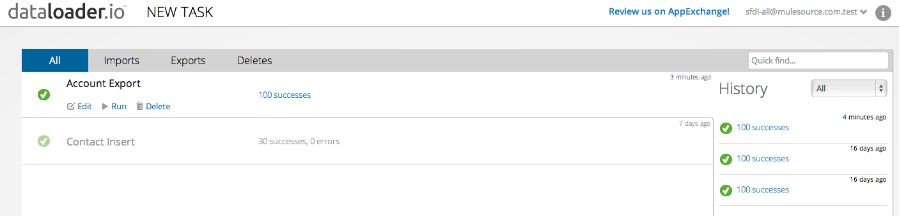
Delete a Task
To delete a task, click the delete icon under the task name. This removes the task history and associated files from Dataloader from MuleSoft servers.
Clone a Task
To create similar tasks without walking through the full wizard each time, clone an existing task and adjust what you need.
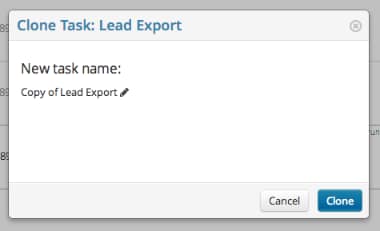
Find Tasks
Use the filter tabs to filter by Imports, Exports, or Deletes. Use Quick Find to search by task name.
Manage Task History
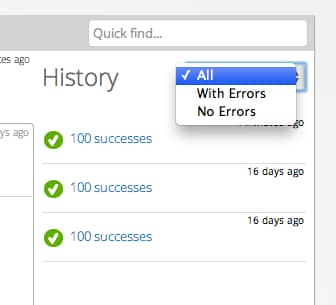
In the task details panel, open the history for the selected task. Download success or error files from there.
Change the Task Name
You set or change the task name on the last step of the wizard when you create or edit a task. To rename an existing task, click Edit, go to the last page, and update the name.
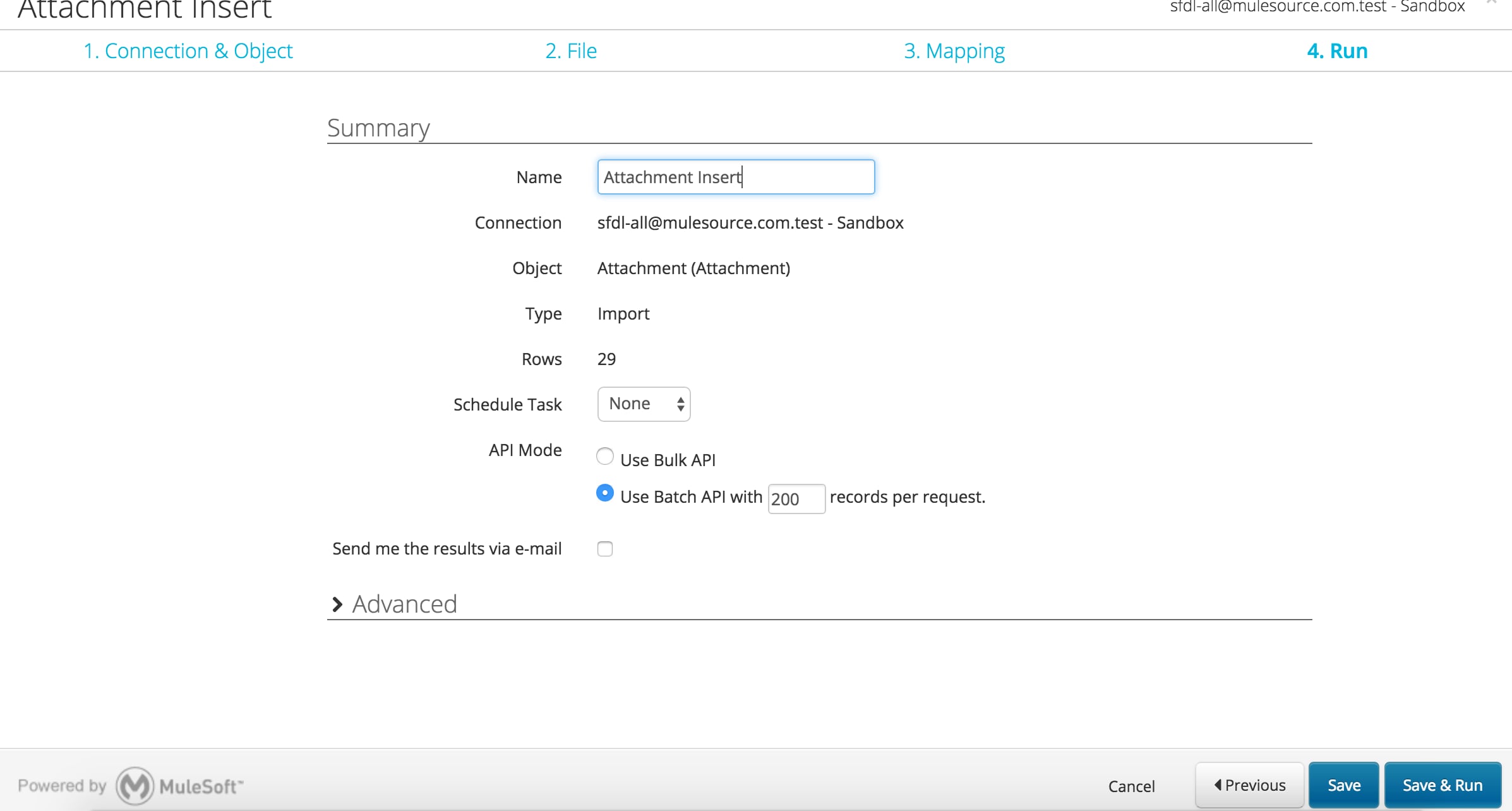
Task Retention
On the included edition, Dataloader removes tasks automatically after 30 days.
With Dataloader.io Professional or Enterprise edition, tasks stay available until you delete them.
See Also
 j
j