Schedule import and export tasks in Dataloader from MuleSoft to run at a set time or on a repeating cadence, for example, an export task every Friday at 9:00 AM in your time zone.
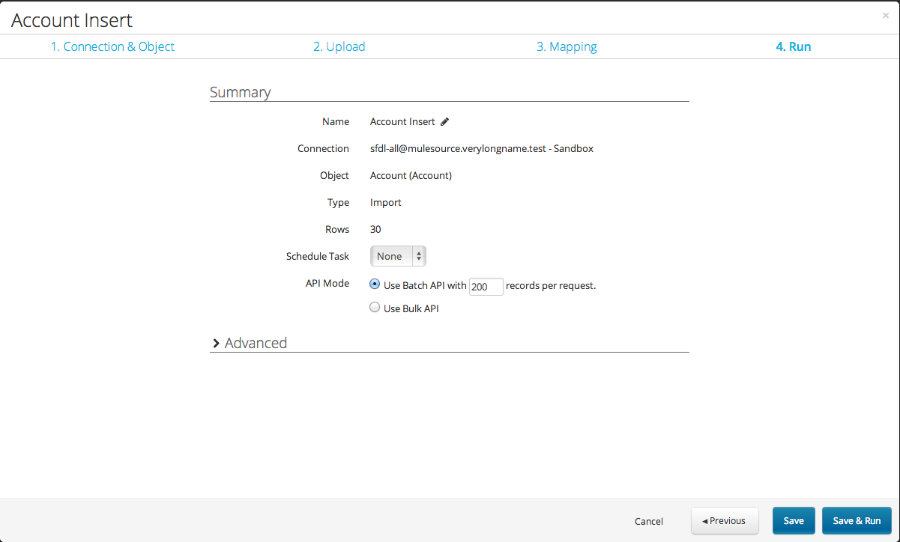
You configure scheduling on the last step of the task wizard. The options you see depend on your Dataloader.io plan.
For every schedule type, set a start date and an end date if you need one. If you don’t set an end date, the task keeps running. To clear an end date, click the delete icon for that field.
When using the included edition of Dataloader from MuleSoft, you can have only one scheduled task at a time. Dataloader.io Professional and Enterprise editions allow up to 30 scheduled tasks and support hourly, monthly, and weekly schedules.
Scheduled tasks stay active until you change or remove them.
For import scheduling, the source file requires the same name and folder path each time. Dataloader overwrites the file in place for processing and doesn’t support wildcards.
For exports to an external location, you can add a timestamp to the file name. Use the path or file name checkbox on the last step of the task wizard.


 j
j