


Delete Data in Salesforce
Delete Salesforce records in Dataloader from MuleSoft by creating a Delete task with a CSV file containing the record IDs. Save and run the task immediately, schedule it, or reuse it as a template.
You need a CSV file with the IDs of the records to delete in one column. Each task stores your connection, object, ID mapping, and options so you don’t repeat setup every time.
Step 1. Create and Configure a Delete Task
Start a new delete task and select the Salesforce org and object whose records you plan to delete.
-
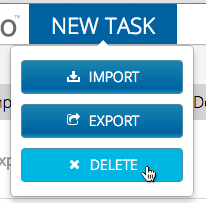
Click New Task then click Delete.
-
In the Connection dropdown, select the Salesforce connection you want to use.
Your login credentials apply to your default connection. To use a different Salesforce connection, click the + icon and create a connection.
-
For Object, select the object you want to delete data from, such as Account, Contact, or Lead. Click Next.
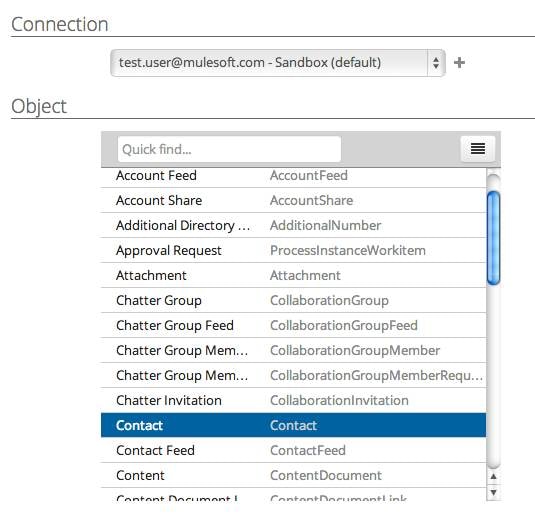
Object list: Use Quick find to search for an object by name. Use Menu to filter Standard or Custom objects or to show or hide object names.
Tip
Step 2. Upload the File
Upload the CSV file that lists the record IDs to delete.
-
Use a file from your computer or from a cloud repository.
-
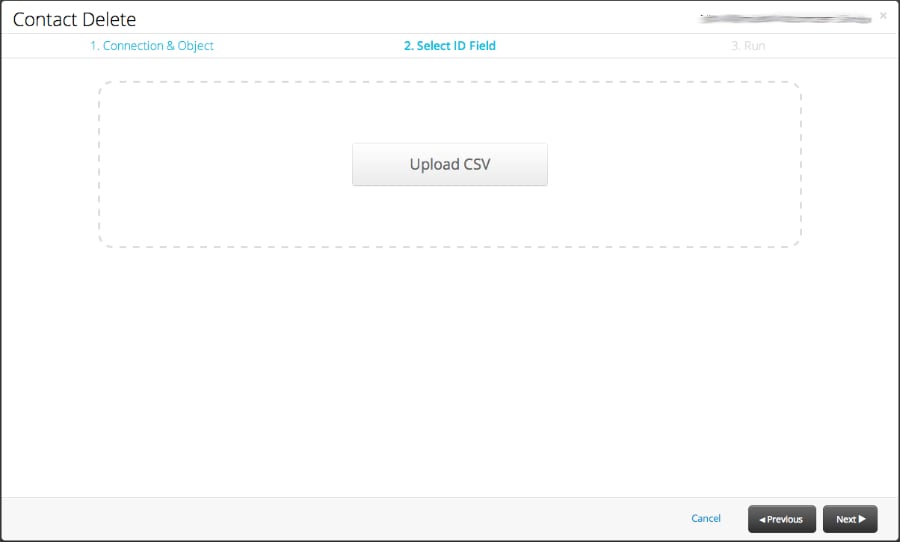
To upload the CSV file, click Upload CSV, or drag the file into the upload area.
For more information, see Connecting to Box, Connecting to Dropbox, Connecting to FTP, and Connecting to SFTP.
Step 3. Select the ID Field
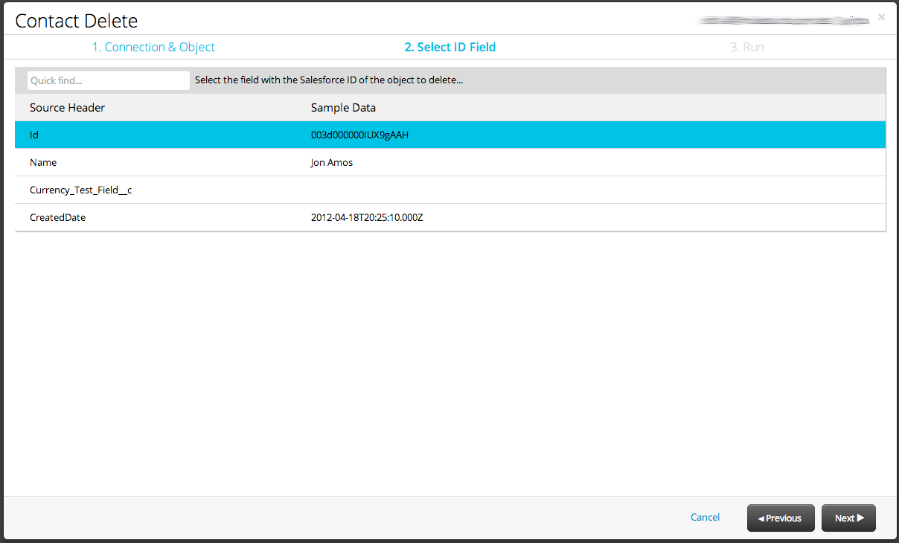
Select the column from your CSV file that contains the Salesforce IDs of the records to delete. Dataloader ignores other columns. If a column header is Id, Dataloader maps it automatically. Otherwise, click the field that contains the ID, then click Next.
Step 4. Save and Run Your Task
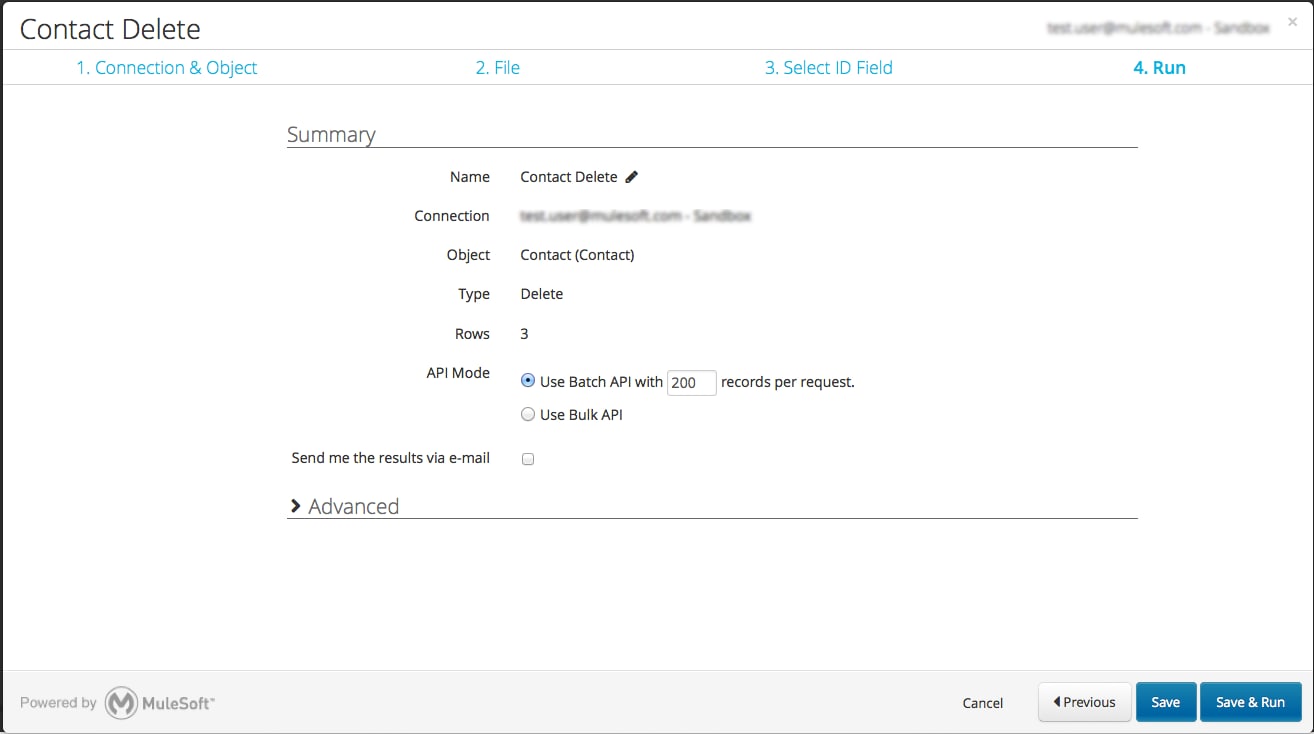
Review the summary page, adjust the task name and API options, then save the task or run it immediately.
-
On the summary page, review the overview of your task.
-
If necessary, change the task name.
-
Specify the Bulk API or the Batch API and set the batch size if needed.
-
If necessary, open Advanced Settings in the task configuration.
-
Click Save to save and run later, or Save and Run to run immediately.
Schedule the Task
-
Set how often the task runs: Hourly, Daily, Weekly, or Monthly.
-
Set the time zone if needed.
-
After you create the task, open scheduling from this summary page (edit the task and return here) or from the Schedule button on the task list.
-
Use the Scheduled tab to find scheduled tasks.
Bulk API
Salesforce Bulk API uses REST principles and is optimized for loading or deleting large data sets. Salesforce processes records asynchronously by running submitted batches in the background.
Bulk API has some restrictions. For example, related object exports are not supported.
Bulk API processes data in larger batches than Batch API, which lowers API usage per operation when you load large volumes. For more information, see Introduction to Bulk API 2.0 and Bulk API.
Batch API
When the Bulk API checkbox is cleared, Batch API is in use.
Salesforce Batch API uses SOAP principles and is optimized for real-time client applications that update small numbers of records at a time. Although the SOAP API can process large numbers of records, data sets with hundreds of thousands of records are less practical that way.
For large volumes, Bulk API is the best option. Batch API processes data in smaller batches than Bulk API, which increases API calls per operation when you process large volumes.
Bulk API vs Batch API
| Feature | Bulk API | Batch API |
|---|---|---|
| Protocol | REST | SOAP |
| Best for | Large data sets (10,000+ records) | Smaller data sets (under 10,000 records) |
| Processing | Asynchronous batches | Real-time |
| API calls | Lower (larger batches) | Higher (smaller batches) |
| Related object exports | Not supported | Supported |
Email Notifications
You can configure your task to email you whenever it runs. You can add multiple recipients as well as multiple CCs to the sent email.
When using the free edition of Dataloader from MuleSoft, you are only allowed to have one task set up to send email notifications. Dataloader.io Professional and Enterprise editions allow you to use email notifications on unlimited tasks.
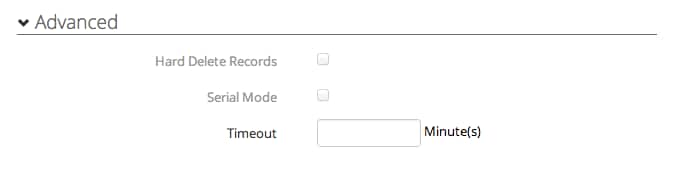
Advanced Settings
These options appear on the Advanced settings page.
- Hard Delete Records: When you enable this option, Dataloader deletes records immediately instead of placing them in the Salesforce Recycling Bin. Available only with Bulk API.
- Serial Mode: Bulk API only. Processes batches one at a time in Salesforce (which helps avoid database contention). This option can significantly increase processing time for a load.
- Timeout: The maximum time a task can keep running. When the task reaches the threshold, Dataloader cancels it automatically. The default timeout is 2 hours.
See Also
- Export Data from Salesforce
- Importing Data into Salesforce
- Managing Tasks
- Salesforce Developers: Introduction to Bulk API 2.0 and Bulk API
 j
j