Product List Page (Category/PLP)

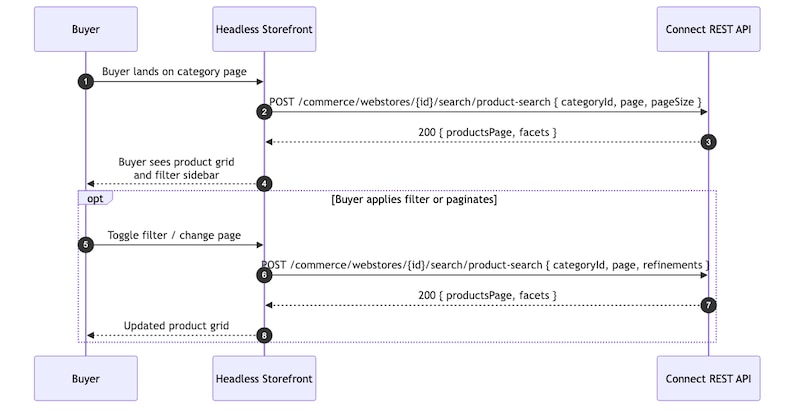
The Product List Page shows products for a selected category, including pagination controls and product result counts. The page automatically re-executes the product search whenever the category ID, pagination state, or selected refinement filters change.

This flow demonstrates how a headless storefront can render category-based product experiences using B2B Commerce Product APIs.

Product List Page API Flow

PurposeHTTP MethodEndpoint
Search by category and refinementsGET/commerce/webstores/{webstoreId}/search/product-search

The endpoint GET /commerce/webstores/{webstoreId}/search/products is also supported. However, prefer the POST-based search API because it supports the complete request body schema, including refinements, field selection, and includePrices. The POST approach also avoids URL length limitations that can occur when multiple refinement filters are applied.

Render Products for a Category

  1. Load the category product listing page.

  2. Build the product search request using the following parameters:

    • categoryId
    • page=0
    • pageSize=12
    • No refinements
  3. Call the following endpoint to retrieve products for the selected category:

    POST /commerce/webstores/{webstoreId}/search/product-search

  4. Use the response to render:

    • Product grid
    • Results count
    • Pagination controls

    The response includes:

    • productsPage—Contains the product list and total result count
  5. Re-run the product search whenever the following values change:

    • categoryId
    • Page index
    • Refinement set

Paginate Product Results

  1. Select Previous or Next to navigate between result pages.

  2. Update the page index in the product search request.

  3. Call the following endpoint again with the updated page parameter:

    POST /commerce/webstores/{webstoreId}/search/product-search

  4. Use the updated response to render the next set of products.

  • Modify the pageSize parameter in the search request to control pagination behavior, and the number of products returned per page.

  • To add sorting support, include a sortRuleId in the search request body.

  • Retrieve available sorting rules using:

    GET /commerce/webstores/{webstoreId}/search/sort-rules