Create External Credentials for the Microsoft Teams Connector (Beta)
To ingest data from Microsoft Teams to Data 360, set up an external credential for Microsoft Teams.
Before you begin:
-
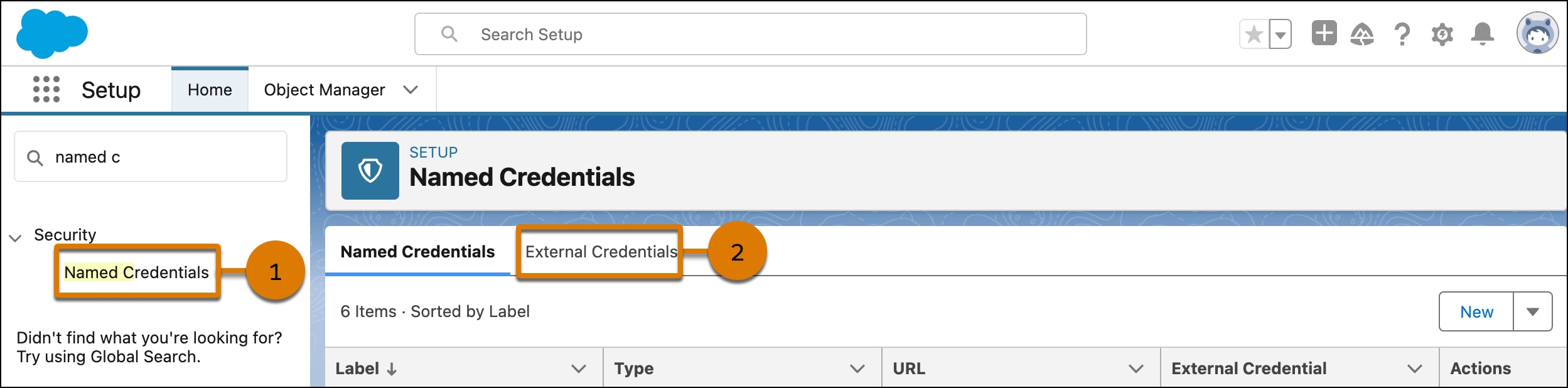
From Setup, in the Quick Find box, enter Named Credentials. Then select Named Credentials (1).
-
On the External Credentials tab (2), click New.
-
Enter a label and name for your external credential. The name can’t contain spaces. You can use underscores.
-
For Authentication Protocol, select OAuth 2.0.
-
For Authentication Flow Type, select Browser Flow.
-
For Authentication Provider, select the provider you created.
- The Auth Provider type should be OpenID Connect.
- In your Auth Provider, Consumer Key is the Client ID from your Azure App.
- In your Auth Provider, Consumer Secret is the Client Secret value from the Certificates & Secrets section of your Azure App.
- Authorize Endpoint URL:
https://login.microsoftonline.com/{tenantID}/oauth2/v2.0/authorize
- Token Endpoint URL:
https://login.microsoftonline.com/{tenantID}/oauth2/v2.0/token
-
Click Save.
-
Add principal to external credentials
-
In the external credentials that you created, under Principals, click New.
-
Enter the parameter name. You can include spaces.
-
For Identity Type, select Named Principal.
-
Add the following scopes in the principal:
Directory.Read.Alloffline_accesshttps://graph.microsoft.com/group.read.allhttps://graph.microsoft.com/group.readwrite.allhttps://graph.microsoft.com/user.read.allhttps://graph.microsoft.com/appcatalog.readwrite.all
-
Set the Sequence Number to 1.
-
Click Save.
-
Authenticate your external credentials.
-
Under Principals, from the Actions dropdown menu, select Authenticate.
-
Follow the authentication flow and confirm access permissions.
-
To connect Data Cloud to Microsoft Teams, click Allow.
After you authenticate, the status changes to Configured.
-
Define the named credential.
-
In the Named Credentials Tab, click New. Then enter a label and name. The name can’t contain spaces, but you can use underscores.
-
For the URL, enter https://www.teams.microsoft.com.
-
For external credentials, select the credential that you created.
-
Click Save.
-
Enable external credentials access.
-
From Setup, in the Quick Find box, enter Profiles. Then select it.
-
Click System Administrator.
-
On the Enable External Credential Principal Access tab, click Edit.
-
Add the external credentials principal that you created to the Enabled External Credentials Principals column.
-
Click Save.
Next Step


 j
j