Use SFTP as a source or destination for CSV files in Dataloader from MuleSoft for import and export tasks. SFTP runs over SSH and encrypts file transfers, making it preferable to plain FTP. Dataloader from MuleSoft doesn’t support FTP over TLS (Transport Layer Security)/SSL (Secure Sockets Layer) (FTPS); for secure file transfer, use SFTP (Enterprise) or see Connect to FTP for unencrypted FTP with the documented limits.
Before You Connect
Passive mode: Dataloader supports only passive mode and requires permission for the LIST command.
Enterprise: SFTP connections require a Dataloader.io Enterprise subscription.
Import Files from SFTP
Use your SFTP server as a CSV source and select the SFTP tab on the source file chooser.
During an import, follow Importing Data into Salesforce until you upload your CSV file. From the source file chooser, connect to SFTP and select your file:
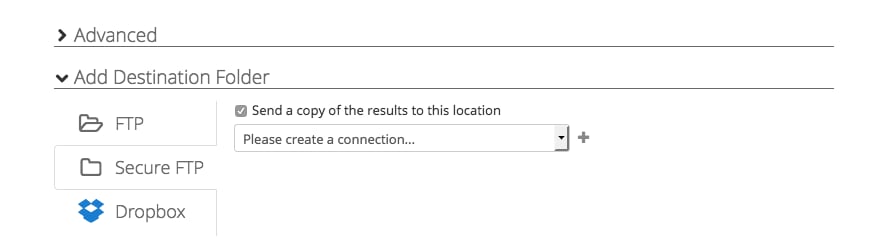
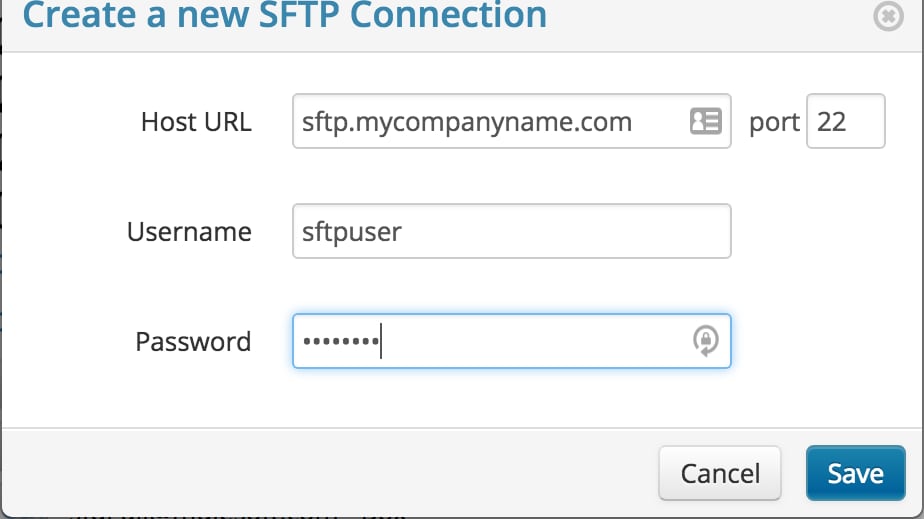
If this is your first SFTP connection, click the plus icon in the source file chooser to add an SFTP account.
Enter your SFTP account credentials on the form.
Click Save.
Select files from your SFTP server in the chooser instead of uploading from local storage.
Continue with map the fields to complete your import task.
Export Data to SFTP
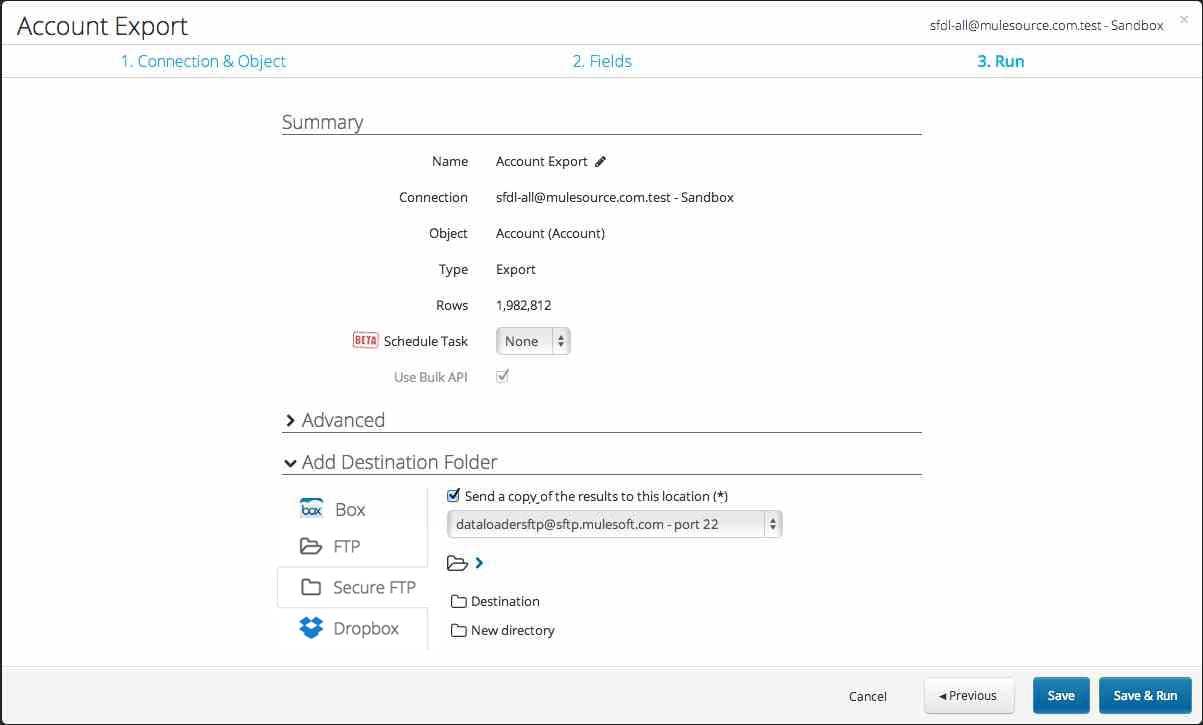
With Dataloader from MuleSoft, export data as CSV files to an SFTP server. In the last step of the export wizard, add a destination folder there.
When you export data from Salesforce, follow the connection and query steps then, on the Run step, add an SFTP destination:
Click Add Destination folder.
Select the checkbox labeled Send a copy of the results to this location.
Select the SFTP tab.
Choose your SFTP connection and folder.
Click Save and Run to run your task (or Save to run it later).


 j
j