Book Service Appointments

A service appointment is an appointment booked through Salesforce Scheduler. Use the service-appointments API to create an appointment.

  1. On your website, create a page with a Create button on which you can show the appointment details for the user to review and book the appointment.

  2. Link the Create button to a POST request on the service-appointments Connect API.

    Resource URI

    1https://YOUR_INSTANCE.salesforce.com/services/data/vXX.X/connect/scheduling/service-appointments

    Where YOUR_INSTANCE is a variable.

    For an Account User

    Sample Request

    This sample calls the service-appointments API to create the appointment record for an account user.

    The parentRecordId field is required. Pass the account ID as parentRecordId in the input request body.

    Note

    1{
    2  "serviceAppointment": {
    3    "serviceTerritoryId": "0Hhx00000002LzGCAU",
    4    "parentRecordId": "001x0000005SEqZAAW",
    5    "schedStartTime": "2022-06-29T11:30:00.000+0000",
    6    "schedEndTime": "2022-06-29T12:30:00.000+0000",
    7    "additionalInformation": "Sharing availability use case using APIs.",
    8    "appointmentType": "Book Test Appointment1",
    9    "extendedFields": [
    10      {
    11        "name": "status",
    12        "value": "Scheduled"
    13      }
    14    ]
    15  },
    16  "assignedResources": [
    17    {
    18      "serviceResourceId": "0Hnx000000007d7CAA",
    19      "isRequiredResource": "true"
    20    }
    21  ]
    22}

    Sample Response

    The API returns the service appointment ID and the assigned service resources.

    1{
    2  "result": {
    3    "assignedResourceIds": [
    4      "03rx0000000252jAAA"
    5    ],
    6    "serviceAppointmentId": "08px000000023bdAAA"
    7  }
    8}

    For a Guest User

    Sample Request

    This sample calls the service-appointments API to create the appointment record for a guest user.

    The lead field is required. Pass the guest user details, including the first name, last name, email address, and phone number as lead in the input request body.

    Note

    1{
    2  "serviceAppointment": {
    3    "serviceTerritoryId": "0Hhx00000002LzGCAU",
    4    "schedStartTime": "2022-06-29T11:30:00.000+0000",
    5    "schedEndTime": "2022-06-29T12:30:00.000+0000",
    6    "additionalInformation": "Sharing availability use case using APIs.",
    7    "appointmentType": "Book Test Appointment1",
    8    "extendedFields": [
    9      {
    10        "name": "status",
    11        "value": "Scheduled"
    12      }
    13    ]
    14  },
    15  "assignedResources": [
    16    {
    17      "serviceResourceId": "0Hnx000000007d7CAA",
    18      "isRequiredResource": "true"
    19    }
    20  ],
    21  "lead": {
    22    "email": "Test@company.com",
    23    "firstName": "FirstName",
    24    "lastName": "LastName",
    25    "company": "CompanyName"
    26  }
    27}

    Sample Response

    The API returns the service appointment ID and the assigned service resources.

    1{
    2  "result": {
    3    "assignedResourceIds": [
    4      "03rx0000000252oAAA"
    5    ],
    6    "parentRecordId": "00Qx0000001cLwwEAE",
    7    "serviceAppointmentId": "08px000000023biAAA"
    8  }
    9}
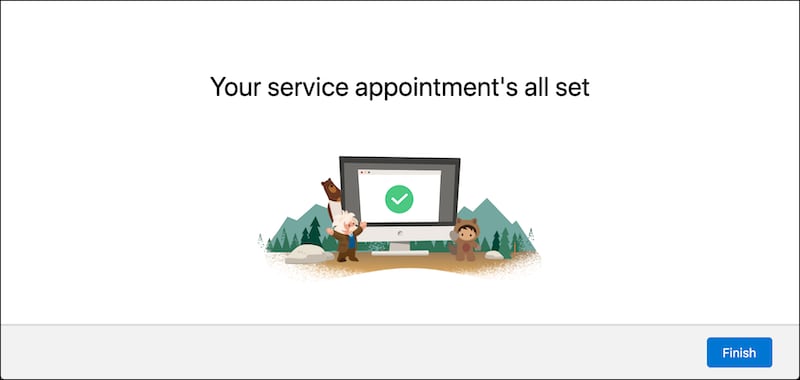
  3. If the service appointment creation is successful, then show the user a confirmation message.

    Here’s a sample confirmation page.

    A representation of the confirmation screen.