Create a Concurrent Appointment
This use case explains how to build a concurrent appointment scheduling application using Salesforce Scheduler APIs.
Let’s think of a situation where you need to schedule multiple appointments within the same time slot. For example, a doctor’s office can let several patients book a Monday 1:00 PM to 3:00 PM appointment. So what can you do in this “case”?
Salesforce Scheduler can help you in this “case”. Let’s drill down on what all we need to accomplish this.
Salesforce Scheduler provides you with the concurrent scheduling feature that makes it easy to schedule multiple service appointments in the same time slot. An event is created for each service appointment.
A concurrent time slot can have a minimum of 2 and a maximum of 1000 appointments.
These steps provide a high-level overview of how you can build a concurrent scheduling app, which is explained in detail in the following sections.
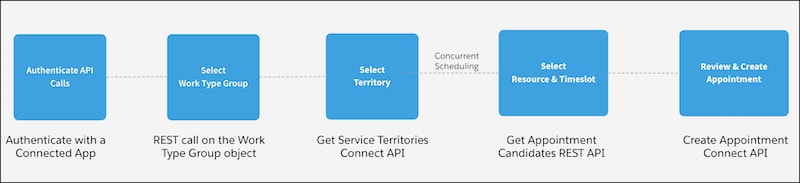
Before you can use the scheduler developer resources to build the concurrent scheduling app, set up Salesforce Scheduler for your organization. For more information, see Set Up Salesforce Scheduler.
-
Enable and Configure Concurrent Scheduling
You must enable concurrent scheduling to let users schedule multiple service appointments in the same time slot. Also, there are some things to keep in mind when you implement concurrent scheduling.
-
Assign Concurrent Operating Hours to Service Territory Members
Concurrent time slots are applicable only to service territory members. Assign operating hours to a service territory member using the Operating Hours field on the respective record page.
-
Authenticate with a Connected App
The first step in an API-based integration is to connect to Salesforce and get an access token using OAuth. OAuth access token authentication is the most secure way to authenticate SOAP and REST API calls.
-
Get Work Type Groups
After authentication, you need to show the work type groups for the user to select. A work type group represents a general appointment category or topic, such as a home loan or investment.
-
Get Service Territories
Get a service territory based on the work type group that is selected in the previous step. A service territory represents a branch or office location where your service resources (appointment attendees) operate from or meet customers.
-
Get Work Types
Get the correct work type record that represents the work type group and service territory that are selected in the previous step.
-
Get Appointment Candidates
Get a list of service resources based on the work type group or work type, and service territory that are selected in the previous step. A service resource represents an employee from your organization, such as a loan officer, investment advisor, doctor, nurse practitioner, or retail store specialist, who attends appointments with clients.
-
Create Service Appointments
The last step in the concurrent scheduling application is to show the service appointment details for the user to review and create the appointment. A service appointment represents an appointment booked through Salesforce Scheduler.


 j
j