Modify a Multi-Resource Service Appointment
Use Salesforce Scheduler APIs to modify a multi-resource service appointment. This use case explains how you can change the secondary service resources or the time slot of an existing multi-resource appointment.
This topic explains how you can modify a multi-resource appointment by using the custom application that you built for creating appointments.
A multi-resource service appointment includes more than one service resource, with one service resource set as the primary resource. Modifying the resources of a multi-resource service appointment presents an additional challenge. The time slot of such an appointment must match the availability of the resources from a particular work type group within a service territory.
This use case is applicable when a secondary resource of a multi-resource appointment marks themselves absent. In that scenario, the appointment must be updated with an available resource. The absent resources, however, must ensure to mark themselves as absent in Salesforce Scheduler. Otherwise, the API request to retrieve the list of service resources continues to include the resources that are currently unavailable or absent.
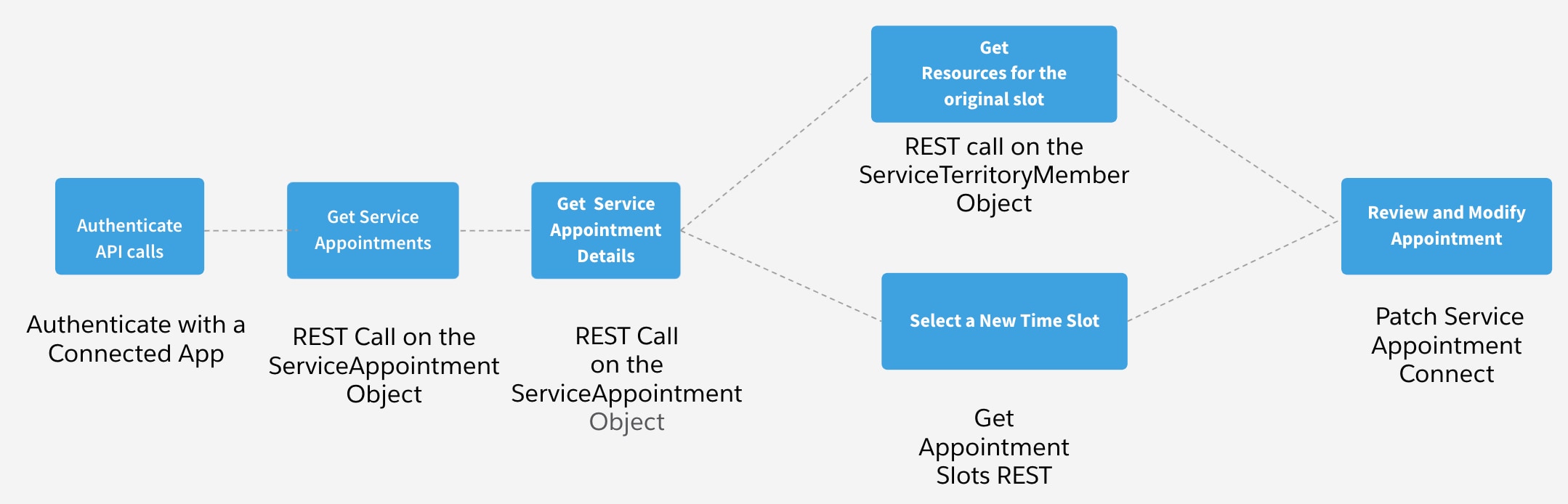
The steps in this section provide a high-level overview of how you can let users choose different service resources or an alternate time slot for an existing multi-resource service appointment.
The use case provides the steps to modify the secondary resources. You can’t modify the primary resource by using the steps provided in this section. To modify the primary resource of a multi-resource appointment, you must delete the original appointment first. Then, create a new appointment with an available service resource set as the primary resource.
Multi-resource appointments do not work when the concurrent scheduling feature is enabled. Make sure the concurrent scheduling feature is disabled in Salesforce Scheduler.
-
Authenticate with Salesforce Scheduler APIs
The first step in an API-based integration is to connect to Salesforce and get an access token using OAuth. OAuth access token authentication is the most secure way to authenticate SOAP and REST API calls.
-
Get Service Appointments
A service appointment represents an appointment booked through Salesforce Scheduler. Use the query request on the ServiceAppointment object to retrieve a list of service appointments.
-
Get Service Appointment Details
A service appointment represents an appointment booked through Salesforce Scheduler. Use the GET method on the Service Appointment object to fetch the details of a service appointment record.
-
Change Appointment Details
This section explains how you can show either the service resources or time slots page based on what the user chooses to change for the appointment. Depending on the requirement, you can choose one of the two options.
-
Update Service Appointments
A service appointment represents an appointment booked through Salesforce Scheduler. Make a PATCH request on the service-appointments Connect API to update a multi-resource service appointment.


 j
j