Modify a Service Appointment
Use Salesforce Scheduler APIs to modify a service appointment. This use case explains how you can change the engagement channel, service resource, time slot, or status of an existing appointment. However, you can also modify other details of the appointment in a similar fashion. For example, to change the service territory, use the service-territories Connect API.
This topic explains how you can modify an appointment using the custom application that you built for creating appointments.
For the procedure to be successful, ensure that each unavailable resource marks themselves as absent in Salesforce Scheduler. Otherwise, the API request to retrieve the list of service resources continues to include the resources that are currently unavailable or absent.
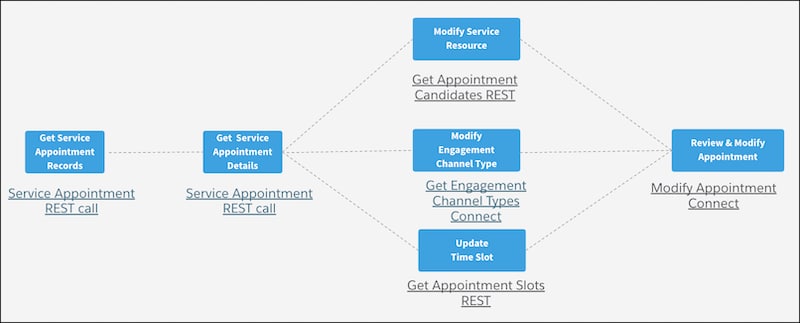
These steps provide a high-level overview of how you can let users choose a different engagement channel type, service resource, or time slot for an existing service appointment.
-
Authenticate with a Connected App
The OAuth access token authentication is the most secure way to authenticate SOAP and REST API calls. Before you use Salesforce Scheduler for API-based integration, authenticate the API calls using OAuth.
-
Get Service Appointments
A service appointment represents an appointment booked through Salesforce Scheduler.
-
Get Service Appointment Details
A service appointment represents an appointment booked through Salesforce Scheduler.
-
Change Appointment Details
This section explains how you can show either the engagement channel types, service resources, or time slots page based on what the user chooses to change for the appointment.
-
Update Service Appointments
Show your users the details of a service appointment—an appointment modified through Salesforce Scheduler—so that users can review and update the appointment.


 j
j