Create Service Appointments

A service appointment represents an appointment booked through Salesforce Scheduler. Make a POST request on the service-appointments Connect API to create the appointment.

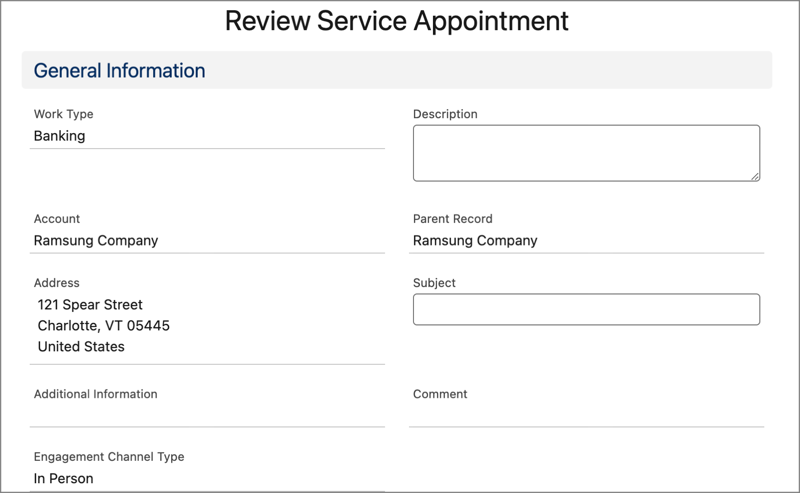
  1. Create a page where the user can review the appointment details and create the appointment. Here’s how a Review Service Appointment page can look.

    To keep the service resource private, hide the resource’s name on the review appointment page.

    Note

    A representation of the Review Service Appointment screen.

  2. Link the Next button to a POST request on the service-appointments Connect API to create the service appointment.

    Resource URI

    1https://yourInstance.salesforce.com/services/data/vXX.X/connect/scheduling/service-appointments

    For an Existing User (Account)

    Sample Request

    Pass the account ID as parentRecordId in the input request body.

    Set IsAnonymousBooking to true to indicate that the appointment is anonymous.

    1{
    2   "serviceAppointment": {
    3      "serviceTerritoryId": "0HhS700000001DYKAY",
    4      "parentRecordId" : "001S7000001pFlJIAU", 
    5      "schedStartTime" : "2023-11-29T20:00:00.000Z",
    6      "schedEndTime": "2023-11-29T21:00:00.000Z",
    7      "street": "121 Spear Street",
    8      "city": "Charlotte",
    9      "state": "VT",
    10      "postalCode": "05445",
    11      "country": "United States",
    12      "engagementChannelTypeId" : "0eFS70000004CG5MAM",
    13      "extendedFields" : [ {
    14        "name": "IsAnonymousBooking", 
    15        "value": "true"
    16      } ]
    17   },
    18   "assignedResources": [
    19      {
    20        "serviceResourceId": "0HnS700000002jAKAQ",
    21        "isRequiredResource": true,
    22        "extendedFields" : []
    23      }
    24   ]
    25}

    Sample Response

    The API returns the service appointment ID and the assigned service resources.

    1{
    2  "result" : {
    3    "assignedResourceIds" : [ "03rS700000000oMIAQ" ],
    4    "serviceAppointmentId" : "08pS700000001G3IAI"
    5  }
    6}

    For a Guest User (Lead)

    Sample Request

    Pass the required lead details in the input request body.

    Set IsAnonymousBooking to true to indicate that the appointment is anonymous.

    1{
    2   "serviceAppointment": {
    3      "serviceTerritoryId": "0HhS700000001DYKAY",
    4      "schedStartTime" : "2023-11-29T22:15:00.000Z",
    5      "schedEndTime": "2023-11-29T23:15:00.000Z",
    6      "street": "121 Spear Street",
    7      "city": "Charlotte",
    8      "state": "VT",
    9      "postalCode": "05445",
    10      "country": "United States",
    11      "engagementChannelTypeId" : "0eFS70000004CG5MAM",
    12      "extendedFields" : [ {
    13        "name": "IsAnonymousBooking", 
    14        "value": "true"
    15      } ]
    16   },
    17   "assignedResources": [
    18      {
    19        "serviceResourceId": "0HnS700000002jGKAQ",
    20        "isRequiredResource": true,
    21        "extendedFields" : []
    22      }
    23   ],
    24    "lead": {
    25        "firstName": "Tom",
    26        "lastName": "Smith",
    27        "phone": "(555) 555-1234",
    28        "email": "info@salesforce.com",
    29        "company": "MedLife, Inc.",
    30        "extendedFields" : []
    31   }
    32}

    Sample Response

    The API returns the service appointment ID and the assigned service resources.

    1{
    2  "result" : {
    3    "assignedResourceIds" : [ "03rS700000000oRIAQ" ],
    4    "parentRecordId" : "00QS7000000sfcnMAA",
    5    "serviceAppointmentId" : "08pS700000001G8IAI"
    6  }
    7}

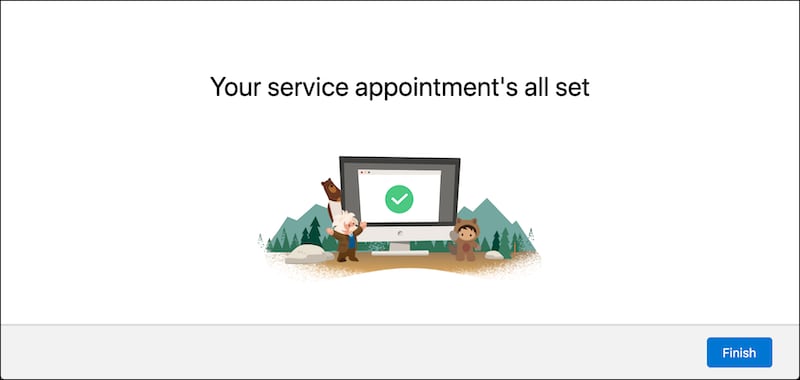
Create a page to show confirmation when the service appointment is created successfully.

Here’s how a sample confirmation page can look.

A representation of the confirmation screen.