Display Interactive Notifications
Use interactive notifications to add buttons to push notifications from your mobile app. Marketing Cloud Engagement sends the category name for these interactive notifications in the message payload.
-
Set up interactive notifications for your app using the sample code below. Adapt it to your specific requirements.
The sample code applies to the
AppDelegate.mdidFinishLaunchingWithOptionsapplication delegate method and shows how to create a category namedExample. When you send this category with the payload from Marketing Cloud Engagement, the message appears in the notification center with buttons for user interaction. -
Examine the push notification’s payload in your push handler to check if your action triggered and your app performed the necessary response.
-
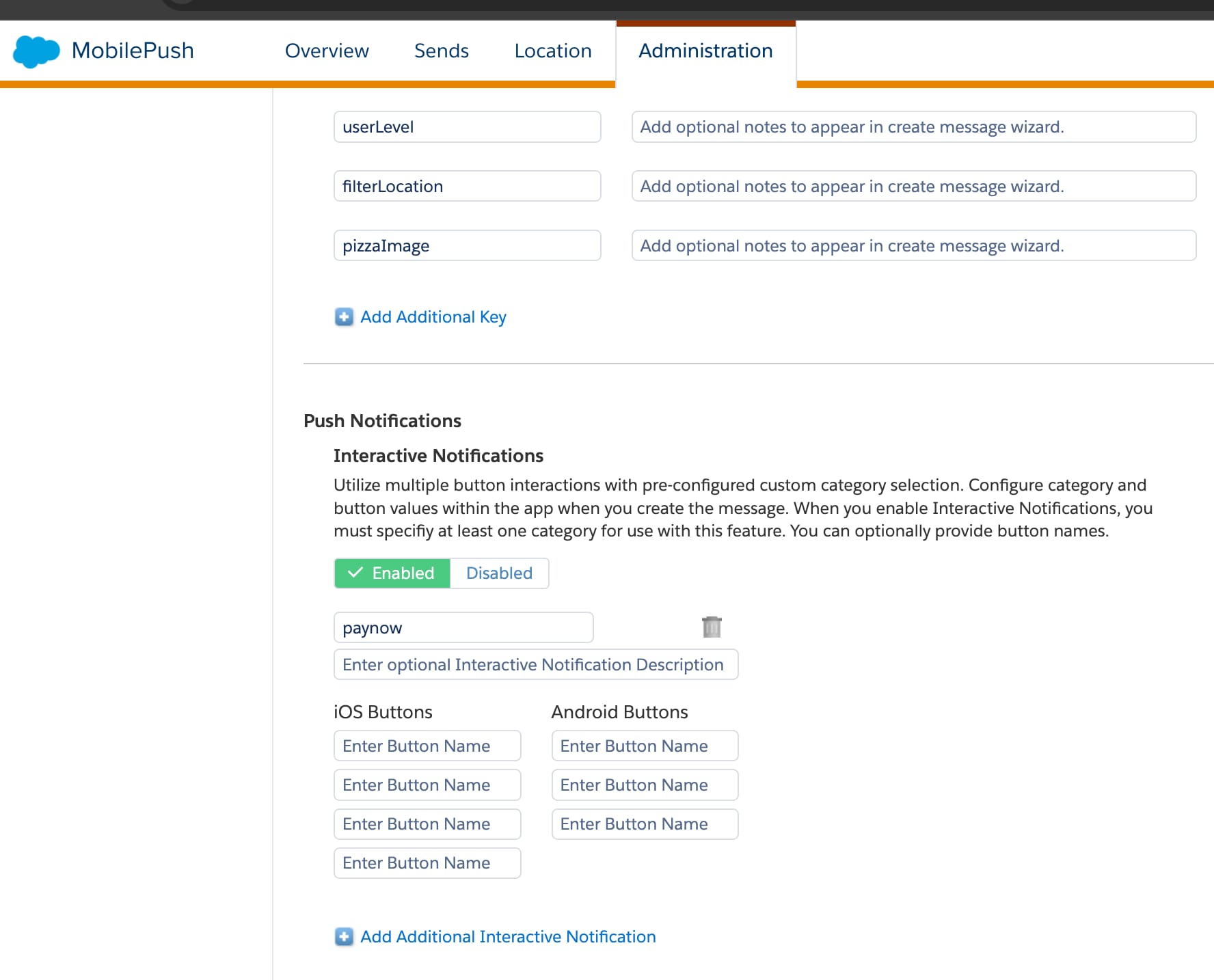
After setup, work with an admin to enable interactive notifications on the MobilePush Administration page.
Configure the SDK to create notification categories with custom actions. This code creates a category named Example with an action button. When Marketing Cloud Engagement sends a notification with this category, the notification displays with buttons that users can tap to trigger specific actions in your app.
Next, configure your app to respond when a user taps an action button. Implement the userNotificationCenter(_:didReceive:withCompletionHandler:) method to detect which action the user selected and respond accordingly. Check the actionIdentifier to determine which button the user tapped, then execute code that corresponds to that action.