



Accordion
Accordion Section
Alert
Avatar
Badge
Barcode Scanner
Breadcrumb
Breadcrumbs
Button
Button Group
Button Icon
Button Icon Stateful
Button Menu
Button Stateful
Card
Carousel
Carousel Image
Checkbox Group
Click To Dial
Combobox
Confirm
Datatable
Dual Listbox
Dynamic Icon
Dynamic List Container (Developer Preview)
Dynamic List Item (Developer Preview)
Empty State (Beta)
File Upload
Flow
Formatted Address
Formatted Date Time
Formatted Email
Formatted Location
Formatted Name
Formatted Number
Formatted Phone
Formatted Rich Text
Formatted Text
Formatted Time
Formatted URL
Helptext
Icon
Illustration (Beta)
Input Address
Input Field
Input Location
Input Name
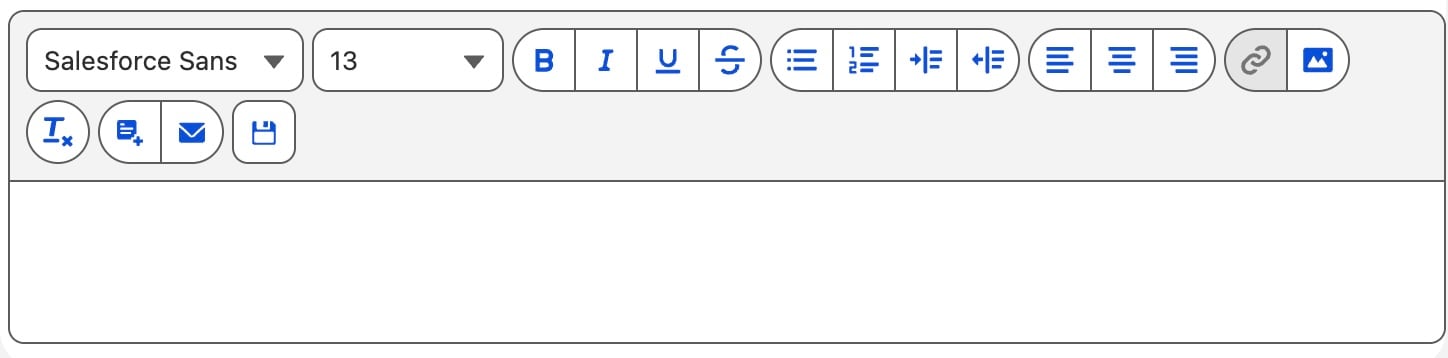
Input Rich Text
Layout
Layout Item
Map (Beta)
Menu Divider
Menu Item
Menu Subheader
Modal
Modal Body
Modal Footer
Modal Header
Omnistudio Flexcard
Omnistudio Omniscript
Omnistudio Pubsub
Output Field
Pill
Pill Container
Progress Bar
Progress Indicator (Beta)
Progress Ring
Progress Step (Beta)
Prompt
Quick Action Panel (Beta)
Radio Group
Record Edit Form
Record Form
Record Picker
Record View Form
Relative Date Time
Rich Text Toolbar Button
Rich Text Toolbar Button Group
Select
Slider
Spinner
Tab
Tabset
Textarea
Tile
Toast
Toast Container
Tree
Tree Grid
Vertical Navigation
Vertical Navigation Item
Vertical Navigation Item Badge
Vertical Navigation Item Icon
LWC Developer Guide
SLDS 1
SLDS 2