Update Service Appointments

Show your users the details of a service appointment—an appointment modified through Salesforce Scheduler—so that users can review and update the appointment.

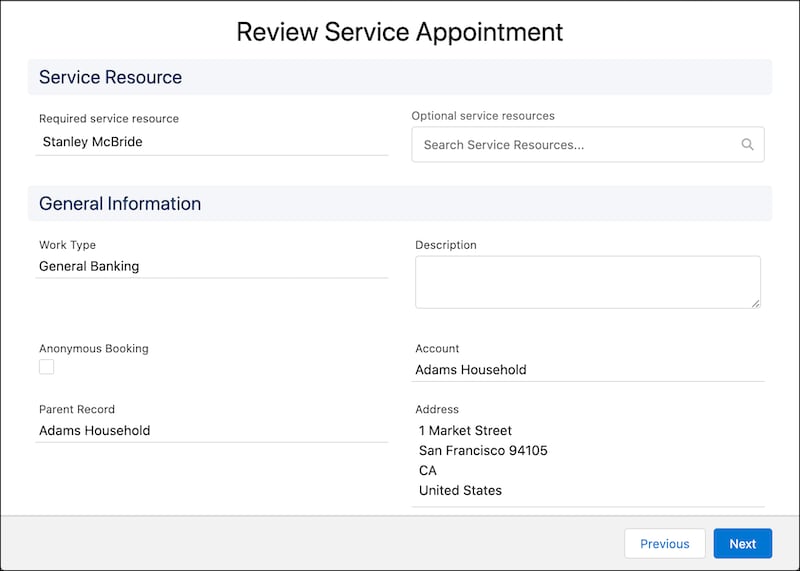
  1. Create a page where the user can review the appointment details and update the appointment.

    Here’s how a Review Service Appointment page can look.

    A representation of the Review Service Appointment screen.

  2. Make a PATCH request to the service-appointments Connect API to modify the service appointment.

    Resource URI

    1https://YOUR_INSTANCE.salesforce.com/services/data/v68.0/connect/scheduling/service-appointments

    Where YOUR_INSTANCE is a variable.

    Sample Request

    Specify the scheduling policy ID in which the shift is defined. Additionally, pass the parameters including the standard and custom fields that are not available in the input parameters list as extended fields. Edit access on these fields is required to update their values. For example, pass the status field as extended fields with its value set to Canceled to indicate that the appointment is canceled.

    Note

    Update Service Resource and engagement channel type

    1{
    2  "serviceAppointmentId": "08pS7000000019BIAQ",
    3  "schedulingPolicyId": "2F0VrRM0000004CUV",
    4  "serviceAppointment": {
    5    "schedStartTime": "2023-03-24T18:00:00.000+0000",
    6    "schedEndTime": "2023-03-24T19:00:00.000+0000",
    7    "serviceTerritoryId": "0HhS700000001DYKAY",
    8    "engagementChannelTypeId": "0eFS70000004CGFMA2",
    9    "workTypeId": "08qS70000004DQsIAM"
    10  },
    11  "assignedResources": [
    12    {
    13      "serviceResourceId": "0HnS700000002jAKAQ",
    14      "isRequiredResource": true,
    15      "extendedFields": []
    16    }
    17  ]
    18}

    Update Time Slot

    1{
    2   "serviceAppointmentId": "08pS7000000019BIAQ",
    3   "serviceAppointment": {
    4      "schedStartTime": "2023-03-24T18:00:00.000+0000",
    5      "schedEndTime": "2023-03-24T19:00:00.000+0000",
    6   }
    7}

    Update Appointment Status

    1{
    2   "serviceAppointmentId": "08pS7000000019BIAQ",
    3   "serviceAppointment": {
    4      "extendedFields": [{
    5        "name": "status",
    6        "value": "Canceled"
    7      }]
    8   }
    9}

    Sample Response

    The API returns the service appointment ID and the assigned service resources.

    1{
    2  "result": {
    3    "assignedResourceIds": [
    4      "03rS700000000heIAA"
    5    ],
    6    "serviceAppointmentId": "08pS7000000019BIAQ"
    7  }
    8}
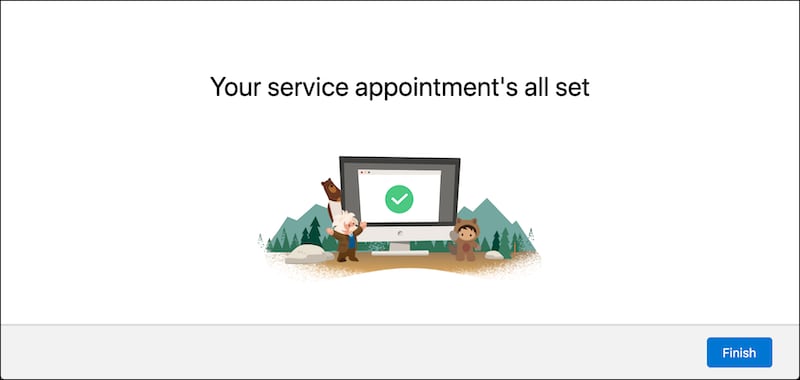
  3. Create a page to show confirmation when the service appointment is modified successfully.

    Here’s how a sample confirmation page can look.

    A representation of the confirmation screen.