
Appearance
Exercise 2: Add Interactivity
In this exercise, you'll use React to make the Merchant Operations Center interactive. You'll add cuisine filters, search, sorting, pagination, and a storefront detail panel. Each change should keep the existing summary cards in sync with the storefronts currently visible on the page.
Step 1: Add Cuisine Filters
Use this prompt to add filters:
txtAdd cuisine filters to Merchant Operations Center. Users should be able to filter storefronts by: - All - Italian - Mexican - Asian - American The summary cards should update based on the filtered storefronts.Preview the app and test each cuisine filter.
Confirm that the storefront list and summary cards update together.
Step 2: Add Search
Use this prompt to add storefront search:
txtAdd search to Merchant Operations Center. Users should be able to search storefronts by name. Search should work together with the cuisine filter. The summary cards should update based on the visible storefronts.Preview the app and search for a storefront name.
Test search with at least one cuisine filter selected.
If search and filters do not work together, ask Vibes to fix the combined filter logic.
Step 3: Add Sorting
Use this prompt to add sorting:
txtAdd sorting to Merchant Operations Center. Users should be able to sort storefronts by: - Revenue - Orders Today - Average Rating Sort should work together with search and cuisine filtering.Preview the app and test each sort option.
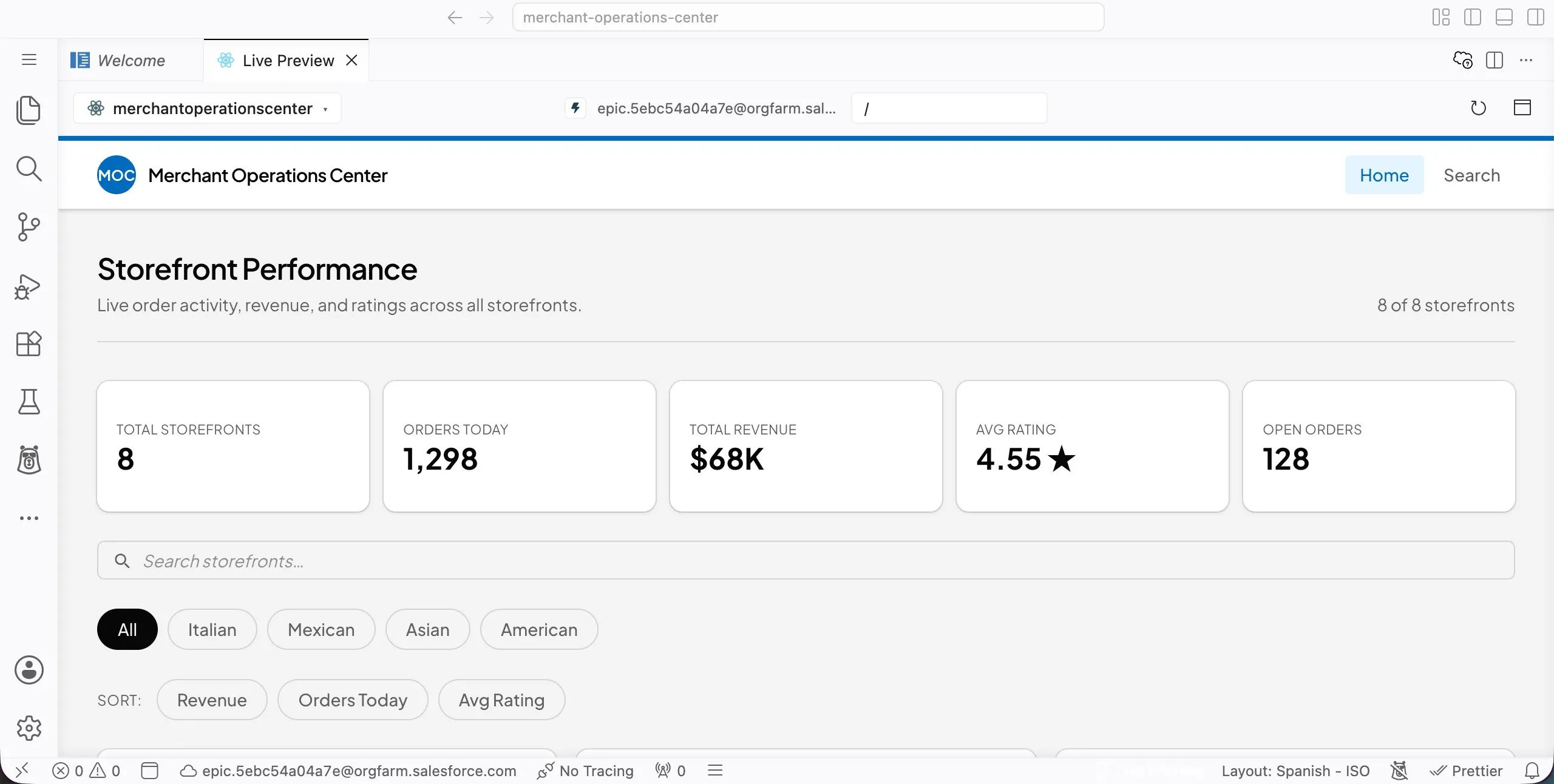
Confirm that sorting respects the current search term and cuisine filter.
Step 4: Add Pagination
Use this prompt to add pagination:
txtAdd pagination to Merchant Operations Center. Show 6 storefronts per page. Users should be able to move to the next page and previous page. Pagination should work together with cuisine filtering, search, and sorting. The summary cards should continue to calculate from all visible filtered results, not just the current page.Preview the app and confirm that only 6 storefronts appear per page.
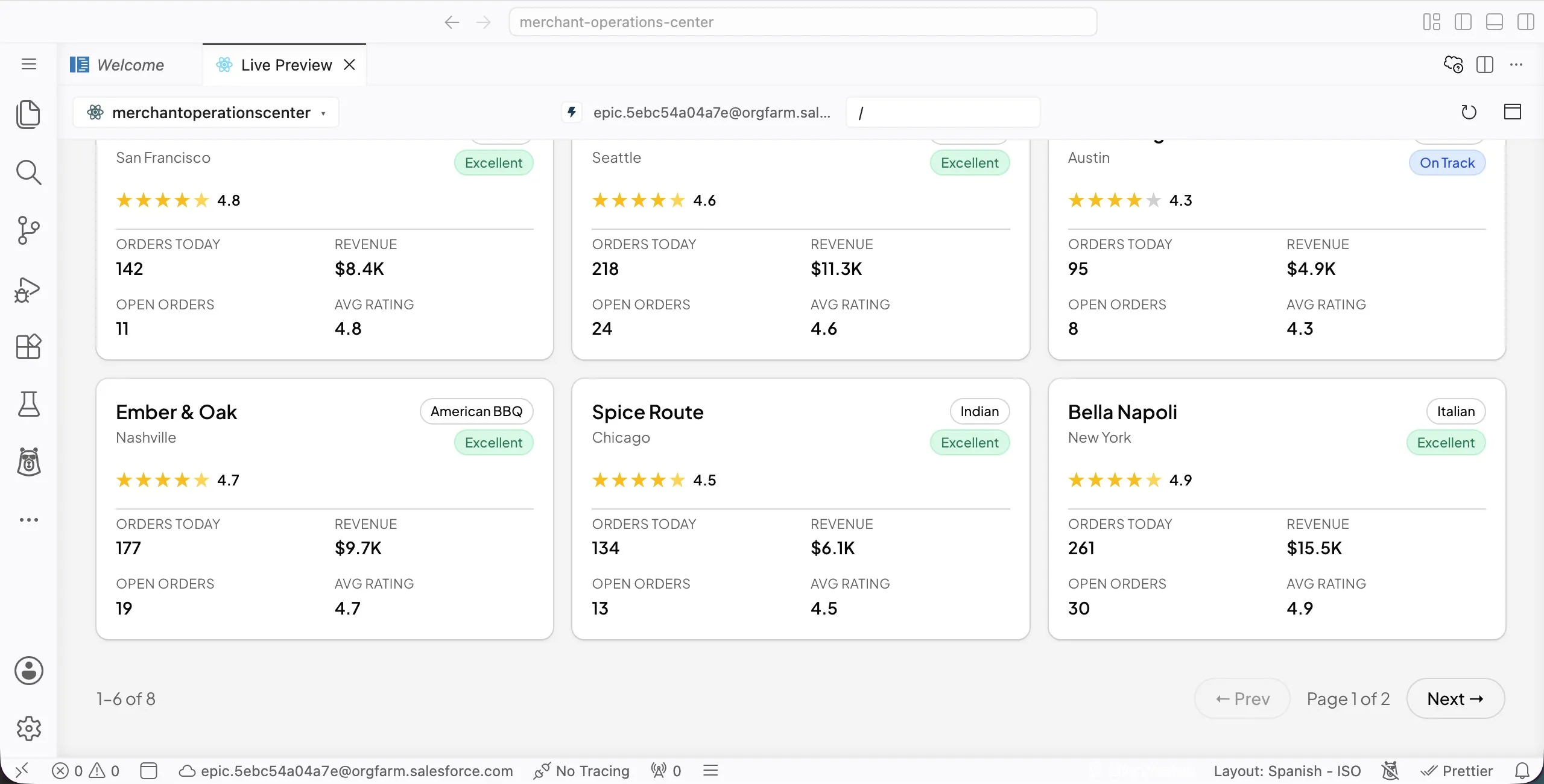
Test pagination with a cuisine filter, search term, and sort option selected.
Confirm that the summary cards still reflect the full filtered result set.
Step 5: Add a Storefront Detail Panel
Use this prompt to add a detail panel:
txtAdd a storefront detail panel. Extend the mock storefront data with these additional fields: - manager - phone - address - hoursToday - weeklyRevenueTrend (last 7 days of revenue) When a user selects a storefront, show a detail panel with the storefront name, cuisine, and the new fields above. Keep the list visible while the detail panel is open.Preview the app and select a storefront.
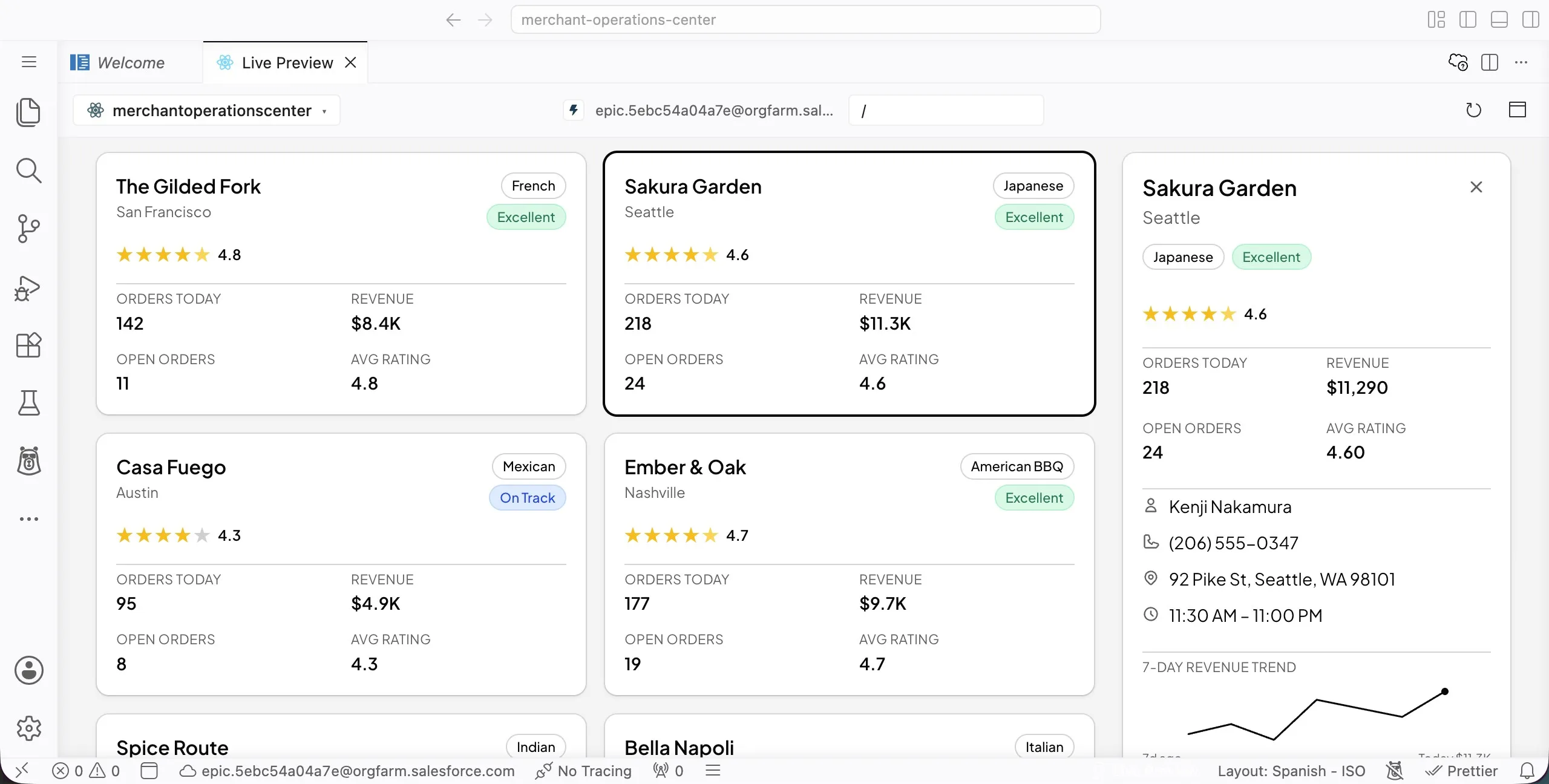
Confirm that the detail panel shows information that isn't already on the storefront card, such as the manager, phone, address, hours, and weekly revenue trend.
Confirm that the storefront list stays visible while the detail panel opens.
Select a different storefront and confirm that the detail panel updates.
Summary
- You added cuisine filtering.
- You added storefront search.
- You added sorting.
- You added pagination.
- You added a detail panel.
- You kept summary metrics synced with the visible storefront data.
In the next exercise, you'll replace mock data with Salesforce data and add workflow recommendations.