
Appearance
Exercise 2: Vibe Code a Storefront Health Component
In this exercise, you'll use Agentforce Vibes to build a small Lightning Web Component (LWC) for a Storefront record page. You'll first ask Agentforce Vibes to add a calculated Storefront field, then ask it to build a compact visual health card that reads that field from the current Storefront record.
Scenario
Merchant success managers need a quick way to judge whether a Storefront is worth attention. The score uses simple Storefront data like Average Review Score, Total Reviews, and recent Order volume. The LWC that you'll build turns that score into a visual health badge.
This 0-100 score is a richer, record-level metric than the rating-only health label you reviewed in the Review Storefront Health Flow in Explore Salesforce Hosted MCPs. Both use the same four labels (Strong, Healthy, Needs Attention, At Risk), but the score also weighs review volume, so the two can differ for the same storefront.
This is a clean two-step build: first metadata, then UI. It gives you a visible payoff without needing Apex.
Vibe Coding Mindset
Good vibe coding is a loop:
- Frame the outcome. Tell the agent what business result you want.
- Build a thin slice. Start with something small enough to deploy and preview.
- Watch the agent use context. Notice how it uses metadata, files, MCP servers, and skills while it works.
- Test from evidence. Use deployment output and component preview to decide what to ask next.
- Iterate. Make one focused improvement at a time.
The prompts in this exercise are intentionally specific. You are still vibe coding: after each build, deploy the change, preview the component, and use what you see to decide the next prompt.
Step 1: Create the Formula Field
Open the Agentforce Vibes Sidebar.
Use this prompt to create the Storefront formula field:
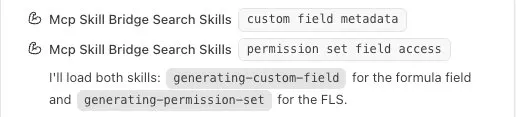
txtCreate a Number formula field on Storefront__c called Storefront Performance Score with API name Storefront_Performance_Score__c. The formula should calculate a 0-100 score: - Start at 50 - Add 30 if Average_Review_Score__c is greater than 4 - Add 15 if Average_Review_Score__c is greater than 3 and less than or equal to 4 - Subtract 20 if Average_Review_Score__c is less than 3 - Add 10 if Total_Reviews__c is greater than 50 - Subtract 10 if Total_Reviews__c is less than 5 - Cap the score between 0 and 100 Set the field type to Number with 0 decimal places. Add field-level read access for this field to the Merchant Management App permission set: force-app/main/default/permissionsets/Merchant_Management_App.permissionset-meta.xml Create or update only these two metadata files: the field file under force-app/main/default/objects/Storefront__c/fields/ and the permission set file above. Do not create any Apex classes, flows, or other metadata.As the agent works, notice how it combines the LLM, MCP tools, and Salesforce skills to understand your project and org metadata.
Ask the agent to deploy the formula field before you build the component.
The agent may offer to deploy automatically. If it does, let it run. If it does not, use this prompt:
txtDeploy the Storefront Performance Score field and Merchant Management App permission set changes to my target org.After deployment completes, you should see a deployment confirmation.
Step 2: Build the Storefront Record Page LWC
Use this prompt to build the LWC:
txtCreate a LWC for the Storefront__c record page called storefrontHealth. Create it in force-app/main/default/lwc/storefrontHealth/ with storefrontHealth.html, storefrontHealth.js, storefrontHealth.css and storefrontHealth.js-meta.xml. Do not create or change any other files. Use the Lightning Data Service getRecord wire adapter from lightning/uiRecordApi with the recordId passed in by the record page. Do not use Apex. The component should read the current Storefront__c record and display: - Storefront Name - Average_Review_Score__c - Total_Reviews__c - Storefront_Performance_Score__c Render the score as a compact merchant ops health card: - 80-100: Strong - 60-79: Healthy - 40-59: Needs Attention - Below 40: At Risk Use SLDS styling. Show the score as a progress bar or large badge. Include a short helper message based on the score. If Storefront_Performance_Score__c is blank, show "No storefront performance score available." In storefrontHealth.js-meta.xml, expose the component with the lightning__RecordPage target, limited to Storefront__c.Ask the agent to deploy the LWC before you preview it.
Once more, the agent may deploy automatically after it creates the component. If it does not, use this prompt:
txtDeploy the storefrontHealth LWC to my target org.After deployment completes, you should see a deployment confirmation.
Step 3: Preview the LWC
Expand the Validate your changes list above the chat input.
Select Preview Locally next to the
storefrontHealthfile.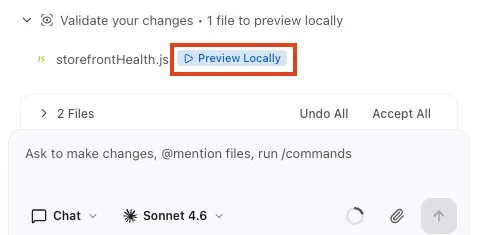
If prompted, press Enter to approve the component preview.
TIP
If you don't see the Validate your changes list or the Preview Locally button doesn't open the preview, right-click the
storefrontHealthfolder orstorefrontHealth.htmlin the Explorer and select SFDX: Open in Lightning Preview. You can also ask the agent:Open the storefrontHealth component in Lightning Preview.If the component does not load or the preview does not show Storefront data, ask the agent to make the component preview-friendly.
Lightning Preview does not automatically provide the same
recordIdcontext as a Storefront record page. For preview testing, the component needs a fallback Storefront Id. Do not let the agent invent one, that risks pointing at a record that doesn't exist in your org. Instead, have it query your org with the Salesforce CLI for a real Storefront Id and use that Id only as a preview fallback, so the component still works on real Storefront record pages:txtCan you update the LWC JavaScript so the component can use a valid Storefront__c Id when running in Lightning Preview? First, run a query with the Salesforce CLI against my target org to get the Id of an existing Storefront, for example `sf data query --query "SELECT Id, Name FROM Storefront__c LIMIT 1"`. When Salesforce provides a real recordId (on a Storefront__c record page), use it. When no recordId is available (in Lightning Preview), use the Id returned by the query as a fallback constant, with a comment saying it is for preview testing only. Do not invent an Id, only use the one returned by the query. Only update storefrontHealth.js. Do not create Apex classes or any other new files.Deploy the preview fix if the agent changes the component.
txtDeploy the latest storefrontHealth component changes to my target org.Run Lightning Preview again and review the health card.
The preview should show a compact Storefront health card with a score, status label, and helper message.
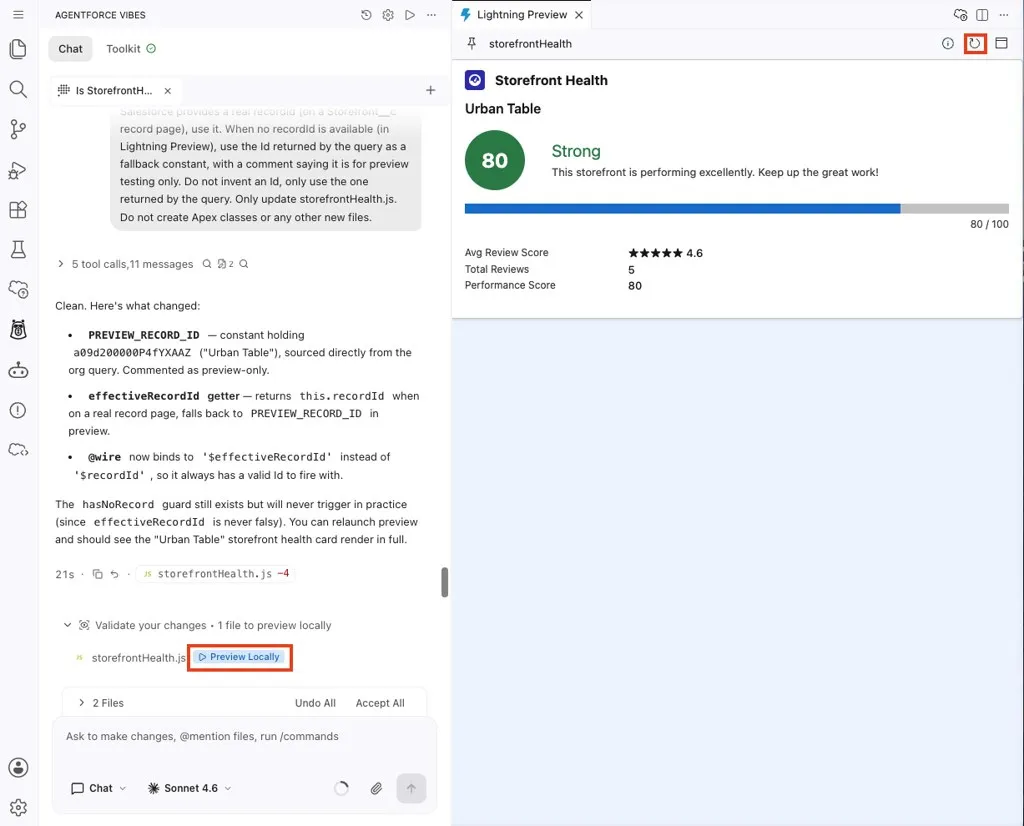
Your card may look different because the agent can make different design choices. If you change the component again, click the refresh icon in the Lightning Preview panel.
Step 4: Iterate from the Preview
Review the component and ask yourself:
- Does the score display clearly?
- Does the health label match the score range?
- Does the empty state explain what is missing?
- Does the styling feel like a compact merchant ops card?
Ask the agent for one small improvement based on what you saw.
txtReview the current storefrontHealth component and recommend one small improvement that would make the health card clearer for merchant success managers. The improvement must only change files inside force-app/main/default/lwc/storefrontHealth/ and must not need Apex or new metadata. Explain the change before editing files. Do not edit any files yet.If you like the recommendation, ask the agent to build it.
txtBuild that improvement for storefrontHealth. Update only the files inside force-app/main/default/lwc/storefrontHealth/. Do not create Apex classes or other new metadata.Deploy the update.
txtDeploy the latest storefrontHealth changes to my target org.Run Lightning Preview again and confirm the improvement.
You do not need to open the component in the Salesforce org for this exercise. The goal is to practice the build, deploy, preview, and iterate loop inside Agentforce Vibes.
Summary
- You created a Storefront formula field that calculates a health score and updated the Merchant Management App permission set with read access to the new field.
- You built a Storefront record page LWC that uses the Lightning Data Service to load data.
- You deployed after each build and used Lightning Preview to test the UI.
You now have a working pattern for building a focused Lightning component with Agentforce Vibes: create the metadata, build the UI, deploy, preview, and iterate.