
Appearance
Exercise 1: Configure Salesforce MCP Servers
In this exercise, you'll create a trusted OAuth connection and activate some Salesforce Hosted MCP servers.
You'll:
- Set and verify your user's email.
- Create an External Client App (ECA) so that MCP clients can authenticate to the MCP servers.
- Prepare a permission set to secure access to your MCP servers.
- Secure access to your ECA.
- Activate the Salesforce Hosted MCP servers.
Step 1: Set and Verify Your User's Email
WARNING
Updating and verifying your user's email is required for the next steps. It also lets you reset your password if needed.
From Setup, in the Quick Find box, enter
Users, then select Users.Click Edit next to EPIC, OrgFarm in the user table.
Replace the Email value with your own email.
Click Save.
Click OK to confirm the email change.
Open your email inbox and look for an email from Salesforce titled "Finish changing your Salesforce account’s email address".
Click on the link to validate the email change.
Click Verify Email Address.
Click Continue.
Step 2: Create an External Client App (ECA)
From Setup, in the Quick Find box, enter
External Client, then select External Client App Manager.Click New External Client App.
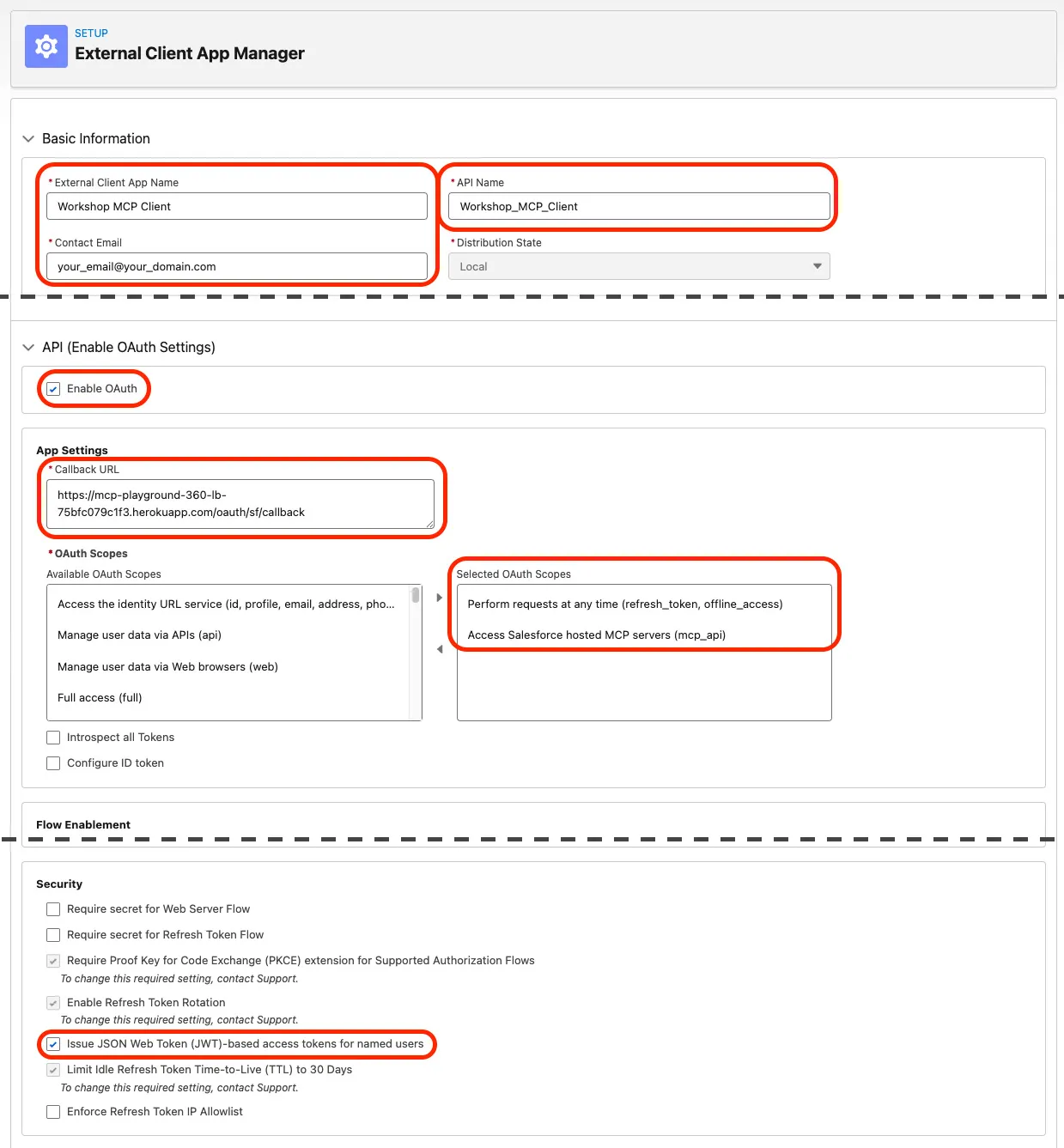
Under Basic Information, fill in the required fields:
Field Name Field Value App Name Workshop MCP ClientAPI Name Workshop_MCP_Client(auto-filled)Contact Email Your email address Distribution State LocalExpand the API (Enable OAuth Settings) section and configure the following app settings:
Check Enable OAuth
Callback URL:
txthttps://mcp-playground-360-lb-75bfc079c1f3.herokuapp.com/oauth/sf/callbackSelected OAuth Scopes:
- Perform requests at any time (
refresh_token, offline_access) - Access Salesforce hosted MCP servers (
mcp_api)
- Perform requests at any time (
Under Security, check Issue JSON Web Token (JWT)-based access tokens for named users
At this point, your ECA configuration should look like this:
TIP
Take a minute to double check the ECA settings from this step to ensure that you've properly configured it. If you've misconfigured it, you'll be stuck in the next steps.
Click Create.
TIP
- The External Client App can take anywhere from a few minutes up to 30 minutes to become available. The delay is similar to registering a new domain with DNS.
- Always define one ECA per client type (one for Claude, one for ChatGPT...). This helps you control permissions and facilitates logging.
Step 3: Create a Permission Set
From Setup, in the Quick Find box, enter
Permission, then select Permission Sets.Click New.
Fill in the following fields:
Field Name Field Value Label MCP Client UserAPI Name MCP_Client_User(auto-filled)Description Grants access to the Salesforce hosted MCP servers.Click Save.
Assign the permission set to yourself:
- Click Manage Assignments.
- Click Add Assignment.
- Check the box next to OrgFarm EPIC (this is your user).
- Click Next.
- Click Assign.
Step 4: Secure the Access to the External Client App
From Setup, in the Quick Find box, enter
External Client, then select External Client App Manager.Click Workshop MCP Client.
Click Edit in the Policies tab of your ECA.
Expand the OAuth Policies section.
Change the Permitted Users dropdown to Admin approved users are pre-authorized.
Click OK to confirm the changes.
Under Select Permission Sets, select your MCP Client User permission set from the Available Permission Sets list and move it to the Selected Permission Sets list.
Click Save.
Click Settings, then under OAuth Settings click Consumer Key and Secret.
Check your inbox for a verification code email and enter the code in the form.
WARNING
If you haven't updated and verified your user's email as described in Step 1, you will not be able to proceed past this point.
Copy the Consumer Key and Consumer Secret. Store them securely; you'll need them to connect MCP clients to your org.
Step 5: Activate Salesforce Hosted MCP Servers
From Setup, in the Quick Find box, enter
MCP Servers, then select MCP Servers under API Catalog.Click Salesforce Servers.
Review the servers you'll activate.
Server Why you need it SObject All Lets MCP clients query and update Salesforce records. You'll use it in Exercise 2 to investigate live Pronto merchant, storefront, and order data. Headless360 (H360) MCP Server Lets MCP clients query and update Salesforce metadata and records. You'll use it in Exercise 2 to investigate the Pronto data model. Open the SObject All MCP server and click Activate.
Open the Headless360 (H360) MCP Server and click Activate.
Summary
- You verified your user's email so Salesforce can complete security checks.
- You created a secure External Client App for MCP client authentication.
- You created and assigned a permission set that controls who can use the External Client App.
- You activated the SObject All MCP server and the Headless360 (H360) MCP Server.
Next, you'll test the Salesforce Hosted MCP servers in the AIforce Playground.