
Appearance
Exercise 1: Launch and Explore Agentforce Vibes
In this exercise, you'll prepare tools for Agentforce Vibes, launch and explore it.
Step 1: Activate Salesforce Hosted MCP Servers
Agentforce Vibes uses two Salesforce-hosted MCP servers to analyze and generate Salesforce metadata: salesforce-api-context and metadata-experts. You'll activate both now.
TIP
The Headless360 (H360) MCP Server you used in the previous module is built for external MCP clients, such as the AIforce Playground or Claude. Agentforce Vibes doesn't use it for its built-in tasks, so you don't need it for this module.
From Setup, in the Quick Find box, enter
MCP Servers, then select MCP Servers under API Catalog.Click Salesforce Servers.
Review the servers you'll activate.
Server Why you need it salesforce-api-context Lets MCP clients inspect your org's API shape, objects, fields, and relationships. metadata-experts Gives metadata-aware development guidance. Open the salesforce-api-context MCP server and click Activate.
Open the metadata-experts MCP server and click Activate.
Step 2: Launch Agentforce Vibes IDE
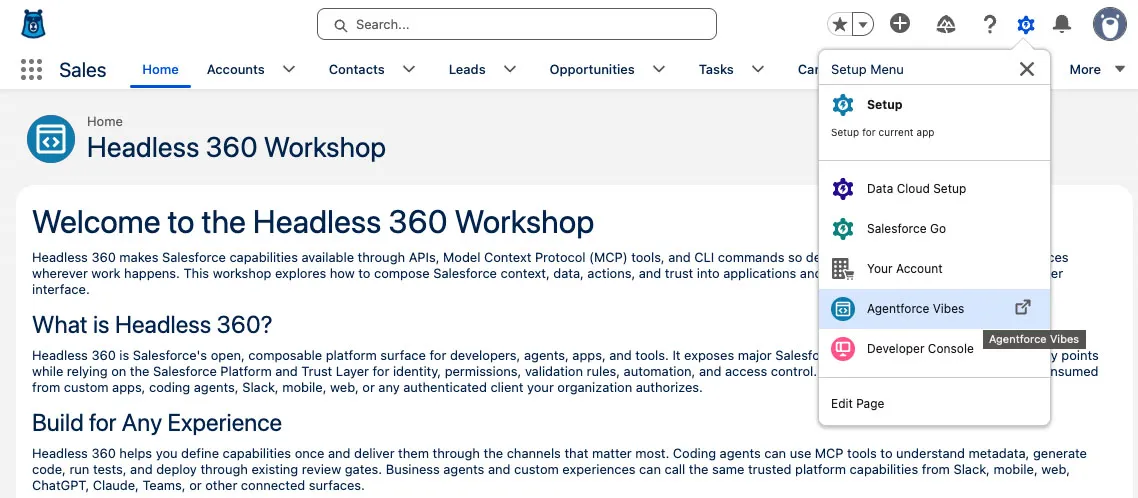
Open the Setup Menu and click Agentforce Vibes.
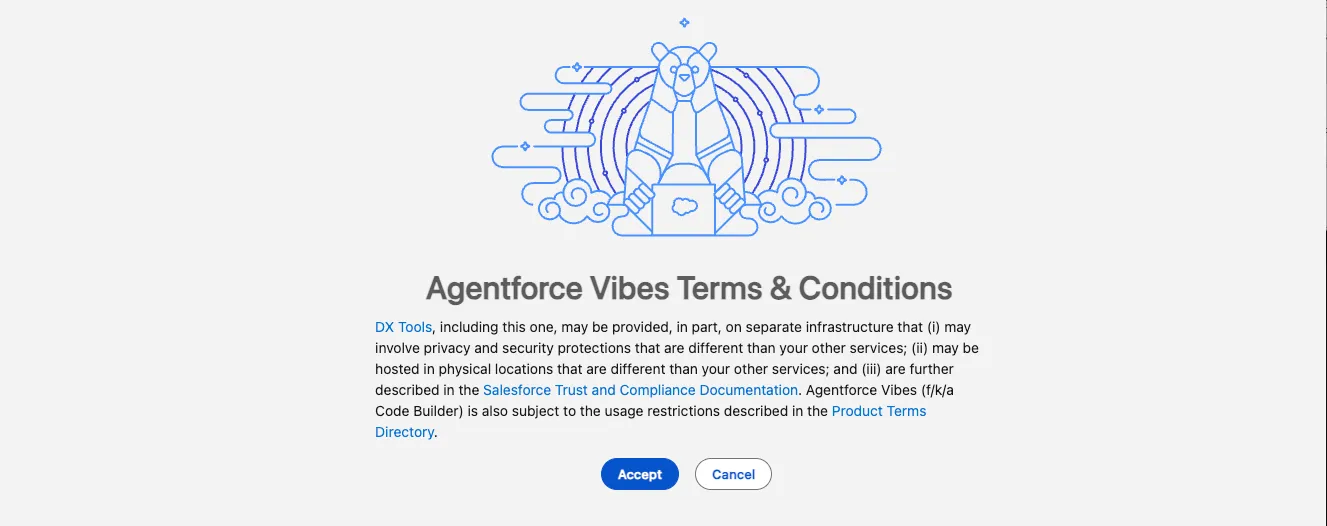
Accept the Terms and Conditions.
TIP
It will take a few minutes for Agentforce Vibes to fully initialize. A Salesforce DX project will be automatically created for you and your Pronto org will be authorized by default. You may also see notifications in the bottom right of the IDE. You can close any notifications that appear during launch.
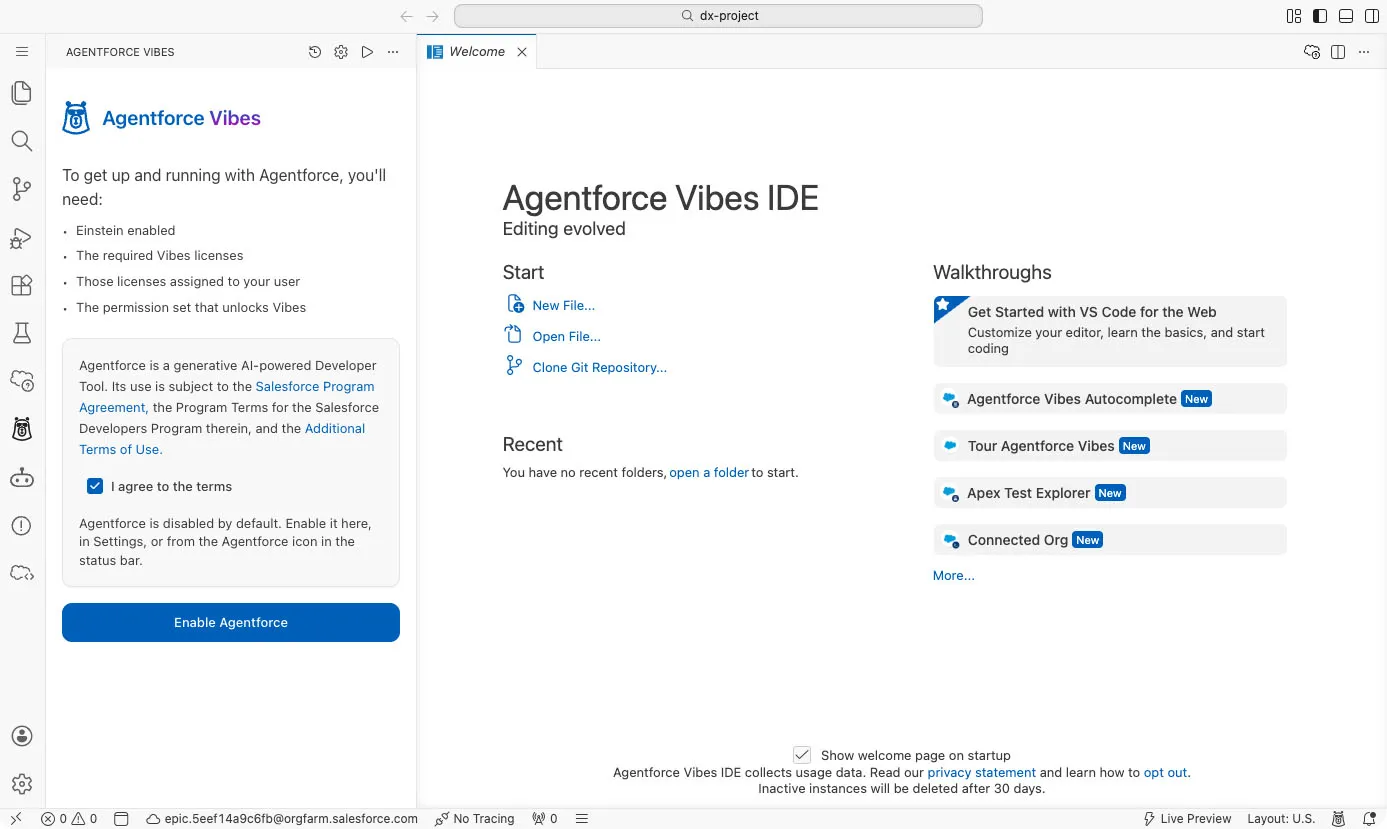
Once the IDE loads, check the Status Bar at the bottom for the Active project name, and note it down. Agentforce Vibes IDE can hold multiple projects at once, and later modules create additional ones, so you'll use this name to reopen this exact project (File > Open Folder from the hamburger icon in the Activity Bar) if a later module leaves a different one open.
The Agentforce Vibes Sidebar should be open by default, if it is not you can select the Agentforce Vibes Icon in the sidebar to open.
Click I agree to the terms and Enable Agentforce.
Step 3: Get Familiar with Agentforce Vibes IDE
In this step we familiarize ourselves with Agentforce Vibes IDE.
Open the Command Palette (press
CMD+SHIFT+Pon Mac orCTRL+SHIFT+Pon Windows) to access:- Agentforce Vibes commands
- SFDX commands
- Lightning Preview
- Project tools and utilities
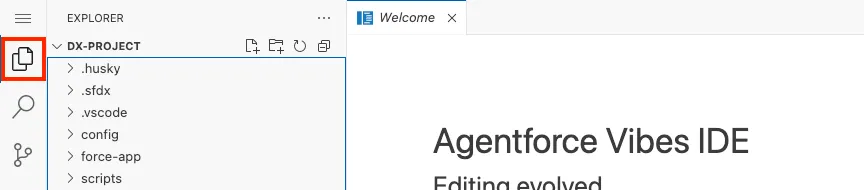
Open the Explorer Sidebar to view your project files. This is where all generated Apex classes, Lightning Web Components, and metadata will appear.
Open the Org Browser Sidebar (click the cloud icon in the Activity Bar or search for
Org Browser: Focus on Metadata Viewin the Command Palette).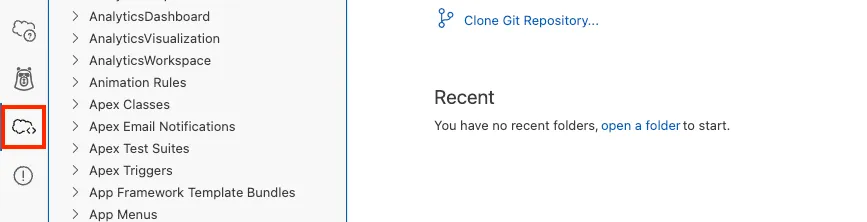
The Org Browser lets you:
- Browse metadata in your Pronto org
- Expand objects, fields, Apex classes, and LWCs
- Download metadata directly into your SFDX project
TIP
Downloaded metadata gives Agentforce Vibes the local context that it needs for fast, accurate planning and code generation. If Agentforce Vibes needs more context, it will use the MCP servers to analyze remote metadata from your org but this will take longer.
Open the Integrated Terminal by either
- Pressing
CTRL+`on both Mac and Windows. - Using the Hamburger menu > Terminal > New Terminal
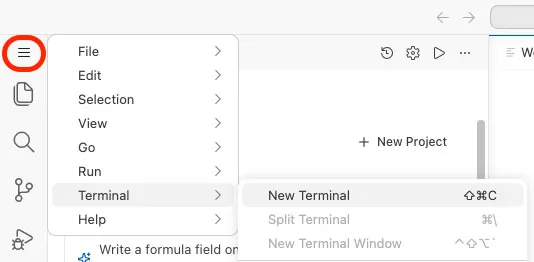
You can use the terminal to:
- View output from SFDX commands
- Run optional CLI commands
- Inspect logs or deployment messages
- Pressing
Check the Status Bar at the bottom of the IDE.
The Status Bar shows:
- Your authorized org
- Active project
- Lightning Preview activity
- MCP server status
You can open your org at any time from the status bar.

TIP
If something appears to be "stuck," the Status Bar is usually where you'll see what the IDE is waiting on.
Step 4: Explore the Agentforce Vibes Sidebar
In this step we take a look at the key features that can be configured as part of Agentforce Vibes.
Open the Agentforce Vibes Sidebar.
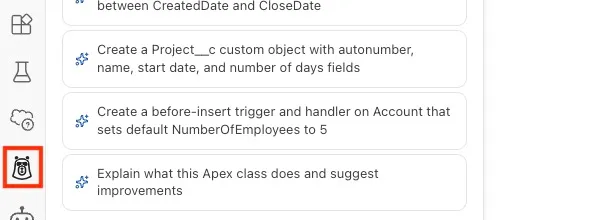
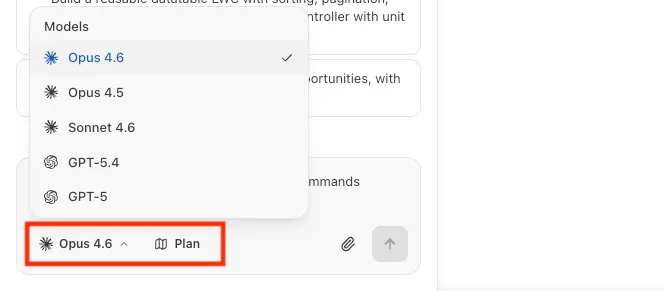
From here, you can:
- toggle between Chat and Plan mode.
- select the agent's reasoning model.
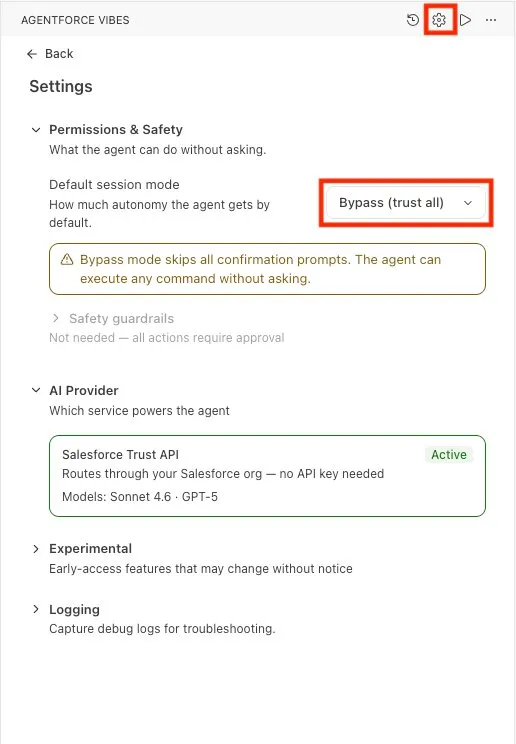
Click the Settings icon to modify the agent settings and determine what an agent can do on your behalf.
You can also auto-approve MCP tool usage.

Change Default session mode to Bypass (trust all).
This lets the agent take actions on your behalf for this workshop. Use your discretion when choosing a mode for your own projects.
Click Back.
Step 5: Manage MCP Servers, Skills, and Rules
Select the Toolkit tab in the sidebar to see all of the MCP servers, skills, and rules available to Agentforce Vibes.
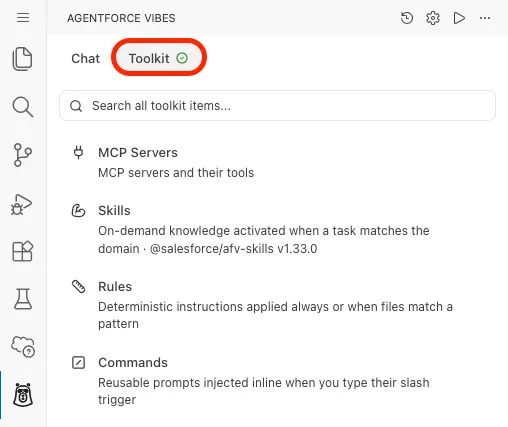
Select MCP Servers to review the preconfigured servers.
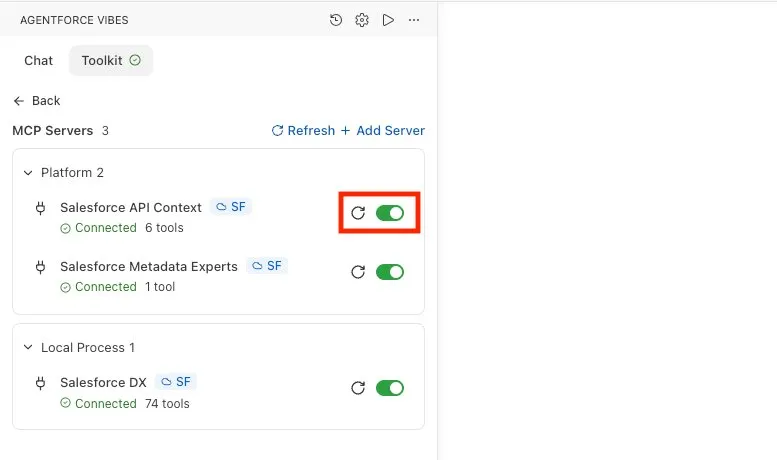
You should see these servers:
- Salesforce API Context: Provides org API context, including objects, fields, relationships, and metadata details that help Agentforce Vibes reason about your Salesforce data model.
- Salesforce Metadata Experts: Provides metadata-aware guidance for Salesforce development tasks, including how to use platform metadata correctly.
- Salesforce Headless 360: Lists the server you activated in the previous module. You can enable it here, but Agentforce Vibes doesn't rely on it for the exercises in this module.
- Salesforce DX: Lets Agentforce Vibes interact with your Salesforce DX project, retrieve metadata, run Salesforce CLI commands, and deploy changes.
TIP
If you see an error next to any MCP server, toggle the server off and back on to reconnect it to your org.
Click Back, then click Skills.
Skills are task-specific instructions that Agentforce Vibes can load when it needs Salesforce expertise. Here you can see the preconfigured
sf-skillsprovided by Salesforce. You can review the public repository at forcedotcom/sf-skills.Click Back, then click Rules.
Rules are persistent instructions that direct how the agent behaves across conversations. Here you can see two global rules that guide Agentforce Vibes by default.
Step 6: Update the Salesforce CLI
Open the Integrated Terminal by pressing
CTRL+`(on both Mac and Windows) or using the Hamburger menu > Terminal > New Terminal.Run the following command to update the Salesforce CLI to the latest version:
bashsf updateWait for the update to complete before continuing.
Summary
In this exercise, you've activated the two Salesforce-hosted MCP servers used by Agentforce Vibes. You've launched Agentforce Vibes and became familiar with the IDE. You explored key areas like the Command Palette, Explorer, Org Browser, Terminal, and Status Bar. You also reviewed the Agentforce Vibes sidebar controls for model selection, Plan mode, agent settings, MCP tool approval, MCP servers, skills, and rules, and updated the Salesforce CLI to the latest version.