Get Appointment Time Slots

A time slot is a period in a day when an appointment can be scheduled. Use the available-territory-slots Connect API to fetch the consolidated availability of each service resource within the selected territory.

  1. Create a page in your app where you can show the available time slots based on the work type group and service territory.

  2. Make a POST request on the available-territory-slots Connect API by passing the required workType and territoryIds parameters.

  3. Restrict the number of service resources returned by the request by passing a finite, integer value to the resourceLimit​ApptDistribution parameter.

    When appointment distribution is enabled, Salesforce Scheduler fetches and shows a list of appointment time slots based on the resource utilisation calculation frequency: monthly, parameter-based, or weekly. The Salesforce Scheduler uses the service resources’ utilization score for a specific period to suggest time slots for the least occupied resources. For more information, see How Appointment Distribution Works.

    In the custom app, you can hard code most of the parameters, including territoryIds and resourceLimit​ApptDistribution. Set the territoryIds parameter to the ID of the new virtual territory that you created in the beginning of this procedure. If the new territory is assigned to multiple work types, you can let your end user select a value for workType

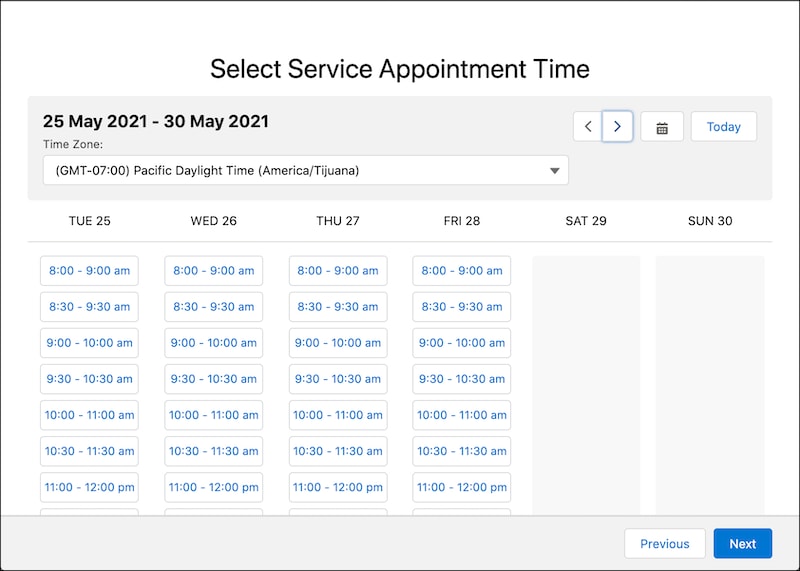
  4. Parse the JSON response, and show only the available time slots on the page so that users can select a time slot for their appointment. To ensure privacy, don’t show the service resources.

    Here’s how a page showing the available time slots can look.

    A representation of the Select Service Appointment Time screen.

  5. Write custom code to select the least utilized resource or to randomly select a service resource for the appointment based on the time slot that the user selects.

    This sample code automatically selects the least utilized resource from the list available for the selected time slot.

    1var serviceResourceId=resources[0]

    This sample code automatically selects a service resource and stores it in serviceResourceId. Pass the list of service resources available for the selected time slot in resources.

    1var index = Math.floor(Math.random() * Math.floor(resources.length)); 
    2var serviceResourceId=resources[index]

Example 

Resource URI

1https://YOUR_INSTANCE.salesforce.com/services/data/vXX.X/connect/scheduling/available-territory-slots

Where YOUR_INSTANCE is a variable.

For an Existing User (Account)

To consider an existing user’s preferred visiting hours, pass accountId in the input request body.

You can also specify the startTime and endTime parameters with the request.

The preference is enforced when the Enforce Account’s Visiting Hours policy rule is enabled.

Sample Request

1{
2    "accountId" : "001B000001McLhMIAV",
3    "workType" :  {
4        "id": "0VS2x000000PVu5GAG"
5      },
6    "resourceLimit​ApptDistribution" : 10,
7    "territoryIds" : [
8       "0Hh2w000000XmoXCAS"
9    ]
10 }

Sample Response

The API returns the available time slots and service resources based on resource utilization. The response returns only 10 least consumed resources, as specified by the resourceLimit​ApptDistribution parameter.

Setting a maximum number of resources you want to show for scheduling makes it possible to optimise performance for large territories, such as virtual or tele scenarios.

Note

1{
2    "result" : {
3       "territorySlots" : [ {
4       "slots" : [ {
5         "endTime" : "2021-05-24T17:00:00.000Z",
6         "resources" : [ "0HnB0000000LVbfKAG", "0HnB0000000TavDKAS", "0HnB0000000Tav3KAC", "0HnB0000000TauyKAC", "0HnB0000000TavMQAS" ],
7         "startTime" : "2021-05-24T16:00:00.000Z"
8       }, {
9         "endTime" : "2021-05-24T17:30:00.000Z",
10         "resources" : [ "0HnB0000000Tav3KAC", "0HnB0000000TaozKAL", "0HnB0000000TavMQAS", "0HnB0000000TaiOKCS", "0HnB0000000TacOLCM" ],
11         "startTime" : "2021-05-24T16:30:00.000Z"
12       }, {
13         "endTime" : "2021-05-24T18:00:00.000Z",
14         "resources" : [ "0HnB0000000Tav3KAC", "0HnB0000000TauyKAC", "0HnB0000000LVgfKBG", "0HnB0000000TayMQQS", "0HnB0000000TacOLCM" ],
15         "startTime" : "2021-05-24T17:00:00.000Z"
16       }, {
17         "endTime" : "2021-05-24T18:30:00.000Z",
18         "resources" : [ "0HnB0000000Tav3KAC", "0HnB0000000TauyKAC", "0HnB0000000LVgfKBG", "0HnB0000000TayMQQS", "0HnB0000000TacOLCM" ],
19         "startTime" : "2021-05-24T17:30:00.000Z"
20       }, {
21         "endTime" : "2021-05-24T19:00:00.000Z",
22         "resources" : [ "0HnB0000000LVbfKAG", "0HnB0000000TavDKAS", "0HnB0000000Tav3KAC", "0HnB0000000TauyKAC", "0HnB0000000TavMQAS" ],
23         "startTime" : "2021-05-24T18:00:00.000Z"
24       }, {
25         "endTime" : "2021-05-24T19:30:00.000Z",
26         "resources" : [ "0HnB0000000LVbfKAG", "0HnB0000000TavDKAS", "0HnB0000000Tav3KAC", "0HnB0000000TauyKAC", "0HnB0000000TavMQAS" ],
27         "startTime" : "2021-05-24T18:30:00.000Z"
28       }, {
29         "endTime" : "2021-05-24T20:00:00.000Z",
30         "resources" : [ "0HnB0000000LVbfKAG", "0HnB0000000TavDKAS", "0HnB0000000Tav3KAC", "0HnB0000000TauyKAC", "0HnB0000000TavMQAS" ],
31         "startTime" : "2021-05-24T19:00:00.000Z"
32       }],
33       "territoryId" : "0Hh2w000000XmoXCAS"
34       } ]
35    }
36 }

For a Guest User (Lead)

Sample Request

1{
2    "workType" :  {
3        "id": "0VS2x000000PVu5GAG"
4      },
5    "resourceLimit​ApptDistribution" : 10,
6    "territoryIds" : [
7       "0Hh2w000000XmoXCAS"
8    ]
9 }

Sample Response

The API returns the available time slots and service resources based on resource utilization. The response returns only 10 least consumed resources, as specified by the resourceLimit​ApptDistribution parameter.

Setting a maximum number of resources you want to show for scheduling makes it possible to optimise performance for large territories, such as virtual or tele scenarios.

Note

1{
2    "result" : {
3       "territorySlots" : [ {
4       "slots" : [ {
5         "endTime" : "2021-05-24T17:00:00.000Z",
6         "resources" : [ "0HnB0000000LVbfKAG", "0HnB0000000TavDKAS", "0HnB0000000Tav3KAC", "0HnB0000000TauyKAC", "0HnB0000000TavMQAS" ],
7         "startTime" : "2021-05-24T16:00:00.000Z"
8       }, {
9         "endTime" : "2021-05-24T17:30:00.000Z",
10         "resources" : [ "0HnB0000000Tav3KAC", "0HnB0000000TaozKAL", "0HnB0000000TavMQAS", "0HnB0000000TaiOKCS", "0HnB0000000TacOLCM" ],
11         "startTime" : "2021-05-24T16:30:00.000Z"
12       }, {
13         "endTime" : "2021-05-24T18:00:00.000Z",
14         "resources" : [ "0HnB0000000Tav3KAC", "0HnB0000000TauyKAC", "0HnB0000000LVgfKBG", "0HnB0000000TayMQQS", "0HnB0000000TacOLCM" ],
15         "startTime" : "2021-05-24T17:00:00.000Z"
16       }, {
17         "endTime" : "2021-05-24T18:30:00.000Z",
18         "resources" : [ "0HnB0000000Tav3KAC", "0HnB0000000TauyKAC", "0HnB0000000LVgfKBG", "0HnB0000000TayMQQS", "0HnB0000000TacOLCM" ],
19         "startTime" : "2021-05-24T17:30:00.000Z"
20       }, {
21         "endTime" : "2021-05-24T19:00:00.000Z",
22         "resources" : [ "0HnB0000000LVbfKAG", "0HnB0000000TavDKAS", "0HnB0000000Tav3KAC", "0HnB0000000TauyKAC", "0HnB0000000TavMQAS" ],
23         "startTime" : "2021-05-24T18:00:00.000Z"
24       }, {
25         "endTime" : "2021-05-24T19:30:00.000Z",
26         "resources" : [ "0HnB0000000LVbfKAG", "0HnB0000000TavDKAS", "0HnB0000000Tav3KAC", "0HnB0000000TauyKAC", "0HnB0000000TavMQAS" ],
27         "startTime" : "2021-05-24T18:30:00.000Z"
28       }, {
29         "endTime" : "2021-05-24T20:00:00.000Z",
30         "resources" : [ "0HnB0000000LVbfKAG", "0HnB0000000TavDKAS", "0HnB0000000Tav3KAC", "0HnB0000000TauyKAC", "0HnB0000000TavMQAS" ],
31         "startTime" : "2021-05-24T19:00:00.000Z"
32       }],
33       "territoryId" : "0Hh2w000000XmoXCAS"
34       } ]
35    }
36 }

On the next page, you can show the appointment details for the user to review and create the appointment.