Get Service Territories

Display the available service territories on the first screen of your appointment scheduling app.

A service territory represents a branch or office location where your service resources (appointment attendees) operate from or meet customers.

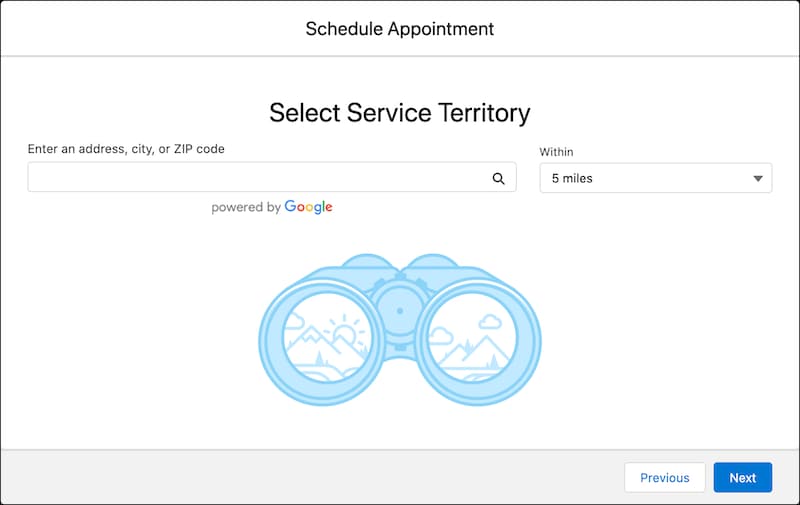
Create a page where you can provide users an option to search for service territories. Here’s how a Select Service Territory page can look.

A representation of the Select Service Territory screen.

You can search for service territories based on the user-entered name, city, postal code, or state. You can also calculate the distance between two location values, such as between a service territory and the user’s current location.

You can Retrieve records with locations within or outside of a certain radius with distance conditions in the WHERE clause of the query. For more information, see the WHERE clause section in Location-Based SOQL Queries.

  1. Use the Query() request on the ServiceTerritory object to retrieve a list of active service territories from your Salesforce org.

    Sample Request

    This sample REST API call uses the Query() request to retrieve service territories within a range of 1 mile from your current location. Default value is 5 miles.

    For more information on using Query() request, see Execute a SOQL Query.

    1https://YOUR_INSTANCE.salesforce.com/services/data/vXX.X/query/?q=
    2SELECT City,Country,Id,Name,State FROM ServiceTerritory WHERE DISTANCE(Address, GEOLOCATION(17.4358411,78.3467857), 'mi') < 1

    Where YOUR_INSTANCE is a variable.

    Sample Response

    The request returns the service territory records.

    1{
    2  "totalSize": 4,
    3  "done": true,
    4  "records": [
    5    {
    6      "attributes": {
    7        "type": "ServiceTerritory",
    8        "url": "/services/data/v55.0/sobjects/ServiceTerritory/0Hhx000000012oOCAQ"
    9      },
    10      "City": "Hyderabad",
    11      "Country": "India",
    12      "Id": "0Hhx000000012oOCAQ",
    13      "Name": "Apollo Hyderabad",
    14      "State": "TG"
    15    },
    16    {
    17      "attributes": {
    18        "type": "ServiceTerritory",
    19        "url": "/services/data/v55.0/sobjects/ServiceTerritory/0Hhx000000012oRCAQ"
    20      },
    21      "City": "Nanakaramguda",
    22      "Country": "India",
    23      "Id": "0Hhx000000012oRCAQ",
    24      "Name": "Somewhere",
    25      "State": "TG"
    26    },
    27    {
    28      "attributes": {
    29        "type": "ServiceTerritory",
    30        "url": "/services/data/v55.0/sobjects/ServiceTerritory/0Hhx000000012oQCAQ"
    31      },
    32      "City": "Hyderabad",
    33      "Country": "India",
    34      "Id": "0Hhx000000012oQCAQ",
    35      "Name": "Partner Service Territory",
    36      "State": "TG"
    37    },
    38    {
    39      "attributes": {
    40        "type": "ServiceTerritory",
    41        "url": "/services/data/v55.0/sobjects/ServiceTerritory/0Hhx000000012oSCAQ"
    42      },
    43      "City": "Hyderabad",
    44      "Country": "India",
    45      "Id": "0Hhx000000012oSCAQ",
    46      "Name": "JPMC Bank, Hyderabad",
    47      "State": "TG"
    48    }
    49  ]
    50}

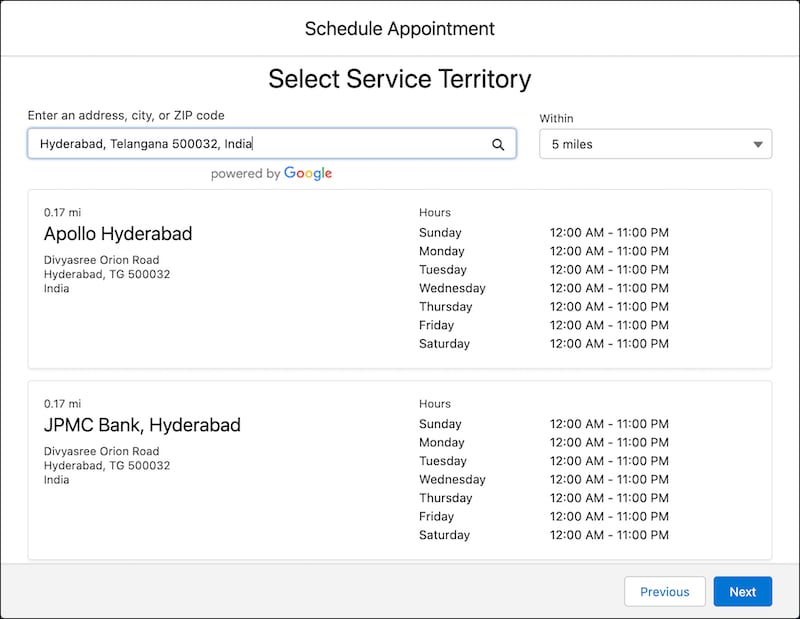
Parse the JSON response, and show the available service territories on the Select Service Territory page so that the user can select a service territory.

Here’s how the service territories are listed based on the users’ search.

A representation of the Select Service Territory screen.

On the next page in your app, you can show the work type groups.