Passwordless Login with Passkeys for Storefront Next
Storefront Next supports passwordless login with passkeys, letting shoppers sign in with a device biometric or security key instead of a password. Passkeys are built on the WebAuthn and FIDO2 standards and use public key cryptography: the shopper’s device holds a private key that never leaves the authenticator, and Shopper Login and API Access Service (SLAS) stores only the corresponding public key.
When you enable passkeys, a signed-in shopper can:
Register a passkey on a device with an authenticator.
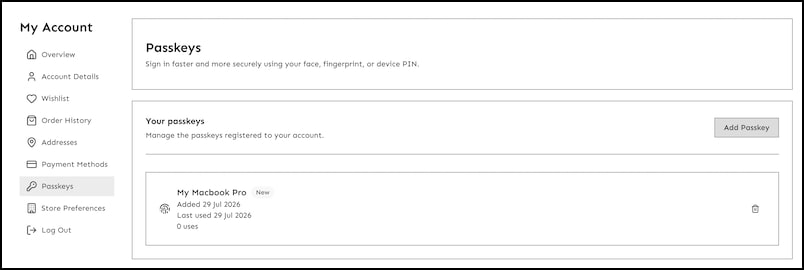
Manage (view and delete) their registered passkeys from their account.
Passkeys build on SLAS passwordless login. For the underlying API contract, request and response shapes, and server-side behavior, see Passwordless Login with Passkeys in the B2C Commerce API Developer Guide.
Hybrid storefronts that use Storefront Next don’t currently support passkeys.
Note
Prerequisites
A SLAS client configured for passkeys, with WebAuthn configuration (Relying Party ID and Allowed Origins) set through the SLAS Admin UI. See Before You Begin in the B2C Commerce API Developer Guide.
An OTP delivery method for authorizing registration. Registering a passkey requires the shopper to be signed in and to confirm a one-time passcode (OTP). The delivery method is controlled by features.passkey.mode (see Configure Settings).
Configure Settings
To control passkey settings, update the features.passkey object in config.server.ts.
1// config.server.ts2const config = {3 // ...4 features:{5 passkey:{6 enabled: false,7 mode: 'email', // 'email' | 'callback'8 callbackUri: '', // required only when mode is 'callback'9},10},11}
features.passkey.enabled: Specifies whether passkey registration and login are enabled (true) or not. Type: boolean. Defaults to false.
features.passkey.mode: The mode used to deliver the OTP that authorizes passkey registration. Type: 'email' | 'callback'. Defaults to 'email'.
email: SLAS emails the OTP to the shopper.
callback: SLAS POSTs the OTP to your callbackUri instead of emailing the shopper. Requires callbackUri to be set and registered for your SLAS client. Useful when you deliver the code through your own email or SMS provider.
features.passkey.callbackUri: The callback URI sent to SLAS when authorizing registration. Type: string. Required when mode is 'callback'. Must be an absolute URL pointing to an external service, for example https://example.com/passkey-callback.
The OTP length isn’t set on the features.passkey object. Instead, it comes from the shared auth.otpLength setting, which must match your SLAS client. For Storefront Next, the default value is 6. See Passwordless Login for Storefront Next.
Note
To override configuration options, use Managed Runtime (MRT) environment variables with the PUBLIC__ prefix.
The rpId and Allowed Origins aren’t set in the storefront config. They live on the SLAS client (see Prerequisites). SLAS returns these values to the browser during the WebAuthn ceremony.
How Passkeys Work in Storefront Next
Storefront Next calls the browser WebAuthn API and relays the results to SLAS through server-side route actions. There are two flows: registration (a signed-in shopper enrolls a passkey) and authentication (a returning shopper signs in with a passkey).
Register a Passkey
A shopper must be signed in (a registered user) to register a passkey. Registration is authorized with a one-time passcode.
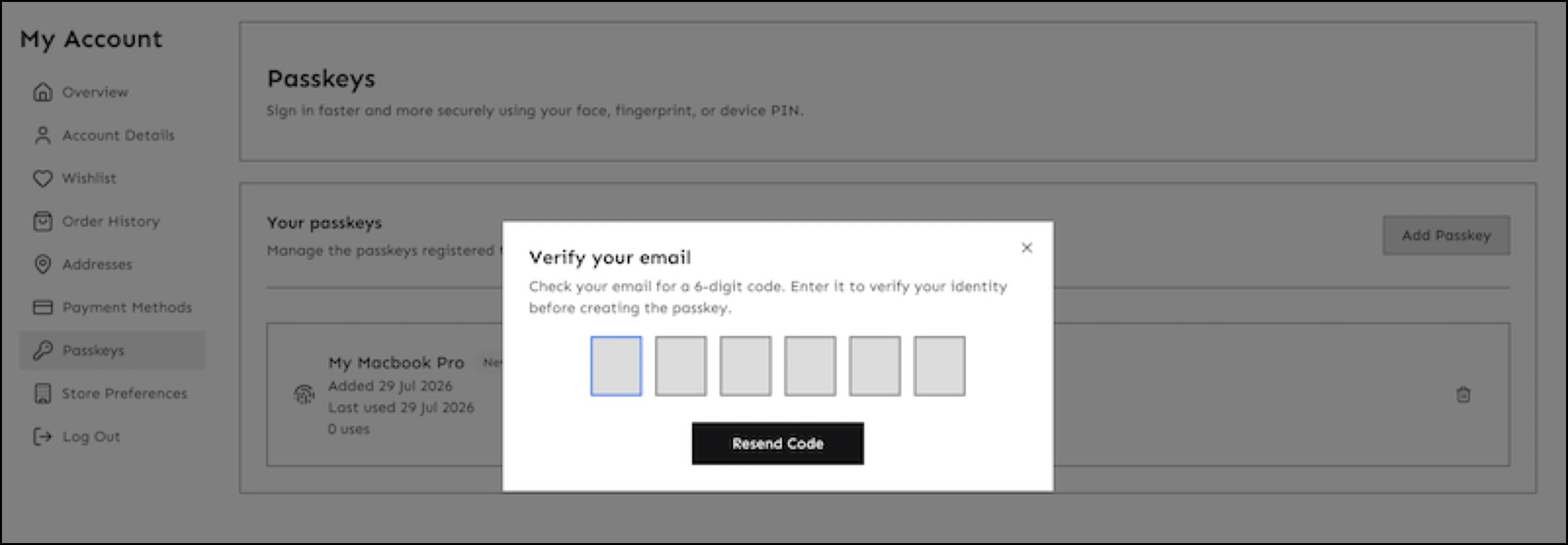
The signed-in shopper chooses to add a passkey. The storefront authorizes registration, and SLAS delivers an OTP according to features.passkey.mode.
The shopper enters the OTP.
The storefront starts registration, passing the pwdActionToken and an optional passkey nickname (up to 128 characters). SLAS returns WebAuthn credential-creation options, including a random challenge.
The storefront passes the options to navigator.credentials.create(). The browser prompts the shopper’s authenticator (biometric or PIN).
The authenticator generates a public/private key pair and returns a public key credential.
The storefront finishes registration, sending the credential and pwdActionToken. SLAS verifies the challenge, origin, and signature, then stores the public key.
The pwdActionToken ties the WebAuthn ceremony to a verified OTP. Start a fresh authorization if it expires. Don’t reuse a token or challenge across attempts.
Note
Sign In with a Passkey
Authentication signs a returning shopper in without a password.
The shopper chooses to sign in with a passkey. The storefront starts authentication. It can omit the shopper identifier to request a discoverable-credential challenge (the browser or autofill lets the shopper choose which passkey to use), or pass a userId to scope the challenge to a specific login.
SLAS returns authentication options, including the challenge, the allowCredentials list, and the rpId.
The storefront passes the options to navigator.credentials.get(). The browser prompts the shopper’s authenticator.
The authenticator returns an assertion, a digital signature proving the shopper controls the private key.
The storefront finishes authentication, sending the assertion and the current guest usid so the guest basket and wishlist are linked to the shopper. SLAS verifies the signature and returns a shopper access token in JSON Web Token (JWT) format.
The shopper is signed in. The storefront merges and recalculates the guest basket and merges any guest wishlist.
When passkeys are enabled, the account area can show whether a shopper has a registered passkey and let them remove one. The storefront queries passkey status for the signed-in shopper and can delete a specific credential by its ID. Provide this UI so shoppers can revoke access from lost or retired devices.
Best Practices
Keep rpId and Allowed Origins aligned with your deployment. When you add a domain, staging origin, or port, update the SLAS client’s WebAuthn configuration before shoppers reach it.
Match auth.otpLength to your SLAS client. The value sets the OTP modal’s slot count and the “we sent an N-digit code” copy. SLAS issues 6- or 8-digit codes.
Offer a fallback. Keep another sign-in method (email OTP or password) available for shoppers on unsupported browsers or new devices without a registered passkey.
Use callback mode only when you own the delivery. Set mode to 'callback' with a registered absolute callback URI when routing the OTP through your own email or SMS provider. Otherwise, keep the default email mode.
Troubleshoot Passkeys
Passkey registration or login fails silently in the browser
Potential cause: The storefront origin doesn’t match the SLAS client’s rpId or isn’t listed in Allowed Origins. The browser blocks the WebAuthn ceremony before any request reaches SLAS.
Suggested solution: In the SLAS Admin UI (or via the SLAS Admin API), confirm that rpId is the registrable domain of the storefront (for example, example.com) and that every origin the storefront runs on, including ports used in local or staging environments, is listed in Allowed Origins.
Passkey routes return 404 Not Found
Potential cause:features.passkey.enabled is false. Every passkey route returns 404 when the feature is turned off.
Suggested solution: Set features.passkey.enabled to true in config.server.ts (or via the PUBLIC__app__features__passkey__enabled environment variable) and redeploy.
Registration OTP never arrives
Potential cause: In callback mode, callbackUri is missing, not an absolute URL, or not registered for the SLAS client, so SLAS has nowhere to POST the OTP.
Suggested solution: Set features.passkey.callbackUri to an absolute URL (for example, https://example.com/passkey-callback) and register it for your SLAS client, or switch to email mode to have SLAS email the OTP directly.
Registration fails after the shopper enters the OTP
Potential cause: The pwdActionToken expired or was reused, or the challenge or origin didn’t validate on the SLAS side.
Suggested solution: Restart the flow so the shopper receives a fresh OTP and a new pwdActionToken. Don’t reuse a token or challenge. Confirm the browser-reported origin matches the SLAS client’s Allowed Origins.
Login starts but no passkey is offered
Potential cause: The shopper has no passkey registered for the account (or on the current device), so the allowCredentials list is empty.
Suggested solution: Route the shopper to registration or an alternative sign-in method. A passkey must be registered on the account and available on the device before it can be used to sign in.
Passkey login intermittently returns no options
Potential cause: SLAS is briefly throttling repeated authentication starts (HTTP 412). The storefront treats this as a silent no-op rather than an error.
Suggested solution: This is expected rate-limiting. Have the shopper retry after a short wait. Avoid triggering authentication starts in a tight loop.


 j
j