Connect Your Google Account to Agentforce Coworker
After an admin enables Google Workspace search for the org, connect your individual Google Account so Agentforce Coworker can search your Google Drive, Google Calendar, and Gmail.
These steps apply when your admin sets up Google Workspace as a federated search source. If your Google data is ingested through a Data 360 connector instead, you don’t connect your individual account.
REQUIRED EDITIONS, ROLES, AND PERMISSIONS
Available in:
Enterprise, Unlimited, and Agentforce 1 Editions
To use Agentforce Coworker:
Access_Ai_Search (API Name) Permission Set Group. Admins grant user access via Manage Users in Coworker Setup (recommended) or the main Setup menu.
In Salesforce, check that the Ask button appears near your search bar.
If you see the Ask button, Agentforce Coworker is enabled in your org.
If you don’t see the Ask button, ask your admin to enable Agentforce Coworker.
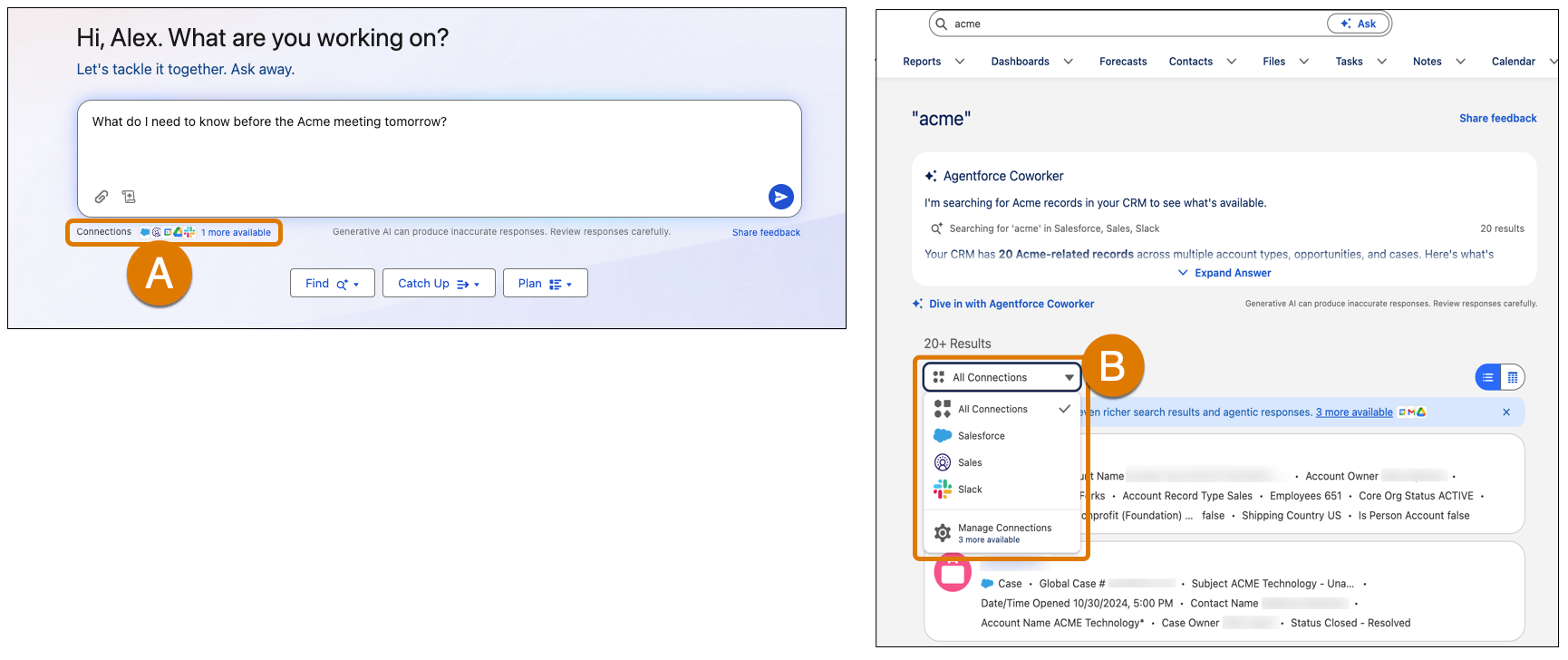
Connect to your Google account using one of these methods. Both methods open the same Manage Connections view, where you connect to a Google app from your available sources.
Method A: From the Ask button
Click the Ask button.
Below the input box, click the available connections link.
Method B: From the search results page
On the search results page, click the All Connections dropdown.
Click Manage Connections.
In the Manage Connections window, select a Google app.
In the Google sign-in window, select your Google account and click Allow.
On the Salesforce Confirm External Access page, click Confirm.
Repeat the steps for each Google app you want to connect
Considerations for Searching Your Google Workspace with Agentforce Coworker
Agentforce Coworker retrieves extracted text from supported Google Drive files. It doesn’t return the original file or preserve its visual layout.
File and Content Limits
Content
Limit
Details
PDF and Microsoft Office files
16 MiB
Applies to the uploaded source file
Google Sheets
5 MiB
Applies to the exported spreadsheet before text extraction
Google Docs and Google Slides
10 MB
Applies to the generated text export, not the original file size
Extracted text response
200 KiB per file
Longer content is truncated; a request can specify a smaller limit
Supported File Types
File type
Supported formats
Retrieval behavior
Google Docs
Google Docs
Returns exported document text
Google Slides
Google Slides
Returns slide text without images or visual layout
Google Sheets
Google Sheets
Extracts text from worksheets
PDF
.pdf
Extracts text from the available text layer; OCR isn’t performed
Microsoft Word
.doc, .docx
Extracts document text
Microsoft Excel
.xls, .xlsx
Extracts text from worksheets
Microsoft PowerPoint
.ppt, .pptx
Extracts slide text
Other text formats
.rtf, .txt, .csv
Returns extracted text
Unsupported Content
Agentforce Coworker can’t retrieve or analyze the following content:
Standalone images, audio, and video
Google Drawings, Google Forms, and Google Workspace file types not listed above
Text contained only in images
Scanned PDFs without a usable text layer
OCR, visual-layout interpretation, and analysis of charts or embedded images
Password-protected, encrypted, corrupted, and download-restricted files
Users can retrieve only files available to their connected Google Drive account.


 j
j