Make Google Workspace Apps Searchable in Agentforce Coworker

Use this guide to connect Google Drive, Gmail, and Google Calendar as federated data sources in Agentforce Coworker.

Unlike Data 360 Google connectors, federated search queries your Google Workspace in real time, with no data ingestion required. After the admin setup is complete, users can search accessible Google Drive files, Gmail messages, and Google Calendar events from the Salesforce global search bar.

REQUIRED EDITIONS, ROLES, AND PERMISSIONS
Available in:Enterprise, Unlimited, and Agentforce 1 Editions
To configure federated search sources:Salesforce Admin Role and Agentforce Coworker Admin Permission Set
To use Agentforce Coworker:Access_Ai_Search (API Name) Permission Set Group. Admins grant user access via Manage Users in Coworker Setup (recommended) or the main Setup menu.

Before You Begin 

Phase 1: Prepare Your Google OAuth 

  1. Go to your Google Cloud Console.
  2. Create or choose an existing Google Cloud project.
  3. Enable the Google Drive, Google Calendar, and Gmail APIs for your project.
  4. Create a Google OAuth 2.0 client ID and secret.
    • For Audience Type, select Internal.
    • For Application Type, select Web Application.
    • Keep the Client ID and Client Secret handy.

Phase 2: Add Google Workspace Apps as Data Sources 

  1. In Salesforce Setup, enter Agentforce Coworker in Quick Find.
  2. Click Get Started with Agentforce Coworker.
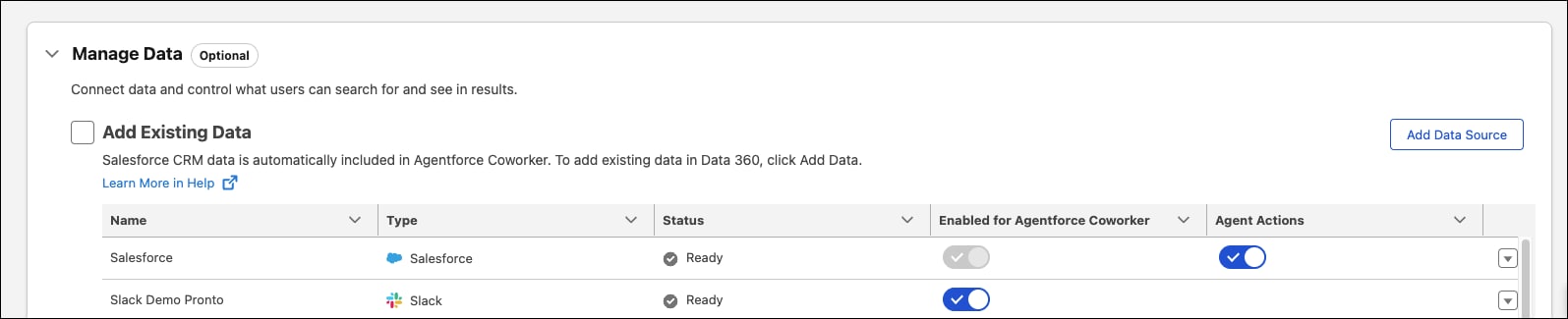
  3. Under Manage Data, click Add Data Source.

Image shows the Manage Data section with the Add Data Source button

  1. Select a Google app.

    Searchable fields and result settings for Google apps are preconfigured and unchangeable.

    Note

  2. Click Next.
  3. Enter your Google Cloud Console Client ID and Client Secret.
  4. Copy the displayed callback URL for the next section.
  5. Click Next.
  6. Name your data source.
  7. Click Save.
  8. Repeat steps 3–10 for each additional Google app.

Phase 3: Add the Callback URL in Google Cloud 

The callback URL is the same for all Google apps, so you only need to do these steps once.

  1. Go back to your Google Cloud Console. Make sure you’re in the correct project.
  2. In the left navigation, go to APIs & Services and then Credentials.
  3. Add the callback URL as an Authorized Redirect URI.
  4. Click Save.

Phase 4: Connect to Your Google Account 

After you enable Google Workspace search for the org (Phases 1 through 3), all users, including admins, connect to their individual Google Account.

To do that, follow the steps in Connect Your Google Account to Agentforce Coworker.