Make Data 360 Objects Searchable in Agentforce Coworker
When you turn on Agentforce Coworker, your Salesforce CRM data is automatically added as a source. To also search Data Model Objects (DMOs) from Data 360, you need to add them manually. Adding Data 360 sources is optional but recommended.
REQUIRED EDITIONS, ROLES, AND PERMISSIONS
Available in:
Enterprise, Unlimited, and Agentforce 1 Editions
To turn on, configure, or grant access to Agentforce Coworker:
Salesforce Admin Role and Agentforce Coworker Admin Permission Set
Step 1: Select Data 360 as a Source
On the Agentforce Coworker setup page, find Manage Data.
Select Add Data Source.
Select Data 360 to choose any Data Model Object (DMO) in Data 360.
Click Next.
Step 2: Choose Objects to Include
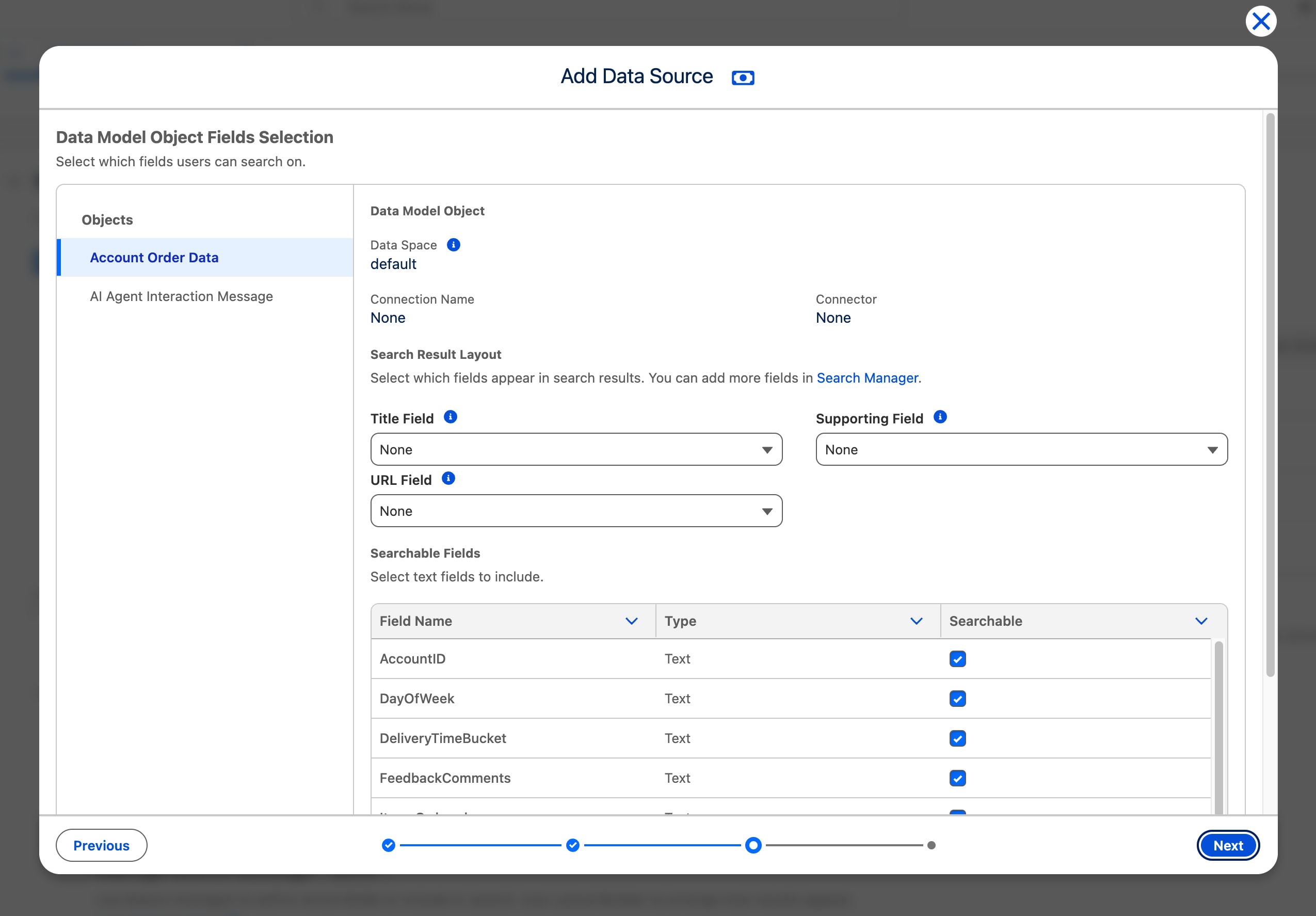
On the next page, select data to include in search from the available DMOs. Select all DMOs that you want to be grouped as a source.
For each selected DMO, define the search result fields and choose the specific fields to index and make searchable. Here’s some more information on what the fields do in your search results:
Title Field: Automatically indexed and acts as the title for search results and suggestions. If a title field isn’t selected, the record ID displays, and the object is excluded from typeahead.
Supporting Field: Appears as the secondary field of the record in suggestions and search results, if the data source doesn’t have preconfigured settings.
URL Field: Defines the target URL when a user clicks a search result title. It’s hidden unless the layout is customized to include the field. If undefined, the user is redirected to the record page in Data 360.
Searchable Fields: Indexed fields you can search to retrieve results. For example, if the City field is searchable for the Person DMO, search for a person by city name. Only text fields can be indexed.
For each additional DMO, select it in the left-side panel and repeat the field definitions above. Click Next when done.
Name the Agentforce Coworker data source. The name is visible to end users. Click Save to begin processing indexes, metadata, and result layout.
After the configured data source completes indexing, it automatically turns on. Processing time depends on the amount of data ingested in Data 360. See the Add Existing Data table for status updates.


 j
j