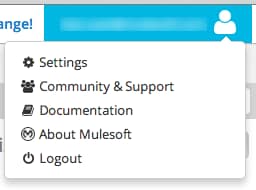
The user menu in Dataloader from MuleSoft gives you quick access to settings, notifications, help, and account actions.
The menu lists Settings, release notifications, Community & Support, Documentation, About MuleSoft, and Logout. It also shows your default Salesforce connection and how many notifications are waiting.
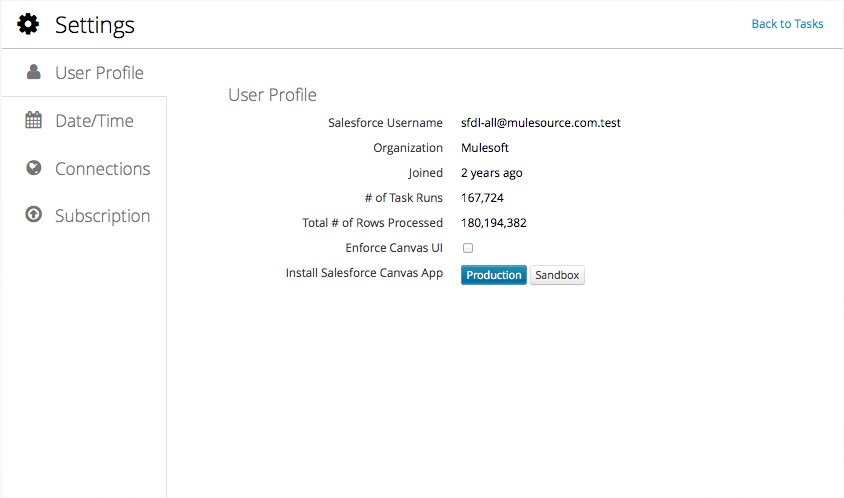
From Settings, you can update your user profile, set your default date format and time zone, manage cloud storage connections, and review or change your subscription plan and billing details.
Notifications
Release notifications appear in the user menu when a product update is available.
Settings
On the Settings page, view your profile, set your default date format and time zone, manage connections, and change subscription terms. To return to the task list, click Back to Tasks.
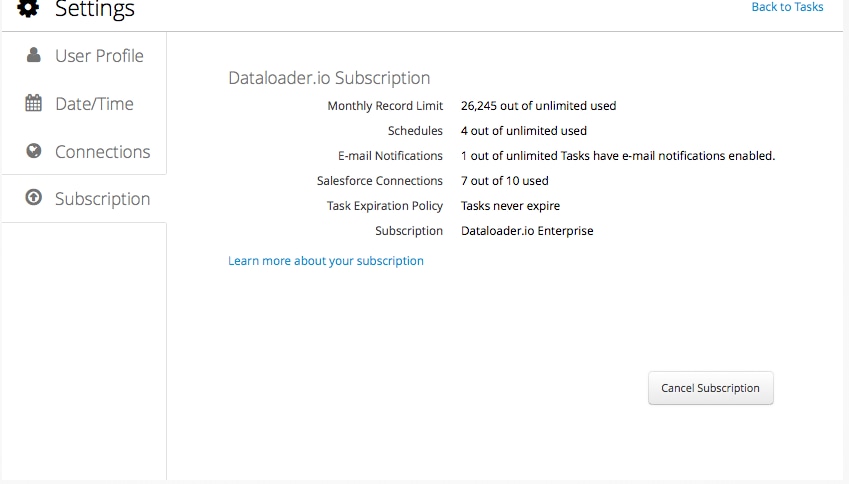
On the Subscription tab, review your plan, usage limits, and billing. Change or cancel your subscription from this tab as needed.
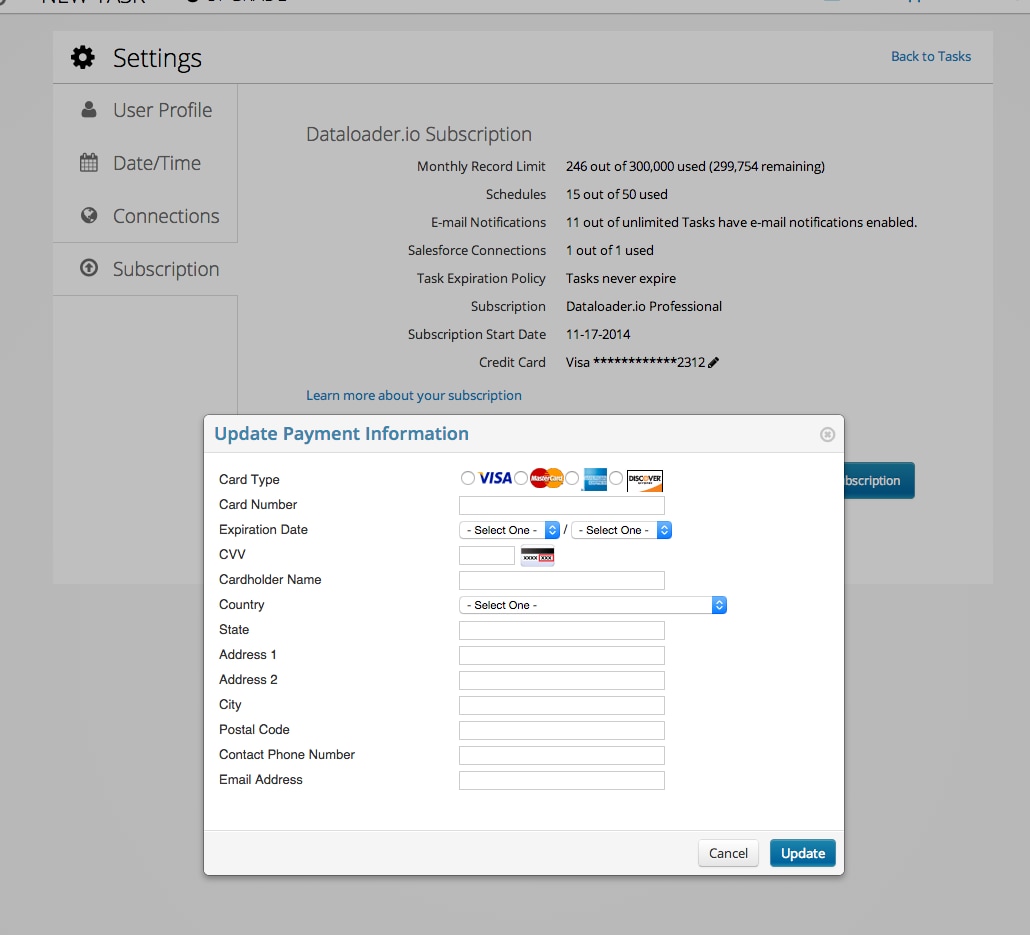
If you have a paid subscription, update payment information by clicking the pencil (edit) icon for the credit card details.


 j
j